
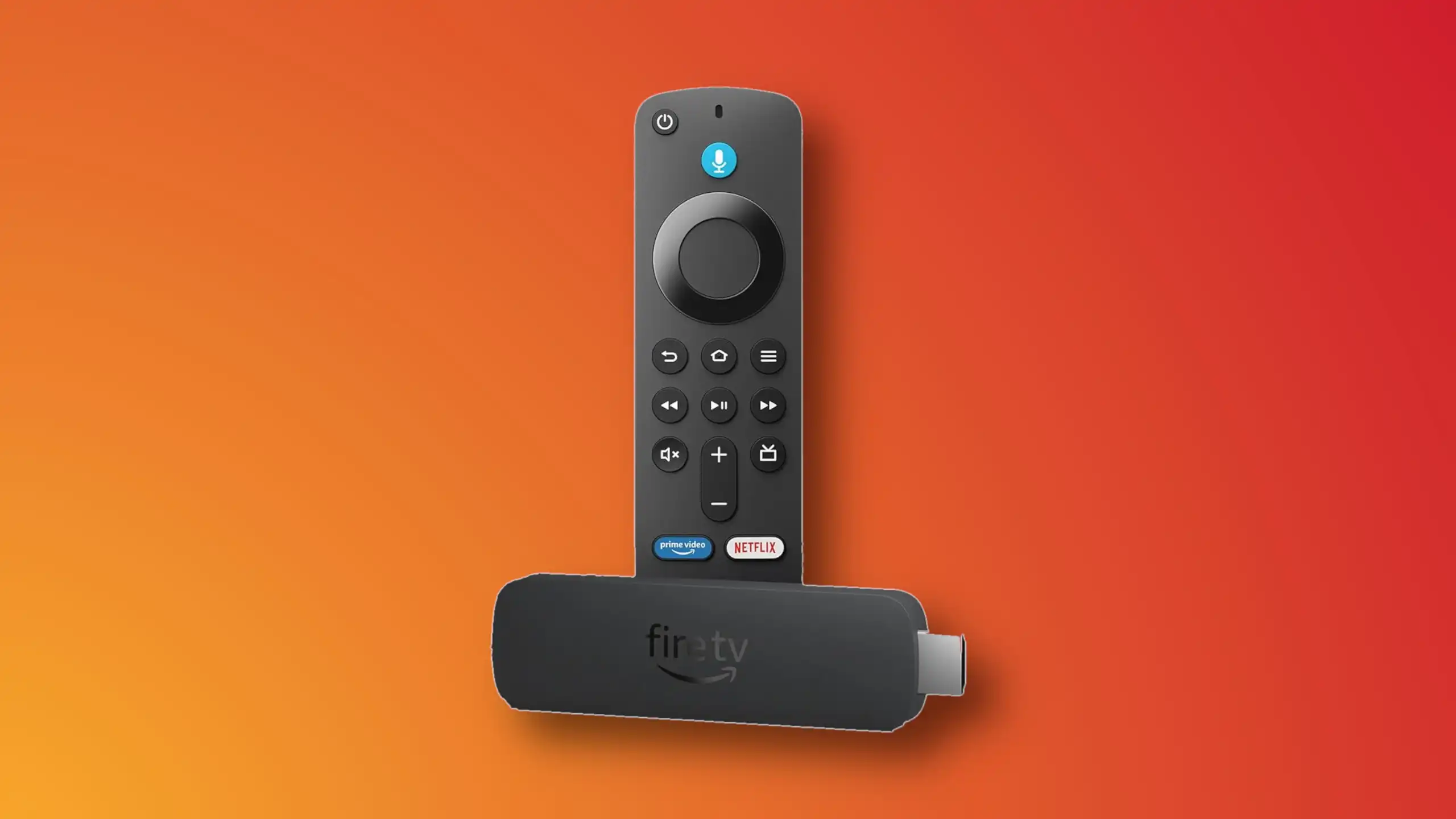
Installing IBO Player on Amazon Fire TV Stick

1- From the dashboard of the Amazon Fire TV Stick, move over on the magnifier icon, then click down to highlight the search field. After that click OK.

2- We need to install an application called Downloader which enables us to side-load and install applications from outside of Amazon App Store. When the virtual keyboard pops up, click D. Then you should see the first suggestion as Downloader, move over to it and click OK.

3-Choose the app by selecting it. This will initiate the installation.
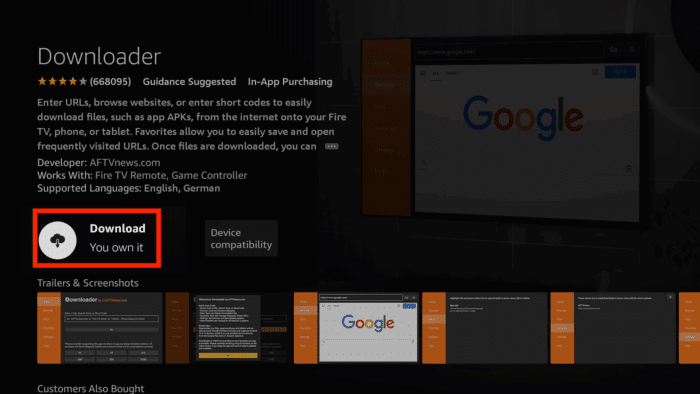
4- Fulfill this step by clicking Download.

5- A pop up message should show up prompting you to grant media access to Downloader. Click Allow.

6- Once the app is loaded. Move the selection to the search field on top of yellow Go button and press OK on the remote.

7- The official Downloader code for IBO Player android version is 511693. Type this in and click Go.

8- IBO Player is being downloaded from the official website. You can also notice that from the left column, we are now on Browser section. Do not touch anything until this step sorts itself.

9- Wait while download is in progress.

10- Amazon security bumps the installation since the file is from out side of amazon app store. We need to enable the installation permission for Downloader. Click Settings.

11- Click Install Unknown Apps.
Note: If you do not see the above section and Developer option is not visible, move the selection on About and press OK button on the remote 7 times. After that Developer Options should appear. Then select it and follow the steps.
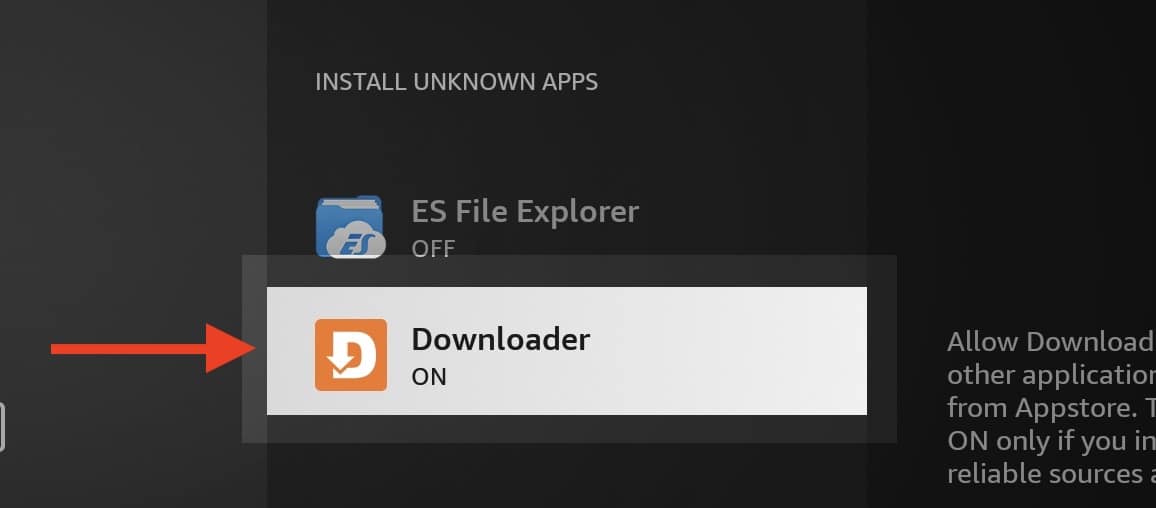
12- Select Downloader and click OK button so the OFF changes to ON.

13- Now we can proceed with installation of IBO player on Fire Stick which is pretty normal with few Next and OK.

14- Once the app is installed, above should be the first message popping. Click OK.

15- App is ready.
1. We first install the Downloader app
This app will help you download IPTV Smarter on FireStick (because browser downloads are not allowed).
2. click on the Search > Search Option on the FireStick home screen
3. Enter the name of the application (this is Downloader)
click on the Downloader option when displayed in search results
Choose the one Downloader icon on the following screen and download and install the app.
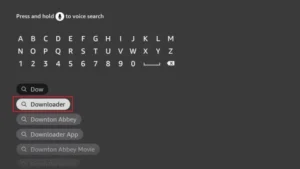
4. After installing the downloader app, return to the FireStick home screen
Click in the menu bar Settings.
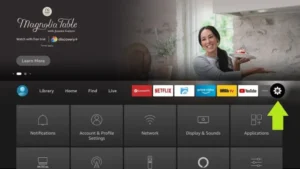
5. In Settings, select the option My Fire TV.
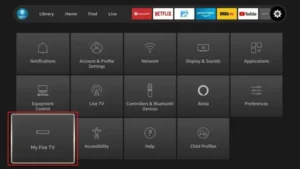
6. When the following options appear on the next screen, click Developer options
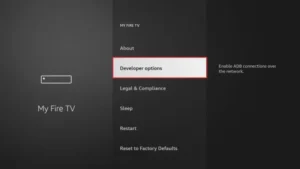
7. click on Install from unknown applications.
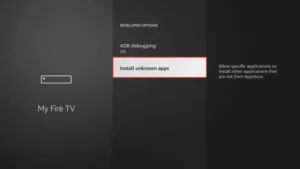
8. click on Downloader to change the status to ON
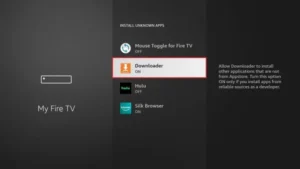
You have now configured the FireStick settings so that the installation of IPTV smarters and other third-party apps is possible. Follow the steps below:
9. You can now see Downloader app!
When you first launch this application, you will see a series of prompts. Ignore these until you see the following screen
In this screen you need to click on the URL text box on the right side (make sure Home page option is selected in the left menu) where it says ‘http://’
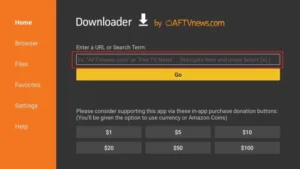
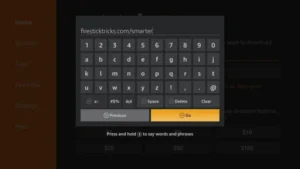
10. In this window, enter the following code: 6468112
click on GO
11. Wait a minute or two for the IPTV Smarter to download on your FireStick.
12. When the download is complete, the downloader app will run the APK file and the installation will begin.
click on Installer
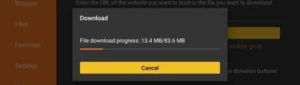
13. Wait for the installation to complete.
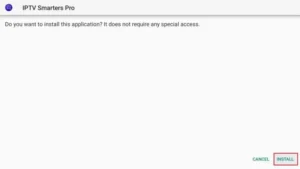
14. The installation is completed with this App installed Report
You can now click OPEN and get started with IPTV Smarters
I recommend choosing DONE so you can first delete the APK file to save storage space on FireStick.
15. Choose to connect with XTREAM codes API to avoid entering all m3u files.
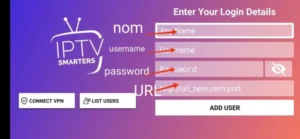
16- Enter your emailed login details and press ADD USER to connect.
Step 1 – Download the Correct App
BY popular demands, there was no way I would have forgotten about our non-android Smart TV devices. For this example, we’re using an LG Smart TV with WebOS. For other devices like Samsung or Toshiba, steps are basically the same.
Go to your Samsung or LG App Store.
Search for “Ibo Player”.

 Important: There are many fake versions of this app.
Make Sur to download from official app stores
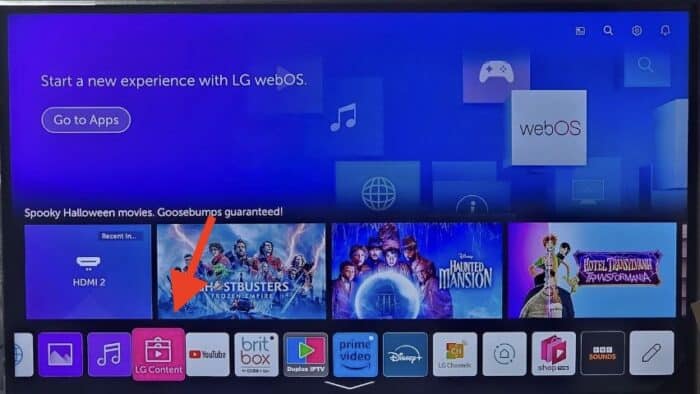
1- Open LG Content Store.
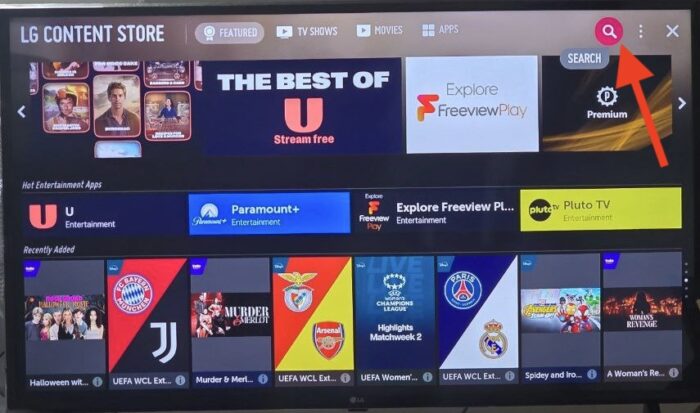
2- From the top right corner, click the magnifier icon to search.

3- Type-in IBO Player to look for this app.

4- In the results, choose the right application as shown above. You might see other variations with similar names, disregard them and only focus on “Ibo Player”.

5- Click Install to initiate the installation.

6- Select Launch to open up IBO player.

7- After a successful installation, a welcome message will pop up for the first time.
- You will need the Mac address and activation code in order to add the playlist.
1. Open the App Store on your device and search for Vu Player Pro.

2. Within the Vu Player Pro app, go to the settings or profile section, You will find your Mac Address and Device Code displayed within the app.
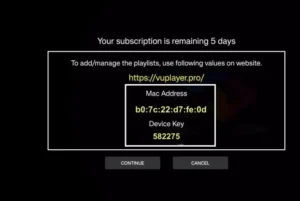
3. Now go to the website: https://vuplayer.pro/login
and enter the Mac address (Device ID) and the device key (Device Key).
4. Select the M3u link or Xtream code to upload your data. The data will be sent to your email address.
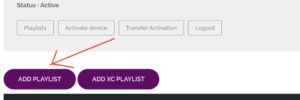
5. Restart your app and enjoy!
1. Open the App Store on your device and search for Hot Player.

2. Within the Hot Player app, go to the settings or profile section, You will find your Mac Address displayed within the app.
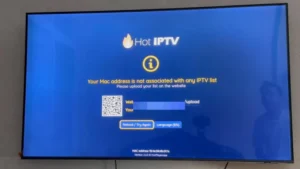
3. Now go to the website: https://hotplayer.app/upload
And enter the Mac address (Device ID).
4. Select the M3u link to upload your data. The data will be sent to your email address.
5. Restart your app and enjoy!
Step 1 – Download the Correct App
Go to your Samsung or LG App Store.
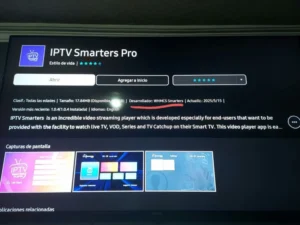
Search for “IPTV Smarters Pro”.
 Important: There are many fake versions of this app.
Make sure the Developer is WHMCS Smarters (see screenshot below).
Step 2 – Choose Login Method
When the app opens, select XTREAM Codes API (recommended).
This avoids entering long m3u links manually.
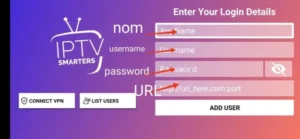
Step 3 – Enter Your Details
Fill in the login details we emailed you:
Playlist Name → You can type any name, e.g., MY TV
Username
Password
Server/Portal URL
Press ADD USER to connect.
 You are now ready to start watching Live TV, Movies, and Series
How to install IBO Player on Android phones and tablets?
The installation on these devices is very easy since we have quick access to the browser and can easily download and install the file.

1- Either from IBO player official website or from our application download center, get the installation file.

2- No wonder why you are warned about this, the file is downloaded from outside of your android device app store. However it’s safe. Click Download Anyway.
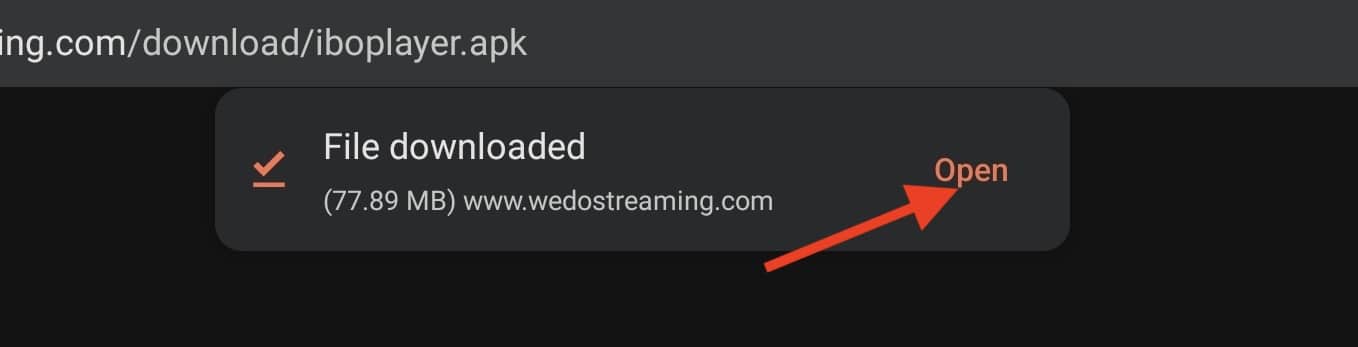
3- Open the file.
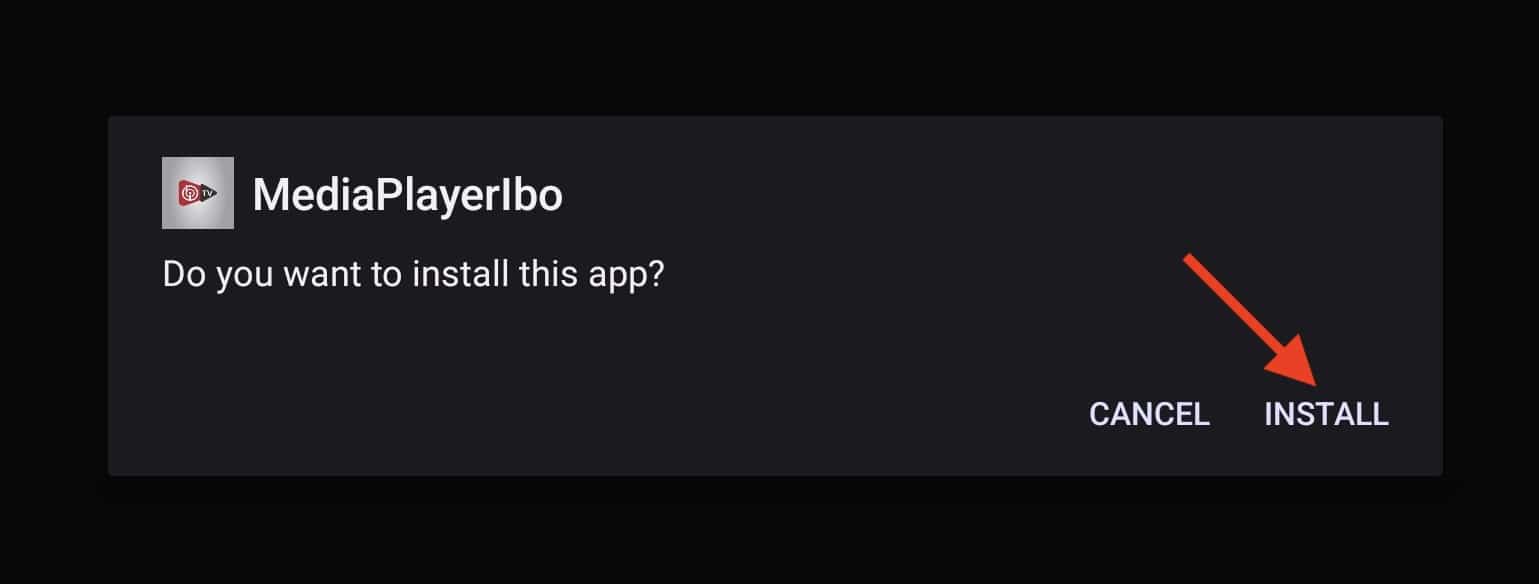
4- Click Install.

5- IBO Player is installed, now you can open it.
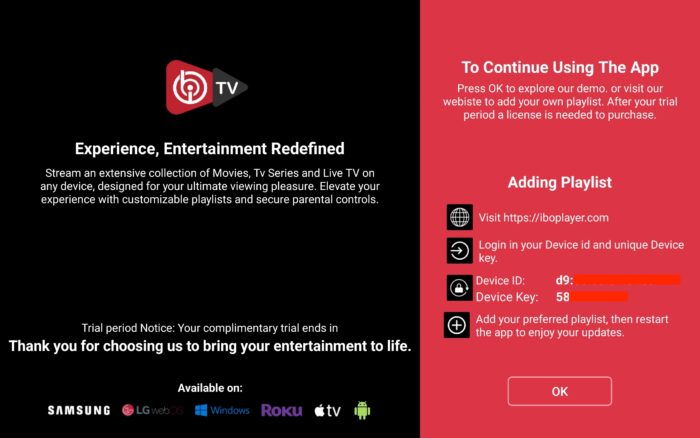
6- Right after opening the app for the first time, you will be presented with this introductory page. It’s actually very informative and clarifies what should be done. We will cover the playlist addition , just contact our support team.

7- It’s loaded and ready for action.
1. Open your Play Store and search for TiviMate IPTV Player.

2. Open the application, go to this screen and select “Xtream Codes”.
3. Now simply enter the server URL, username, and password that you received from us via email.
1. Open the Play Store on your device and search for Hot Player.
2. Within the Hot Player app, go to the settings or profile section, You will find your Mac Address displayed within the app.
3. Now go to the website: https://hotplayer.app/upload
And enter the Mac address (Device ID).
4. Select the M3u link to upload your data. The data will be sent to your email address.
5. Restart your app and enjoy!
Step 1 – Download the Correct App
Go to your Samsung or LG App Store.
Search for “IPTV Smarters Pro”.
- Important: There are many fake versions of this app.
Make sure the Developer is WHMCS Smarters (see screenshot below).
Step 2 – Choose Login Method
When the app opens, select XTREAM Codes API (recommended).
This avoids entering long m3u links manually.
Step 3 – Enter Your Details
Fill in the login details we emailed you:
Playlist Name → You can type any name, e.g., MY TV
Username
Password
Server/Portal URL
Press ADD USER to connect.
You are now ready to start watching Live TV, Movies, and Series
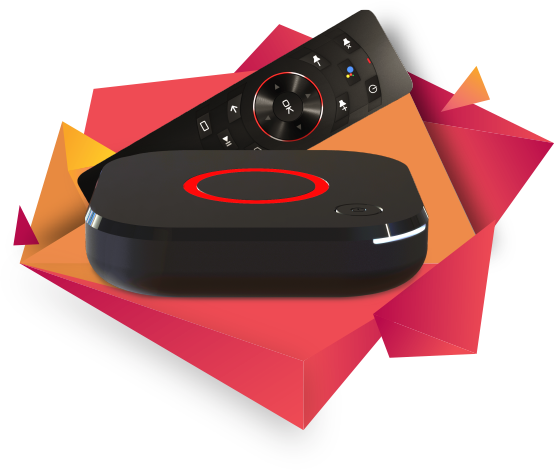
Step 1 – Choose Login Method
When the app opens, select XTREAM Codes API (recommended).
This avoids entering long m3u links manually.
Step 2 – Enter Your Details
Fill in the login details we emailed you:
Playlist Name → You can type any name, e.g., MY TV
Username
Password
Server/Portal URL
Press ADD USER to connect.
You are now ready to start watching Live TV, Movies, and Series
1. Go to the back of your Formuler Z where the Mac ID is indicated.
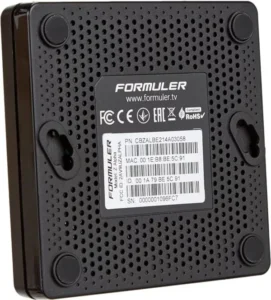
2. Make sure you provide us with the Mac ID when ordering your package. Mac ID usually starts with 00:1A…
You can also find it on the MyTvOnline app.
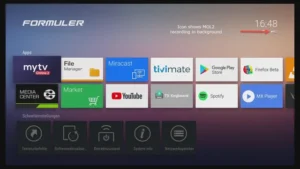
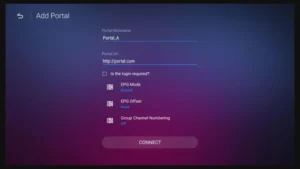
3. Once we receive your order with the Mac ID, we will send you the portal URL. Make sure to enter the portal URL in the MyTvOnline app (no username or password required).
1. Go to the back of your Mag where the Mac ID (Or Mac Address) is indicated.
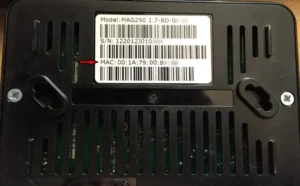
2. Make sure you provide us with the Mac ID when ordering your package. The Mac ID usually starts with 00:1A….
3. Go to Settings, then System Settings, then Servers, Then Portal.
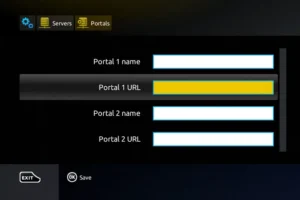
4. Enter the portal URL that we emailed you.
After completing all the above steps, press “EXIT” on the remote twice to restart the gate. Now everything is ready to watch live TV…
Suivez les étapes ci-dessous pour configurer l'IPTV sur Kodi :
1. Lancez Kodi et sélectionnez Paramètres.

2. Cliquez sur Add-ons
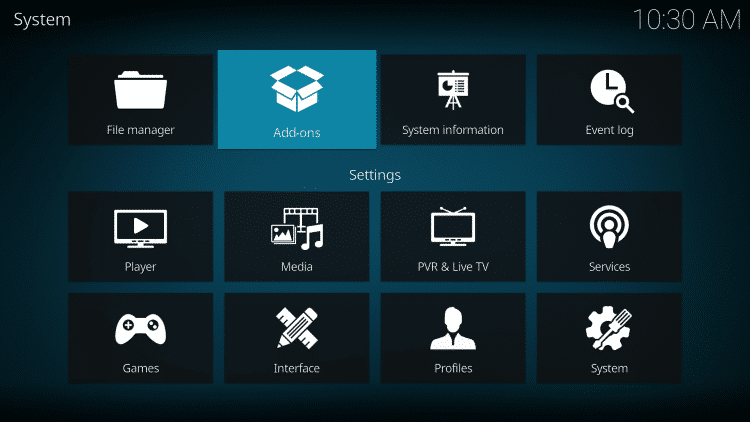
3. Choisissez Installer à partir du référentiel
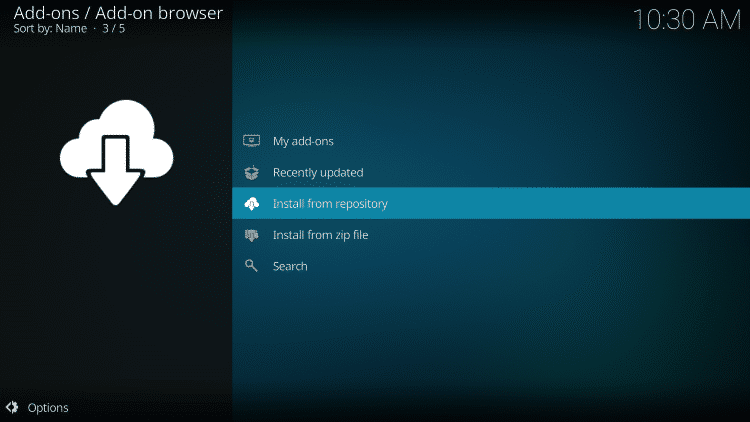
4. Cliquez sur Clients PVR
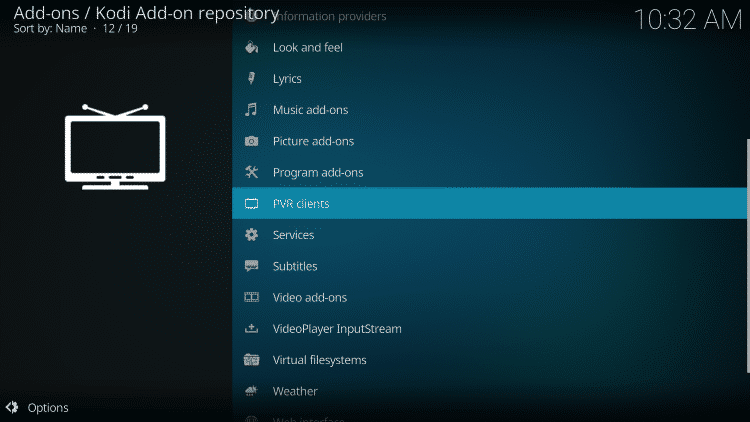
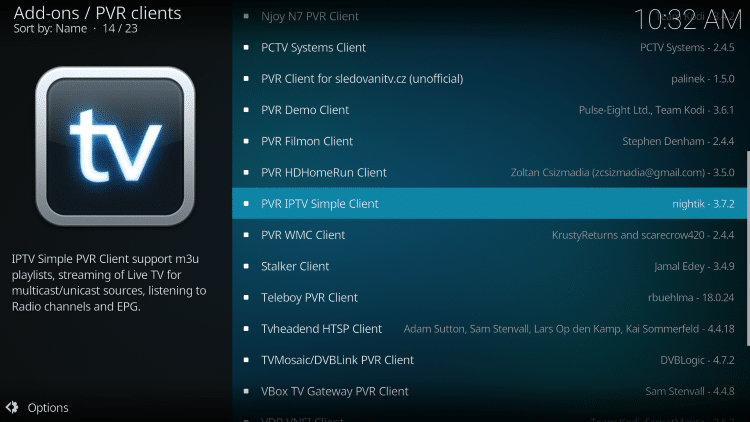
5. Faites défiler vers le bas et choisissez PVR IPTV Simple Client
6. Cliquez sur Installer
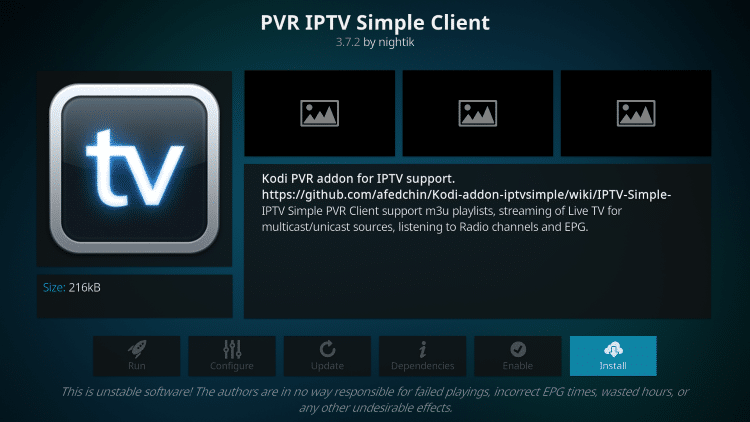
7. Attendez que le message PVR IPTV Simple Client Add-on Installed apparaisse.
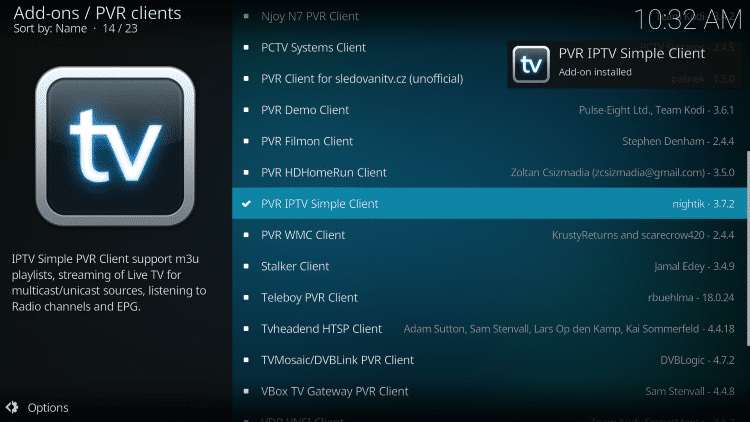
8. Cliquez à nouveau sur PVR IPTV Simple Client
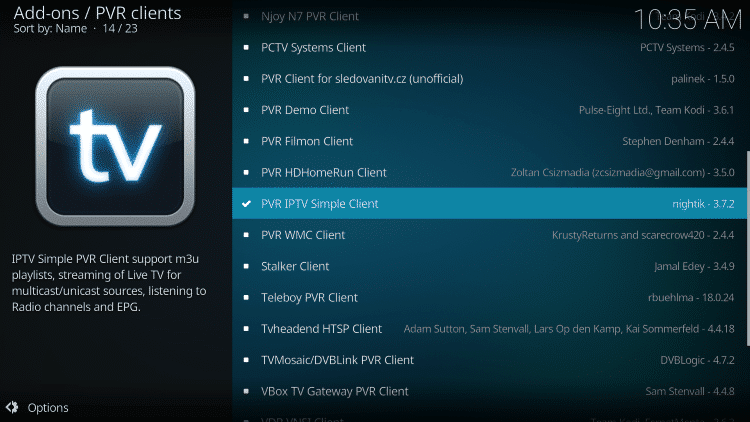
9. Cliquez sur Configurer

10. Sous General, survolez et sélectionnez M3U List Link.
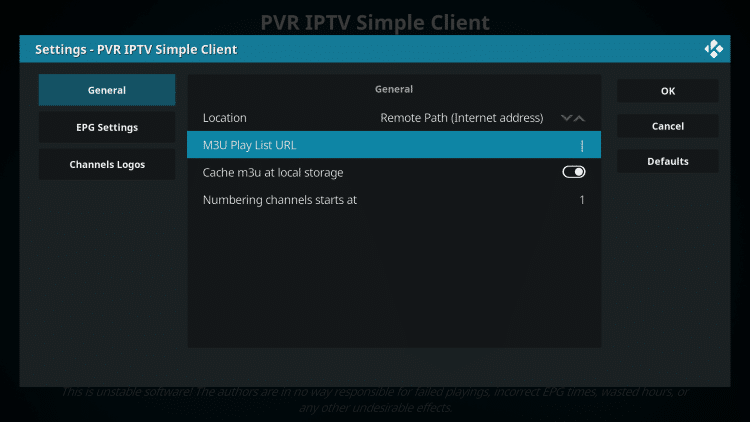
11. Saisissez le lien M3U fourni par votre service IPTV avec vos informations de compte, puis cliquez sur OK.
NOTE : vous aurez généralement deux M3U Link. L'un concerne les listes de chaînes et l'autre l'EPG (guide TV). Nous insérerons le lien EPG M3U à l'étape 8 ci-dessous.
La plupart des liens M3U vous demandent de saisir votre nom d'utilisateur et votre mot de passe. Vous verrez généralement où ils se trouvent dans le lien, comme indiqué par "username=xxxx" & password=xxxx".
Vous devez entrer votre nom d'utilisateur et votre mot de passe à l'endroit où se trouvent les x.
Voici un exemple de lien M3U.
Il ne s'agit pas d'un véritable lien M3U, mais voici à quoi ressemble la structure :
.
Une fois que vous avez inséré votre nom d'utilisateur et votre mot de passe dans le lien m3u, vous pouvez utiliser le service bit.ly et raccourcir le lien m3u pour qu'il soit plus facile à taper dans la case ci-dessous. C'est ce que nous avons fait.
Si vous ne voulez pas utiliser bit.ly, vous devez vous assurer que l'adresse est saisie dans la zone sans erreur. Un seul caractère erroné dans l'adresse et cela ne fonctionnera pas.

12. Survolez les paramètres EPG et choisissez XMLTV Link m3u
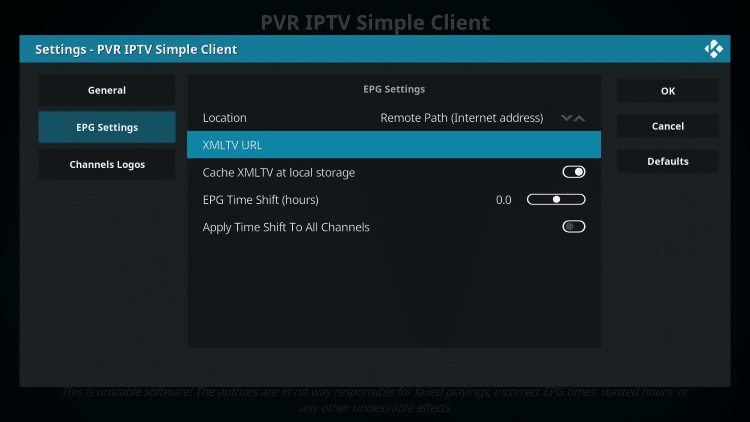
13. Saisissez le lien EPG M3U ou le lien bit.ly abrégé de votre guide TV, puis cliquez sur OK.
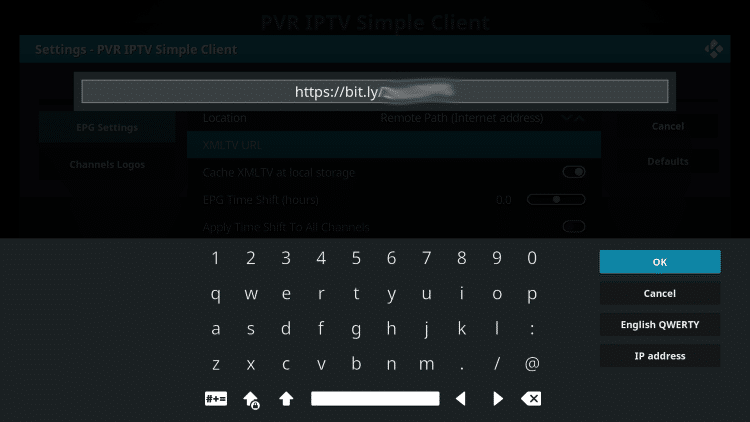
14. Cliquez à nouveau sur OK
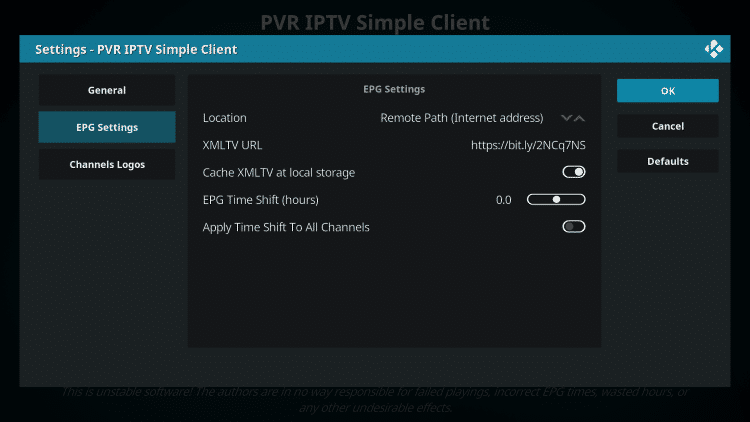
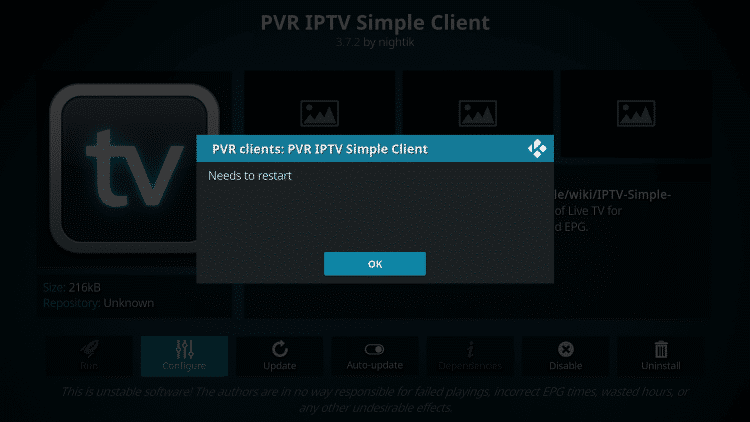
15. Cliquez sur OK lorsque le message Reboot Needs (Redémarrage nécessaire) s'affiche.
16. Forcez Kodi et rouvrez l'application. Attendez que PVR Manager démarre et que les chaînes soient téléchargées (cela peut prendre quelques minutes).
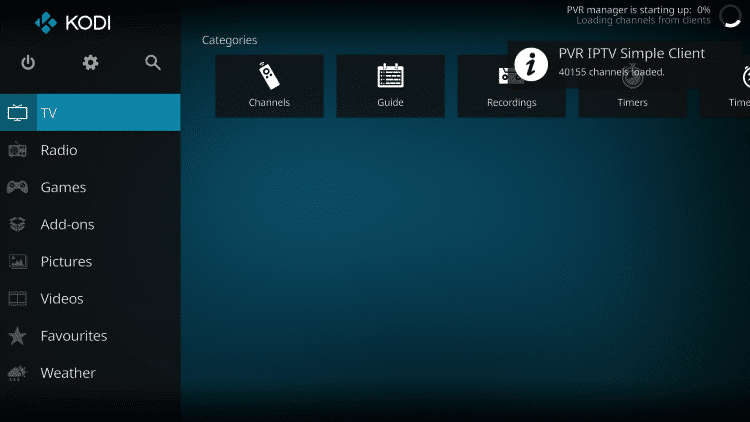
Lorsque vous aurez terminé, vous verrez le message chargé Chaînes de clients simples
Le tour est joué ! L'installation est terminée
PVR IPTV Simple Client Details & Description Guide
Vous pouvez maintenant accéder au service IPTV en cliquant sur Chaînes ou Guide.
L'option Guide est illustrée ci-dessous :
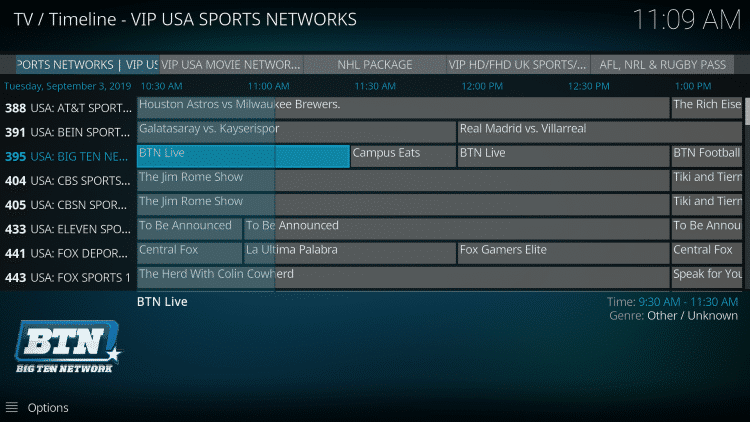
Appuyez sur la touche de sélection de votre télécommande pour afficher les options suivantes :

Vous pouvez choisir entre les informations, les chaînes, le guide et les réglages.
Les paramètres vous offrent ces options :
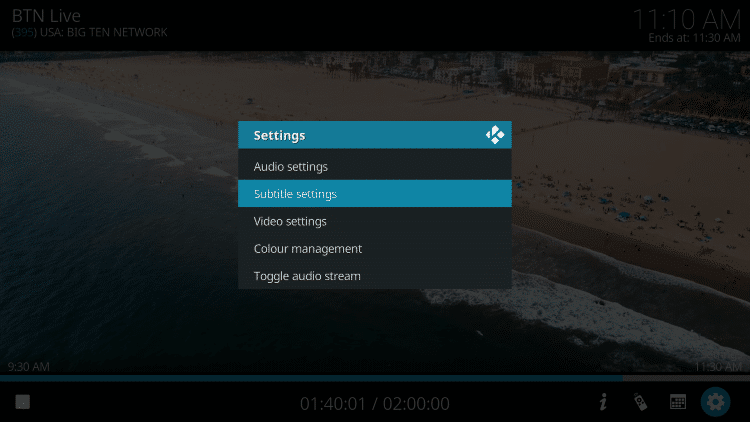
Lors des tests, nous avons constaté que les sous-titres ne fonctionnaient pas correctement dans Kodi IPTV.
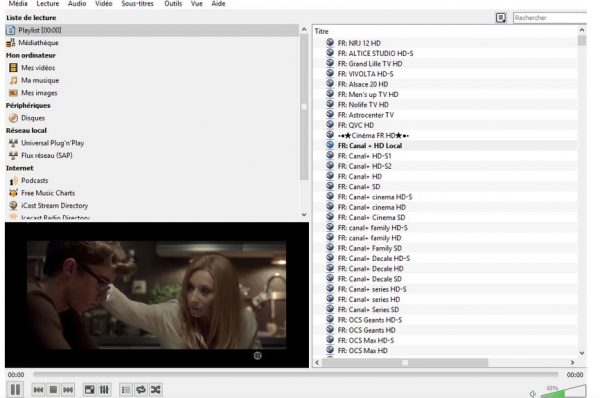
Étape 1 : Commencez par télécharger et installer le lecteur multimédia VLC sur votre appareil.
- Lancez VLC sur votre PC, si vous n'avez pas VLC vous pouvez le télécharger ici : VLC
Étape 2 : Cliquez sur l'option Media située en haut du lecteur VLC.
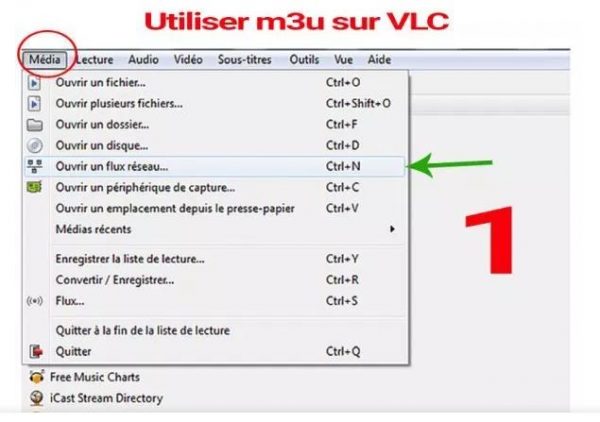
Étape 3 : Appuyez sur le flux réseau dans la page Média.
Étape 4 : Entrer le fournisseur IPTV URL .
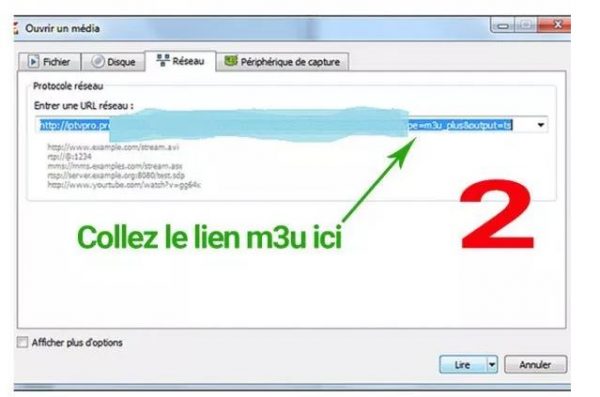
Étape 5 : Attendez que les chaînes soient chargées sur l'appareil et cliquez sur vos chaînes préférées pour les diffuser.
 English (UK)
  Deutsch
  Nederlands
  Dansk
Dansk  Svenska
  Français
  English
  English (Canada)
  Español
  English (New Zealand)
  Norsk bokmål
  Suomi
Suomi  Polski
  English (Australia)