
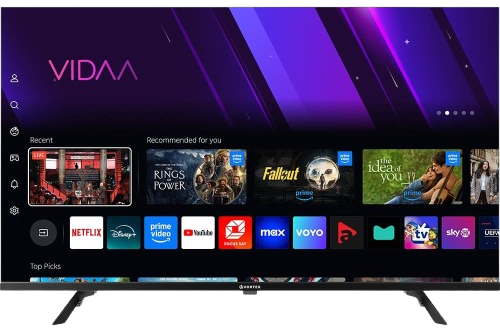
Hapi 1 – Shkarkoni aplikacionin e duhur
BY popular demands, there was no way I would have forgotten about our non-android Smart TV devices. For this example, we’re using an LG Smart TV with WebOS. For other devices like Samsung or Toshiba, steps are basically the same.
Shko te juaja Dyqani i Aplikacioneve Samsung ose LG.
Kërko për “Ibo Player”.

 E rëndësishme: Ka shumë versione të rreme të këtij aplikacioni.
Make Sur to download from official app stores
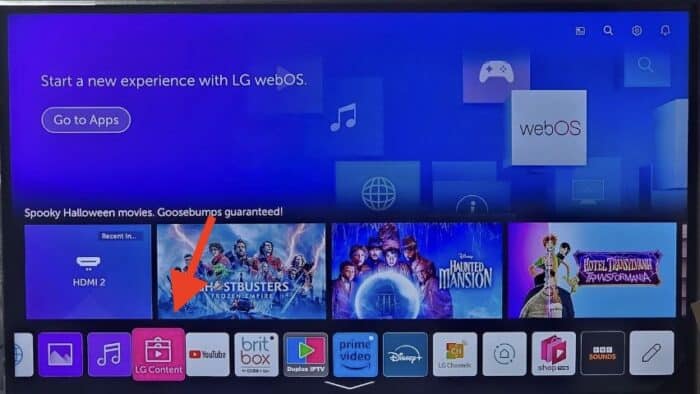
1- Open LG Content Store.
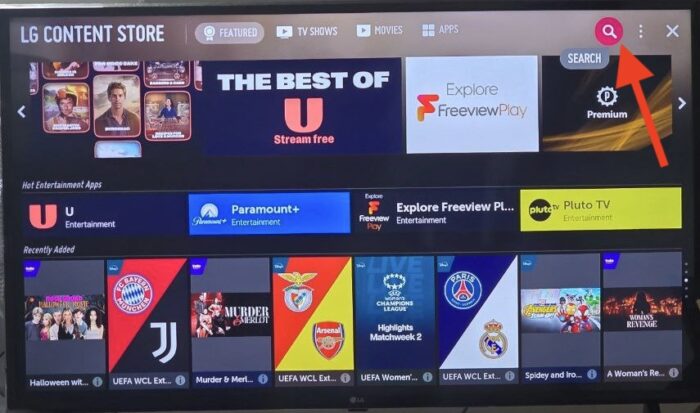
2- From the top right corner, click the magnifier icon to search.

3- Type-in IBO Player to look for this app.

4- In the results, choose the right application as shown above. You might see other variations with similar names, disregard them and only focus on “Ibo Player”.

5- Click Install to initiate the installation.

6- Select Launch to open up IBO player.

7- After a successful installation, a welcome message will pop up for the first time.
- You will need the Mac address and activation code in order to add the playlist.
1. Hapni App Store në pajisjen tuaj dhe kërkoni për Vu Player Pro.

2. Brenda aplikacionit Vu Player Pro, shkoni te seksioni i cilësimeve ose i profilit. Do të gjeni adresën tuaj Mac dhe kodin e pajisjes të shfaqur brenda aplikacionit.
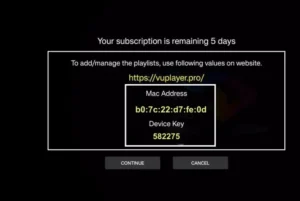
3. Now go to the website: https://vuplayer.pro/login
dhe futni adresën Mac (ID e Pajisjes) dhe çelësin e pajisjes (Çelësi i Pajisjes).
4. Zgjidhni lidhjen M3u ose kodin Xtream për të ngarkuar të dhënat tuaja. Të dhënat do të dërgohen në adresën tuaj të email-it.
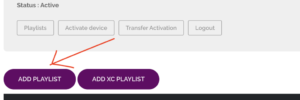
5. Rinisni aplikacionin tuaj dhe shijojeni!
1. Hapni App Store në pajisjen tuaj dhe kërkoni për Hot Player.

2. Brenda aplikacionit Hot Player, shkoni te seksioni i cilësimeve ose i profilit. Do të gjeni adresën tuaj Mac të shfaqur brenda aplikacionit.
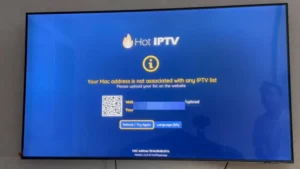
3. Tani shkoni në faqen e internetit: https://hotplayer.app/upload
Dhe futni adresën Mac (ID e Pajisjes).
4. Zgjidhni lidhjen M3u për të ngarkuar të dhënat tuaja. Të dhënat do të dërgohen në adresën tuaj të email-it.
5. Rinisni aplikacionin tuaj dhe shijojeni!
Hapi 1 – Shkarkoni aplikacionin e duhur
Shko te juaja Dyqani i Aplikacioneve Samsung ose LG.
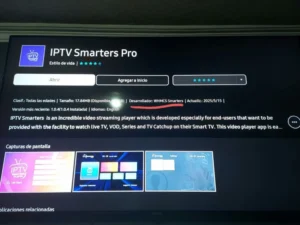
Kërko për “IPTV Smarters Pro”.
 E rëndësishme: Ka shumë versione të rreme të këtij aplikacioni.
Sigurohuni që Zhvilluesi është WHMCS Smarters (shihni pamjen e ekranit më poshtë).
Hapi 2 - Zgjidhni metodën e hyrjes
Kur të hapet aplikacioni, zgjidhni API-ja e Kodeve XTREAM (e rekomanduar).
Kjo shmang futjen manuale të lidhjeve të gjata m3u.
Hapi 3 – Vendosni të dhënat tuaja
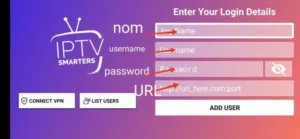
Plotësoni të dhënat e hyrjes që ju dërguam me email:
Emri i listës për luajtje → Mund të shkruash çdo emër, p.sh., TV IM
Emri i përdoruesit
Fjalëkalimi
URL-ja e serverit/portalit
Shtyp SHTO PËRDORUESIN për t'u lidhur.
 Tani jeni gati të filloni të shikoni TV, Filma dhe Seriale Live
1. Instaloni Set TV nga App Store në Smart TV-në tuaj.

2. Hapni aplikacionin IPTV Player dhe vendosni një shenjë kontrolli nën adresën MAC të shfaqur në ekran.
3. Shkoni te faqja e aktivizimit të SetIPTV dhe futni adresën tuaj MAC.
https://setsysteme.com/set.app
4. Futni adresën MAC dhe klikoni ikonën e paundit për të konfirmuar.
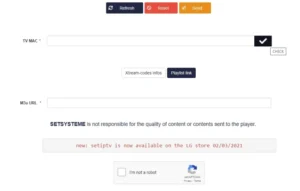
5. Pas verifikimit, futni URL-në M3U të lidhur me ofruesin tuaj IPTV.
6. Pastaj klikoni Dërgo për të shkarkuar URL-në e M3U në pajisjen tuaj.
7. Rinisni aplikacionin dhe transmetoni video nga ofruesi juaj i IPTV-së.

How to install IBO Player on Android phones and tablets?
The installation on these devices is very easy since we have quick access to the browser and can easily download and install the file.

1- Either from IBO player official website or from our application download center, get the installation file.

2- No wonder why you are warned about this, the file is downloaded from outside of your android device app store. However it’s safe. Click Download Anyway.
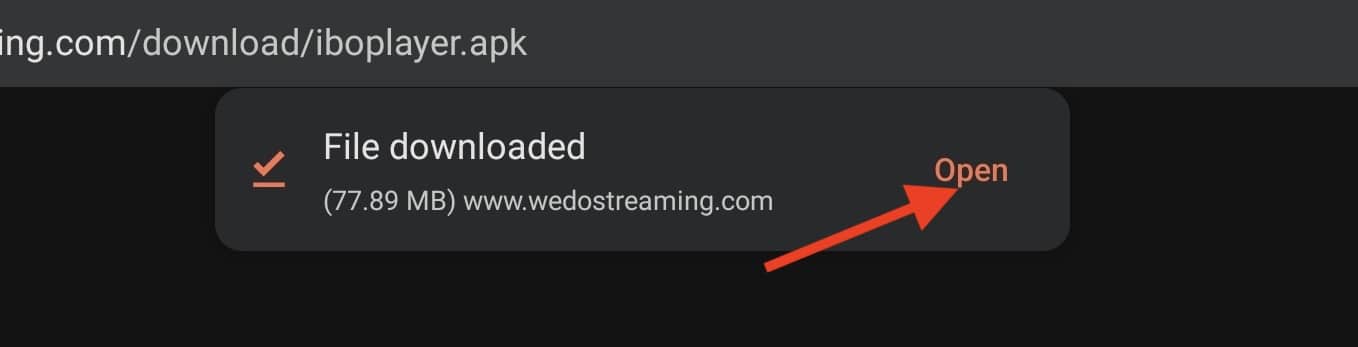
3- Open the file.
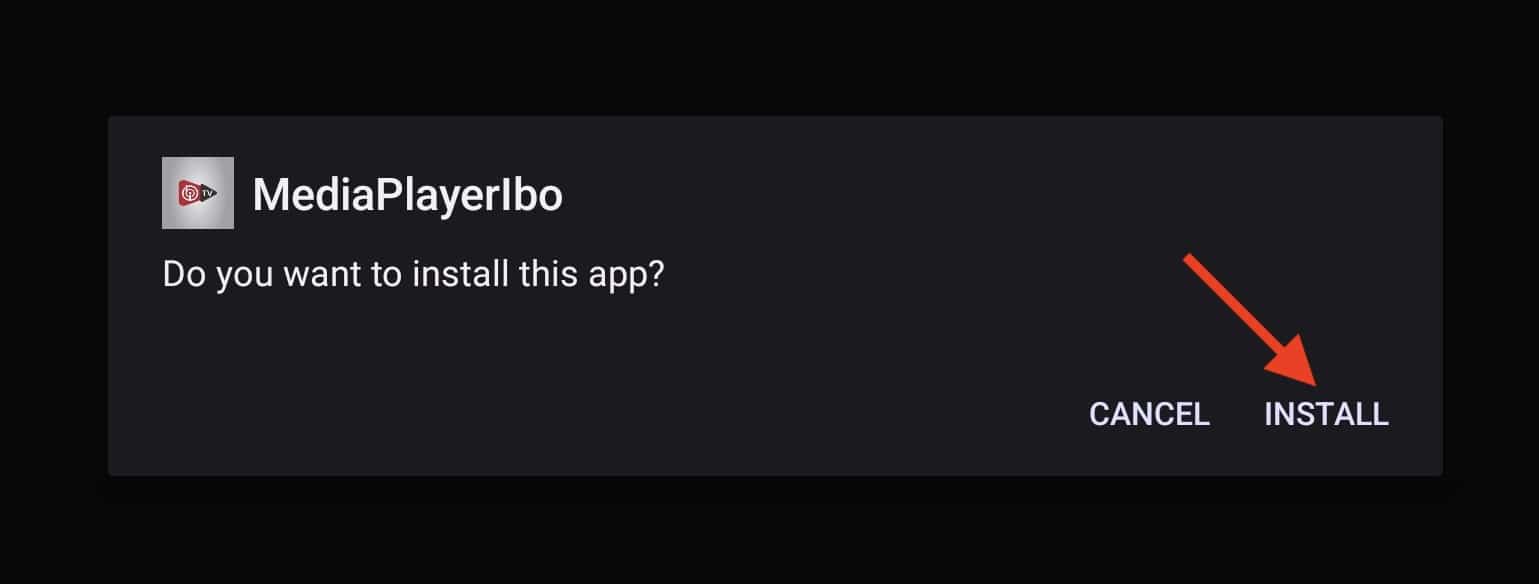
4- Click Install.

5- IBO Player is installed, now you can open it.
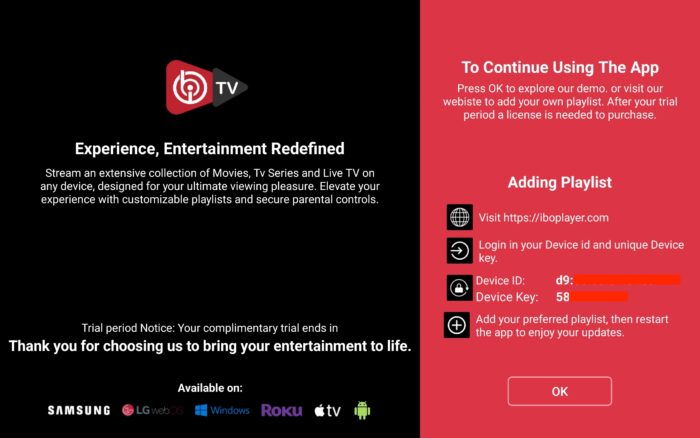
6- Right after opening the app for the first time, you will be presented with this introductory page. It’s actually very informative and clarifies what should be done. We will cover the playlist addition , just contact our support team.

7- It’s loaded and ready for action.
1. Hapni Play Store-in tuaj dhe kërkoni për TiviMate IPTV Player.

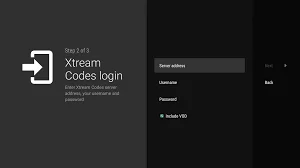
1. Hapni Play Store në pajisjen tuaj dhe kërkoni për Hot Player.
2. Brenda aplikacionit Hot Player, shkoni te seksioni i cilësimeve ose i profilit. Do të gjeni adresën tuaj Mac të shfaqur brenda aplikacionit.
3. Tani shkoni në faqen e internetit: https://hotplayer.app/upload
Dhe futni adresën Mac (ID e Pajisjes).
4. Zgjidhni lidhjen M3u për të ngarkuar të dhënat tuaja. Të dhënat do të dërgohen në adresën tuaj të email-it.
5. Rinisni aplikacionin tuaj dhe shijojeni!

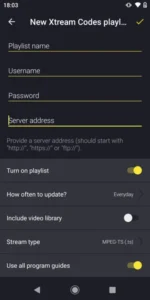
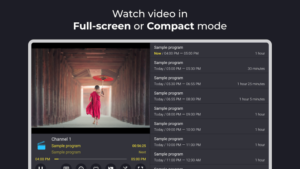
9xtream është një aplikacion freemium. Ai vjen me reklama, por mund t'i hiqni ato për 5 € në vit.
1. Hapni Play Store-in tuaj dhe kërkoni për 9Xtream.

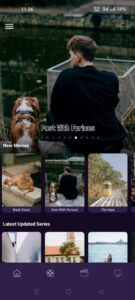

1. Hapni App Store në pajisjen tuaj dhe kërkoni për Vu Player Pro.
2. Brenda aplikacionit Vu Player Pro, shkoni te seksioni i cilësimeve ose i profilit. Do të gjeni adresën tuaj Mac dhe kodin e pajisjes të shfaqur brenda aplikacionit.
3. Now go to the website: https://vuplayer.pro/login
dhe futni adresën Mac (ID e Pajisjes) dhe çelësin e pajisjes (Çelësi i Pajisjes).
4. Zgjidhni lidhjen M3u ose kodin Xtream për të ngarkuar të dhënat tuaja. Të dhënat do të dërgohen në adresën tuaj të email-it.
5. Rinisni aplikacionin tuaj dhe shijojeni!
1. Hapni App Store në pajisjen tuaj dhe kërkoni për Hot Player.
2. Brenda aplikacionit Hot Player, shkoni te seksioni i cilësimeve ose i profilit. Do të gjeni adresën tuaj Mac të shfaqur brenda aplikacionit.
3. Tani shkoni në faqen e internetit: https://hotplayer.app/upload
Dhe futni adresën Mac (ID e Pajisjes).
4. Zgjidhni lidhjen M3u për të ngarkuar të dhënat tuaja. Të dhënat do të dërgohen në adresën tuaj të email-it.
5. Rinisni aplikacionin tuaj dhe shijojeni!
Vetë aplikacioni është falas për shkarkim dhe përfshin një gamë të gjerë funksionesh riprodhimi dhe menaxhimi si kërkim global, EPG, kapjes së të dhënave, pamjes brenda figurës, shkarkimeve, VPN, bllokimit prindëror, redaktimit të avancuar të listës së këngëve dhe më shumë — të gjitha pa pagesë.
1- Shkarkoni aplikacionin “UHF IPTV” nga dyqani i aplikacioneve.
2- Zgjidhni të lidheni me API-në e kodeve XTREAM.
3- Futni të dhënat tuaja të hyrjes (Emri i përdoruesit, Fjalëkalimi dhe URL-ja) dhe shtypni OK për t'u lidhur.
Prisni që aplikacioni të ngarkojë të dhënat dhe shijoni transmetimin!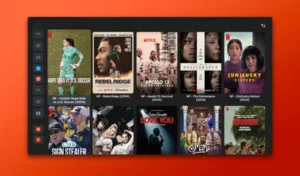
1- Shkarkoni aplikacionin IPTV Smarters Lite nga dyqani i aplikacioneve, sigurohuni që është PAK versioni jo Pro.

2- Zgjidhni të lidheni me API-në e kodeve XTREAM për të shmangur hyrjen në të gjitha skedarët m3u.
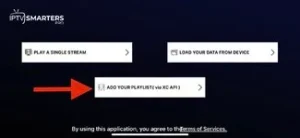
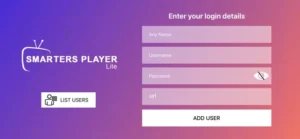
3- Futni të dhënat tuaja të hyrjes dhe shtypni SHTO PËRDORUES për t'u lidhur.
How to install IBO Player on macOS?
If you want to run IBO player on devices like Macbook or iMAC, you need to install the macOS version.

1- Open IBO Player official website and from their download section get the macOS version.

2- Open the downloaded file and then drag-and-drop the icon into the application folder.

3- After 10 seconds, IBO player is installed on your macOS. Open Launchpad and click the app icon.

4- As you can see, since we installed the app from outside of app store, launching it is rejected.
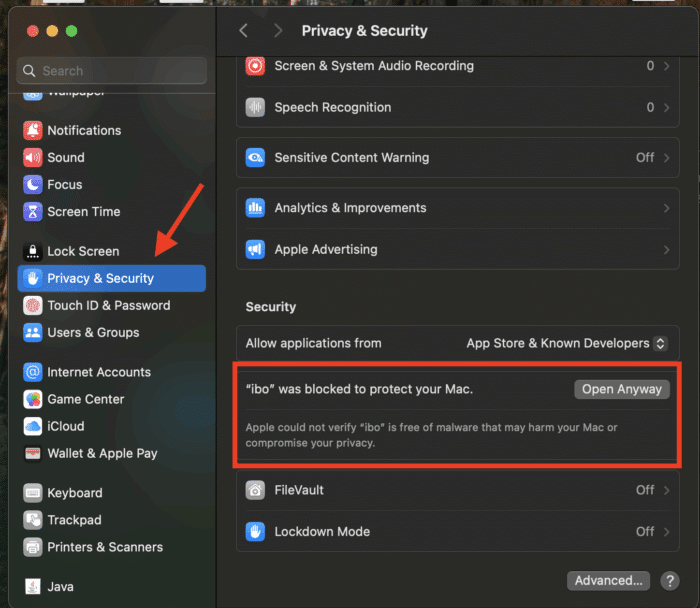
5- From the top left side on the toolbar, click the Apple icon, then choose System Settings. When it’s loaded, from left column, scroll down to Privacy & Security. Click that and from right side, scroll down until you see the application security section.
IBO Player is blocked and requires our manual intervention for launching. Click Open Anyway..

6- Choose Open Anyway. This choice is permanent and on later launch of the app it will open straightaway.

7- Application is ready for use. I will explain how to sort this later in this tutorial.
How to install IBO Player on LG and Samsung TV?
BY popular demands, there was no way I would have forgotten about our non-android Smart TV devices. For this example, we’re using an LG Smart TV with WebOS. For other devices like Samsung or Toshiba, steps are basically the same.
1- Open LG Content Store.
2- From the top right corner, click the magnifier icon to search.
3- Type-in IBO Player to look for this app.
4- In the results, choose the right application as shown above. You might see other variations with similar names, disregard them and only focus on “Ibo Player”.
5- Click Install to initiate the installation.
6- Select Launch to open up IBO player.
7- After a successful installation, a welcome message will pop up for the first time. Follow the guide below to add a playlist.
How to install IBO Player on Windows?
If you have a Windows PC, that’s laptop or any personal computer, you can also utilize this application for your streaming purposes. Key note is that it only works on Windows 10 and above and the file provided is for 64 bit systems.

1- First of all, download the windows installer. We do provide links for that both from IBO dev website and our host.

2- Windows security should pop up and stop the installation as the file is downloaded from our side the Microsoft store. Click More Info.

3- Now you can proceed with installation of IBO Player. Click Run Anyway.

4- Click Next.

5- If you want, tick the checkbox to have an icon of the app on the dashboard, then click Next.

6- Finalize the installation by clicking Install.

7- Click finish to open the IBO Player app.
1. Hapni App Store në pajisjen tuaj dhe kërkoni për Vu Player Pro.
2. Brenda aplikacionit Vu Player Pro, shkoni te seksioni i cilësimeve ose i profilit. Do të gjeni adresën tuaj Mac dhe kodin e pajisjes të shfaqur brenda aplikacionit.
3. Now go to the website: https://vuplayer.pro/login
dhe futni adresën Mac (ID e Pajisjes) dhe çelësin e pajisjes (Çelësi i Pajisjes).
4. Zgjidhni lidhjen M3u ose kodin Xtream për të ngarkuar të dhënat tuaja. Të dhënat do të dërgohen në adresën tuaj të email-it.
5. Rinisni aplikacionin tuaj dhe shijojeni!
1. Hapni App Store në pajisjen tuaj dhe kërkoni për Hot Player.
2. Brenda aplikacionit Hot Player, shkoni te seksioni i cilësimeve ose i profilit. Do të gjeni adresën tuaj Mac të shfaqur brenda aplikacionit.
3. Tani shkoni në faqen e internetit: https://hotplayer.app/upload
Dhe futni adresën Mac (ID e Pajisjes).
4. Zgjidhni lidhjen M3u për të ngarkuar të dhënat tuaja. Të dhënat do të dërgohen në adresën tuaj të email-it.
5. Rinisni aplikacionin tuaj dhe shijojeni!
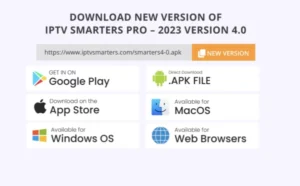
1- Hapni shfletuesin tuaj Chrome, Firefox ose Apple Safari dhe shkoni te kjo lidhje: https://www.iptvsmarters.com
2- Në varësi të PC-së tuaj (Mac, Windows, etj.), klikoni "Shkarko" dhe prisni që shkarkimi të përfundojë. Pastaj instaloni aplikacionin.
3- Futni të dhënat e hyrjes që keni dërguar me email dhe shtypni SHTO PËRDORUES për t'u lidhur.
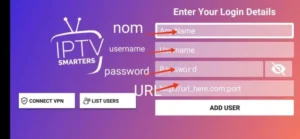
1- Open your Chrome, Firefox or Apple Safari browser and go to this link: https://iptvstreamplayer.com/
2- Në varësi të PC-së tuaj (Mac, Windows, etj.), klikoni "Shkarko" dhe prisni që shkarkimi të përfundojë. Pastaj instaloni aplikacionin.
3- Tani hapni aplikacionin dhe klikoni në "Identifikohu me një llogari të re përdoruesi".
4- Futni të dhënat tuaja të hyrjes dhe shtypni Hyrje për t'u lidhur.
Installing IBO Player on Amazon Fire TV Stick

1- From the dashboard of the Amazon Fire TV Stick, move over on the magnifier icon, then click down to highlight the search field. After that click OK.

2- We need to install an application called Downloader which enables us to side-load and install applications from outside of Amazon App Store. When the virtual keyboard pops up, click D. Then you should see the first suggestion as Downloader, move over to it and click OK.

3-Choose the app by selecting it. This will initiate the installation.
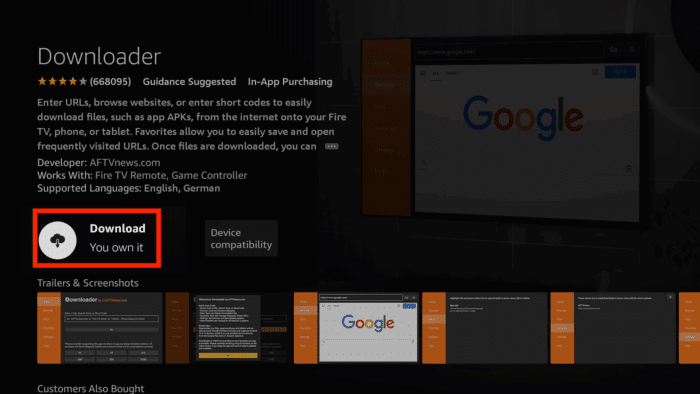
4- Fulfill this step by clicking Download.

5- A pop up message should show up prompting you to grant media access to Downloader. Click Allow.

6- Once the app is loaded. Move the selection to the search field on top of yellow Go button and press OK on the remote.

7- The official Downloader code for IBO Player android version is 511693. Type this in and click Go.

8- IBO Player is being downloaded from the official website. You can also notice that from the left column, we are now on Browser section. Do not touch anything until this step sorts itself.

9- Wait while download is in progress.

10- Amazon security bumps the installation since the file is from out side of amazon app store. We need to enable the installation permission for Downloader. Click Settings.

11- Click Install Unknown Apps.
Note: If you do not see the above section and Developer option is not visible, move the selection on About and press OK button on the remote 7 times. After that Developer Options should appear. Then select it and follow the steps.
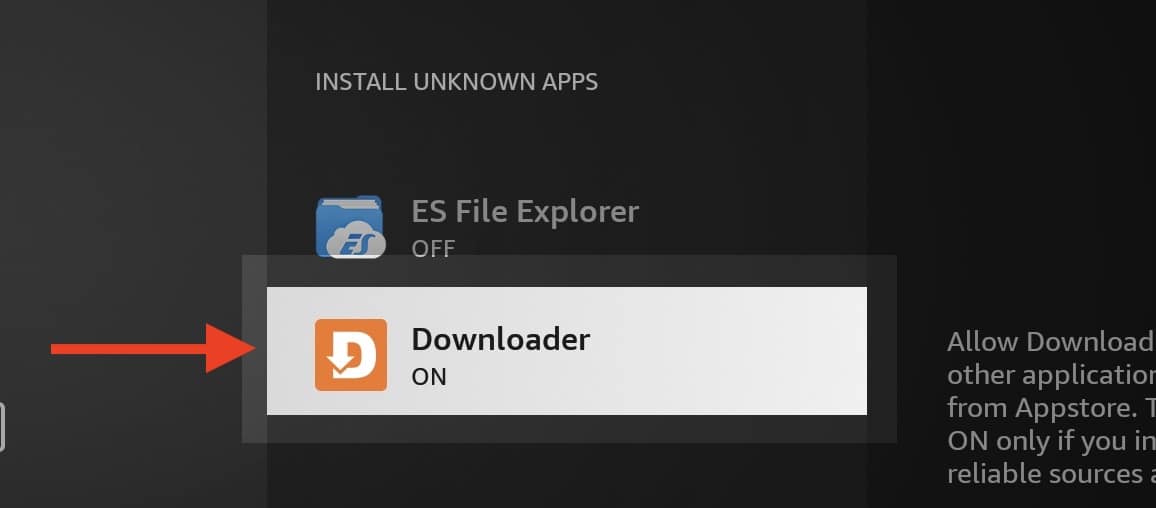
12- Select Downloader and click OK button so the OFF changes to ON.

13- Now we can proceed with installation of IBO player on Fire Stick which is pretty normal with few Next and OK.

14- Once the app is installed, above should be the first message popping. Click OK.

15- App is ready.
1. Së pari instalojmë Shkarkues aplikacion
Ky aplikacion do t'ju ndihmojë të shkarkoni IPTV Smarter në FireStick (sepse shkarkimet nga shfletuesi nuk lejohen).
2. kliko mbi Kërko > Kërko Opsioni në ekranin fillestar të FireStick
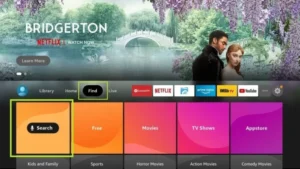
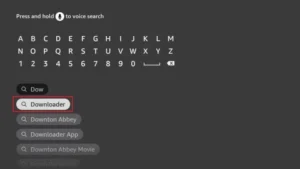
3. Shkruani emrin e aplikacionit (ky është Shkarkues)
kliko mbi Shkarkues opsion kur shfaqet në rezultatet e kërkimit
Zgjidh atë Shkarkues ikonën në ekranin vijues dhe shkarkoni e instaloni aplikacionin.
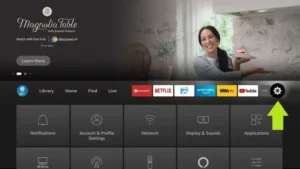
4. Pasi të instaloni aplikacionin e shkarkuesit, kthehuni në ekranin fillestar të FireStick
Klikoni në shiritin e menusë Cilësimet.
5. Në Cilësimet, zgjidhni opsionin Televizori im i Zjarrit.
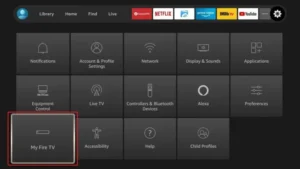
6. Kur opsionet e mëposhtme shfaqen në ekranin tjetër, klikoni Opsionet e zhvilluesit
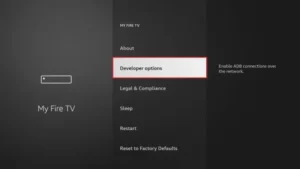
7. kliko mbi Instaloni nga aplikacione të panjohura.
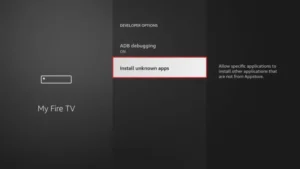
8. kliko mbi Shkarkues për të ndryshuar statusin në AKTIV
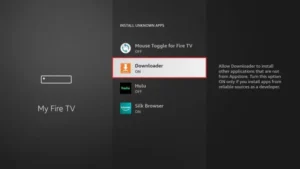
Tani i keni konfiguruar cilësimet e FireStick në mënyrë që instalimi i aplikacioneve inteligjente IPTV dhe aplikacioneve të tjera të palëve të treta të jetë i mundur. Ndiqni hapat më poshtë:
9. Tani mund të shihni Shkarkues aplikacion!
Kur e hapni për herë të parë këtë aplikacion, do të shihni një sërë kërkesash. Injorojini këto derisa të shihni ekranin e mëposhtëm.
Në këtë ekran duhet të klikoni në kutinë e tekstit të URL-së në anën e djathtë (sigurohuni që Faqja kryesore opsioni zgjidhet në menynë e majtë) ku thotë 'http://'
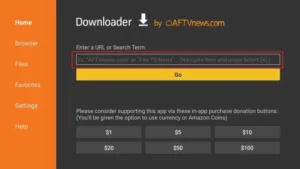
10. Në këtë dritare, futni kodin e mëposhtëm: 6468112
kliko mbi SHKO
11. Prisni një ose dy minuta që IPTV Smarter të shkarkohet në FireStick-un tuaj.
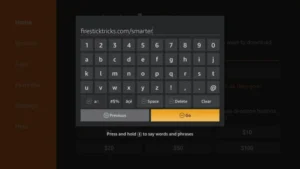
12. Kur shkarkimi të përfundojë, aplikacioni i shkarkimit do të ekzekutojë skedarin APK dhe instalimi do të fillojë.
kliko mbi Instalo
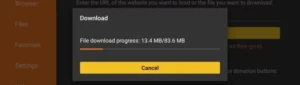
13. Prisni që instalimi të përfundojë.
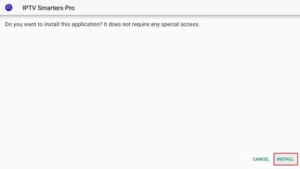
14. Instalimi përfundon me këtë Aplikacioni u instalua Raporto
Tani mund të klikoni HAP dhe të filloni me IPTV Smarters
Unë rekomandoj të zgjidhni U PËRFUNDUA kështu që së pari mund ta fshini skedarin APK për të kursyer hapësirë ruajtjeje në FireStick.
15. Zgjidhni të lidheni me API-në e kodeve XTREAM për të shmangur futjen e të gjitha skedarëve m3u.
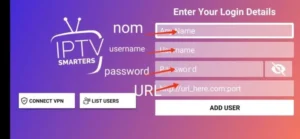
16- Futni të dhënat e hyrjes që keni dërguar me email dhe shtypni SHTO PËRDORUES për t'u lidhur.
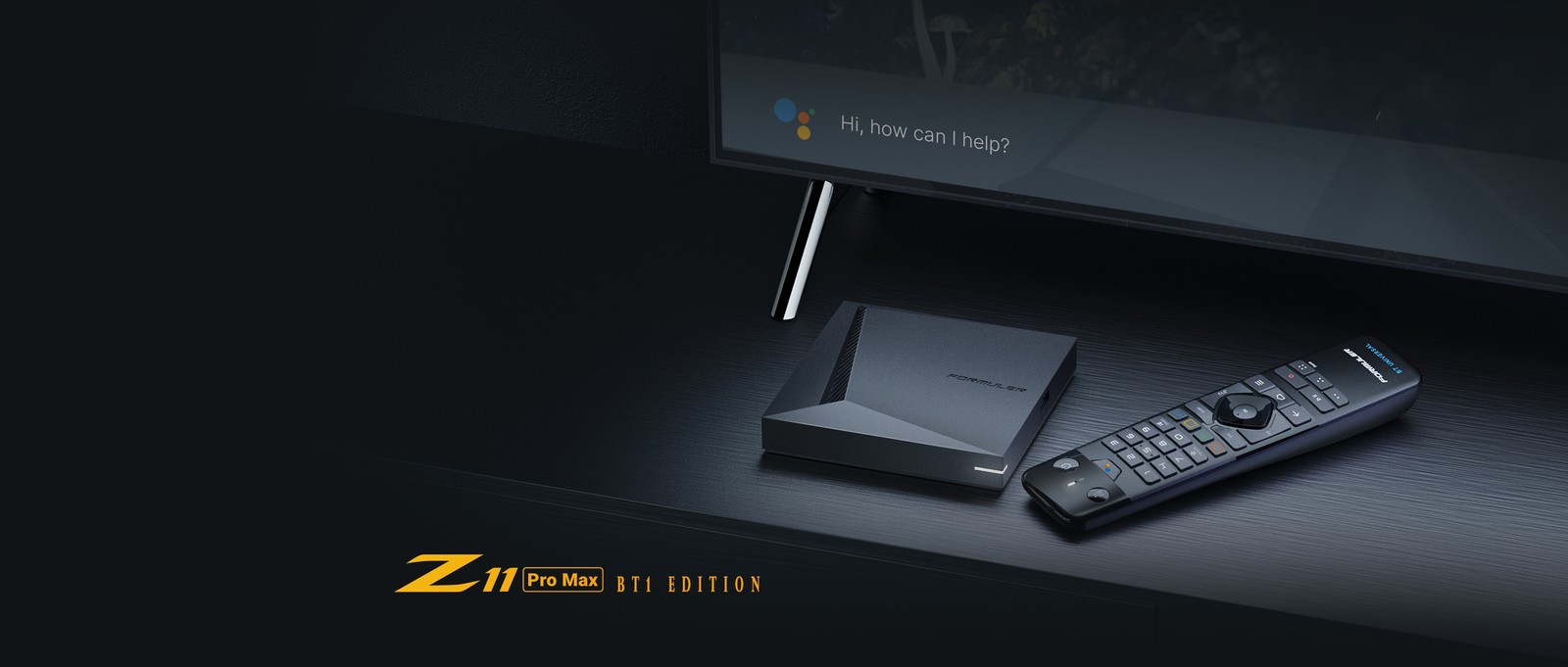
1. Shkoni në pjesën e pasme të Formular Z tuaj ku tregohet ID-ja e Mac-it.
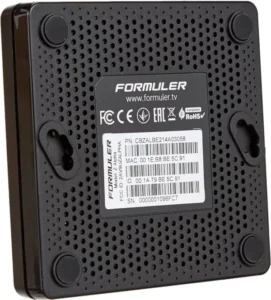
2. Sigurohuni që të na jepni ID-në e Mac-it kur porosisni paketën tuaj. ID-ja e Mac-it zakonisht fillon me 00:1A…
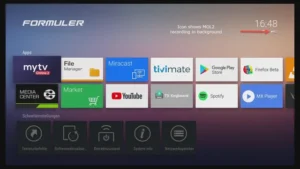
Mund ta gjeni edhe në aplikacionin MyTvOnline.
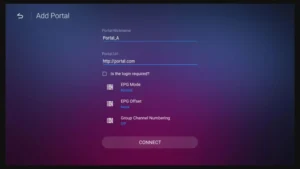
3. Pasi të marrim porosinë tuaj me ID-në e Mac-it, do t'ju dërgojmë URL-në e portalit. Sigurohuni që të futni URL-në e portalit në aplikacionin MyTvOnline (nuk kërkohet emër përdoruesi ose fjalëkalim).
1. Shko në pjesën e prapme të Mag-ut ku tregohet Mac ID (ose Mac Adresa).
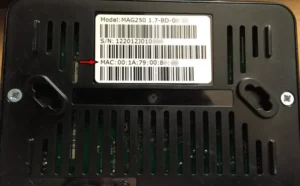
2. Sigurohuni që të na jepni ID-në e Mac-it kur porosisni paketën tuaj. ID-ja e Mac-it zakonisht fillon me 00:1A….
3. Shko te Cilësimet, pastaj te Cilësimet e Sistemit, pastaj te Serverat dhe pastaj te Portali.
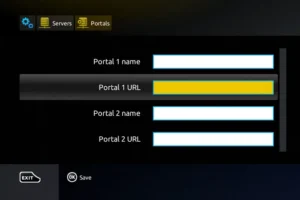
4. Fut URL-në e portalit që të dërguam me email.
Pasi të keni përfunduar të gjitha hapat e mësipërm, shtypni dy herë "EXIT" në telekomandë për të rinisur portën. Tani gjithçka është gati për të parë transmetime televizive drejtpërdrejt…