
An Android TV box must have good hardware and a stable internet connection to play IPTV streams without buffering. Many users experience video freezing or audio delays because they do not understand their device’s actual capabilities. To solve these problems, you need to perform an Android TV box IPTV performance test. This test measures internet speed, network latency, and hardware power. By testing these specific metrics, you can identify whether a streaming problem comes from your internet service provider, your Wi-Fi router, or the Android TV box itself. This article explains how to test your device, which metrics are most important for live video, and how to optimize your setup for TV Shadow IPTV.
Quick Answer
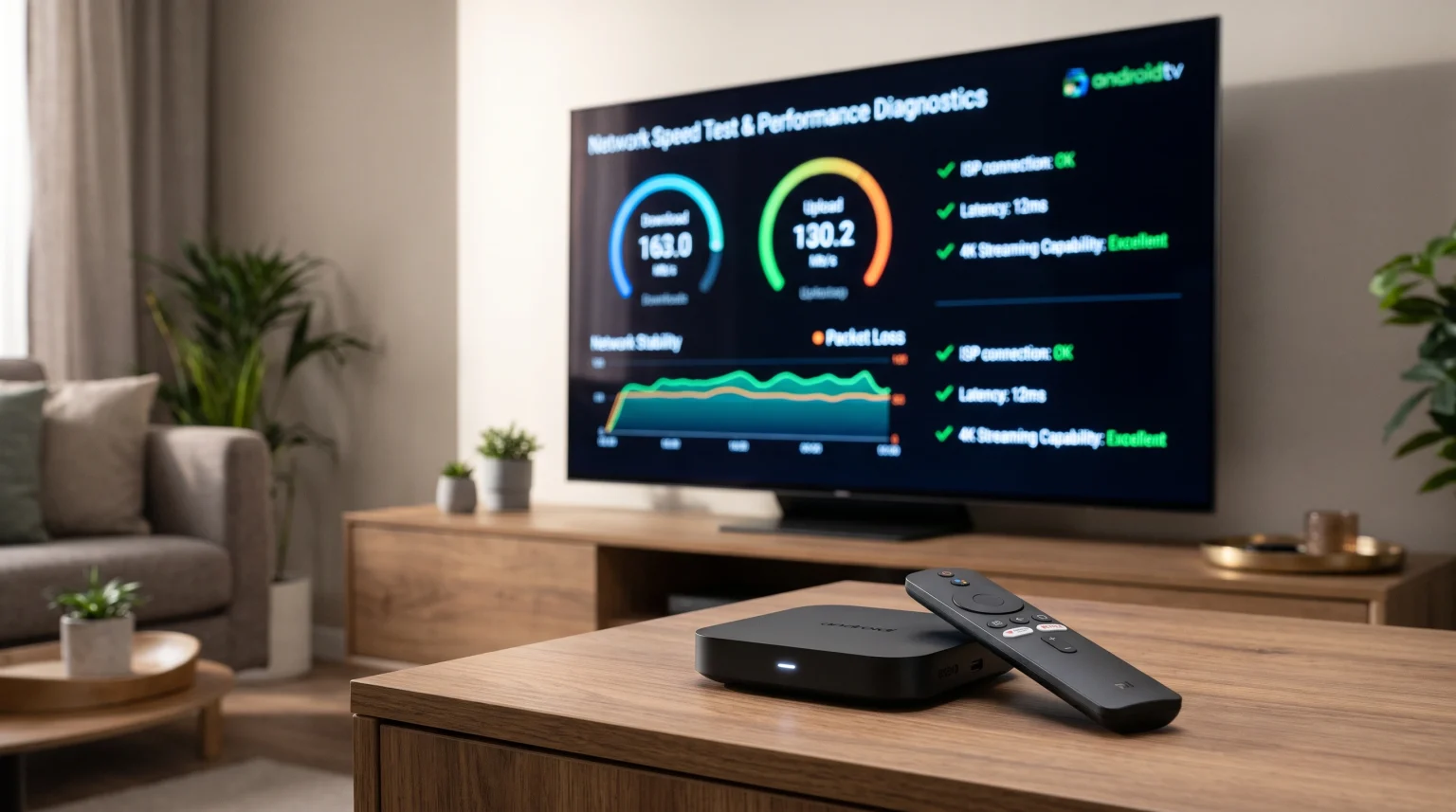
To perform an Android TV box IPTV performance test, you must measure both internet stability and hardware speed. For internet stability, use a speed test application directly on your Android TV box. Look for a download speed above 25 Mbps, latency below 50 milliseconds, and zero packet loss. For hardware speed, test the video decoding capabilities and processor performance. If your test shows poor network results, connect your Android TV box to your router using an Ethernet cable instead of Wi-Fi.
Key Network Metrics for IPTV Streaming
When you stream live television, your Android TV box requires a continuous data connection. A basic internet speed test is not enough. You must measure four specific network metrics.
Download Speed
Download speed measures how fast data arrives at your Android TV box. For standard definition (SD) streams, you need a minimum of 5 Mbps. For high definition (HD) streams, you need at least 10 Mbps. For 4K resolution (Ultra HD), you need a minimum of 25 Mbps. You must have this download speed constantly available. If other people in your house download files or play online games, you will need a higher total download speed.
Latency (Ping)
Latency is the time it takes for your Android TV box to send a request to a server and receive a response. Latency is measured in milliseconds (ms). For live IPTV streaming, latency should be below 50 ms. High latency can cause long delays when you change channels.
Jitter
Jitter measures the variation in latency over time. A stable connection has low jitter. Your jitter should remain below 20 ms. If jitter is high, the video and audio can lose synchronization. High jitter is a common cause of micro-freezing during IPTV broadcasts.
Packet Loss
Packet loss happens when data fails to reach your Android TV box. IPTV streaming is very sensitive to packet loss. Even 1% packet loss can cause visual distortion, pixelation, or sudden video freezing. A perfect Android TV box IPTV performance test should show 0% packet loss.
Testing Android TV Box Hardware Performance
Internet speed is only one part of the system. The internal hardware of your Android TV box also affects IPTV performance.
Processor (CPU) and Memory (RAM)
The processor handles the IPTV application interface and the Electronic Program Guide (EPG). The memory stores temporary data. An Android TV box with a slow processor will have a slow menu system. An Android TV box needs at least 2 GB of RAM for smooth IPTV navigation.
Video Decoding
Your Android TV box must decode compressed video signals. Modern IPTV services use video codecs such as H.264 or H.265 (HEVC). If the Android TV box does not have hardware support for H.265, the video will stutter. You can use benchmarking applications from the Google Play Store to test video decoding speed.
How to Perform an Android TV Box IPTV Performance Test
You should perform network and hardware tests directly on the Android TV box. Do not use your mobile phone for this test.
Turn on the Android TV box.
Stop all background downloads on other devices in your home network.
Open the Google Play Store on the Android TV box.
Download a network testing application such as Analiti or Speedtest by Ookla.
Download a hardware benchmarking application such as PassMark PerformanceTest.
Run the network test and record the download speed, latency, and jitter.
Run the hardware test to check processor speed and video decoding capabilities.
If you experience buffering while using TV Shadow IPTV, run these tests immediately. The results will show if the problem is the network or the device.
Budget vs. Premium Android TV Boxes
Not all Android TV boxes offer the same performance. The table below compares typical budget Android TV boxes with premium Android TV boxes.
| Feature | Budget Android TV Box | Premium Android TV Box |
| Processor speed | Low to medium | High |
| Memory (RAM) | 1 GB or 2 GB | 3 GB or 4 GB |
| Network connection | Wi-Fi 4 or 100 Mbps Ethernet | Wi-Fi 6 or Gigabit Ethernet |
| Video decoding | H.264 (often struggles with 4K) | Hardware H.265 and AV1 support |
| EPG loading speed | Slow | Fast |
| Menu navigation | Often delayed | Smooth and responsive |
A premium Android TV box will always produce better results in an Android TV box IPTV performance test.
Wi-Fi vs. Ethernet for IPTV Streaming
Many users connect their Android TV box to the internet using Wi-Fi. Wi-Fi is convenient but often unstable. Walls, furniture, and other electronic devices can block Wi-Fi signals. This interference increases latency and packet loss.
For the best IPTV performance, you should use an Ethernet cable. An Ethernet cable connects the Android TV box directly to your internet router. Ethernet provides a stable connection, eliminates network interference, and reduces jitter. If your Android TV box IPTV performance test shows high jitter on Wi-Fi, an Ethernet cable will usually fix the problem.
If you must use Wi-Fi, select the 5 GHz Wi-Fi band on your router instead of the 2.4 GHz band. The 5 GHz band provides faster download speeds over short distances.
Testing Live Football and Sports Streaming
Live sports broadcasting demands high performance from your Android TV box. Live football features fast camera movements and detailed graphics. If your Android TV box has poor performance, the football will look blurry when it moves across the screen.
When testing for live sports, pay attention to the following factors:
Refresh Rate: Your television and your Android TV box should both support a 60Hz refresh rate. A 60Hz refresh rate displays 60 frames per second, which makes motion look smooth.
Motion Handling: The processor inside the Android TV box must process fast motion without dropping video frames.
Streaming Stability: Live football matches often experience high network traffic. You must have zero packet loss to maintain a continuous stream.
If you want to read more about sports streaming technology, you can read our guide on 60Hz vs 120Hz TV for Live Football.
IPTV Player Compatibility: M3U and Xtream Codes
The software you use also affects performance. Most Android TV boxes support popular IPTV player applications such as TiviMate, Smarters Pro, or XCIPTV.
These applications connect to IPTV services using two main methods:
M3U Playlists: An M3U playlist is a text file that contains links to live TV channels. Loading a large M3U playlist requires a fast processor and enough RAM. If the Android TV box is slow, the application may crash when loading the playlist.
Xtream Codes API: The Xtream Codes API requires a username, password, and server URL. This method is usually faster and more stable than an M3U playlist.
When you use TV Shadow IPTV, we recommend using the Xtream Codes API. This method allows the Electronic Program Guide (EPG) to load quickly. The EPG displays the TV schedule. A fast Android TV box will load the EPG in a few seconds.
If you are using a Smart TV instead of a separate Android TV box, you can read our comparison of Tizen vs Google TV for IPTV Apps: What’s the Difference?].
Troubleshooting Poor Performance Results
If your Android TV box IPTV performance test gives poor results, you can take these steps to improve performance:
Restart the Router: Turn off your internet router for 30 seconds, then turn it back on. This clears temporary network errors.
Clear App Cache: Go to the Android TV settings, find your IPTV application, and clear the application cache. This removes old data and frees memory.
Update the Operating System: Check for Android TV software updates. Manufacturers often release updates to improve video decoding performance.
Disconnect Other Devices: Disconnect mobile phones or computers that are downloading large files on your network.
Use a VPN: If your download speed is high but IPTV buffers, your internet service provider might be blocking IPTV traffic. A Virtual Private Network (VPN) can hide your streaming data and prevent blocking.
If your stream still looks low quality on a new television, read our guide explaining Why Does IPTV Look Blurry on a New 4K TV?.
Conclusion
Performing a regular Android TV box IPTV performance test is the best way to ensure smooth video streaming. You must measure download speed, latency, jitter, and packet loss using applications installed directly on your device. Hardware speed is equally important, as a fast processor and adequate memory are required to load the Electronic Program Guide and decode video streams. For the most stable connection, always use an Ethernet cable instead of Wi-Fi. By testing and optimizing these elements, you can enjoy uninterrupted streaming and live sports with TV Shadow IPTV.
Frequently Asked Questions (FAQ)
Is an Ethernet connection better than Wi-Fi for Android TV boxes?
Yes. Ethernet provides a direct, wired connection to your router. It eliminates wireless interference, reduces latency, and guarantees zero packet loss, which is essential for stable IPTV streaming.
Can an old Android TV box cause IPTV buffering?
Yes. Old Android TV boxes often have slow processors and limited RAM. They may lack the hardware support needed to decode modern H.265 video streams. This causes video stuttering even with a fast internet connection.
Does a VPN slow down my IPTV performance?
A VPN can slightly reduce your peak download speed because it encrypts the data. However, if your internet service provider restricts IPTV traffic, using a VPN can actually improve streaming stability and reduce buffering.