
Watching IPTV is frustrating when the audio or subtitles do not match the video. This synchronization problem is common when streaming movies, television shows, or live sports. If you use the o3IPTV application, you can fix these timing issues easily.
This guide explains how to correct the o3IPTV subtitle audio sync problem. We will show you the exact settings to adjust inside the o3IPTV application. We will also explain which Smart TV settings you should change to prevent audio delays.
Quick Answer
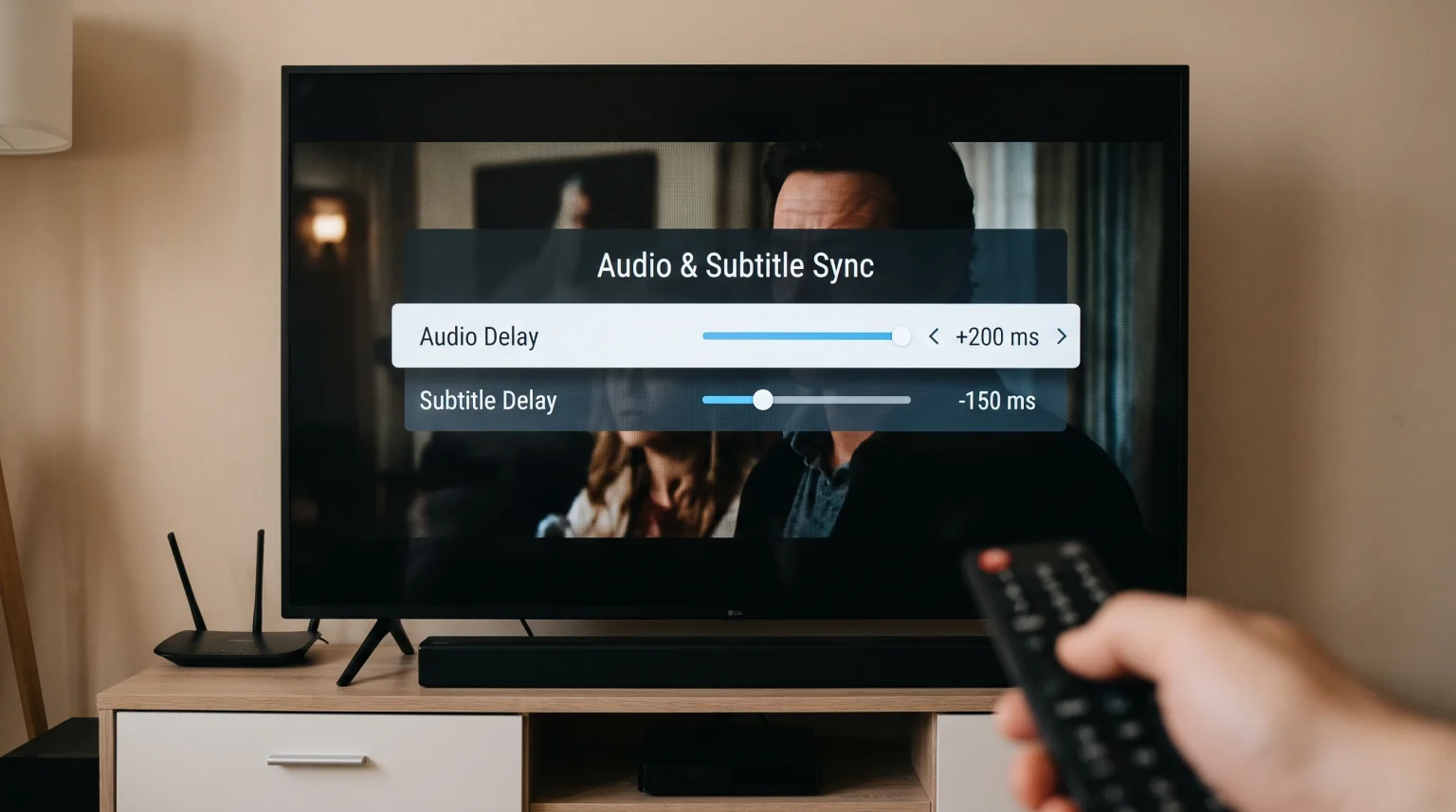
To fix o3IPTV subtitle audio sync, open the playback menu while watching a video. Look for the audio offset or subtitle delay settings. Adjust the slider forwards or backwards in milliseconds until the sound and text match the video.
If the problem continues, disable any Bluetooth audio devices. Connect your Smart TV to your internet router using an Ethernet cable. Finally, open your television settings and change the digital audio output format to “PCM” instead of “Auto” or “Passthrough”.
Why Do Audio and Subtitles Go Out of Sync in o3IPTV?
Audio delay happens when the video signal reaches the screen faster than the audio signal reaches the speakers. Subtitle delay happens when the text file does not match the video frame rate.
Several technical factors cause these problems. Slow internet connections can delay the audio stream. Wireless Bluetooth speakers process sound slowly. Heavy video files can cause the o3IPTV application to struggle. When you understand the cause, you can fix the synchronization easily.
How to Fix Audio Sync Issues in o3IPTV
You can fix most audio timing problems by changing a few settings. Follow these steps to synchronize your audio.
1. Use the Audio Offset Feature
The easiest solution is inside the o3IPTV application. Play a movie or a live television channel. Press the OK button or the center button on your remote control. This action opens the video playback menu.
Find the audio settings icon. Select the Audio Offset or Audio Delay option. Move the slider to the left or to the right. Move the slider until the speaking voices match the moving lips on the screen.
2. Check Smart TV Audio Settings
Sometimes, your television hardware causes the audio delay. Smart TVs try to process complex audio formats like Dolby Digital. This audio processing takes time and creates a delay.
Go to the main settings menu of your Smart TV. Find the Sound menu or the Audio menu. Change the Digital Audio Output format to “PCM”. PCM is an uncompressed audio format. The television processes PCM audio much faster than Dolby formats.
3. Disconnect Bluetooth Audio Devices
Bluetooth technology naturally has a wireless delay. If you use a Bluetooth soundbar or Bluetooth headphones, you will often experience audio synchronization issues.
Disconnect the Bluetooth device. Connect your soundbar to the television using an HDMI ARC cable or an Optical audio cable. A physical cable connection almost always fixes the audio delay.
How to Fix Subtitle Sync in o3IPTV
Subtitles can appear too early or too late. The o3IPTV application allows you to adjust the subtitle timing manually.
Adjust Subtitle Delay
Play your chosen video in the o3IPTV application. Open the playback menu using your remote control. Select the subtitle icon. Look for the Subtitle Synchronization setting or the Subtitle Delay setting.
You can adjust the time in milliseconds (ms). If the text appears before the actor speaks, add a positive delay. If the text appears after the actor speaks, add a negative delay. Test the video after each adjustment.
Audio Connection Comparison
Different audio connections provide different synchronization results. Use this table to choose the best audio connection for your television.
| Connection Type | Audio Delay Risk | Best Use Case |
| HDMI eARC / ARC | Very Low | High-quality soundbars and home theater systems. |
| Optical Cable (TOSLINK) | Very Low | Older soundbars and AV receivers without HDMI. |
| Built-in TV Speakers | None | Standard television viewing without external equipment. |
| Bluetooth Wireless | High | Wireless headphones (use only when necessary). |
Optimizing TV Settings for Live Football
Live sports streams require fast hardware processing. When you watch live football on TV Shadow IPTV through the o3IPTV application, your television applies automatic picture processing.
Many modern televisions use a feature called motion smoothing. Motion smoothing creates artificial video frames to make the football look smoother. However, motion smoothing requires heavy processing power. This intense processing can delay the video and cause audio synchronization issues.
Turn off motion smoothing in your television picture settings. This action ensures the video and the audio stay synchronized. For more information about sports performance, read our comparison of a 60Hz vs 120Hz TV for Live Football. Also, if your sports stream does not look clear, learn Why Does IPTV Look Blurry on a New 4K TV?.
IPTV Application Compatibility
The o3IPTV application works very well with M3U playlists and Xtream Codes API. However, the application performance depends on your Smart TV hardware.
Some older Smart TVs do not have enough internal memory to process heavy subtitle files and high-resolution video simultaneously. If o3IPTV continues to lose audio synchronization, try clearing the application cache in your television settings. You can also restart your television to clear the system memory.
If you want to know which television operating system works best with IPTV applications, read our guide to the Best Smart TV OS for IPTV in 2026.
Conclusion
You can easily fix o3IPTV subtitle audio sync problems by using the correct settings. Start by adjusting the audio offset and the subtitle delay inside the o3IPTV application. If the problem persists, check your television hardware connections. Always use an HDMI cable or an Optical cable for your soundbar instead of a Bluetooth connection. Change your television digital audio output to PCM. Finally, connect your television to your router with an Ethernet cable to ensure the best streaming experience with TV Shadow IPTV.
Frequently Asked Questions (FAQ)
Why does the audio sync change during a movie?
The synchronization can change because of variable internet speeds. If your internet connection slows down, the video stream and the audio stream can buffer at different rates.
Can a slow internet connection cause audio delay?
Yes, a slow internet connection can cause an audio delay. When the o3IPTV application struggles to download data, the audio and video streams can separate and lose synchronization.
Why do subtitles disappear in o3IPTV?
Subtitles can disappear if the text file contains encoding errors. Sometimes, the video file does not include a complete subtitle track. Try switching to a different subtitle track in the playback menu.