
TalkBack is the built-in screen reader for Android TV and Google TV. This accessibility feature reads on-screen text aloud so users who are blind or have low vision can navigate menus and select applications without seeing the display. Many viewers want to combine TalkBack with Internet Protocol Television (IPTV) applications to browse live channels, movies, and series.
Using an IPTV player with TalkBack is possible on Android TV and Google TV devices. However, the quality of the spoken feedback depends on how the specific IPTV application is programmed. Standard Android interface elements read aloud reliably, while custom graphics inside some media players may not announce text properly.
Quick Answer
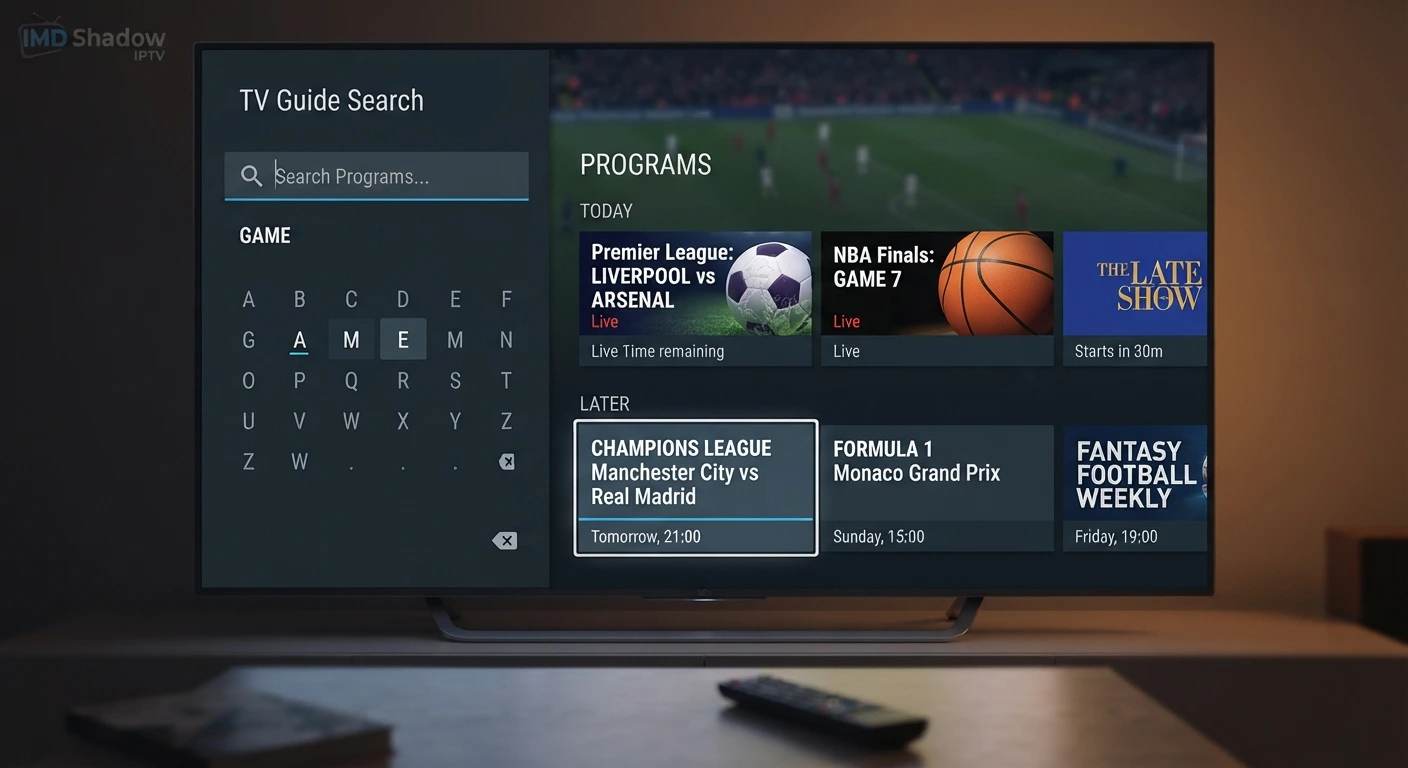
You can use IPTV with TalkBack on Android TV by enabling the TalkBack screen reader in the television’s Accessibility settings and installing a compatible IPTV player from Google Play. TalkBack works best with IPTV applications that use standard Android interface layouts and clear text labels for channels and Electronic Program Guide (EPG) menus. Users who prefer simple lists over complex visual grids will experience much smoother voice navigation.
What Is TalkBack on Android TV and Google TV?
TalkBack is Google’s official screen reader service designed for Android-based operating systems, including Android TV and Google TV. When TalkBack is active, the television speaks the name of every button, menu item, and application icon that the user highlights with the remote control.
TalkBack also provides spoken usage hints. For example, when a user highlights an application icon on the home screen, TalkBack reads the application name and tells the user to press the center select button to open the application.
Because Android TV and Google TV share the same underlying accessibility framework, TalkBack operates in almost the exact same way on both interfaces. Menu locations can vary slightly depending on the television manufacturer, such as Sony BRAVIA or TCL, and the installed Android operating system version.
How to Enable TalkBack on Android TV and Google TV
You must turn on TalkBack in the system settings before opening your IPTV player. Note that sighted assistance may be helpful during the initial setup if TalkBack is not already active on the television.
Follow these steps to turn on TalkBack on most Android TV and Google TV devices:
Press the Home button or the Settings gear icon on your television remote control.
Open the Settings menu.
Scroll down and select Accessibility. On some older Android TV versions, you must select Device Preferences and then select Accessibility.
Scroll to the Services section and select TalkBack.
Select Enable and switch the setting to On.
Select OK on the confirmation prompt.
Once TalkBack is active, the television immediately begins reading highlighted menu items aloud. An active internet connection is often required for optimal text-to-speech voice data processing on many Smart TV models.
How to Set Up the TalkBack Remote Control Shortcut
Turning TalkBack on and off through the settings menu takes several steps. You can enable a remote control shortcut to toggle TalkBack quickly whenever needed.
Open Settings and go to Accessibility.
Select Enable accessibility shortcut.
Select Shortcut service and confirm that TalkBack is selected.
Press OK to save the setting.
On most Android TV and Google TV remotes, you can now press and hold the Back arrow button and the Down directional button at the same time for three seconds to turn TalkBack on or off. Some Sony BRAVIA remotes allow you to press and hold the Mute button for three seconds to activate this shortcut.
Customizing TalkBack Settings for IPTV Viewing
Default screen reader settings can sometimes interfere with television audio or speak too slowly when you are scrolling through hundreds of live channels. Adjusting the TalkBack configuration improves the daily viewing experience.
Speech Volume
When you watch live television or movies, loud screen reader announcements can interrupt the program. You can lower the TalkBack volume relative to your media audio:
Go to Settings and select Accessibility.
Select TalkBack and open Configuration.
Select Speech volume.
Choose a lower percentage, such as 50% of media volume or 25% of media volume, instead of matching the full media volume.
Speech Rate
Experienced screen reader users often prefer faster speech when browsing long channel lists.
Go to Settings and select Accessibility.
Select Text to speech.
Select Speech rate.
Choose a faster speed option so TalkBack reads channel names and program titles quickly.
Verbosity and Usage Hints
When you scroll through an IPTV channel list, hearing “double tap or press select to activate” on every single channel becomes repetitive. You can turn off usage hints inside the TalkBack Configuration menu under Verbosity. Turning off usage hints allows TalkBack to read only the channel name and current program title.
How TalkBack Works Inside IPTV Player Applications
An IPTV player is a software application that organizes and plays video streams provided by your IPTV service. TV Shadow IPTV and similar IPTV services use standard playlist formats such as M3U URLs or Xtream Codes API logins. You enter these details into a third-party IPTV player installed on your Android TV.
The accessibility of your IPTV setup depends heavily on which IPTV player application you choose from Google Play. If you are deciding between television platforms for accessibility and app support, our guide on Tizen vs Google TV for IPTV Apps: What’s the Difference? explains how Google’s ecosystem handles third-party media players.
Why Some IPTV Players Work Better With TalkBack
Android developers build user interfaces in two main ways:
Standard Android TV Leanback Components: Applications built with Google’s official Android TV interface tools automatically send text labels to TalkBack. When you highlight a button, channel row, or settings toggle, TalkBack reads the exact text clearly.
Custom Graphic Interfaces: Some IPTV applications use custom graphics, unlabeled icons, or complex visual grids. When TalkBack highlights an unlabeled icon, the screen reader may only say “Button” or “Unlabeled graphic” instead of describing the function.
App availability and specific interface layouts also depend on your country, television model, model year, and Android operating system version.
Navigating the Electronic Program Guide (EPG)
The Electronic Program Guide (EPG) displays current and upcoming television programs in a schedule grid. Navigating a large horizontal and vertical EPG grid with a screen reader can be challenging because each time slot is a separate focusable box.
To make EPG navigation easier with TalkBack:
Use Vertical List Views: Many IPTV players allow you to switch the channel layout from a wide grid to a simple vertical list. A vertical list displays the channel name and the current show title in one single focus box, which TalkBack reads in one clear sentence.
Group Channels into Favorites: Scrolling through thousands of international channels with a screen reader takes a long time. Create a Favorites category containing only the 10 to 30 channels you watch regularly.
Use Category Filters: Jump directly to specific categories such as News, Sports, or Movies rather than scrolling through the “All Channels” list.
Entering M3U URLs and Xtream Codes Credentials
Typing long M3U playlist links or Xtream Codes passwords with a standard television remote control and an on-screen keyboard is slow for any user. When TalkBack is active, the on-screen keyboard announces every letter you highlight, which makes typing long web addresses even more time-consuming.
You can simplify playlist setup using two methods:
Smartphone Companion Apps: Install the official Google TV mobile app or Android TV Remote service on your smartphone. You can use TalkBack or VoiceOver on your phone to copy and paste your M3U link or Xtream Codes login directly onto the television screen.
USB or Bluetooth Keyboard: Connect a physical USB keyboard or Bluetooth keyboard to your Android TV. Typing login credentials on a physical keyboard is much faster and works smoothly with TalkBack’s keyboard echo feature.
Android TV vs Google TV for TalkBack and IPTV
Both Android TV and Google TV support TalkBack, and both platforms use Google Play to install IPTV applications. However, there are small differences in how the two interfaces organize menus and accessibility shortcuts.
| Feature | Android TV | Google TV |
| Built-in screen reader | TalkBack | TalkBack |
| Settings menu path | Settings > Device Preferences > Accessibility | Settings > Accessibility |
| Home screen layout | Horizontal rows of apps and channels | Content recommendations and app rows |
| IPTV app store | Google Play | Google Play |
| Remote shortcut | Back + Down buttons for 3 seconds | Back + Down buttons for 3 seconds |
Android TV often presents a simpler home screen with fewer promotional content rows, which some screen reader users find faster to navigate. Google TV includes newer accessibility additions on recent Android versions, such as improved text-to-speech controls and Bounce Keys on Android 16 or newer devices. For a broader look at how different television systems compare, read our overview of the Best Smart TV OS for IPTV in 2026: Tizen vs Google TV vs webOS.
Additional Accessibility Features for Low-Vision IPTV Users
If you have partial vision rather than complete blindness, you can combine TalkBack with visual accessibility tools built into Android TV and Google TV.
High Contrast Text: This setting adds a solid outline around on-screen letters so channel names and EPG descriptions stand out against dark backgrounds. You can enable this feature under Settings > Accessibility > High contrast text.
Font Size Scaling: You can increase the system text size under Settings > Accessibility > Text and display > Font size. Some IPTV players automatically follow the system font size setting, making program titles larger and easier to read.
Closed Captions and Subtitles: You can customize caption size, font style, and background color in the television’s Accessibility menu. Many IPTV streams also include built-in DVB subtitles or teletext tracks that you can enable inside the IPTV player’s video playback menu.
If you are choosing a new television with strong accessibility tools and reliable IPTV support, our comparison of the Best Smart TVs for IPTV in 2026: Samsung, Sony, LG & TCL Compared covers major brands that run Google TV.
Troubleshooting Common TalkBack Issues With IPTV
Even on well-configured televisions, users occasionally encounter audio or navigation conflicts when running TalkBack alongside live video streams.
TalkBack Stops Speaking Inside the IPTV App
If TalkBack speaks normally on the Android TV home screen but becomes silent inside your IPTV player, the application likely uses custom graphics without accessibility labels. Check the IPTV player’s internal settings to see if there is an option to switch to a simpler list theme or standard layout. If the application remains silent, try a different IPTV player from Google Play that supports M3U or Xtream Codes playlists.
Video Playback Stutters When TalkBack Speaks
Older Smart TVs or low-cost streaming sticks sometimes have limited processor memory. Running a high-bitrate 4K live stream while TalkBack generates real-time speech can cause brief audio or video stutters. Connecting your Android TV via an Ethernet cable instead of Wi-Fi stabilizes the incoming video stream, freeing system resources for smooth screen reader audio.
HDMI eARC Audio Conflicts
On certain television models, such as specific Sony BRAVIA televisions, enabling TalkBack automatically disables HDMI eARC (Enhanced Audio Return Channel) mode. If your external soundbar stops playing television audio after you turn on TalkBack, check your television’s audio output settings and switch the connection to standard ARC or optical audio.
Conclusion
Using IPTV with TalkBack on Android TV and Google TV provides blind and low-vision viewers with independent access to live television and on-demand content. Enabling TalkBack in the Accessibility menu and configuring the remote control shortcut makes daily operation straightforward.
The most important factor for a smooth experience is selecting an IPTV player that uses standard Android text labels rather than unlabeled custom graphics. Combining a well-structured IPTV player with organized Favorites lists and compatible credentials from TV Shadow IPTV allows TalkBack to read channel names and program guides clearly.
Frequently Asked Questions
Does TalkBack work with every IPTV app on Android TV?
No, TalkBack does not work equally well with every IPTV application. TalkBack works reliably with IPTV players built using standard Android TV user interface components. Applications that rely on custom graphic buttons without text labels may not announce menu items properly.
Can I turn TalkBack on and off with my TV remote control?
Yes, you can toggle TalkBack using a remote control shortcut after enabling the feature in your settings. On most Android TV and Google TV remotes, pressing and holding the Back button and the Down button simultaneously for three seconds turns TalkBack on or off.
Why does TalkBack say "Unlabeled button" in my IPTV player?
TalkBack says “Unlabeled button” when the developer of the IPTV application did not attach a text description to an icon or graphic. You can often avoid unlabeled icons by using a different IPTV player or by switching the app interface to a text-based list view.