
When you watch an IPTV stream, your device must decode the video and audio data. Media players use two methods for this process: hardware decoding and software decoding. Sometimes, an IPTV player automatically switches back and forth between these two methods.
This continuous switching causes video freezing, audio delays, or a completely black screen. This article explains why IPTV decoder switching happens. It also explains how you can stop the switching to achieve a stable video stream. The information applies to Smart TVs, Android TV boxes, and mobile devices.
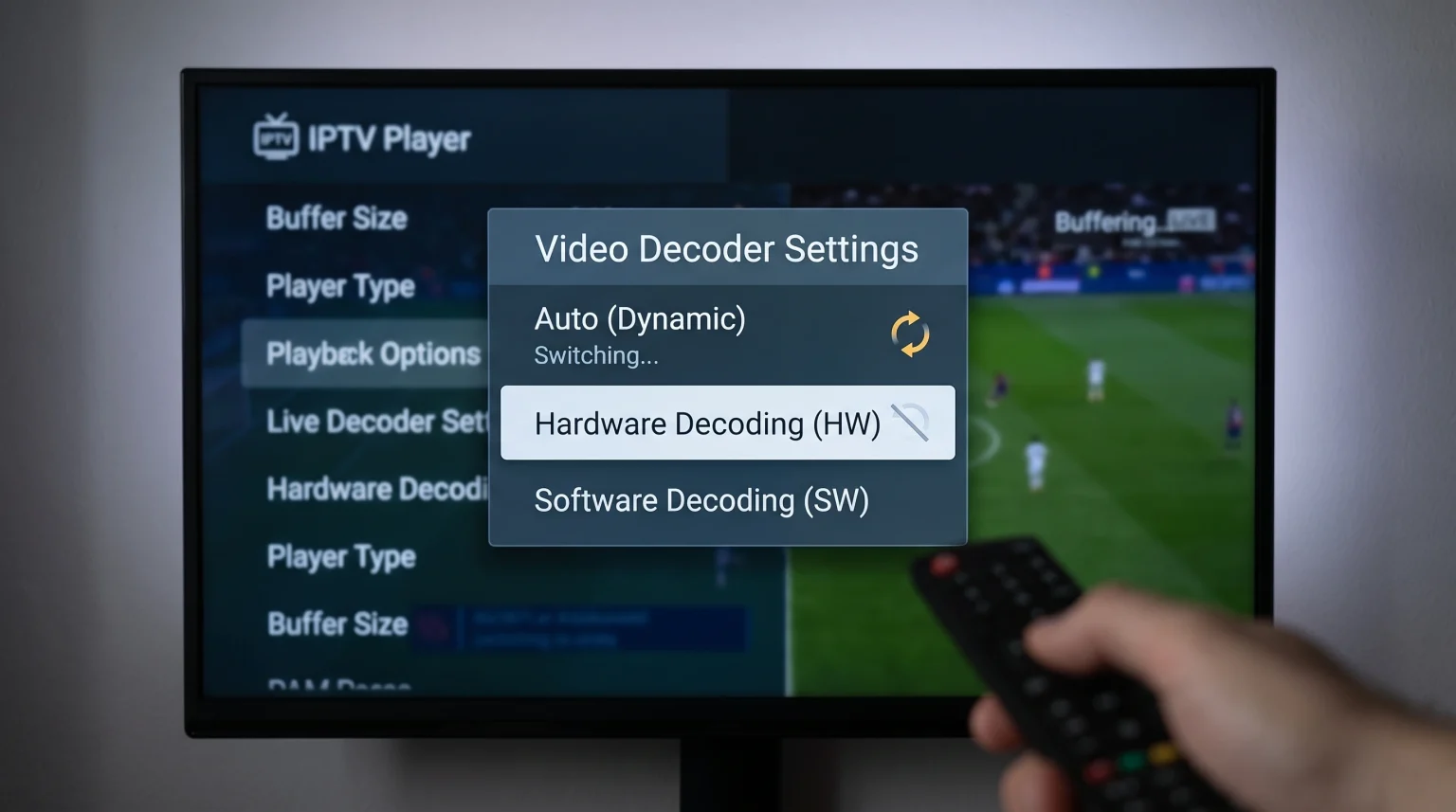
Quick Answer
Your IPTV player keeps switching between hardware and software decoding because the device hardware does not fully support the stream format. This switching also happens when the internet connection drops or when the stream contains data errors.
To fix this problem, open your IPTV app settings. Find the internal media player options. Force the app to use only hardware decoding or only software decoding. If the problem continues, install a different IPTV player application.
Understanding Media Decoders
To understand why the application switches, you must know how media decoders function. Video streams are compressed before they travel over the internet. Your device must decompress this data before displaying the picture.
What is Hardware Decoding?
Hardware decoding uses a dedicated microchip inside your device. This chip is usually part of the Graphics Processing Unit (GPU). The manufacturer designed this chip specifically to decode video formats like H.264 or HEVC (H.265).
Hardware decoding is very fast. It uses very little electricity. It keeps the device cool. For these reasons, hardware decoding is the best option for high-resolution video streams.
What is Software Decoding?
Software decoding uses the main processor of your device. This processor is called the Central Processing Unit (CPU). The CPU handles all general tasks on the device.
When you use software decoding, the IPTV application forces the CPU to decode the video. This process requires significant processing power. Software decoding makes the device hot. It drains the battery quickly on mobile devices. However, software decoding can play almost any video format because it does not rely on a specific microchip.
Hardware vs Software Decoding Comparison
This table shows the main differences between the two decoding methods.
| Feature | Hardware Decoding | Software Decoding |
| Processing component | Dedicated video chip (GPU) | Main processor (CPU) |
| Speed and efficiency | Very high | Moderate to low |
| Device temperature | Remains cool | Often becomes hot |
| Battery consumption | Low | Very high |
| Format compatibility | Limited by physical chip | Very broad |
| Performance for 4K video | Excellent | Often stutters on older devices |
Why Does IPTV Decoder Switching Happen?
IPTV apps are programmed to provide a continuous picture. If the primary decoder fails, the app automatically switches to the backup decoder. Here are the main reasons why this failure happens.
Unsupported Video Codecs
The video stream might use a codec that your device hardware does not recognize. For example, older Smart TVs do not have hardware chips for the AV1 video codec. If you play an AV1 stream, the hardware decoder fails. The app immediately switches to software decoding. If the CPU is not powerful enough, the app might try to switch back.
Incompatible Audio Formats
Sometimes the video format is supported, but the audio format is not. If a television broadcast uses Dolby Digital Plus audio, and your Smart TV does not have a license for Dolby Digital Plus, the hardware decoder cannot process the audio. The media player will switch to software decoding to play the sound.
Network Instability and Data Errors
Live IPTV streams can contain missing data packets. If your internet connection is unstable, the data arrives out of order. Hardware decoders are very strict. If a data packet is missing, the hardware decoder often stops working. The application detects this stop and switches to the software decoder. Software decoders are generally better at ignoring data errors.
If you want to understand how television processing affects image clarity, read our guide explaining Why Does IPTV Look Blurry on a New 4K TV?.
How to Stop IPTV Decoder Switching
You can solve this problem by changing the settings inside your IPTV application. Different apps have different menus, but the basic steps are similar.
1. Force a Single Decoder Setting
Open your IPTV application. Go to the Settings menu. Look for a section named “Player”, “Playback”, or “Decoding”.
You will usually see these options:
Auto (This setting causes the switching problem)
Hardware (HW)
Hardware+ (HW+)
Software (SW)
Select “Hardware (HW)”. Save the settings and restart the application. If the screen remains black, your device does not support the stream format. In that case, select “Software (SW)”.
2. Try the HW+ Option
Many Android-based IPTV players offer an “HW+” option. HW+ is a custom decoder built by the app developer. It uses the hardware chip but adds software adjustments. HW+ often plays streams that the standard HW decoder cannot play.
3. Change the Media Player Application
Some IPTV applications have poor internal media players. If your current app cannot stop switching, you should download a different app.
The operating system of your television controls which apps you can install. You can learn more about television platforms in our comparison of Best Smart TV OS for IPTV in 2026: Tizen vs Google TV vs webOS.
Live Football and Decoder Performance
Live sports broadcasting requires a fast frame rate. Most European football streams use 50 frames per second (fps). North American sports streams use 60 fps.
Hardware decoding is essential for live football. A standard CPU using software decoding often struggles to process 50 or 60 frames every second. If the app switches to software decoding during a football match, the ball will look blurry. The camera movement will stutter.
To ensure smooth motion during sports, you must use hardware decoding. If your television switches to software decoding during football, the TV processor might be too slow. You can learn more about frame rates in our guide explaining 60Hz vs 120Hz TV for Live Football.
Using TV Shadow IPTV with Media Players
TV Shadow IPTV provides high-quality streams. To watch these streams without interruption, you must use a capable media player.
When you configure your IPTV app with an M3U link or Xtream Codes login from TV Shadow IPTV, we recommend setting the application to hardware decoding. Modern television streams use HEVC (H.265) compression. Hardware decoding is the most efficient way to process HEVC streams.
If you use an older television or a cheap Android TV box, the device might lack HEVC hardware support. In this situation, the app will switch to software decoding. If your device constantly switches decoders while using TV Shadow IPTV, we recommend upgrading to an external streaming device like a Google Chromecast or an NVIDIA Shield.
Conclusion
IPTV decoder switching happens when the media player application cannot process the video stream smoothly. The app jumps between the hardware chip and the software processor to keep the video playing. This causes freezing and audio problems.
You can solve this issue by opening your IPTV app settings and selecting a permanent decoding method. Hardware decoding is always the best choice for picture quality and live football. If hardware decoding fails, software decoding is a reliable backup. By forcing the app to use only one method, you will enjoy a stable viewing experience.
Frequently Asked Questions (FAQ)
What is the difference between HW and HW+ decoding?
HW decoding uses the standard media framework provided by the device operating system. HW+ decoding uses a custom framework created by the app developer. HW+ often supports more video formats than standard HW.
Will software decoding damage my television?
No. Software decoding will not damage your television. However, software decoding requires high CPU usage. This can make the television menu run slowly until you stop the video stream.
Why do I have sound but a black screen?
A black screen with sound means the app successfully decoded the audio, but the hardware decoder failed to process the video. You should switch the app settings to software decoding to fix the picture.
Does my internet speed cause decoder switching?
Yes. If your internet connection drops data packets, the hardware decoder may crash. The app will then switch to software decoding to recover the stream. A stable wired Ethernet connection can prevent this problem.
Which IPTV apps have the best decoders?
Applications like TiviMate, IPTV Smarters Pro, and VLC Media Player have highly reliable internal decoders. These apps allow you to lock the decoding method manually.