
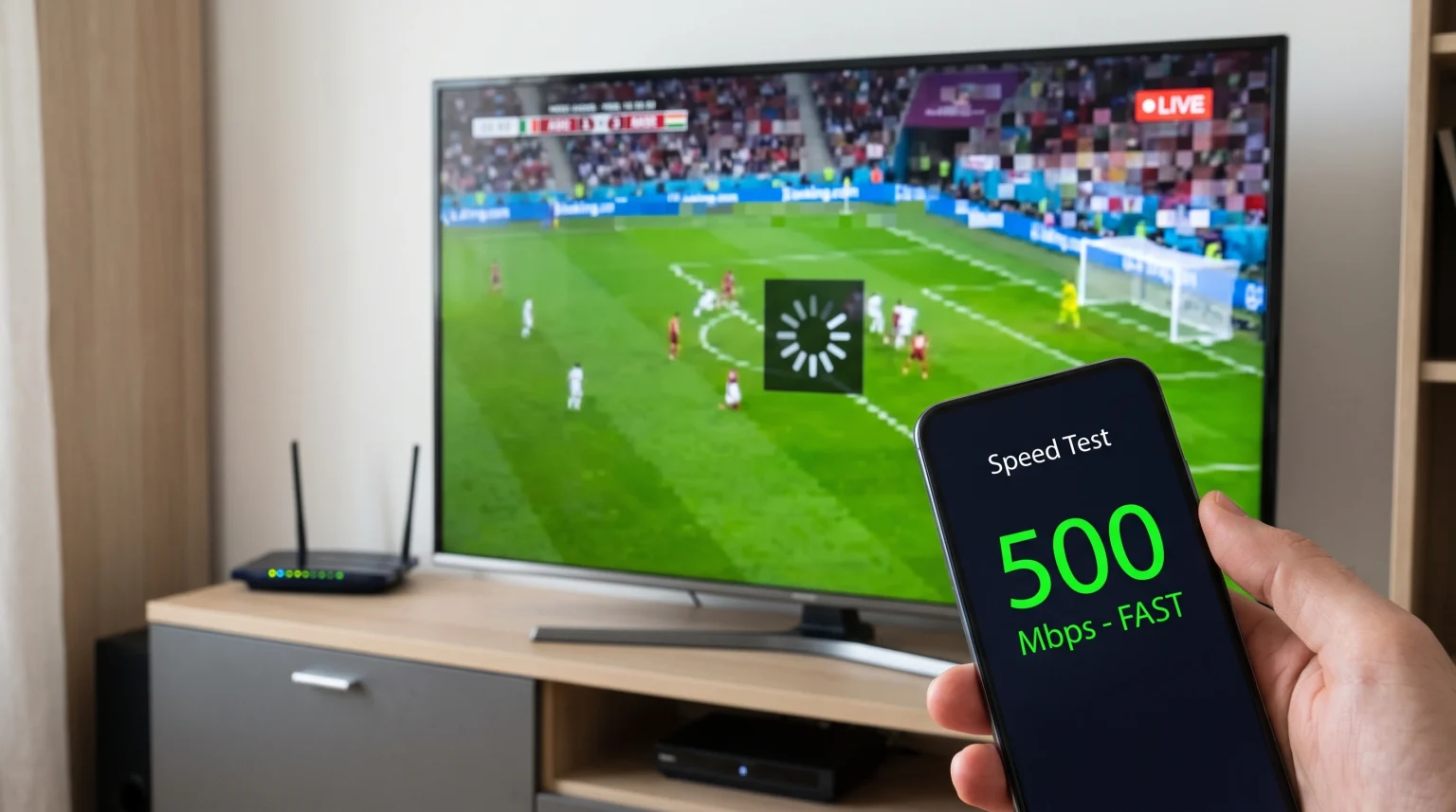
Many users experience IPTV dropped frames even when they have a fast internet connection. A network speed test may show 500 megabits per second, but the live television stream still stutters. High download speed does not guarantee a perfect video stream. Live video requires a continuous, stable data connection. If a data packet arrives late, the video player cannot wait for the data. The player skips the missing data, which causes a dropped frame. This article explains the technical reasons behind dropped frames and how you can fix the problem.
Quick Answer
IPTV dropped frames happen because live video streaming requires constant connection stability, not just high download speed. Even with fast internet, frames drop due to Wi-Fi packet loss, weak Smart TV processors, internet routing problems, or incorrect video decoding settings. To stop dropped frames, connect your television directly to your internet router using an Ethernet cable. You should also enable hardware decoding in your IPTV application settings. If your Smart TV processor is too slow, connect a dedicated streaming device to the television.
Internet Speed Versus Internet Stability
To understand dropped frames, you must understand the difference between internet speed and internet stability.
Internet speed is bandwidth. Bandwidth measures how much data you can download at exactly one moment. Watching a 4K live television stream requires a bandwidth of approximately 15 to 25 megabits per second. If your internet speed is 100 megabits per second, you have enough speed.
Internet stability measures how consistently the data travels from the server to your television. Live television cannot buffer large amounts of video in advance. The video data must arrive continuously. If the data stops for one second, the video player drops frames.
Three factors affect connection stability:
Ping (Latency): The time required for data to travel from the server to your device.
Jitter: The variation in your ping time. High jitter means data arrives at unpredictable times.
Packet Loss: Data that gets lost during transmission and never reaches your television.
High packet loss and high jitter cause IPTV dropped frames, regardless of your total internet speed.
Hardware Limitations of Smart Televisions
Modern televisions have beautiful screens, but they often contain weak computer processors. Processing power is very important for live video streaming.
When you stream video, the data is compressed. Your television must decompress the video data in real time. This process is called video decoding. A 4K live stream contains 60 separate pictures every second. The television processor must decode all 60 pictures perfectly. If the processor is weak, the processor cannot decode the pictures fast enough. The television skips the pictures, resulting in dropped frames.
Different television operating systems manage memory and processing power differently. Our guide to Best Smart TV OS for IPTV in 2026: Tizen vs Google TV vs webOS explains how the television software affects video performance. If your television processor is weak, you should buy a dedicated streaming device such as an Nvidia Shield, an Apple TV, or an Amazon Fire TV Stick. These devices have powerful processors designed specifically for video decoding.
Wi-Fi Interference and Packet Loss
Wireless internet is the most common cause of IPTV dropped frames. Wi-Fi connections are vulnerable to interference.
When you connect your television via Wi-Fi, the radio signals must travel through walls, furniture, and other electronic devices. Other Wi-Fi networks in your building can also interfere with your connection. This interference causes packet loss.
When you watch a YouTube video, the YouTube application downloads several minutes of video in advance. If the Wi-Fi connection drops for two seconds, you do not notice because the video is already downloaded. Live IPTV cannot download minutes of video in advance. If the Wi-Fi connection drops for two seconds, the live broadcast drops frames.
Connection Types Compared
| Connection Type | Data Stability | Packet Loss Risk | Best Use Case |
| Wi-Fi 2.4 GHz | Low | High | Reading emails and viewing websites |
| Wi-Fi 5 GHz | Medium | Medium | Streaming pre-recorded video |
| Wi-Fi 6 | Good | Low | Smart televisions near the router |
| Ethernet Cable | Excellent | Zero | Live IPTV and 4K sports streaming |
Whenever possible, connect your television or streaming device to your router using a physical Ethernet cable. An Ethernet cable prevents wireless interference and stops packet loss.
Refresh Rate and Video Stutter
Sometimes the video drops frames because the television screen does not match the broadcast video format. This problem is called a refresh rate mismatch.
Television broadcasts in Europe normally use 50 frames per second (50Hz). Television broadcasts in North America normally use 60 frames per second (60Hz).
If you watch a 50Hz European sports broadcast on a television locked to a 60Hz display mode, the numbers do not match. The television must repeat certain frames to fill the extra space. When the television repeats frames, the video looks jerky and unstable. Users often confuse this visual stutter with IPTV dropped frames.
To fix this problem, look in your IPTV application settings. Search for a feature called “Auto Frame Rate” (AFR). When you enable AFR, the application automatically changes your television screen to match the exact frame rate of the live broadcast.
Watching Live Football Without Dropped Frames
Live football requires perfect video playback. A dropped frame during a fast camera movement causes the football to look blurry.
Sports broadcasts demand more processing power than regular television shows because the camera moves constantly. To watch live football smoothly, you need a stable internet connection, a television with good motion handling, and correct application settings.
If you recently purchased a new television and football matches look bad, the problem might be the television picture settings. Modern televisions use artificial intelligence to improve the picture. This process is called upscaling. Our guide explaining Why Does IPTV Look Blurry on a New 4K TV? details how to adjust your picture settings. You should usually turn off “motion smoothing” or “action smoothing” in your television settings when watching live sports.
You also need to understand your television’s maximum refresh rate. You can learn more about this hardware feature in our guide to choosing a 60Hz vs 120Hz TV for Live Football.
Hardware Decoding Versus Software Decoding
Your IPTV application settings control how your device processes the video data. Most applications offer two decoding options: hardware decoding and software decoding.
Hardware Decoding: The application uses the dedicated video chip inside your television. This method is very fast, keeps the device cool, and handles high-resolution video easily.
Software Decoding: The application uses the general computer processor inside your television. This method is slow and often causes dropped frames with 4K video.
You should always use hardware decoding for IPTV. If you use popular applications like TiviMate or IPTV Smarters, open the playback settings and ensure hardware decoding is active.
Using TV Shadow IPTV Smoothly
TV Shadow IPTV delivers high-quality live television streams. However, you must use suitable equipment to experience the best results.
TV Shadow IPTV supports standard connection formats, including M3U playlists and Xtream Codes. You can use these formats with almost any IPTV player application. We recommend using a premium player application on a dedicated Android TV streaming box for the best performance.
If you experience dropped frames while using TV Shadow IPTV, follow these steps:
Connect your device with an Ethernet cable.
Restart your internet router to clear the network memory.
Open your IPTV application settings and enable hardware decoding.
Reduce the video resolution from 4K to 1080p to test if your device processor is struggling.
If the dropped frames stop at 1080p, your device processor is too weak for 4K live streaming.
Remember that TV Shadow IPTV does not control your local network conditions, your internet service provider’s routing, or the processing power of your television hardware.
Internet Service Provider Routing Problems
Your internet service provider (ISP) controls how your data travels across the world. Sometimes, your ISP chooses a bad route to the IPTV server.
Imagine driving a fast car on a highway. The car represents your fast internet speed. If the highway has construction and traffic jams, the car must drive slowly. The traffic jams represent bad ISP routing.
If your ISP has bad routing to the IPTV server, the data packets arrive late. The video player drops frames. A fast speed test does not show this problem because the speed test connects to a local server, not the international IPTV server.
If you suspect bad ISP routing, you can use a Virtual Private Network (VPN). A VPN forces your internet connection to use a different route. If you turn on a VPN and the dropped frames stop, your ISP routing was the cause of the problem.
Conclusion
IPTV dropped frames are frustrating, but they are rarely caused by a lack of total internet speed. Fast internet is important, but network stability and hardware processing power are more important for live video.
To achieve smooth playback, you must eliminate Wi-Fi packet loss by using an Ethernet cable. You must ensure your television processor is strong enough to decode live video, or buy a dedicated streaming device if the television is too weak. Finally, you must check your software settings to ensure hardware decoding is active. By optimizing your local network and equipment, you can enjoy TV Shadow IPTV with smooth, stable video playback.
Frequently Asked Questions
Why does my IPTV buffer when my internet speed is 500 Mbps?
High download speed does not prevent buffering. IPTV requires a continuous data connection with zero packet loss. Wi-Fi interference, bad network routing, or a weak television processor can cause buffering and dropped frames even with 500 Mbps internet.
Does a 120Hz TV fix dropped frames?
No. A 120Hz television improves motion clarity, but it does not fix dropped frames caused by internet problems or weak processors. The television cannot display frames that never arrive through the internet connection.
Should I use hardware or software decoding for IPTV?
You should always use hardware decoding. Hardware decoding uses the specific video microchip inside your device. This method is much faster and prevents dropped frames when watching high-definition live television.