
On October 25, 2026, daylight saving time ends in many regions, including Europe. Clocks move backward by one hour. Many IPTV users notice their Electronic Program Guide (EPG) becomes inaccurate immediately after this date. The EPG displays television shows one hour early or one hour late. This happens because the IPTV application or the television operating system fails to update the time zone automatically.
This article explains how to fix the IPTV EPG daylight saving October 2026 time shift. You will learn how to adjust time settings on your Smart TV and inside your IPTV player. Correcting these settings ensures your television schedule matches real-world broadcasting times.
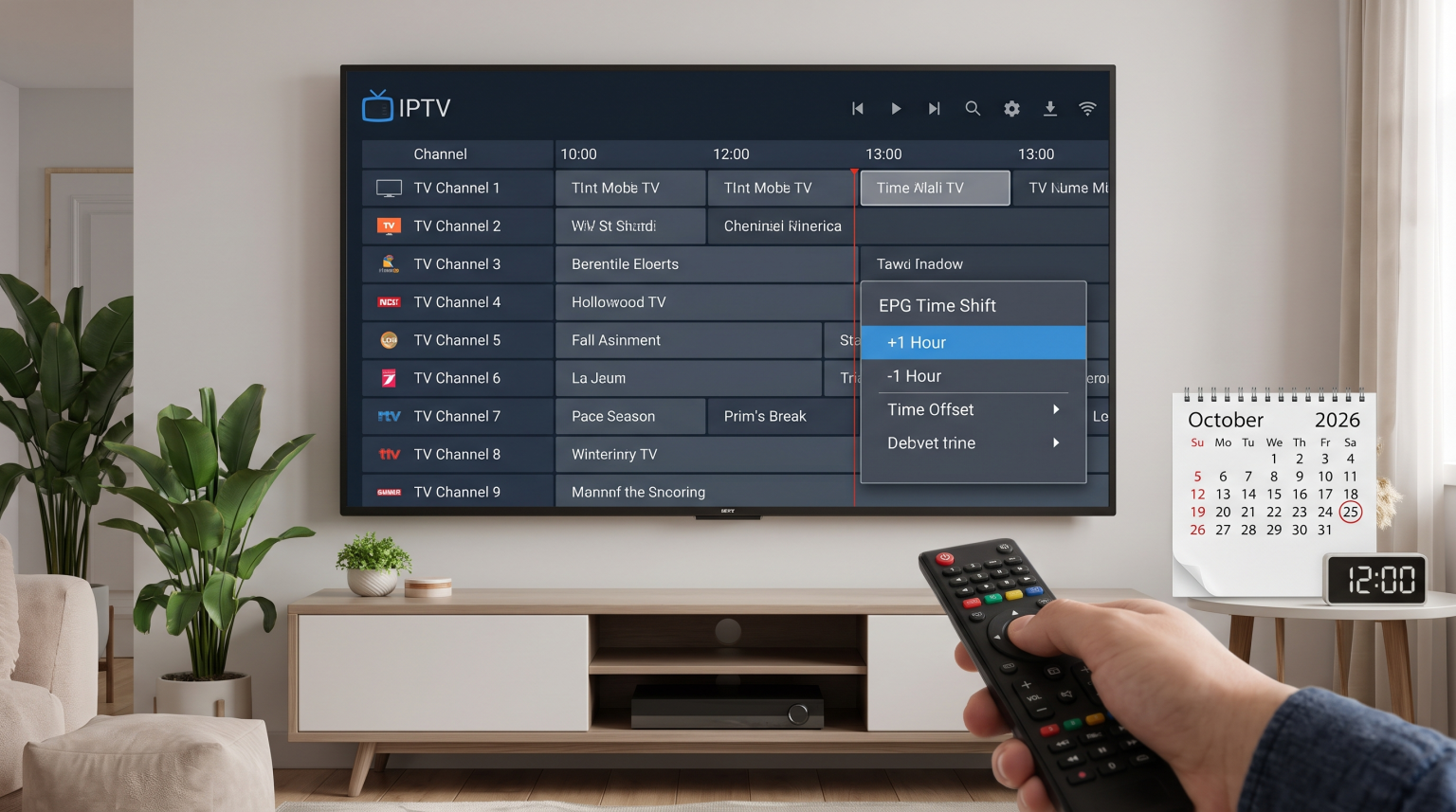
Quick Answer
If your IPTV EPG shows programs one hour wrong after October 25, the cause is a daylight saving time mismatch. To fix this error, first check your television settings. Ensure your television is set to the correct local time zone and the network time feature is active. If the television time is correct but the EPG remains wrong, open your IPTV application settings. Locate the EPG menu and adjust the “Time Offset” or “Time Shift” by +1 or -1 hour until the schedule matches your local time.
Why the EPG Time Changes in October
An Electronic Program Guide uses a digital file to display television schedules. This file often uses the XMLTV format. The XMLTV file contains programming data based on Universal Time Coordinated (UTC).
Your IPTV application reads this UTC data and converts the times to your local time zone. When daylight saving time ends on October 25, the local time changes. If your television or your IPTV application does not recognize the daylight saving time change, the UTC conversion fails. The application displays every program exactly one hour wrong.
Smart TV Operating System Time Settings
Different Smart TV brands use different operating systems. Each operating system manages network time differently. To fix EPG errors, you must verify that the television recognizes the daylight saving time change. If you are comparing television operating systems, our guide to Best Smart TV OS for IPTV in 2026: Tizen vs Google TV vs webOS explains the differences between Tizen, Google TV, and webOS.
Time Settings Comparison
| Operating System | Settings Menu Path | Network Time Feature | Daylight Saving Support |
| Samsung Tizen | General & Privacy > System Manager > Time | Auto Time | Automatic via internet |
| Sony Google TV | System > Date & Time | Automatic date & time | Network-provided time zone |
| LG webOS | General > System > Time & Timer | Set Automatically | Automatic via internet |
Adjusting Samsung Tizen Time
Samsung Tizen usually updates the time automatically. However, network errors can prevent this update. Go to the Settings menu. Select General & Privacy, then System Manager, then Time. Turn off the “Auto Time” feature, wait ten seconds, and turn the feature back on. This action forces the television to check the internet time server.
Adjusting Sony BRAVIA Google TV Time
Google TV uses Android network services to synchronize time. Open the Settings menu and select System. Select Date & Time. Ensure that “Automatic date & time” is active. If the time remains incorrect, deactivate the automatic setting and manually select your correct local time zone.
Adjusting LG webOS Time
LG Smart TVs require a stable internet connection to apply daylight saving time changes. Open the Settings menu, select General, then System, then Time & Timer. Verify that “Set Automatically” is selected. If the television displays the wrong hour, manually select your time zone in the location settings.
How to Fix Time Offsets in IPTV Applications
Sometimes the television time is perfectly correct, but the EPG remains exactly one hour wrong. This situation occurs when the IPTV application itself calculates the UTC conversion incorrectly. Most modern IPTV players include a manual correction feature called Time Offset or Time Shift.
Open your IPTV application.
Navigate to the main Settings menu.
Select the EPG or Playlist section.
Locate the setting named “Time Offset”, “EPG Shift”, or “Time Shift”.
Change the value to +1 or -1 depending on your specific error.
Refresh the EPG or restart the application.
You must test the new setting by checking a live television channel. Compare the current broadcast with the EPG schedule.
Accurate Schedules for Live Football
Having an accurate EPG is extremely important for sports fans. Live football matches start at precise times. If your EPG is one hour wrong, you might miss the first half of a UEFA Champions League match or a local league game.
When you watch live football, picture quality is also important. Fast camera movements require good motion handling from your television. The television refresh rate determines how smooth the football appears on your screen. You can read our detailed explanation in our article about choosing a 60Hz vs 120Hz TV for Live Football.
TV Shadow IPTV Compatibility
TV Shadow IPTV provides M3U playlists and Xtream Codes access. These formats supply standard XMLTV data for the EPG. The XMLTV data contains precise UTC timestamps for all television programs.
Because TV Shadow IPTV uses standard protocols, the service is compatible with most major IPTV applications on Samsung, Sony, LG, and Android devices. The accuracy of the EPG display depends entirely on your television time settings and your IPTV application settings. TV Shadow IPTV does not control how your local device calculates daylight saving time. You must adjust your device settings using the instructions above to ensure accurate schedules.
Keeping Your Schedule Accurate
The IPTV EPG daylight saving October 2026 time shift is a common technical event. When clocks change on October 25, digital devices must adjust their local time zones. If your television schedule is one hour wrong, you do not need a new IPTV provider. You only need to verify your Smart TV network time settings and adjust the EPG Time Offset inside your IPTV application. Maintaining correct time settings ensures your television guide remains perfectly synchronized with live broadcasts all year.
Frequently Asked Questions
Why did my EPG suddenly change by one hour?
Your EPG changed because daylight saving time ended. The local time moved backward by one hour, but your television or application did not update its internal clock to match the new local time.
Why is my television time correct but the IPTV app time is wrong?
Some IPTV applications have independent time zone settings or contain software bugs regarding daylight saving time. You must use the Time Offset feature inside the application to fix this specific error.
Will the EPG fix itself automatically?
Sometimes the EPG fixes itself after the television restarts or the application downloads a new XMLTV update. However, if the time remains incorrect after 24 hours, you must apply a manual fix.