
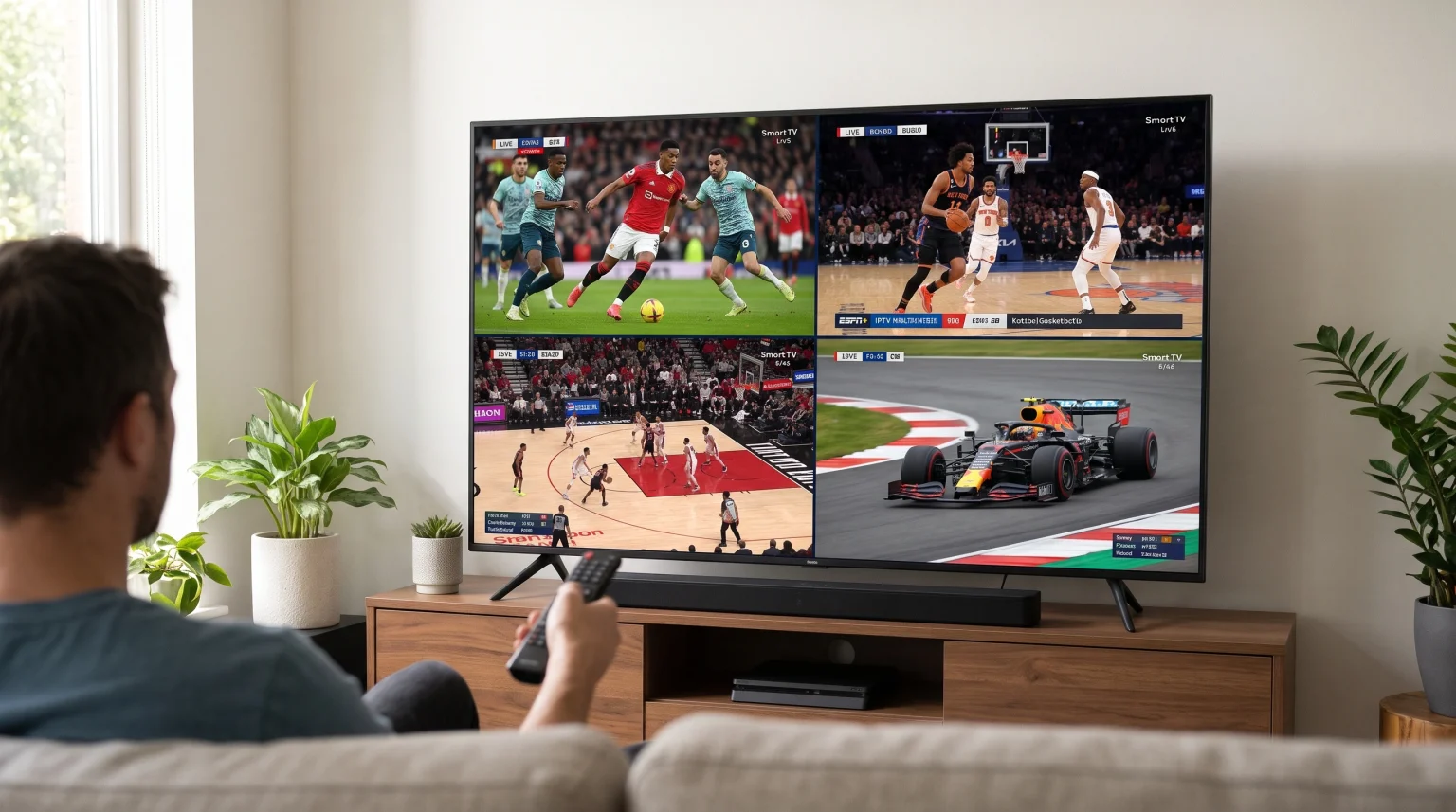
Watching multiple channels on the same television is a popular feature for sports fans and news watchers. This feature is called multiview or split-screen viewing. Users often try to open two, three, or four live channels at the same time. However, many users experience immediate buffering, freezing, or account blocks when they activate this feature.
This problem usually happens because of IPTV connection limits. A standard IPTV subscription gives you access to a large list of channels, but the server rules control how many video streams you can download at exactly the same time. Understanding how IPTV multiview connections work will help you prevent stream interruptions and hardware crashes.
Quick Answer
Yes, you need one active IPTV connection for each screen or channel you watch at the same time. If you open four channels in a multiview application, you are using four simultaneous connections. Most standard IPTV subscriptions only allow one connection per account. If you try to open a second channel without purchasing a second connection, the IPTV server will automatically pause, buffer, or block your streams. To use multiview reliably, you must buy additional connections from your IPTV provider.
How IPTV Multiview Connections Work
To understand multiview, you must understand how an IPTV application communicates with an IPTV server.
When you select a television channel in your application, the application sends a request to the server. The server verifies your account credentials. If your account is active, the server sends one continuous video stream to your television.
When you activate a multiview feature, your application sends multiple requests to the server simultaneously.
For example, if you divide your screen into four sections to watch four football matches, your application requests four separate video streams. The IPTV server sees this as four different devices connecting to the account. If your subscription only pays for one connection, the server’s security system will detect a rule violation. The server will respond by disconnecting the oldest stream, disconnecting all streams, or temporarily blocking your IP address.
One Device vs. Multiple Devices
Users often confuse “devices” with “connections.” You can install your IPTV application on ten different devices. However, the number of devices you can use at the exact same time depends on your number of allowed connections.
There are two main ways people use multiple connections:
1. Split Screen on One Device
This method uses a specific IPTV application to divide one television screen into multiple smaller screens. Applications like TiviMate Premium or IPTV Smarters Pro allow this function. You watch multiple channels on one monitor.
2. Watching on Multiple Devices
This method involves using different televisions or mobile phones at the same time. For example, one person watches a movie on the living room television, while another person watches live sports on a bedroom television.
Both methods require multiple connections. The IPTV server does not care if the streams go to one television or two televisions. The server only counts the total number of active video streams.
Multiview Comparison Table
| Feature | Split Screen on One Device | Watching on Multiple Devices |
| Connections required | One for each channel displayed | One for each active device |
| Hardware requirement | Very high (processor must decode multiple streams) | Normal (each device decodes one stream) |
| Internet speed needed | High (must download multiple streams to one location) | High (total bandwidth is shared across the house) |
| Best use case | Watching multiple live sports events simultaneously | Different family members watching different shows |
Hardware Limitations on Smart TVs
Even if you buy multiple IPTV multiview connections, your television hardware might limit your experience.
Processing live video requires significant hardware power. When you open four high-definition channels on one screen, the television processor must download, decode, and display four separate video signals simultaneously.
Most Smart TVs do not have powerful processors. If you try to run four streams directly on a basic television operating system, the application will often crash.
Operating systems process applications differently. If you want to know which television software handles applications best, you can read our guide to the Best Smart TV OS for IPTV in 2026: Tizen vs Google TV vs webOS].
For the best multiview performance on one screen, you generally need an external streaming device. Devices like the NVIDIA Shield TV or the Apple TV 4K have much stronger processors than standard Smart TVs. These external devices can decode multiple video streams without crashing.
Internet Bandwidth and Multiple Connections
When you use multiple connections, you multiply your internet data requirements.
A standard 1080p high-definition IPTV stream requires approximately 10 to 15 Megabits per second (Mbps) of internet download speed. A 4K video stream can require 25 to 30 Mbps.
If you use a four-screen multiview setup, your television must download all four streams simultaneously.
4 streams × 15 Mbps = 60 Mbps of continuous download speed.
If your internet connection fluctuates, or if other people in your house are downloading files, the video streams will buffer.
For multiview setups, we strongly recommend connecting your television or streaming device to your internet router using an Ethernet cable. Wi-Fi signals can be unstable when downloading multiple heavy video streams. A wired Ethernet connection provides the constant, stable data flow required for multiview.
Live Football and Sports Multiview
Sports fans use multiview more than any other group. During events like the UEFA Champions League, many matches happen at exactly the same time.
Watching live football in multiview requires careful attention to picture settings. Because the screen is divided into smaller sections, the video resolution for each section decreases. A 4K television will try to improve these lower-resolution images. If you want to understand how this process works, read our article explaining Why Does IPTV Look Blurry on a New 4K TV? .
Motion handling is also critical for live sports. Football involves fast camera movements. When a processor struggles to decode multiple streams, the motion can appear jerky or blurry. The refresh rate of your television hardware plays a large role in how smooth the ball looks. You can learn more about this in our comparison of 60Hz vs 120Hz TV for Live Football .
TV Shadow IPTV and Multiple Connections
When you use TV Shadow IPTV, your standard subscription provides one high-quality connection. This ensures maximum stability and server performance for your primary viewing experience.
If you want to use multiview applications or watch on different televisions at the same time, you must add extra connections to your TV Shadow IPTV account.
Do not try to force multiple streams on a single-connection account. The automated security system will detect the double login and may temporarily restrict your access to protect the server from overloading. Adding official extra connections ensures that all your streams remain stable and secure.
Choosing the Right IPTV Application
Not all IPTV applications support multiview.
If you want to use multiple connections on one screen, you must choose a compatible application.
Android TV and Google TV: These operating systems offer the best options for multiview. The application “TiviMate Premium” is widely considered the best choice. It allows users to build custom multiview screens easily. “IPTV Smarters Pro” also offers a reliable multi-screen function.
Samsung Tizen and LG webOS: These closed operating systems have very limited multiview options for IPTV. The native applications available in the Samsung and LG app stores usually only support one video stream at a time. If you own a Samsung or LG television and want to use multiview, you will likely need to connect an external Android TV box.
Conclusion
Using IPTV multiview connections is an excellent way to follow multiple live sports events or share a subscription with family members. However, the rule is simple: one video stream equals one required connection.
You cannot bypass server limits by using split-screen applications. If you want to watch two, three, or four channels at the same time, you must upgrade your IPTV subscription to include multiple connections. By securing the correct number of connections, using a wired internet cable, and ensuring your hardware is powerful enough, you can enjoy a perfect, buffer-free multiview experience with TV Shadow IPTV.
Frequently Asked Questions (FAQ)
Can I use one IPTV subscription on two TVs at the same time?
Usually, no. Unless you purchase a specific subscription plan that includes two connections, you cannot watch on two televisions simultaneously. The server will disconnect one or both televisions.
Why does my IPTV stream pause when I open a second channel?
Your stream pauses because you have reached your connection limit. The server detects that you are trying to download two streams with a single-connection license, so it stops the data transfer.
Do I need a faster internet connection for multiview?
Yes. Each active video stream requires its own bandwidth. If one stream requires 15 Mbps, four simultaneous streams will require at least 60 Mbps of continuous, stable download speed.