
Amazon released a major system update for Fire TV devices in October 2026. This system update introduced new security protocols and changed how web applications process video. Because of these changes, many users of the Streamly IPTV Web Player experienced freezing, black screens, and connection errors.
This guide explains how to fix these errors. You will learn how to install the new Streamly IPTV update 2026. You will also learn how to optimize your Amazon Fire TV Stick for stable live television. If you follow these instructions, your web player will function normally again.
Quick Answer
The October 2026 Fire TV update restricted background data and changed video rendering rules. To fix the Streamly IPTV Web Player, you must clear your web browser cache and apply the Streamly IPTV update 2026. You must also allow new network permissions in the Fire TV system settings. These three steps will resolve the buffering errors and restore normal video playback for live television streams.
What Caused the Fire TV Errors in October 2026?
Amazon regularly updates the Fire OS operating system. The October 2026 update focused on device security and memory management. Amazon wanted to stop malicious applications from using too much device memory.
However, this update caused problems for legitimate web-based media players. The Fire TV system began closing background video processes. This action interrupted live video streams.
Users reported three specific problems with the Streamly IPTV Web Player:
The video frequently paused, but the audio continued playing.
The application displayed a black screen when switching television channels.
The Electronic Program Guide (EPG) failed to download channel schedules.
These problems affect the Amazon Fire TV Stick 4K, the Fire TV Stick 4K Max, and the new Fire TV Stick HD.
How to Apply the Streamly IPTV Update 2026
The developers of Streamly released a software patch to solve the Fire OS compatibility issues. Follow these exact steps to apply the Streamly IPTV update 2026 on your Amazon Fire TV device.
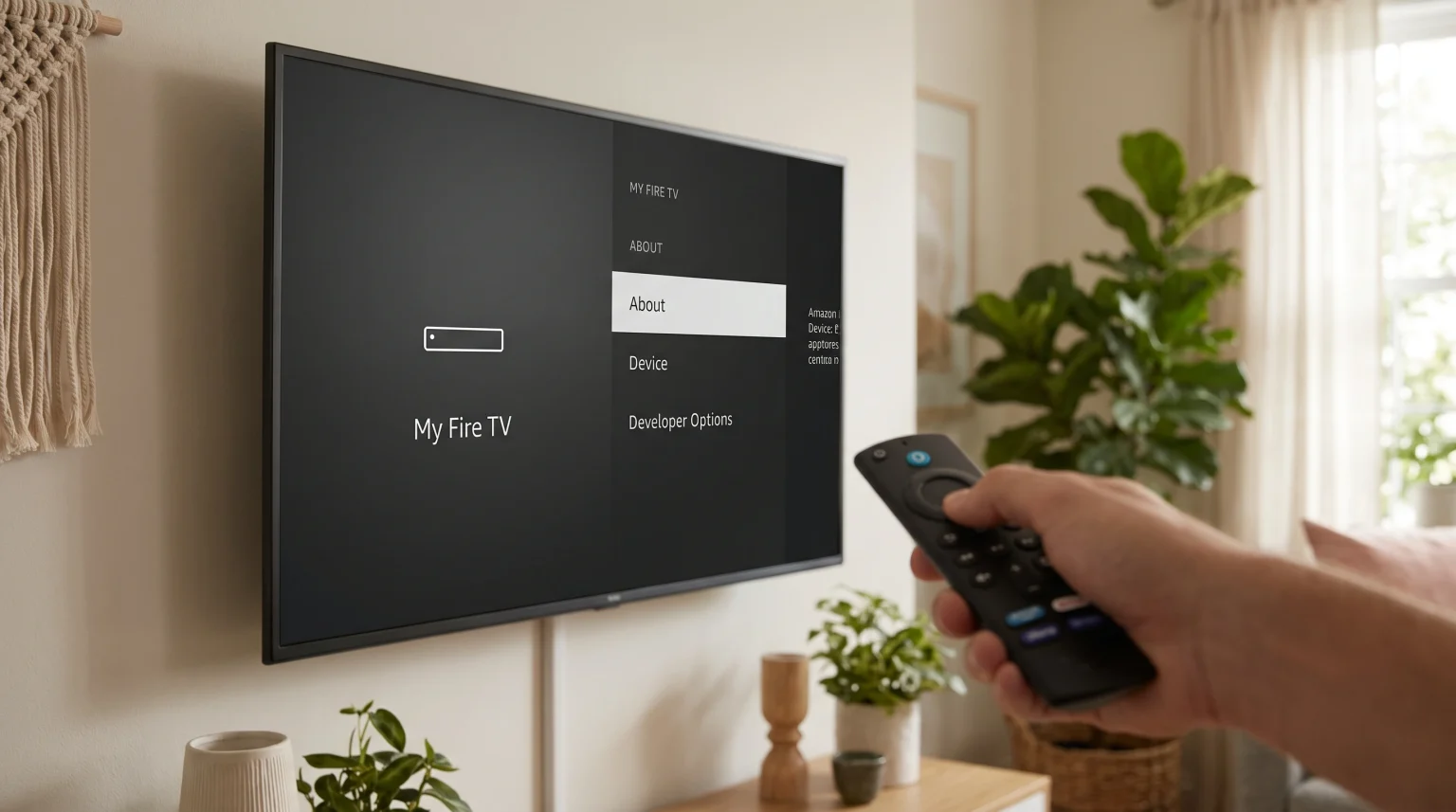
Step 1: Enable Developer Options
Amazon hides the Developer Options menu on newer Fire TV devices. You must reveal this menu to allow new software updates.
Open the Fire TV Settings menu.
Select My Fire TV.
Select About.
Highlight the name of your Fire TV device.
Press the select button on your remote control exactly seven times.
The screen will display a message confirming you are a developer.
Step 2: Clear the Application Cache
Old software files will block the new update. You must delete these old files.
Return to the Fire TV Settings menu.
Select Applications.
Select Manage Installed Applications.
Find your web browser application (such as Amazon Silk or Downloader).
Select Clear Cache. Do not select Clear Data.
Step 3: Install the Streamly IPTV Update 2026
Now you can safely update the web player.
Open your Fire TV web browser.
Navigate to the official Streamly web portal.
The website will detect your Fire TV operating system.
A prompt will ask you to accept the Streamly IPTV update 2026.
Select Accept and Update.
Restart your Amazon Fire TV device.
Comparing Streamly Web Player and Native IPTV Apps
The Streamly IPTV Web Player operates inside a web browser. Native applications install directly onto the device storage. Each method has different advantages for Amazon Fire TV users.
Here is a factual comparison of Streamly, TiviMate, and IPTV Smarters Pro on Amazon Fire TV:
| Feature | Streamly Web Player | TiviMate | IPTV Smarters Pro |
| Installation method | Web browser access | Sideload via Downloader | Sideload via Downloader |
| Operating system | Works on all browsers | Android and Fire OS only | Android, Fire OS, iOS |
| Storage space needed | Less than 10 Megabytes | Approximately 50 Megabytes | Approximately 45 Megabytes |
| Xtream Codes support | Yes | Yes | Yes |
| M3U playlist support | Yes | Yes | Yes |
| Automatic updates | Yes, via website reload | No, requires manual update | No, requires manual update |
Streamly is suitable for users who have limited storage space on their Fire TV device. TiviMate is suitable for users who want advanced recording features. IPTV Smarters Pro is suitable for users who want to watch Video on Demand (VOD) content in a traditional menu layout.
IPTV Compatibility with TV Shadow IPTV
TV Shadow IPTV provides high-quality streaming servers for live television. You need a compatible media player to watch the television channels. The Streamly IPTV Web Player is fully compatible with TV Shadow IPTV.
TV Shadow IPTV does not have an official relationship with Amazon, Google, or Streamly. You must configure the player yourself using your subscription details.
Xtream Codes Connection
The Streamly web player supports the Xtream Codes API connection method. This is the best way to connect to TV Shadow IPTV. You enter your username, your password, and the server URL. This method automatically categorizes your live television channels, movies, and series.
M3U Playlist Connection
The web player also supports standard M3U playlists. An M3U playlist is a long web link containing all your channels. M3U links work well, but they take longer to load than Xtream Codes.
Electronic Program Guide (EPG)
When you use TV Shadow IPTV with the Streamly Web Player, the Electronic Program Guide (EPG) loads automatically. The EPG shows you the television schedule for the next several days. The October update fixes the EPG loading errors on Fire TV.
Best Fire TV Settings for Live Football
Live sports require a fast and stable video connection. Football moves quickly across the screen. Incorrect settings will cause the football to look blurry or stutter.
You can optimize your Amazon Fire TV and Streamly Web Player for live football by changing specific settings.
Wi-Fi versus Ethernet
First, connect your Fire TV device to your internet router using an Ethernet cable. You will need an Amazon Ethernet Adapter for this. An Ethernet cable provides a more stable connection than Wi-Fi. Wi-Fi signals can drop temporarily, causing the football stream to buffer.
Television Refresh Rates
Second, ensure your television can display fast motion correctly. If you want to know more about television hardware, read our guide explaining whether you need a 60Hz vs 120Hz TV for Live Football. A 120Hz television will display sports more smoothly than a 60Hz television.
Video Resolution and Upscaling
Third, check your Fire TV display settings. The Fire TV will try to match your television’s maximum resolution. If you watch a 1080p football stream on a 4K television, the television must upscale the image. If you recently bought a new television, read our guide explaining Why Does IPTV Look Blurry on a New 4K TV?.
Motion Smoothing
Finally, turn off “Motion Smoothing” or “TruMotion” in your actual television settings. This feature adds fake frames to the video. It often makes the football look unnatural and creates a visual artifact called the “soap opera effect”.
Smart TV Alternatives for Streamly
You do not have to use an Amazon Fire TV device. You can use the Streamly IPTV Web Player on many modern Smart TVs. Because Streamly is a web player, it bypasses the official application stores.
Samsung Tizen
Samsung televisions use the Tizen operating system. Samsung Tizen does not support Android applications from Google Play. However, Samsung includes a built-in web browser. You can open the Streamly Web Player directly in the Samsung web browser. The remote control navigation works correctly.
LG webOS
LG televisions use the webOS operating system. Like Samsung, LG does not support Android applications. You can use the LG web browser to access Streamly. The LG Magic Remote cursor works perfectly with the Streamly interface.
Sony BRAVIA with Google TV
Sony BRAVIA televisions use Google TV. Google TV is based on Android. You have two options on a Sony television. You can use a web browser to open Streamly, or you can download a native IPTV player from the Google Play Store.
If you want to buy a new television for streaming, compare the operating systems first. Our guide to the Best Smart TV OS for IPTV in 2026 explains the differences between these brands in detail.
Conclusion
The Amazon Fire OS update in October 2026 caused temporary problems for many streaming applications. The system restricted memory and interrupted video playback. However, you can fix these problems quickly. By clearing your browser cache, enabling developer options, and installing the Streamly IPTV update 2026, you will restore smooth video playback.
Ensure you use a reliable premium service like TV Shadow IPTV for the best live television experience. Always keep your streaming devices updated, connect via Ethernet when possible, and configure your display settings correctly. These steps guarantee uninterrupted entertainment.
Frequently Asked Questions (FAQ)
Why is my Streamly IPTV Web Player buffering after the October update?
The October 2026 Fire TV update restricted background memory usage. This caused the web browser to pause video processing. You must apply the Streamly IPTV update 2026 to fix this memory conflict.
Does the Streamly IPTV update 2026 cost money?
No. Software updates for the Streamly Web Player are completely free. You only pay for your IPTV subscription service, such as TV Shadow IPTV.
How do I find Developer Options on my new Fire TV Stick?
Go to Settings, select My Fire TV, and select About. Highlight your device name and press the select button seven times. This action unlocks the Developer Options menu.