
Many television viewers want to watch multiple channels at the same time. The TM IPTV application includes a powerful feature called Multiview. This feature allows you to open two, three, or up to nine different screens on one television monitor. Setting up TM IPTV multiview presets saves time when you open the application.
This guide explains how to configure, manage, and save your favorite multiview layouts. Multiview is an excellent tool for live sports and international news events. When you use your TV Shadow IPTV service, a good player application makes the viewing experience much better. However, creating a screen layout can be confusing for new users. We will show you the exact steps to open multiple screens and keep your preferred channel combinations ready for your next viewing session.
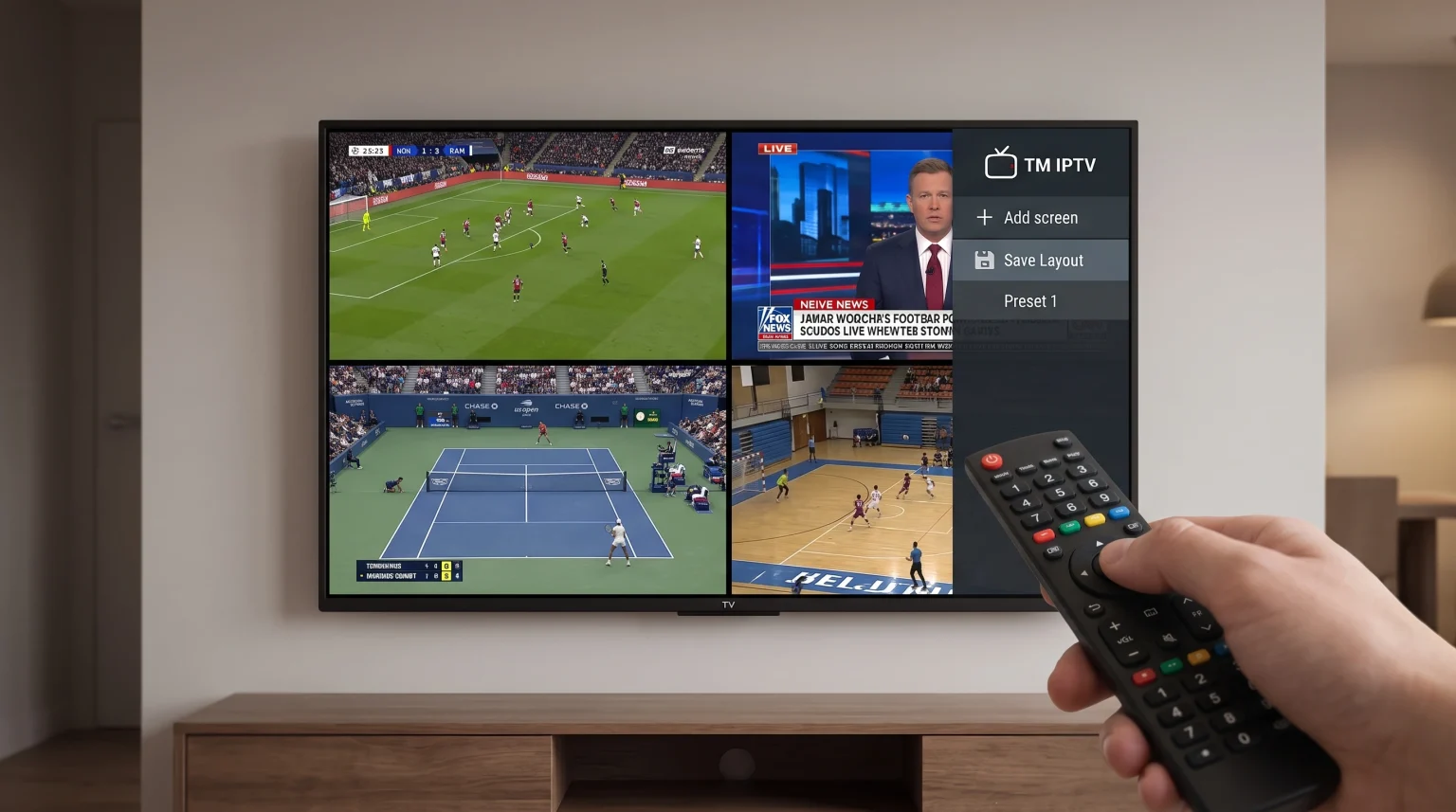
Quick Answer
To configure TM IPTV multiview presets, open your primary television channel first. Press the ‘Select’ or ‘OK’ button on your remote control to open the bottom player menu. Select the ‘Multiview’ icon. Choose ‘Add screen’ and select your second channel from the list. The TM IPTV application automatically remembers your most recent layout. When you close and reopen the application, your previous multiview configuration will load automatically. For permanent setups, add your multiview channels to a custom ‘Favorites’ category.
What Are TM IPTV Multiview Presets?
A multiview layout is a specific screen arrangement. When you open multiple channels, the screen divides into smaller boxes. You can choose different display styles. For example, you can show one large screen and two small screens.
A preset is a saved configuration. TM IPTV does not use a traditional “Save” button for layouts. Instead, the software uses an automatic memory system. The application remembers the exact screens and channels you watched last. If you configure a four-screen layout with four sports channels, TM IPTV will open this exact four-screen layout the next time you activate the Multiview function.
Step-by-Step Guide: How to Create a Multiview Layout
Follow these exact steps to build your screen layout.
Open the TM IPTV application.
Select and play your first television channel.
Press the central ‘OK’ button on your remote control.
Scroll down to the player menu.
Select the icon that shows multiple small squares (the Multiview icon).
A menu will appear on the right side of the television screen.
Select ‘Add screen’.
Choose a second channel from your television playlist.
Repeat this process to add a third or fourth screen.
To save this layout for the future, simply leave the channels playing. When you exit the Multiview mode, the application stores this configuration in the system memory.
Managing Your Screens and Audio
When you watch multiple channels, you will only hear audio from one channel. TM IPTV puts a colored border around the active audio screen.
To change the audio source, use the directional buttons on your remote control. Move the cursor to a different screen. The colored border will move to the new screen, and the audio will change immediately.
You can also change the screen layout style. Open the right-side menu while Multiview is active. Select the ‘Layout’ option. You can choose symmetrical boxes or one large primary screen with smaller secondary screens.
Multiview Layout Options
This table explains the different layout options available in the application.
| Layout Type | Number of Screens | Screen Arrangement | Best Use Case |
| Picture-in-Picture | 2 screens | One full screen, one small floating box | Watching a movie while checking sports scores |
| Split Screen | 2 screens | Two equal vertical boxes | Comparing two live news broadcasts |
| Primary Screen | 3 or 4 screens | One large top screen, small bottom screens | Focusing on one main football match |
| Grid Layout | 4 to 9 screens | Equal square boxes | Monitoring multiple live sports events |
Hardware Limitations and IPTV Apps
Multiview requires significant computer processing power. The TM IPTV application must download and decode multiple video streams simultaneously.
Most basic Smart televisions do not have enough processing power to run four high-definition video streams. If you try to open four screens on an old television, the application will freeze or crash. This is a hardware limitation, not a problem with your TV Shadow IPTV service.
If you are currently choosing new hardware, our guide to the Best Smart TVs for IPTV in 2026: Samsung, Sony, LG & TCL Compared explains which processors offer the best performance.
For the best multiview experience, we recommend external streaming devices. Devices such as the Nvidia Shield TV Pro, Apple TV 4K, or Amazon Fire TV Cube contain powerful processors. These devices can handle multiple video streams smoothly.
Using Multiview for Live Football
Many users create TM IPTV multiview presets specifically for live football. Multiview allows you to watch Champions League or Premier League matches happening at the exact same time.
Live football requires high video frame rates to look smooth. When you place four fast-moving football matches on one screen, your television must process a large amount of visual data. A slow television processor will make the football look blurry or delayed.
A television with a 120Hz refresh rate handles fast motion much better than a 60Hz television. If you plan to watch multiple sports matches, read our comparison of 60Hz vs 120Hz TV for Live Football.
Additionally, we strongly recommend using an Ethernet cable instead of a Wi-Fi connection. Four live video streams require a very fast and stable internet connection. An Ethernet cable prevents buffering when you watch live football on multiple screens. If your image quality drops during sports broadcasts, read our guide explaining Why Does IPTV Look Blurry on a New 4K TV?.
Creating Custom Favorites for Multiview
Because TM IPTV remembers your last layout automatically, you can make the process faster by organizing your channels.
We recommend creating a specific ‘Favorites’ group for your multiview channels.
Go to your main channel list.
Select a channel you frequently use in Multiview.
Long-press the ‘OK’ button on your remote control.
Select ‘Add to Favorites’.
Repeat this for all your preferred sports or news channels.
When you open the Multiview screen selection menu, you can navigate directly to your ‘Favorites’ category. This method is much faster than searching through a playlist containing thousands of channels.
Conclusion
Creating TM IPTV multiview presets is a simple process once you understand the application menus. While the software does not use a traditional save button, the automatic memory function ensures your favorite screen layout is always ready. Remember that multiple live video streams require high internet speeds and strong device processors. By organizing your preferred channels into a custom favorites list, you can launch a four-screen sports layout in seconds with your TV Shadow IPTV service.
Frequently Asked Questions
Can I save multiple different TM IPTV multiview presets?
No, the application does not allow you to name and save multiple different layout files. The application only remembers your most recent multiview configuration in the system memory.
Why does my television crash when I open three screens?
Your device processor is likely too slow. Downloading and playing three live video streams requires a powerful processor and a large amount of RAM. Smart televisions often crash during this process.
Can I listen to the audio of two channels at the same time?
No, TM IPTV only plays audio from one selected screen at a time. Playing two audio tracks simultaneously would create confusing noise. You must select the screen you want to hear.