
Many users want to know if they can use one streaming device on multiple TVs. Moving a streaming device from the living room to the bedroom is a common practice. You do not need to buy a separate device for every television in your house. Streaming sticks and media boxes process the software internally. The television only acts as a display monitor. This means your applications, passwords, and viewing history travel with the physical device.
Quick Answer
Yes, you can move one streaming device between two or more televisions. You only need an available HDMI port on each television and a power source. When you move the streaming device, your installed applications, account settings, and subscriptions remain saved on the device itself. You must connect the device to a Wi-Fi network in the new location if the network changes. To use a streaming device on multiple TVs safely, always power off the device before unplugging it from the HDMI port.
How Streaming Devices Work Across Different Televisions
Streaming devices are independent computers. Devices like the Chromecast with Google TV, Amazon Fire TV Stick, and NVIDIA Shield TV contain their own operating systems. They also contain their own processors, memory, and Wi-Fi antennas.
Because the streaming device holds all the software, the television brand does not matter. You can unplug a streaming device from a Samsung television and plug the same device into a Sony television. The user interface will look exactly the same on both televisions. Your remote control will also continue to navigate the streaming device menus without any new configuration.
Requirements for Moving a Streaming Device
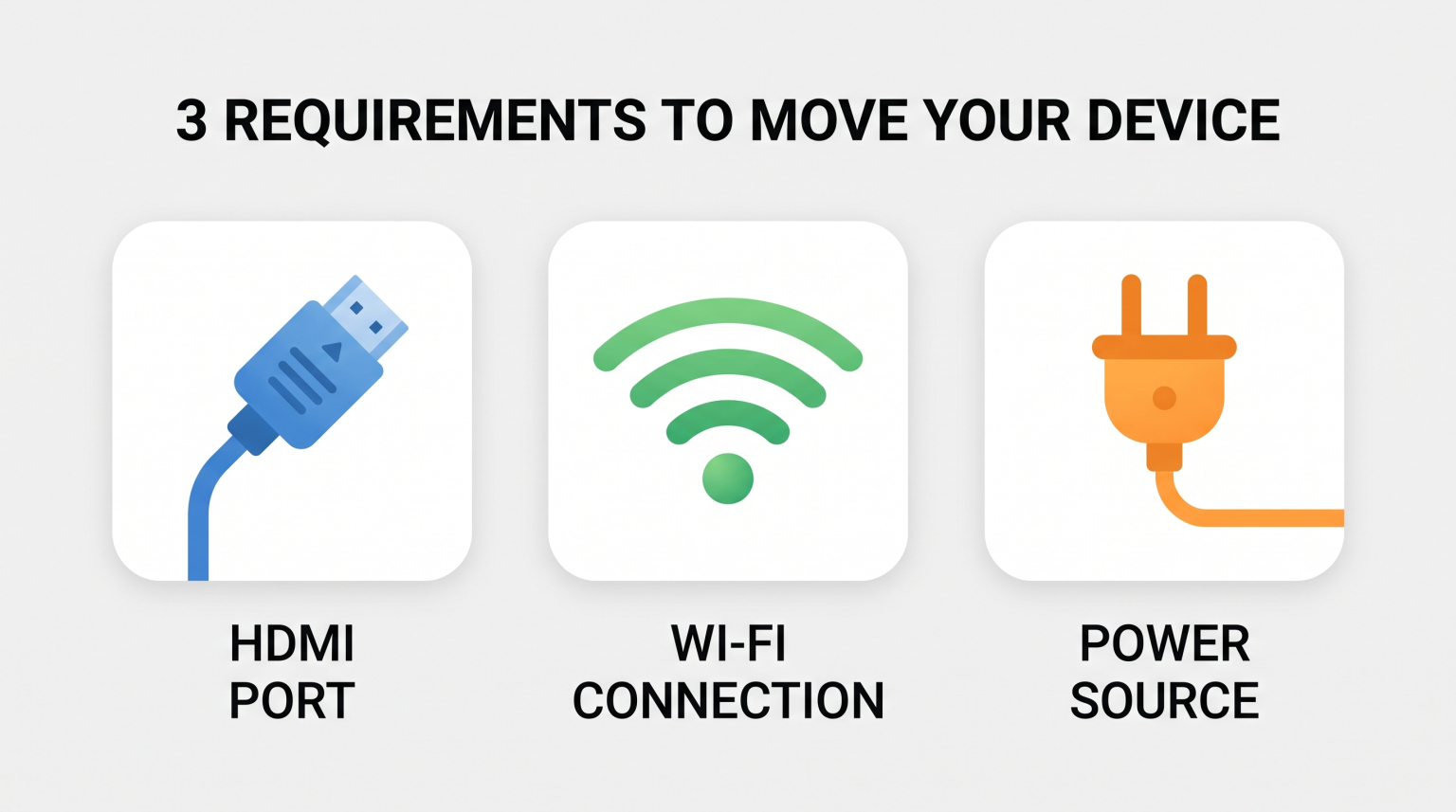
To successfully move a streaming device between two televisions, you must check three hardware requirements.
1. Available HDMI Ports
Every modern streaming device requires an HDMI port. Check the back or side of your second television. Ensure the television has at least one empty HDMI port. If your television is mounted closely to the wall, you may need an HDMI extension cable to fit the streaming device behind the screen.
2. Reliable Power Source
Most streaming sticks require external power. You cannot always power a streaming stick using the USB port on the television. Many older television USB ports do not provide enough electrical current. You should move the power adapter and the power cable together with the streaming device. Plug the power adapter directly into a wall outlet for the best performance.
3. Internet Connection
The streaming device requires an internet connection to work. If both televisions are inside the same house, the streaming device will remember your Wi-Fi password. The device will connect automatically when you turn on the second television. If you move the streaming device to a different house or a hotel, you must enter the new Wi-Fi password in the network settings.
Comparing Solutions: Moving One Device vs. Buying Two Devices
You have two options for watching content on multiple televisions. You can move one device between rooms, or you can buy a dedicated streaming device for each television.
| Feature | Moving One Streaming Device | Buying Two Streaming Devices |
| Total hardware cost | Low (Only pay for one device) | High (Pay for multiple devices) |
| Setup time per session | 2 to 3 minutes to reconnect | Instant access |
| App data and passwords | Always synchronized automatically | Requires separate manual logins |
| Remote control | You must carry the remote | Each television has its own remote |
| Hardware wear and tear | Higher risk of cable damage | Very low risk of damage |
Using a Moved Streaming Device for IPTV
Many users connect a streaming device to their television specifically to use IPTV applications. Television manufacturers often limit which applications you can install. For example, our guide to Best Smart TV OS for IPTV in 2026 explains the differences between Tizen, Google TV, and webOS app stores.
A portable streaming device solves these limitation problems. When you install an IPTV player like TiviMate or Smarters Pro on an Android TV device, that application stays on the device.
If you use TV Shadow IPTV, you enter your M3U playlist URL or Xtream Codes login details into the IPTV player application. This information saves directly to the internal storage of the streaming device. When you move the streaming device to a second television, you do not need to enter your IPTV login details again. Your Electronic Program Guide (EPG), favorite channels, and custom settings remain exactly as you left them.
Watching Live Football on Multiple TVs
Live football and other sports require high-quality video processing. When you move a streaming device to watch a football match on a different television, you might notice a difference in picture quality.
The streaming device sends the video signal, but the television screen controls the motion handling. A premium television in your living room might process fast-moving footballs smoothly. A cheaper television in your bedroom might show motion blur, even though you are using the same streaming device.
If you notice blurry sports streams after moving your device, this is often a hardware difference. You can read more about this effect in our guide explaining Why Does IPTV Look Blurry on a New 4K TV?.
Additionally, consider your Wi-Fi signal strength. Live football requires a fast and stable internet connection. If the second television is far away from your wireless router, the streaming device might struggle to load the video. For the best live football experience, check that the Wi-Fi signal is strong in the new room. If the television supports a high refresh rate, check our article on 60Hz vs 120Hz TV for Live Football to optimize your television settings.
Common Problems and Solutions When Changing TVs
Moving a streaming device is generally simple, but you may experience small technical issues.
Incorrect Screen Resolution
If you move a streaming device from a 4K television to an older 1080p television, the screen might appear blank. The streaming device might try to send a 4K signal that the older television cannot display. Solution: Restart the streaming device. Most modern streaming devices will automatically detect the new television and adjust the display resolution automatically.
Television Remote Control Does Not Work
Many users use HDMI-CEC technology. This technology allows your television remote to control your streaming device. When you move the streaming device to a new television, HDMI-CEC might be disabled in the new television’s settings menu. Solution: Open the settings menu on your second television. Look for HDMI-CEC (sometimes called Anynet+, BRAVIA Sync, or SimpLink). Turn this feature on to use one remote control.
Audio Delay
Sometimes the video and audio do not match when you connect to a different television. Solution: Open the audio settings on your streaming device. Look for the “Audio Sync” or “Lip Sync” tool. Use this tool to delay the audio until it matches the video perfectly.
Final Thoughts on Moving Streaming Equipment
Using one streaming device on multiple TVs is a highly practical solution. It allows you to carry your complete entertainment system, including your IPTV applications and streaming subscriptions, to any room in your house. As long as your second television has an HDMI port and a reliable Wi-Fi connection, the transition takes only seconds. While buying multiple devices offers maximum convenience, moving a single device ensures your watch history and account logins are always unified across every screen you own.
Frequently Asked Questions
Can I use a Firestick on a non-smart TV?
Yes, you can use a Firestick on a non-smart TV. The television only needs a working HDMI port. The Firestick provides all the smart features, applications, and internet connectivity.
Do I have to pay for Netflix twice if I use two TVs?
No, you do not pay twice. Your Netflix account is linked to the streaming device, not the television. When you move the device, your account remains logged in.
Will I lose my saved data if I unplug my streaming device?
No, you will not lose data. Streaming devices use flash memory. This type of memory saves your applications, passwords, and settings permanently, even without electrical power.
Can one streaming device play different things on two TVs at the same time?
No, a standard streaming device can only connect to one television at a time. It only has one HDMI output. To watch different programs on two televisions simultaneously, you must buy a second streaming device.
Why does my streaming device restart when I turn on the second TV?
This happens if the streaming device receives power from the television’s USB port. When the television turns on, it sends power to the device, causing it to boot up. Using a wall power adapter prevents this restart sequence.