
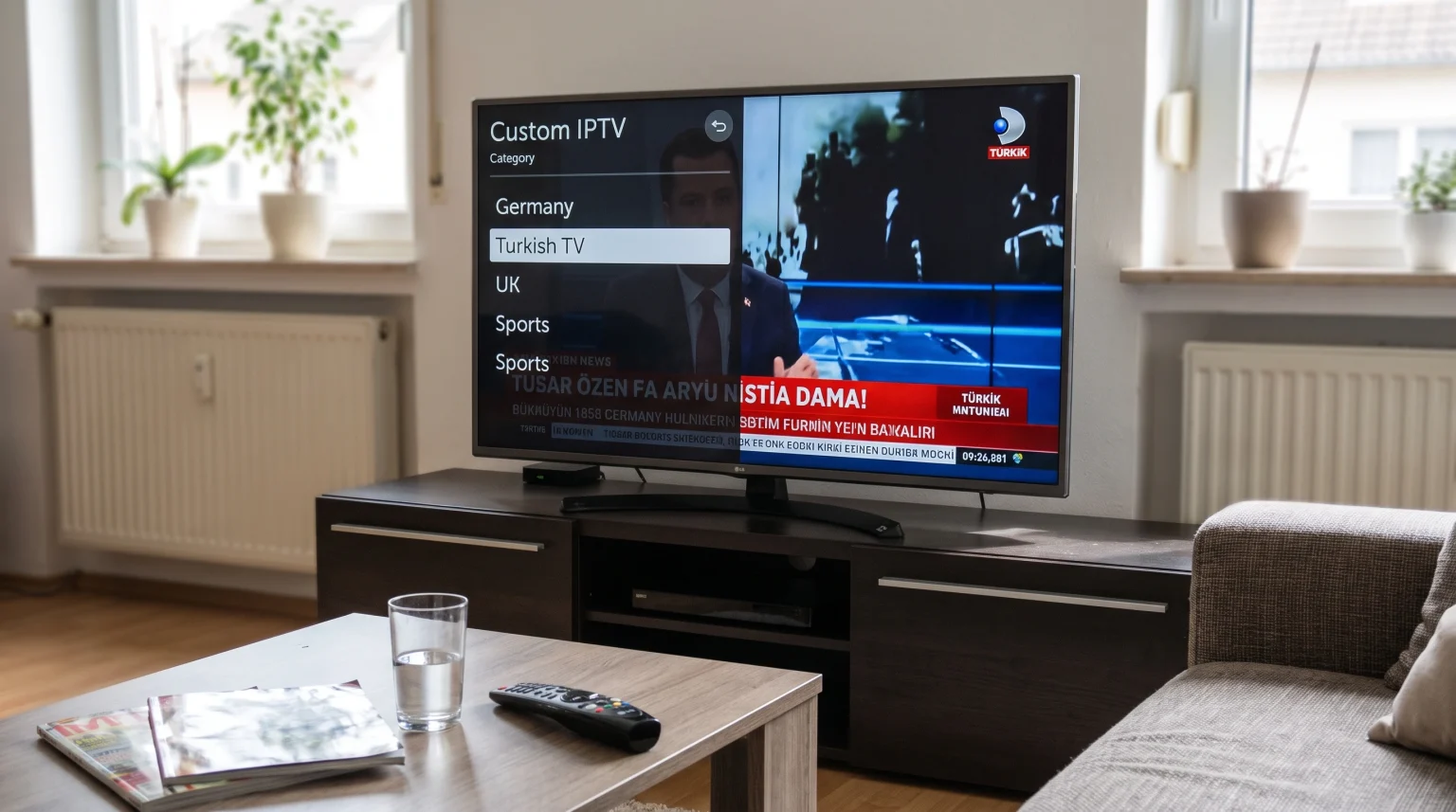
Many households in Germany want to watch Turkish television channels directly on an LG Smart TV without adding complicated equipment. Because Germany has strict building rules for satellite dishes in many rental apartments, internet-based television has become the most practical option for many viewers.
An LG Smart TV runs on the webOS operating system. This operating system supports several ways to access Turkish channels in Germany. Viewers can use German streaming platforms with Turkish channel packages, official international Turkish streaming applications, satellite reception, Internet Protocol Television (IPTV) player applications, or an external streaming device.
Each method has different requirements for internet speed, app availability, and monthly costs. Understanding how LG webOS works helps you choose the most reliable setup for your home in Germany.
Quick Answer
You can watch Turkish channels on an LG TV in Germany through four main methods: German television streaming apps with Turkish add-on packages, official international Turkish streaming services, IPTV player applications installed from LG Apps, or a satellite dish connected to the television. German streaming platforms such as Zattoo are suitable for users who want a simple, ready-made channel package. IPTV player applications are suitable for users who already have an M3U or Xtream Codes playlist. An external streaming device is best if a specific Turkish app is not available on LG webOS.
Main Ways to Watch Turkish TV Channels on an LG Smart TV in Germany
Viewers in Germany have several technical options to access Turkish live broadcasts, news, drama series, and sports on an LG Smart TV. The best method depends on your living situation, your LG TV model year, and the specific channels you want to watch.
1. German Television Streaming Apps with Turkish Packages
Several German internet television platforms offer official Turkish channel packages as optional add-ons. For example, Zattoo provides a Turkish channel package in Germany that includes live Turkish channels alongside standard German television features such as live pause and restart.
These services usually offer a native application in LG Apps, which was formerly known as the LG Content Store. App availability depends on the LG TV model year, the webOS version, and the regional store settings.
2. Official International Turkish Streaming Services
Some Turkish broadcasters and media groups operate official international streaming services designed for viewers living in Europe. Services such as Digiturk Play offer licensed access to Turkish live channels, drama series, and sports in Germany without requiring a satellite dish.
Before subscribing to an official international service, check whether the service provides a native application for your specific LG webOS version. If no native LG webOS application is available, you may need to use an external streaming device or a supported casting method.
3. IPTV Player Applications on LG webOS
An LG Smart TV can run IPTV player applications downloaded directly from LG Apps. An IPTV player is a media player application that plays playlists provided by the user. The player itself does not include television channels.
Users who have an active playlist from a service such as TV Shadow IPTV can load their channel list into a compatible webOS IPTV player. This setup allows viewers to watch live television and Video on Demand (VOD) content directly through the LG Smart TV interface without extra hardware.
4. Satellite Television (Türksat)
Many LG Smart TV models sold in Germany include a built-in satellite tuner. If you live in a house or an apartment where a satellite dish is permitted, you can connect a dish pointed at the Türksat satellite directly to the LG Smart TV.
Satellite television does not require an internet connection. However, many landlords and housing associations in Germany restrict the installation of satellite dishes on balconies and exterior walls.
5. External Streaming Devices via HDMI
If a specific Turkish application or IPTV player is not available in LG Apps for your LG TV model, you can connect an external streaming device to the television using a High-Definition Multimedia Interface (HDMI) cable. Common external devices include Google TV streaming boxes, Android TV devices, Apple TV, and Amazon Fire TV sticks.
External devices run their own operating systems and app stores. This option is useful for older LG Smart TVs that no longer receive webOS updates or lack newer applications.
Comparison of Methods for Watching Turkish Channels on an LG TV in Germany
| Method | Internet Required | Extra Hardware Needed | App Availability on LG webOS | Best For |
| German TV Apps (e.g., Zattoo) | Yes | No | Depends on LG TV model and region | Users who want German and Turkish channels in one app |
| Official Turkish Streaming Apps | Yes | No (if native app exists) | Depends on provider and webOS version | Users who want licensed Turkish packages from one broadcaster |
| IPTV Player Apps on LG webOS | Yes | No | Depends on LG Apps store policy and model | Users who already have an M3U or Xtream Codes playlist |
| Satellite TV (Türksat) | No | Yes (satellite dish and cable) | Not applicable | Users who are allowed to install a satellite dish |
| External Streaming Device | Yes | Yes (streaming box or stick) | Uses the external device app store | Users with older LG TVs or apps missing from LG webOS |
How LG webOS Handles IPTV Applications
LG Smart TVs use the webOS operating system. Unlike Google TV or Android TV, webOS does not support the Google Play Store. Users must install applications from LG Apps, which is the official LG application store.
If you are comparing different television platforms before buying a new screen, our guide to Best Smart TV OS for IPTV in 2026: Tizen vs Google TV vs webOS explains the technical differences between webOS, Tizen, and Google TV.
IPTV Player Availability on LG Smart TV
Several well-known IPTV player applications are available in LG Apps in Germany, including IBO Player, Smart IPTV, and MaxPlayer. However, app availability can change at any time. Availability depends on the country setting of the television, the specific LG TV model, the model year, the webOS version, and current LG app store policies.
Not every IPTV player works on every LG Smart TV. For example, popular Android-only players such as TiviMate do not run natively on LG webOS. TV Shadow IPTV has no official partnership or affiliation with LG or any television manufacturer, and users are responsible for choosing a compatible player on their device.
M3U and Xtream Codes Compatibility
Most modern IPTV player applications on LG webOS support two standard playlist formats:
M3U and M3U8 URLs: A web link that contains the list of live channels and on-demand streams.
Xtream Codes API: A login method that uses a server URL, a username, and a password.
Using the Xtream Codes login method is often easier on a television because it separates live television, movies, and series automatically. It also simplifies loading the Electronic Program Guide (EPG).
Electronic Program Guide (EPG) Support
The Electronic Program Guide (EPG) displays current and upcoming television programs in a schedule grid. Most webOS IPTV players support EPG data automatically when you log in with Xtream Codes or when you add a separate EPG link in the player settings.
Because Germany and Turkey are in different time zones during parts of the year, you may need to adjust the EPG time offset inside your IPTV player settings. Adjusting the time offset ensures that Turkish program schedules match local German time.
LG Magic Remote Usability
Many LG Smart TVs include the LG Magic Remote, which works like a wireless pointer on the screen. The pointer makes scrolling through long lists of Turkish channels and selecting categories faster than using standard arrow buttons alone. Most modern webOS IPTV players support both the pointer function and the directional buttons on the LG Magic Remote.
If you are deciding between two major television brands for this type of setup, you can read our comparison of Samsung vs LG Smart TV for IPTV: Tizen vs webOS.
Step-by-Step Guide: Setting Up an IPTV Player on an LG Smart TV
Follow these general steps to install and configure an IPTV player on an LG Smart TV in Germany:
Connect the LG Smart TV to the internet: Use an Ethernet cable connected to your router for the most stable connection, or connect to a strong 5 GHz Wi-Fi network.
Open LG Apps: Press the Home button on the LG remote control and select LG Apps (labeled LG Content Store on older webOS versions).
Search for a compatible IPTV player: Type the name of an available player, such as IBO Player, Smart IPTV, or MaxPlayer, into the search bar.
Install and open the application: Select the application, choose Install, and wait for the download to finish. Open the application after installation.
Note the device information: Many webOS IPTV players display a device MAC address or device key on the television screen.
Add your playlist: Enter your M3U URL or Xtream Codes details either directly inside the TV app or through the player developer’s official activation website using a smartphone or computer.
Restart the application: Close and reopen the IPTV player on your LG Smart TV so the Turkish channel list and EPG data load properly.
Some IPTV player applications offer a short free trial period and require a one-time or annual activation fee paid to the app developer. This fee is separate from any television or IPTV service subscription.
Watching Live Turkish Football on an LG Smart TV
Many viewers in Germany want Turkish channels specifically to follow live Turkish football matches. Live sports streams place higher demands on both your internet connection and your LG Smart TV hardware than standard news or drama programs.
Internet Connection: Ethernet vs. Wi-Fi
Live football broadcasts require a steady data stream to prevent buffering during fast action. A wired Ethernet connection between your German internet router and your LG Smart TV provides more consistent stability than Wi-Fi. If you must use Wi-Fi, connect to the 5 GHz band and keep the router close to the television.
Motion Handling and Refresh Rate
Football involves fast camera pans and quick ball movement. LG Smart TVs vary by model in their native panel refresh rate, with entry-level models typically using 60 Hz panels and mid-range or high-end models using 120 Hz panels. A higher refresh rate and good motion processing can reduce motion blur during fast sports scenes.
However, the quality of the incoming broadcast signal is equally important. A low-bitrate stream or a 25 frames-per-second stream will not look as smooth as a 50 frames-per-second stream, even on a high-end LG television.
Picture Settings and 4K Upscaling
Most modern LG Smart TVs have a 4K Ultra High Definition (UHD) screen, while many live television channels still broadcast in 720p or 1080p Full HD. The television uses a process called upscaling to stretch lower-resolution video to fit the 4K screen.
If live Turkish channels look soft or unclear on a new screen, our guide on Why Does IPTV Look Blurry on a New 4K TV? explains how bitrate, compression, and television picture settings affect image clarity.
For live football on an LG Smart TV, consider these basic picture adjustments:
Select the Sports or Standard picture mode as a starting point, or use Filmmaker Mode for more natural colors.
Keep TruMotion (LG’s motion smoothing setting) on a low or natural setting to avoid visual artifacts around the football.
Turn off heavy noise reduction if the broadcast signal is already clean Full HD.
Always use licensed, authorized services to watch live sports competitions. TV Shadow IPTV does not own broadcasting rights for the Süper Lig, the UEFA Champions League, or any other sports competition.
Troubleshooting Common Issues on LG Smart TV in Germany
If you experience problems while watching Turkish channels on an LG Smart TV, check these common causes:
App not found in LG Apps: Check that your LG TV’s country setting is set to Germany. Also check whether your webOS version is still supported by the app developer.
Buffering or freezing streams: Test your internet speed on another device. Restart your router and switch from Wi-Fi to an Ethernet cable if possible.
Playlist fails to load: Check your M3U URL or Xtream Codes username, password, and server address for typing errors. Even a single extra space can prevent the playlist from loading.
Empty Electronic Program Guide (EPG): Refresh the EPG manually inside the IPTV player settings and confirm that your provider includes EPG data for the Turkish channels.
Slow app performance: Turn off the LG Smart TV completely, unplug the power cable for 60 seconds, and plug the cable back in. This clears the temporary memory of webOS.
Conclusion
Watching Turkish channels on an LG Smart TV in Germany is straightforward once you choose the method that fits your home setup. German television platforms such as Zattoo and official international Turkish services are practical for users who want a simple, all-in-one subscription. IPTV player applications on LG webOS are a flexible option for viewers who already manage their own M3U or Xtream Codes playlists, such as with TV Shadow IPTV. If your LG Smart TV is an older model or lacks a specific application in LG Apps, adding an external streaming device via HDMI provides a reliable alternative.
Frequently Asked Questions (FAQ)
Can I watch Turkish TV channels on an LG Smart TV in Germany without a satellite dish?
Yes, you can watch Turkish TV channels on an LG Smart TV in Germany using an internet connection instead of a satellite dish. You can use German streaming platforms with Turkish packages, official international Turkish apps, or compatible IPTV player applications installed from LG Apps.
Does LG Smart TV support the Google Play Store?
No, LG Smart TVs do not support the Google Play Store. LG Smart TVs run on the webOS operating system and use LG Apps (formerly known as the LG Content Store) to download applications. If you need an Android application, you must connect an external Google TV or Android TV device via HDMI.
Which IPTV player apps work on LG webOS in Germany?
Several IPTV player apps are available on LG webOS, including IBO Player, Smart IPTV, and MaxPlayer. Exact availability depends on your LG TV model, model year, webOS version, and the regional LG Apps store. These applications are media players and do not include television channels.