
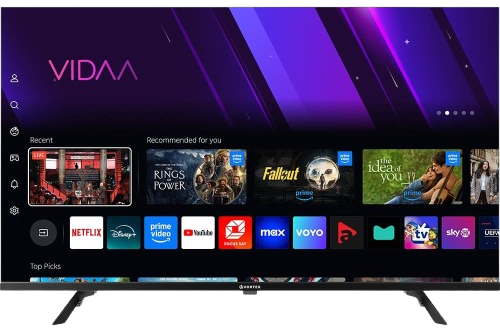
Trin 1 – Download den rigtige app
BY popular demands, there was no way I would have forgotten about our non-android Smart TV devices. For this example, we’re using an LG Smart TV with WebOS. For other devices like Samsung or Toshiba, steps are basically the same.
Gå til din Samsung eller LG App Store.
Søg efter “Ibo Player”.

 Vigtig: Der findes mange falske versioner af denne app.
Make Sur to download from official app stores
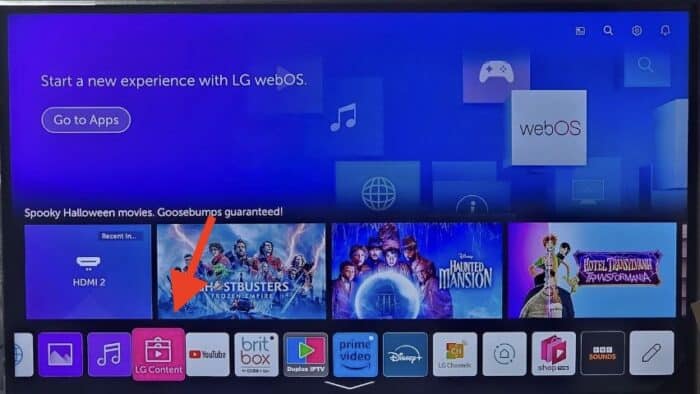
1- Open LG Content Store.
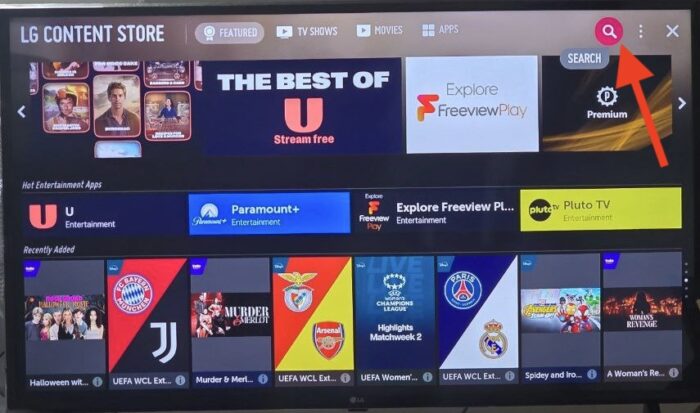
2- From the top right corner, click the magnifier icon to search.

3- Type-in IBO Player to look for this app.

4- In the results, choose the right application as shown above. You might see other variations with similar names, disregard them and only focus on “Ibo Player”.

5- Click Install to initiate the installation.

6- Select Launch to open up IBO player.

7- After a successful installation, a welcome message will pop up for the first time.
- You will need the Mac address and activation code in order to add the playlist.
1. Åbn App Store på din enhed, og søg efter Vu Player Pro.

2. Gå til indstillinger eller profilsektionen i Vu Player Pro-appen. Du finder din Mac-adresse og enhedskode i appen.
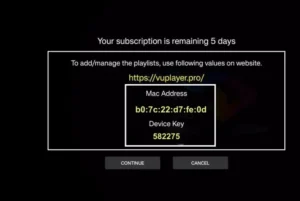
3. Now go to the website: https://vuplayer.pro/login
og indtast Mac-adressen (enheds-ID) og enhedsnøglen (enhedsnøgle).
4. Vælg M3u-linket eller Xtream-koden for at uploade dine data. Dataene vil blive sendt til din e-mailadresse.
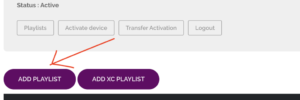
5. Genstart din app, og nyd det!
1. Åbn App Store på din enhed, og søg efter Hot Player.

2. Gå til indstillinger eller profilsektionen i Hot Player-appen. Du finder din Mac-adresse i appen.
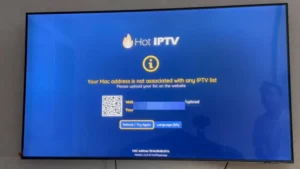
3. Gå nu til hjemmesiden: https://hotplayer.app/upload
Og indtast Mac-adressen (enheds-ID).
4. Vælg M3u-linket for at uploade dine data. Dataene vil blive sendt til din e-mailadresse.
5. Genstart din app, og nyd det!
Trin 1 – Download den rigtige app
Gå til din Samsung eller LG App Store.
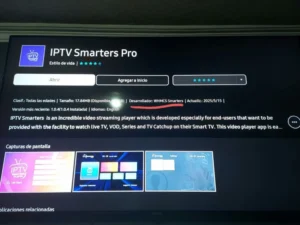
Søg efter "IPTV Smarters Pro".
 Vigtig: Der findes mange falske versioner af denne app.
Sørg for at Udvikler er WHMCS Smartere (se skærmbillede nedenfor).
Trin 2 – Vælg loginmetode
Når appen åbnes, skal du vælge XTREAM-koder API (anbefales).
Dette undgår manuel indtastning af lange m3u-links.
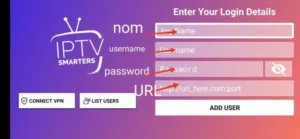
Trin 3 – Indtast dine oplysninger
Udfyld de loginoplysninger, vi sendte dig via e-mail:
Navn på afspilningsliste → Du kan skrive et hvilket som helst navn, f.eks. MIT TV
Brugernavn
Adgangskode
Server-/portal-URL
Trykke TILFØJ BRUGER at forbinde.
 Du er nu klar til at begynde at se live-tv, film og serier
1. Installer Set TV fra App Store på dit Smart TV.

2. Åbn IPTV Player-appen, og sæt et flueben under den MAC-adresse, der vises på skærmen.
3. Gå til aktiveringssiden for SetIPTV, og indtast din MAC-adresse.
https://setsysteme.com/set.app
4. Indtast MAC-adressen, og klik på pundikonet for at bekræfte.
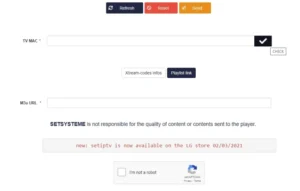
5. Efter bekræftelse skal du indtaste den M3U-URL, der er knyttet til din IPTV-udbyder.
6. Klik derefter på Send for at downloade M3U-URL'en til din enhed.
7. Genstart appen, og stream videoer fra din IPTV-udbyder.

How to install IBO Player on Android phones and tablets?
The installation on these devices is very easy since we have quick access to the browser and can easily download and install the file.

1- Either from IBO player official website or from our application download center, get the installation file.

2- No wonder why you are warned about this, the file is downloaded from outside of your android device app store. However it’s safe. Click Download Anyway.
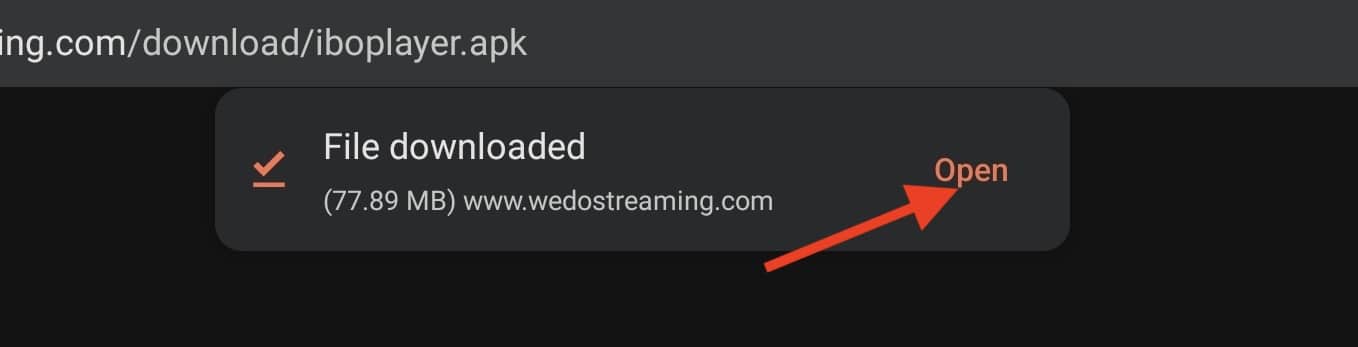
3- Open the file.
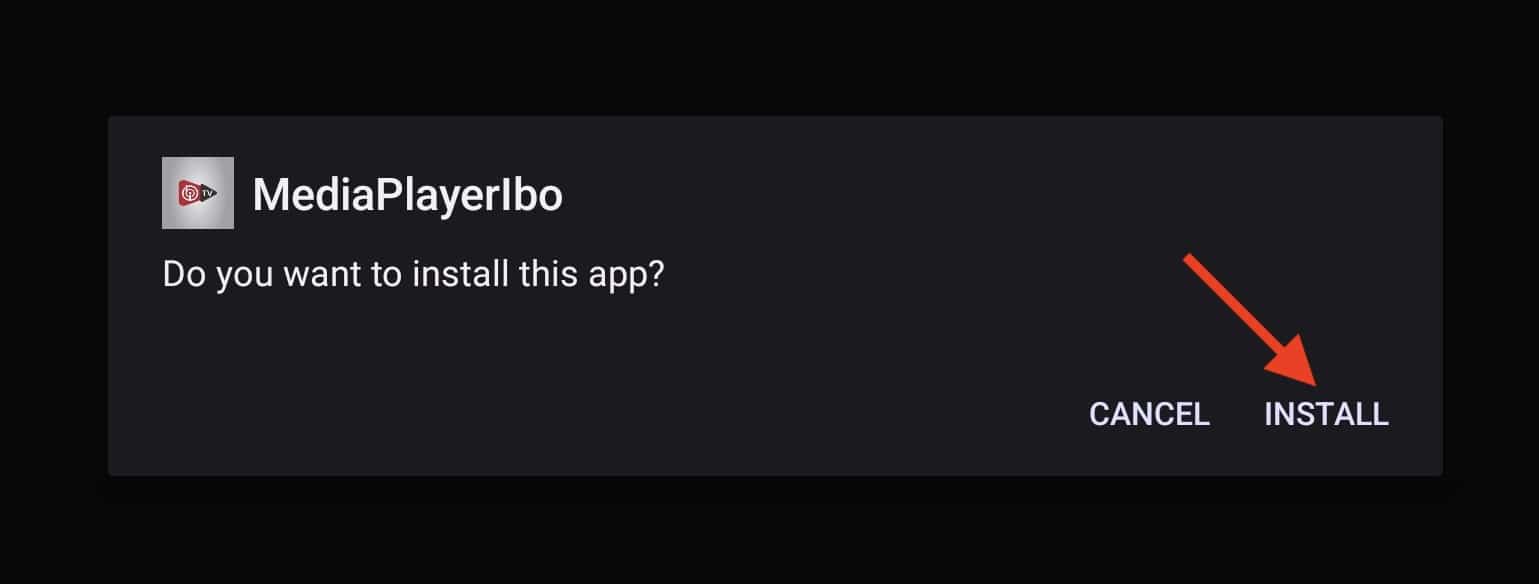
4- Click Install.

5- IBO Player is installed, now you can open it.
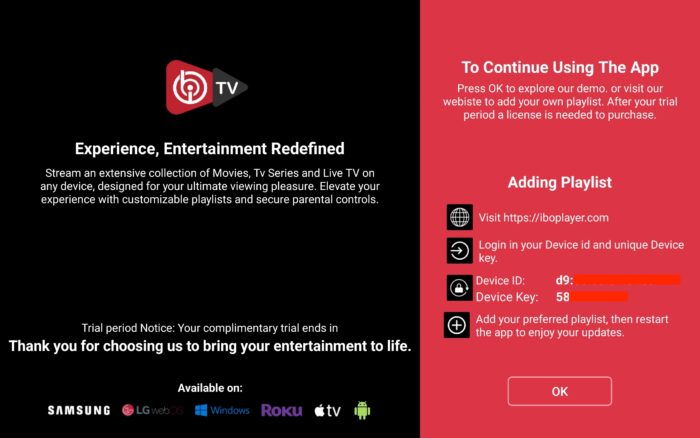
6- Right after opening the app for the first time, you will be presented with this introductory page. It’s actually very informative and clarifies what should be done. We will cover the playlist addition , just contact our support team.

7- It’s loaded and ready for action.
1. Åbn din Play Butik, og søg efter TiviMate IPTV Player.

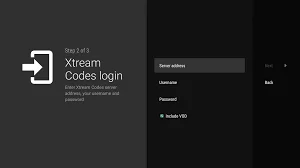
1. Åbn Play Butik på din enhed, og søg efter Hot Player.
2. Gå til indstillinger eller profilsektionen i Hot Player-appen. Du finder din Mac-adresse i appen.
3. Gå nu til hjemmesiden: https://hotplayer.app/upload
Og indtast Mac-adressen (enheds-ID).
4. Vælg M3u-linket for at uploade dine data. Dataene vil blive sendt til din e-mailadresse.
5. Genstart din app, og nyd det!

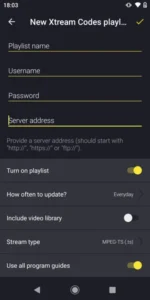
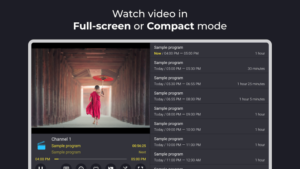
9xtream er en freemium-app. Den har annoncer, men du kan fjerne dem for €5 om året.
1. Åbn din Play Butik, og søg efter 9Xtream.

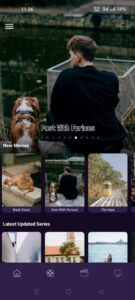

1. Åbn App Store på din enhed, og søg efter Vu Player Pro.
2. Gå til indstillinger eller profilsektionen i Vu Player Pro-appen. Du finder din Mac-adresse og enhedskode i appen.
3. Now go to the website: https://vuplayer.pro/login
og indtast Mac-adressen (enheds-ID) og enhedsnøglen (enhedsnøgle).
4. Vælg M3u-linket eller Xtream-koden for at uploade dine data. Dataene vil blive sendt til din e-mailadresse.
5. Genstart din app, og nyd det!
1. Åbn App Store på din enhed, og søg efter Hot Player.
2. Gå til indstillinger eller profilsektionen i Hot Player-appen. Du finder din Mac-adresse i appen.
3. Gå nu til hjemmesiden: https://hotplayer.app/upload
Og indtast Mac-adressen (enheds-ID).
4. Vælg M3u-linket for at uploade dine data. Dataene vil blive sendt til din e-mailadresse.
5. Genstart din app, og nyd det!
Selve appen er gratis at downloade og inkluderer en bred vifte af afspilnings- og administrationsfunktioner som global søgning, EPG, catch-up, billede-i-billede, downloads, VPN, forældrelås, avanceret redigering af afspilningslister og mere – alt sammen gratis
1- Download appen “UHF IPTV” fra APP Store.

2- Vælg at oprette forbindelse til XTREAM-koder API.
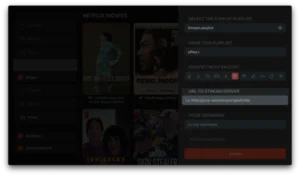
3- Indtast dine loginoplysninger (brugernavn, adgangskode og URL), og tryk på OK for at oprette forbindelse.
Vent på, at appen indlæser dataene, og nyd streaming!
1- Download IPTV Smarters Lite-appen fra APP Store, og sørg for at det er den LIDT versionen er ikke Pro.

2- Vælg at oprette forbindelse til XTREAM-koder API for at undgå at indtaste alle m3u-filer.
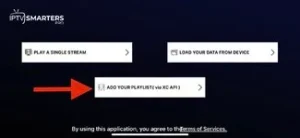
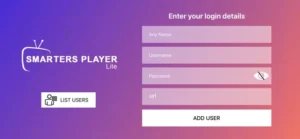
3- Indtast dine loginoplysninger, og tryk på TILFØJ BRUGER for at oprette forbindelse.
How to install IBO Player on macOS?
If you want to run IBO player on devices like Macbook or iMAC, you need to install the macOS version.

1- Open IBO Player official website and from their download section get the macOS version.

2- Open the downloaded file and then drag-and-drop the icon into the application folder.

3- After 10 seconds, IBO player is installed on your macOS. Open Launchpad and click the app icon.

4- As you can see, since we installed the app from outside of app store, launching it is rejected.
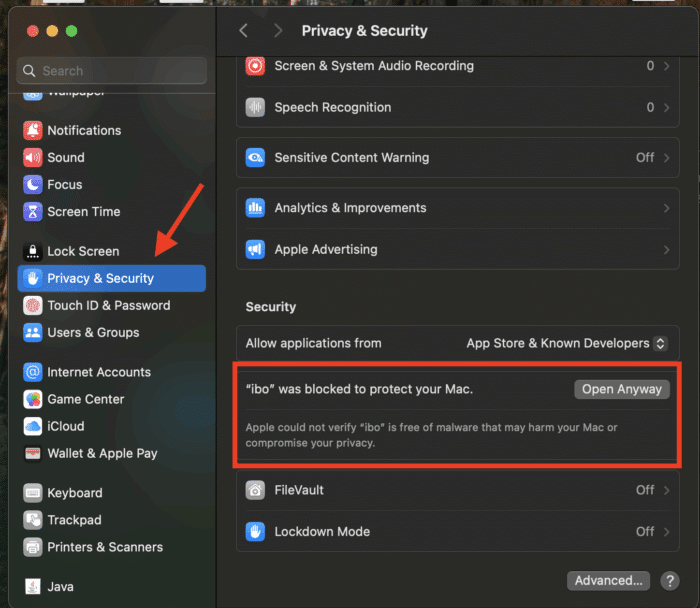
5- From the top left side on the toolbar, click the Apple icon, then choose System Settings. When it’s loaded, from left column, scroll down to Privacy & Security. Click that and from right side, scroll down until you see the application security section.
IBO Player is blocked and requires our manual intervention for launching. Click Open Anyway..

6- Choose Open Anyway. This choice is permanent and on later launch of the app it will open straightaway.

7- Application is ready for use. I will explain how to sort this later in this tutorial.
How to install IBO Player on LG and Samsung TV?
BY popular demands, there was no way I would have forgotten about our non-android Smart TV devices. For this example, we’re using an LG Smart TV with WebOS. For other devices like Samsung or Toshiba, steps are basically the same.
1- Open LG Content Store.
2- From the top right corner, click the magnifier icon to search.
3- Type-in IBO Player to look for this app.
4- In the results, choose the right application as shown above. You might see other variations with similar names, disregard them and only focus on “Ibo Player”.
5- Click Install to initiate the installation.
6- Select Launch to open up IBO player.
7- After a successful installation, a welcome message will pop up for the first time. Follow the guide below to add a playlist.
How to install IBO Player on Windows?
If you have a Windows PC, that’s laptop or any personal computer, you can also utilize this application for your streaming purposes. Key note is that it only works on Windows 10 and above and the file provided is for 64 bit systems.

1- First of all, download the windows installer. We do provide links for that both from IBO dev website and our host.

2- Windows security should pop up and stop the installation as the file is downloaded from our side the Microsoft store. Click More Info.

3- Now you can proceed with installation of IBO Player. Click Run Anyway.

4- Click Next.

5- If you want, tick the checkbox to have an icon of the app on the dashboard, then click Next.

6- Finalize the installation by clicking Install.

7- Click finish to open the IBO Player app.
1. Åbn App Store på din enhed, og søg efter Vu Player Pro.
2. Gå til indstillinger eller profilsektionen i Vu Player Pro-appen. Du finder din Mac-adresse og enhedskode i appen.
3. Now go to the website: https://vuplayer.pro/login
og indtast Mac-adressen (enheds-ID) og enhedsnøglen (enhedsnøgle).
4. Vælg M3u-linket eller Xtream-koden for at uploade dine data. Dataene vil blive sendt til din e-mailadresse.
5. Genstart din app, og nyd det!
1. Åbn App Store på din enhed, og søg efter Hot Player.
2. Gå til indstillinger eller profilsektionen i Hot Player-appen. Du finder din Mac-adresse i appen.
3. Gå nu til hjemmesiden: https://hotplayer.app/upload
Og indtast Mac-adressen (enheds-ID).
4. Vælg M3u-linket for at uploade dine data. Dataene vil blive sendt til din e-mailadresse.
5. Genstart din app, og nyd det!
1- Åbn din Chrome-, Firefox- eller Apple Safari-browser, og gå til dette link: https://www.iptvsmarters.com
2- Afhængigt af din pc (Mac, Windows osv.) skal du klikke på "Download" og vente på, at downloadingen er færdig. Installer derefter appen.
3- Indtast dine loginoplysninger, som du har modtaget via e-mail, og tryk på TILFØJ BRUGER for at oprette forbindelse.
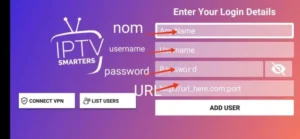
1- Open your Chrome, Firefox or Apple Safari browser and go to this link: https://iptvstreamplayer.com/
2- Afhængigt af din pc (Mac, Windows osv.) skal du klikke på "Download" og vente på, at downloadingen er færdig. Installer derefter appen.
3- Åbn nu appen, og klik på "Log ind med en ny brugerkonto".
4- Indtast dine loginoplysninger, og tryk på Log ind for at oprette forbindelse.
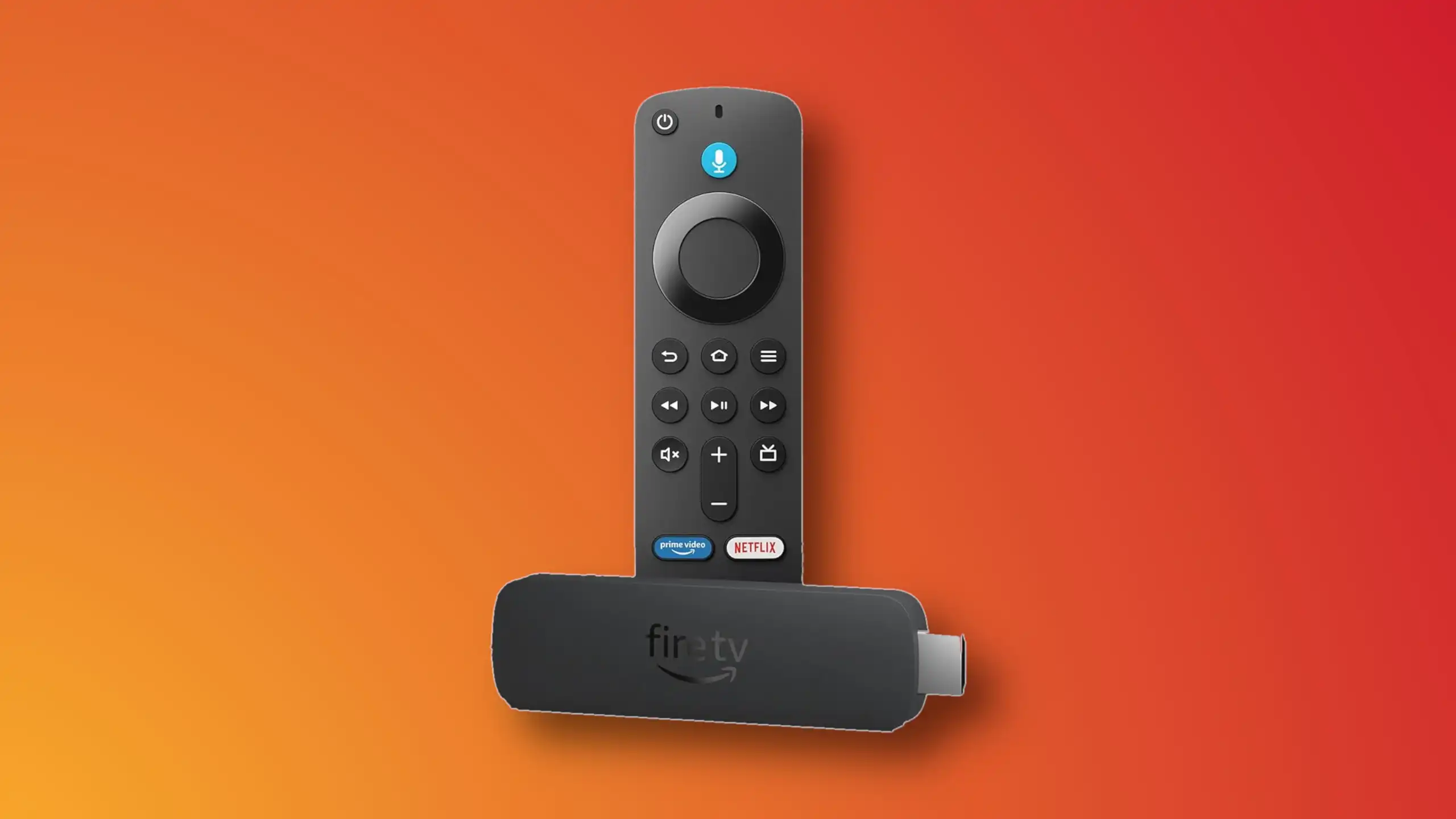
Installing IBO Player on Amazon Fire TV Stick

1- From the dashboard of the Amazon Fire TV Stick, move over on the magnifier icon, then click down to highlight the search field. After that click OK.

2- We need to install an application called Downloader which enables us to side-load and install applications from outside of Amazon App Store. When the virtual keyboard pops up, click D. Then you should see the first suggestion as Downloader, move over to it and click OK.

3-Choose the app by selecting it. This will initiate the installation.
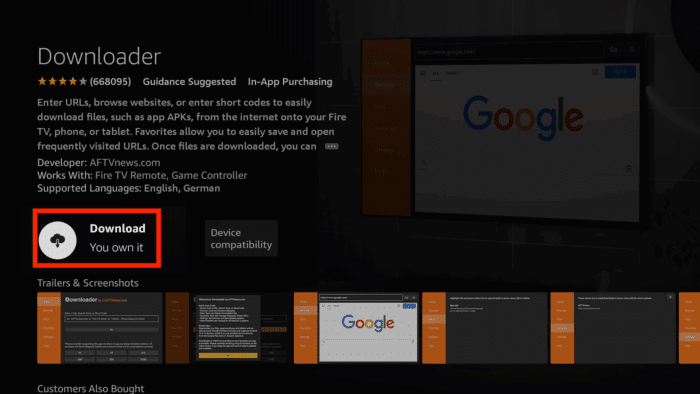
4- Fulfill this step by clicking Download.

5- A pop up message should show up prompting you to grant media access to Downloader. Click Allow.

6- Once the app is loaded. Move the selection to the search field on top of yellow Go button and press OK on the remote.

7- The official Downloader code for IBO Player android version is 511693. Type this in and click Go.

8- IBO Player is being downloaded from the official website. You can also notice that from the left column, we are now on Browser section. Do not touch anything until this step sorts itself.

9- Wait while download is in progress.

10- Amazon security bumps the installation since the file is from out side of amazon app store. We need to enable the installation permission for Downloader. Click Settings.

11- Click Install Unknown Apps.
Note: If you do not see the above section and Developer option is not visible, move the selection on About and press OK button on the remote 7 times. After that Developer Options should appear. Then select it and follow the steps.
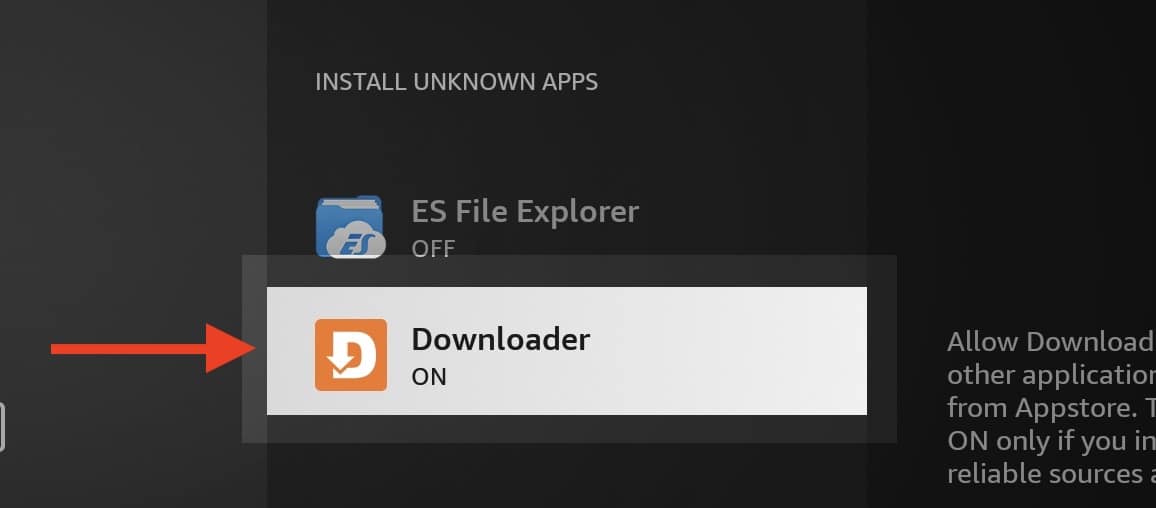
12- Select Downloader and click OK button so the OFF changes to ON.

13- Now we can proceed with installation of IBO player on Fire Stick which is pretty normal with few Next and OK.

14- Once the app is installed, above should be the first message popping. Click OK.

15- App is ready.
1. Vi installerer først Downloader app
Denne app hjælper dig med at downloade IPTV Smarter på FireStick (fordi browserdownloads ikke er tilladt).
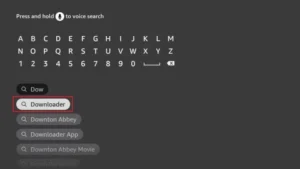
2. klik på Søg > Søg Valgmulighed på FireStick-startskærmen
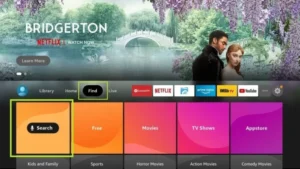
3. Indtast navnet på applikationen (dette er Downloader)
klik på Downloader mulighed når den vises i søgeresultaterne
Vælg den ene Downloader ikonet på den følgende skærm og download og installer appen.
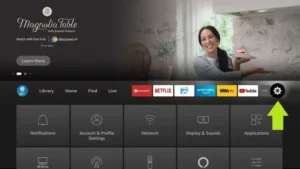
4. Når du har installeret download-appen, skal du vende tilbage til FireStick-startskærmen.
Klik i menulinjen Indstillinger.
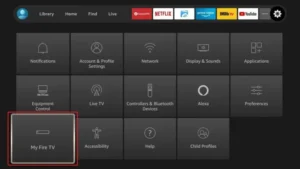
5. I Indstillinger skal du vælge indstillingen Mit Fire TV.
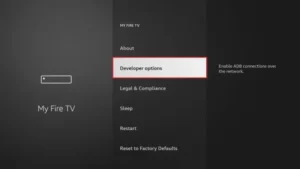
6. Når følgende muligheder vises på den næste skærm, skal du klikke på Udviklerindstillinger
7. klik på Installer fra ukendte programmer.
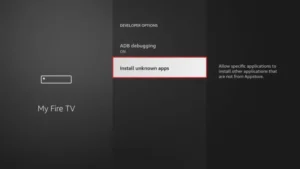
8. klik på Downloader at ændre status til PÅ
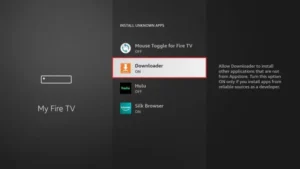
Du har nu konfigureret FireStick-indstillingerne, så installation af IPTV-smartphones og andre tredjepartsapps er mulig. Følg nedenstående trin:
9. Du kan nu se Downloader app!
Når du starter denne applikation første gang, vil du se en række meddelelser. Ignorer disse, indtil du ser følgende skærmbillede.
På denne skærm skal du klikke på URL-tekstfeltet i højre side (sørg for Hjemmeside valgmuligheden er valgt i venstre menu) hvor der står 'http://'
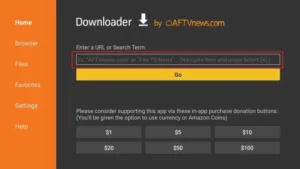
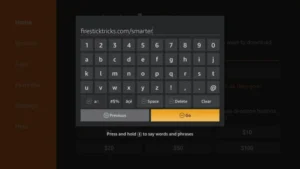
10. I dette vindue skal du indtaste følgende kode: 6468112
klik på GÅ
11. Vent et minut eller to på, at IPTV Smarter downloades på din FireStick.
12. Når downloadingen er færdig, kører download-appen APK-filen, og installationen begynder.
klik på Installere
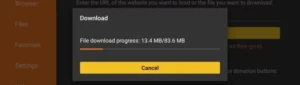
13. Vent på, at installationen er færdig.
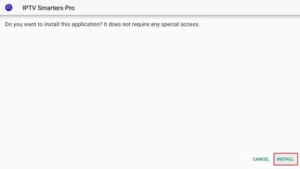
14. Installationen er færdig med dette App installeret Rapport
Du kan nu klikke på ÅBN og komme i gang med IPTV Smarters
Jeg anbefaler at vælge FÆRDIG så du kan først slette APK-filen for at spare lagerplads på FireStick.
15. Vælg at oprette forbindelse til XTREAM-koder API for at undgå at indtaste alle m3u-filer.
16- Indtast dine loginoplysninger, som du har modtaget via e-mail, og tryk på TILFØJ BRUGER for at oprette forbindelse.
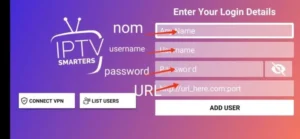
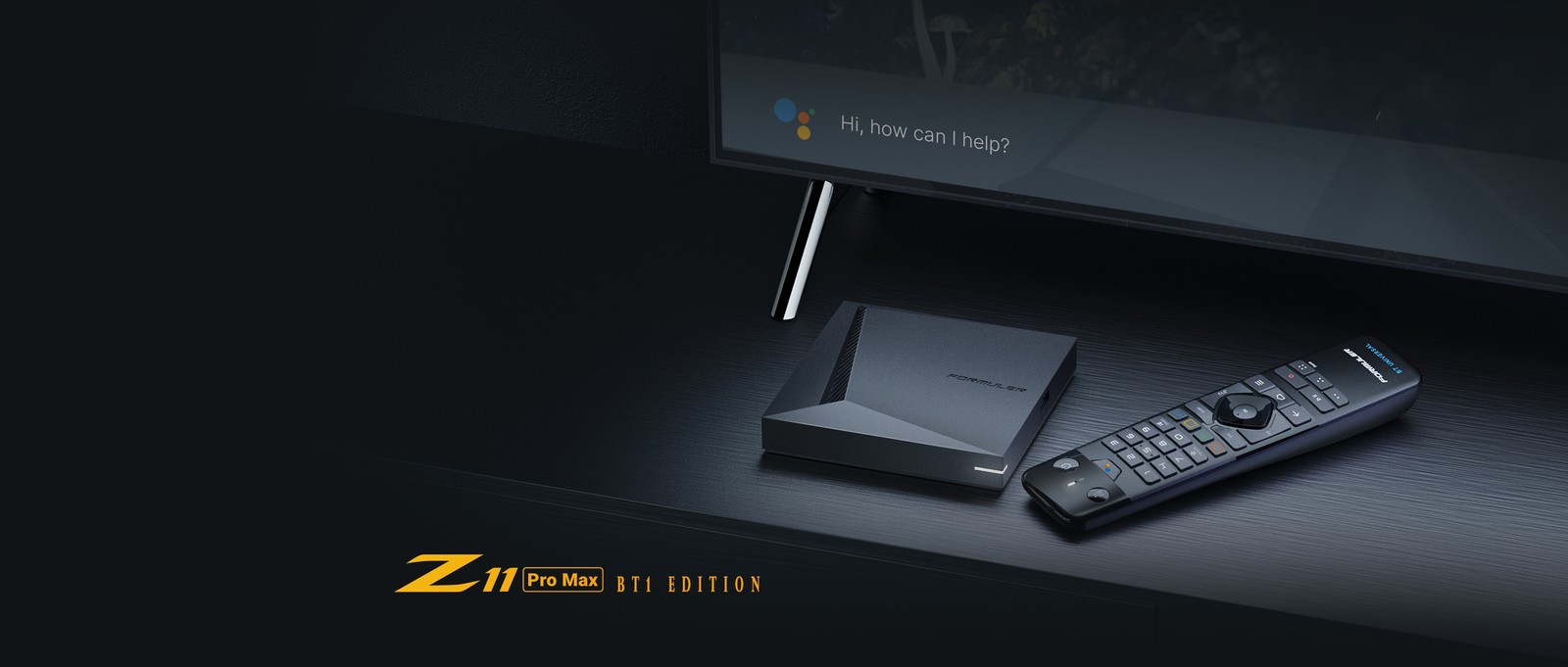
1. Gå til bagsiden af din Formuler Z, hvor Mac-ID'et er angivet.
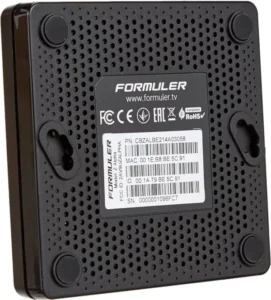
2. Sørg for at oplyse dit Mac-ID, når du bestiller din pakke. Mac-ID starter normalt med 00:1A…
Du kan også finde den i MyTvOnline-appen.
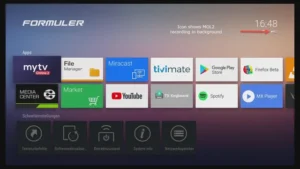
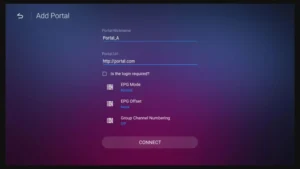
3. Når vi modtager din ordre med dit Mac-ID, sender vi dig portal-URL'en. Sørg for at indtaste portal-URL'en i MyTvOnline-appen (brugernavn eller adgangskode er ikke påkrævet).
1. Gå til bagsiden af din Mag, hvor Mac-ID'et (eller Mac-adressen) er angivet.
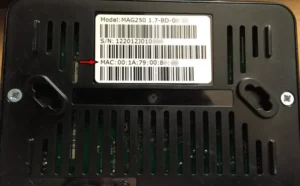
2. Sørg for at oplyse dit Mac-ID, når du bestiller din pakke. Mac-ID'et starter normalt med 00:1A….
3. Gå til Indstillinger, derefter Systemindstillinger, derefter Servere og derefter Portal.
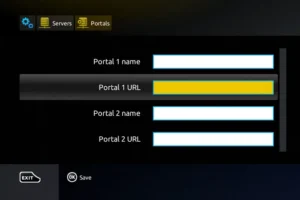
4. Indtast den portal-URL, som vi sendte dig via e-mail.
Når du har gennemført alle ovenstående trin, skal du trykke to gange på “EXIT” på fjernbetjeningen for at genstarte porten. Nu er alt klar til at se live-tv…