
Watching television is frustrating when the audio does not match the video. An IPTV Bluetooth audio delay often happens when you connect wireless headphones to your Smart TV. You see a person speak on the screen, but you hear the words a second later.
This delay occurs because the television needs time to process the video signal. At the same time, the Bluetooth technology needs time to transmit the audio signal to your headphones. When these two processes happen at different speeds, the sound goes out of synchronization.
You can fix this synchronization problem using settings in your television, settings in your IPTV application, or by upgrading your Bluetooth equipment. This guide explains how to make your video and audio match perfectly.
Quick Answer
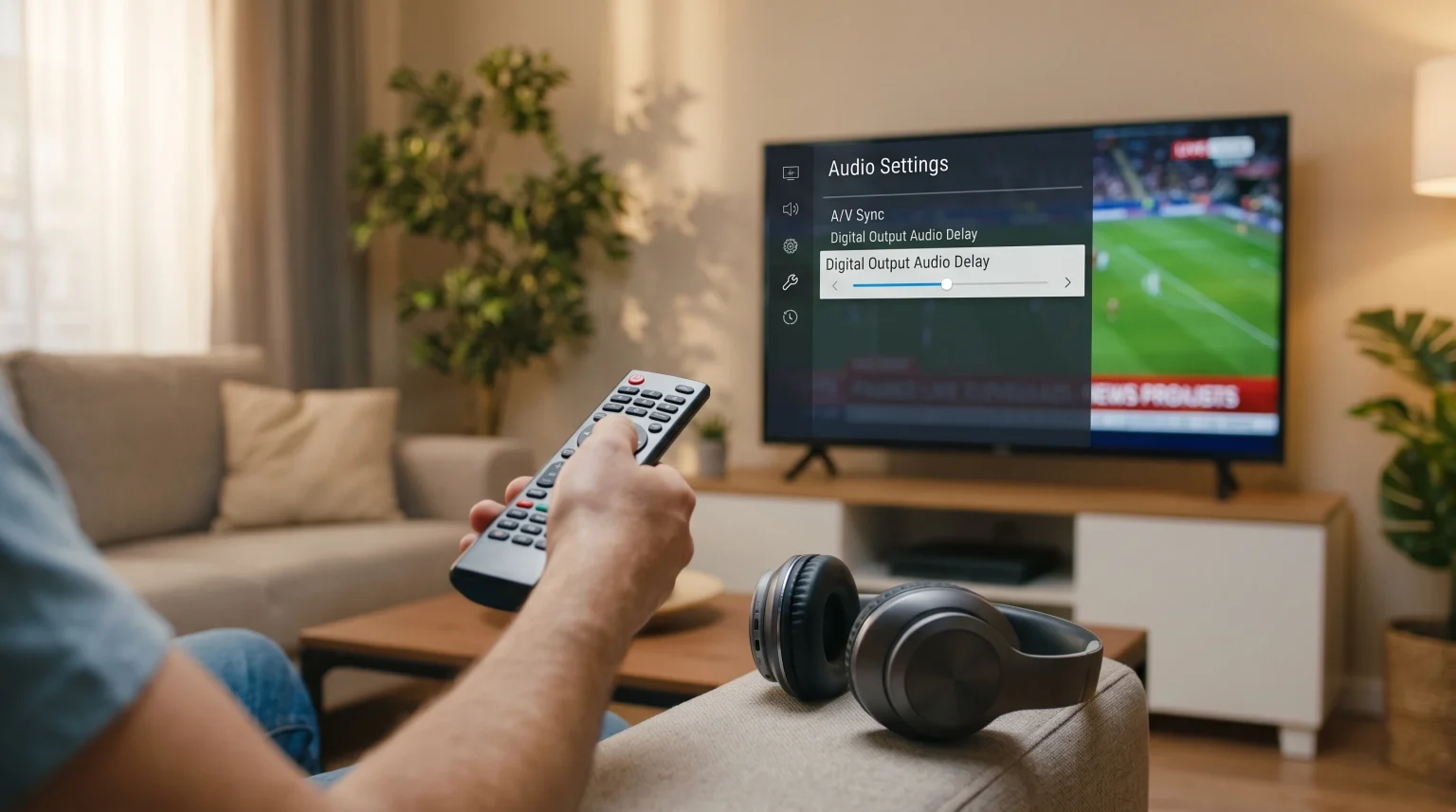
To fix an IPTV Bluetooth audio delay, first check the audio settings inside your IPTV application. Many IPTV players allow you to adjust the audio offset forward or backward. If your application does not have this setting, open the audio menu on your Smart TV. Look for a setting called A/V Sync, Audio Delay, or Lip Sync, and adjust the slider until the sound matches the picture. For the best results, use a television and Bluetooth headphones that support modern, low-latency audio codecs.
Why Does IPTV Bluetooth Audio Delay Happen?
Bluetooth technology uses radio waves to send audio data through the air. The television must compress the audio data. The television then sends this data to your headphones. Finally, the headphones must decompress the data so you can hear the sound.
This digital process takes milliseconds. A small delay is normal for all Bluetooth devices. However, a large delay ruins the viewing experience.
Three main factors cause severe audio delay:
Bluetooth Codec Latency: Older Bluetooth versions process data slowly.
Television Video Processing: Smart TVs use software to improve picture quality. This software takes time to process the video. If the video processes slower than the audio, the picture falls behind the sound.
Application Decoders: The specific IPTV application must decode the live internet stream. Some applications decode audio and video streams at different speeds.
If your television uses heavy picture processing, this increases the delay. You can read more about how televisions process images in our guide explaining What Is TV Upscaling and Does It Help IPTV?.
How to Fix Audio Sync Issues in IPTV Apps
The easiest way to fix audio synchronization is inside your IPTV player application. Many popular Smart TV applications include an audio offset feature.
This feature allows you to artificially delay the audio or advance the audio.
To use this feature:
Open your IPTV application and start watching a channel.
Open the application settings menu.
Look for “Audio,” “Playback,” or “Decoder” settings.
Find the “Audio Offset” or “Audio Delay” slider.
Move the slider left or right.
Watch the television screen and listen to the headphones. Adjust the slider until the lips of the people speaking match the sound of their voices.
Not all applications have this feature. If your application lacks this feature, you must adjust the settings on your television.
How to Fix Bluetooth Audio Delay on Smart TVs
Different television brands handle Bluetooth audio differently. To learn about different brands and their operating systems, read our comparison of the Best Smart TVs for IPTV in 2026: Samsung, Sony, LG & TCL Compared.
If you cannot fix the delay in your IPTV application, use your television settings. Here is how to adjust the audio delay on major Smart TV brands.
Fix Audio Delay on Samsung Tizen
Samsung televisions use the Tizen operating system. Samsung includes a specific tool for digital audio delay.
Press the Home button on your Samsung remote control.
Select “Settings.”
Select “Sound.”
Select “Expert Settings.”
Select “Digital Output Audio Delay.”
Adjust the number higher or lower until the audio matches the video.
Fix Audio Delay on LG webOS
LG televisions use the webOS operating system. LG includes an audio synchronization menu.
Press the Settings button on your LG remote control.
Select “All Settings.”
Select “Sound.”
Select “Advanced Settings.”
Select “Match Screen and Sound.”
Turn the feature “On” and adjust the slider to synchronize the audio with your Bluetooth headphones.
Fix Audio Delay on Sony Google TV
Sony BRAVIA televisions use the Google TV operating system. Sony provides an automatic synchronization feature.
Press the Quick Settings button on your Sony remote control.
Select “Settings.”
Select “Display & Sound.”
Select “Audio Output.”
Select “A/V Sync.”
Change the setting to “Auto” or “On.” This forces the television to synchronize the Bluetooth audio with the video display.
Bluetooth Codecs: Why Your Headphones Matter
A Bluetooth codec is the software that compresses and decompresses audio data. The codec determines how fast the audio travels from the television to the headphones.
Standard headphones use the SBC codec. The SBC codec is slow. It creates a noticeable IPTV Bluetooth audio delay. Premium headphones use faster codecs, such as aptX Low Latency.
Here is a comparison of common Bluetooth codecs.
| Bluetooth Codec | Average Latency (Delay) | Best Use Case |
| SBC | 150 to 250 milliseconds | Basic music listening |
| AAC | 120 to 150 milliseconds | Standard television shows |
| aptX | 70 to 120 milliseconds | High-quality audio |
| aptX Low Latency | 30 to 40 milliseconds | Live streaming and gaming |
Human eyes and ears usually notice an audio delay when the latency is higher than 100 milliseconds. If you want perfect synchronization for IPTV, you should purchase headphones that support the aptX Low Latency codec.
Your Smart TV must also support the same codec. If your television only supports SBC, the television will force your premium headphones to use the slow SBC codec.
Watching Live Football With Bluetooth Headphones
Audio synchronization is very important when you watch live sports. When you watch a live football match, you want to hear the referee blow the whistle at the exact moment you see it. You want to hear the sound of the ball being kicked instantly.
Live football streams require fast internet decoding. Furthermore, many Smart TVs automatically apply motion-smoothing technology to sports broadcasts. This motion-smoothing technology takes time. It delays the video signal. Because the video is delayed, the Bluetooth audio might actually play before the video.
To fix this specific problem during live football:
Open your television picture settings.
Turn off “Motion Smoothing” or “Action Smoothing.”
Alternatively, turn on “Game Mode.”
Game Mode turns off extra video processing. This makes the video display much faster. Fast video display often perfectly matches the natural delay of Bluetooth headphones.
You can read more about television specifications for sports in our guide discussing 60Hz vs 120Hz TV for Live Football.
TV Shadow IPTV and Audio Synchronization
TV Shadow IPTV delivers high-quality live television streams. The TV Shadow IPTV service is highly compatible with many different third-party media players.
Because TV Shadow IPTV supports standard M3U playlists and Xtream Codes, you can use the service with almost any IPTV application. This means you can choose an application that features a built-in audio offset tool.
If you experience an IPTV Bluetooth audio delay while using TV Shadow IPTV, the problem is not the streaming server. The delay always comes from the Bluetooth connection, the television hardware, or the local application decoder. Follow the television and application settings in this guide to resolve the issue.
Conclusion
An IPTV Bluetooth audio delay is a common problem, but it is easy to fix. The delay is caused by the digital time required to compress and transmit wireless audio signals.
To fix the problem, start by checking your IPTV application for an Audio Offset feature. If that does not work, use the A/V Sync or Digital Audio Delay settings in your Smart TV sound menu. Finally, if you watch a lot of live football or movies with wireless headphones, consider purchasing equipment that supports the aptX Low Latency codec. By matching your settings correctly, you can enjoy TV Shadow IPTV with perfectly synchronized wireless audio.
Frequently Asked Questions (FAQ)
Why is my Bluetooth audio delayed on my Smart TV?
The delay happens because the television takes time to compress the audio data, and the headphones take time to decompress it. Video processing on the television also changes the timing of the picture.
Can I fix Bluetooth delay without buying new headphones?
Yes. You can usually fix the delay by adjusting the Audio Delay or A/V Sync settings in your Smart TV sound menu. You can also adjust the Audio Offset setting inside your IPTV application.
Is Bluetooth 5.0 better for IPTV audio delay?
Yes. Bluetooth 5.0 and newer versions offer a more stable connection and better data transfer speeds than older versions. This helps maintain consistent synchronization.