
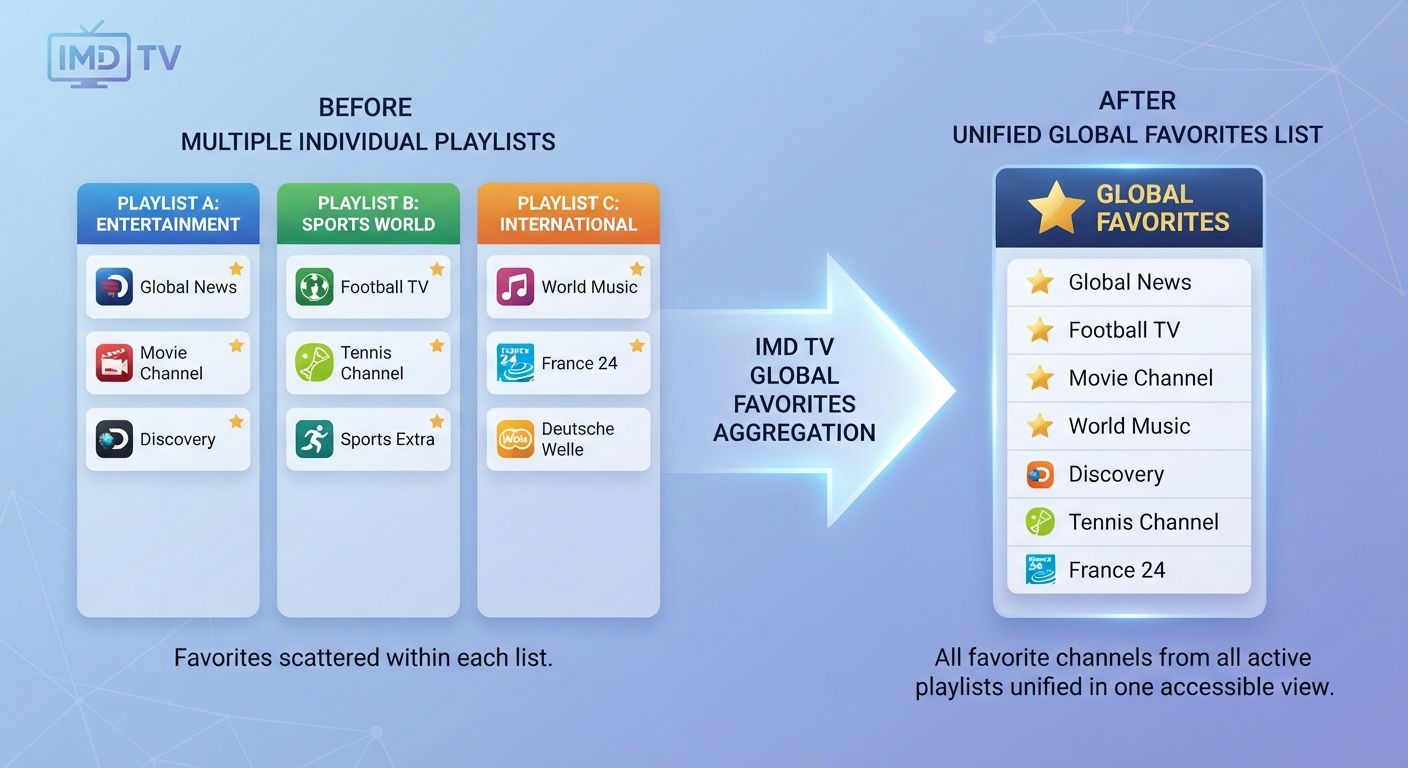
IMD TV global favorites allow users to combine television channels, movies, and series from multiple playlists into one single list. IMD TV is a free, open-source media player built for Android TV and Google TV. Introduced in the IMD TV 0.7.0 update in November 2026, this unified list system removes the need to switch between separate provider logins just to find preferred streams. When you mark a channel as a favorite in one playlist, that channel appears inside the shared favorites section regardless of which active playlist you are currently browsing.
Hurtigt svar
IMD TV global favorites create one shared favorites list and one shared Continue Watching row across every active playlist and media server connected to the app. Users who maintain multiple Xtream Codes logins, M3U links, or Stalker portals no longer have to open each playlist individually to access their saved channels. Instead, all saved channels appear together in one accessible location inside the Electronic Program Guide (EPG). Users who prefer strictly isolated channel lists for each provider can still browse individual playlist categories separately without using the global favorites view.
What Is IMD TV and How Does It Manage Multiple Playlists?
IMD TV is a free, open-source Internet Protocol Television (IPTV) player distributed under the GPL-3.0 license. The application runs on Android TV and Google TV devices. It functions strictly as a media player and does not provide, host, or sell television channels or video streams. Users must supply their own playlist credentials or personal media libraries.
Before version 0.6.0 and version 0.7.0, many IPTV players required users to load one playlist at a time. Switching from a primary playlist to a backup playlist meant opening the settings menu, selecting a different profile, and waiting for the channel guide to reload.
IMD TV solves this problem by allowing multiple playlists to stay active at the same time. Inside the settings menu, users can enable the “Use this playlist” switch for several accounts simultaneously. Once enabled, all active playlists appear in the main category list. Users can also disable a playlist temporarily to hide its channels without deleting the login credentials.
In addition to traditional IPTV playlists, IMD TV version 0.7.0 integrates personal media servers. Users can link Plex libraries, Jellyfin servers, and Stremio add-on catalogs directly alongside their live television playlists.
How IMD TV Global Favorites Work Across Playlists
The IMD TV global favorites system unifies saved items across every connected source. When you add a live television channel, movie, or television series to your favorites, IMD TV saves that entry into a central database on your streaming device.
One Shared List for Live TV, Movies, and Series
In IMD TV, favorites are not locked inside the specific playlist where you found them. If you favorite a news channel from an M3U playlist and a sports channel from an Xtream Codes login, both channels appear together in the main Favorites category.
This unified behavior also applies to Video on Demand (VOD) content and external media servers. A film saved from a Jellyfin library sits in the same favorites list as a television series saved from an Xtream Codes playlist. Similarly, the Continue Watching row tracks playback progress across all playlists and media servers in one place.
Channel Merging and Duplicate Reduction
Many users add multiple playlists to ensure they have backup streams for important live broadcasts. When you load two or three playlists, you often end up with duplicate channels in different resolutions, such as Standard Definition (SD), High Definition (HD), or 4K.
IMD TV includes a channel merging feature that pairs well with IMD TV global favorites. When channel merging is enabled in the settings menu, IMD TV combines identical channels from selected playlists into a single entry in the program guide. The player automatically selects the best available stream based on resolution tags or stream latency. Users can also merge channels manually by holding the OK button on a channel in the guide and opening the merge options menu.
Customizing and Reordering Global Favorites
A large list of saved channels becomes difficult to navigate without proper organization. IMD TV provides several tools to arrange your global favorites list:
Custom channel order: Users can sort categories by playlist order, alphabetically from A to Z, or by a custom manual order. Inside the channel management settings, you can pick up individual channels and move them to your preferred position.
Custom channel numbering: You can assign specific channel numbers to your favorite streams. If a number is already assigned to another channel, IMD TV offers to swap the two numbers automatically.
Name clean-up rules: Provider playlists frequently include decorative symbols or resolution tags inside channel titles. IMD TV includes an option to remove special characters so channel names remain clean and readable.
Backup and device sync: IMD TV lets users export their favorites, custom categories, channel order, and app settings to a backup file. The app also includes a local network sync feature that copies your global favorites and playlist settings from one master Android TV box to other Android TV devices in your home.
Step-by-Step: How to Set Up IMD TV Global Favorites
Setting up a unified channel list in IMD TV requires activating your playlists and adding your preferred channels to the favorites group.
Install IMD TV on a supported device: IMD TV works on Android TV and Google TV devices. Users can install the application using the Downloader app with code 7573990 or by sideloading the Android Application Package (APK) file via Android Debug Bridge (ADB) or a USB drive.
Add your playlists: Open IMD TV and navigate to Settings, then select Playlists. Add your Xtream Codes login, M3U URL, or Stalker portal details. You can also scan a QR code on your television screen to enter login details from your mobile phone over your home network.
Activate multiple playlists: In the Playlists menu, verify that the “Use this playlist” toggle is switched on for every playlist you want to include.
Add channels to Favorites: Open the Electronic Program Guide (EPG) and highlight a channel you watch regularly. Press and hold the OK button on your remote control to open the channel menu, then select the option to add the channel to Favorites.
Access your global list: Open the category rail in the TV guide and select the Favorites category. Every channel you marked across all active playlists will appear in this single list.
Global Favorites vs. Standard Per-Playlist Favorites
Understanding how IMD TV handles favorites compared to traditional IPTV players helps clarify why multi-playlist users benefit from this design.
| Funktion | IMD TV Global Favorites | Traditional Per-Playlist Favorites |
| List structure | One unified list across all active playlists | Separate favorites list inside each playlist |
| Playlist switching | Not required to view saved channels | Required when moving between providers |
| Media server support | Includes Plex, Jellyfin, and Stremio items | Limited to a single IPTV playlist |
| Duplicate handling | Supports automatic and manual channel merging | Shows duplicate channels separately |
| Multi-device sync | Supports local network sync between boxes | Usually requires manual file transfers |
Both approaches serve different organizational habits. Traditional per-playlist favorites work well for users who want strict separation between different subscriptions, such as keeping a dedicated sports playlist separate from an international news playlist. IMD TV global favorites work better for users who want immediate access to their most-watched channels without remembering which provider hosts each stream.
IPTV Compatibility and Smart TV Operating System Considerations
While IMD TV offers strong playlist management features, app availability depends heavily on your television’s operating system. IMD TV is developed specifically for Android TV and Google TV. It does not run natively on Samsung Tizen or LG webOS televisions.
If you are choosing hardware for a setup like TV Shadow IPTV, understanding operating system differences is essential. For a broader overview of platform capabilities, our guide to Det bedste Smart TV-operativsystem til IPTV i 2026: Tizen vs. Google TV vs. webOS explains how each system handles third-party media players.
Android TV and Google TV: Devices running Google’s television operating systems support APK installation and open-source players like IMD TV. Examples include Sony BRAVIA televisions with Google TV, TCL Google TV models, Nvidia Shield TV, and Google TV streaming boxes. To see how Sony’s implementation performs, read our analysis of Er Sony BRAVIA et godt valg til IPTV i 2026?.
Samsung Tizen and LG webOS: Samsung televisions run Tizen, and LG televisions run webOS. Neither operating system supports Android APK files. Users with Samsung or LG televisions must use IPTV players available inside the official Samsung App Store or LG Content Store, or connect an external Android TV streaming device via HDMI. You can compare these ecosystems in our breakdown of Tizen vs. Google TV til IPTV-apps: Hvad er forskellen?.
Regardless of the player you choose, core IPTV standards remain consistent. A reliable player should support M3U playlists, Xtream Codes API logins, and external XMLTV Electronic Program Guide (EPG) sources. IMD TV supports all three protocols alongside Stalker portals. It also allows users to assign alternative EPG sources to individual channels and adjust time offsets when program schedules appear out of sync.
Note that TV Shadow IPTV is an independent resource and has no official affiliation with IMD TV, Google, Sony, Samsung, or LG. App availability always depends on your specific device model, operating system version, and regional app store policies.
Viewing Live Football with Multi-Playlist Setups
Managing multiple playlists through IMD TV global favorites is particularly useful during live football matches. Major football broadcasts often experience high server traffic, which can cause occasional buffering on a single stream.
When you store backup channels from two different playlists in your global favorites list, switching to an alternative feed takes only a few seconds. You do not need to exit the video player, load a secondary profile, and search through hundreds of categories while a match is underway.
To maintain stable playback during live sports, consider these technical factors:
Wired Ethernet connections: Connect your Android TV box or Smart TV directly to your router using an Ethernet cable whenever possible. Wired connections avoid wireless interference and deliver more consistent bandwidth than Wi-Fi.
Refresh rate and motion settings: Live football broadcasts typically run at 50 frames per second (fps) in Europe or 60 fps in North America. Televisions with 120Hz panels can display 50Hz and 60Hz sports signals smoothly when motion interpolation settings are configured properly. Learn more about panel differences in our comparison of 60 Hz kontra 120 Hz-tv til livefodbold.
Resolution and stream selection: If a 4K stream buffers during peak match hours, selecting a 1080p stream at 50 fps or 60 fps often provides smoother motion and more reliable playback.
Always ensure that you access live sports through authorized broadcasters and legal streaming services in your country.
Konklusion
IMD TV global favorites simplify multi-playlist management by placing every saved channel, movie, and series into one shared list. Instead of navigating separate provider profiles, users on Android TV and Google TV can organize their preferred streams, merge duplicate channels, and sync settings across devices on their home network.
While IMD TV requires an Android TV or Google TV environment and does not run natively on Samsung Tizen or LG webOS, it offers a practical, ad-free solution for organizing complex playlists. By combining clean channel organization with reliable hardware and a stable network connection, users can build a responsive viewing setup for daily television and live sports.
Ofte stillede spørgsmål (FAQ)
What are IMD TV global favorites?
IMD TV global favorites are a unified favorites list that combines saved channels, movies, and series from every active playlist and media server in one location. You do not need to switch playlists to see your saved items.
Does IMD TV work with both M3U and Xtream Codes?
Yes, IMD TV supports both M3U playlist links and Xtream Codes logins. It also supports Stalker portals and integrates with Plex, Jellyfin, and Stremio libraries.
Can I install IMD TV on a Samsung or LG Smart TV?
No, IMD TV cannot be installed directly on Samsung Tizen or LG webOS televisions. The application is built exclusively for Android TV and Google TV devices. To use IMD TV on a Samsung or LG television, you must connect an external Android TV or Google TV streaming stick or box.