
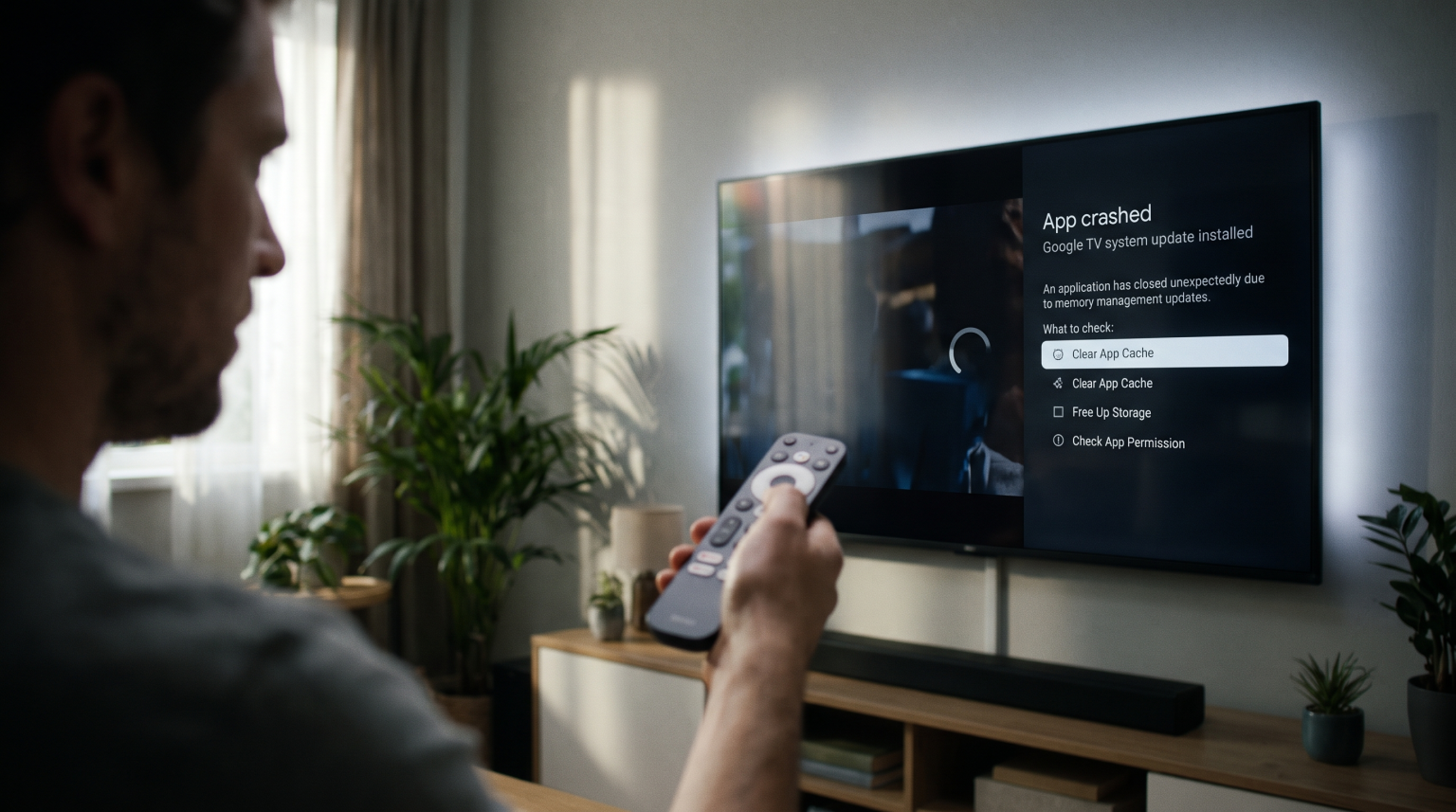
A recent Google TV security update changes how the television operating system manages applications. After this update, many users experience unexpected application closures. An IPTV app crashes after a Google TV update usually because the new operating system rules block the application from accessing device memory.
When an application crashes, the television instantly closes the video player. The television then returns to the main Google TV home screen. This problem affects both official applications from the Google Play Store and applications installed from unknown sources.
This article explains why these software crashes happen. This article also provides exact instructions to fix application errors on your Google TV device. You will learn how to clear temporary television memory, how to update your video player, and how to adjust system permissions for stable television viewing.
Hurtigt svar
If your IPTV app crashes after a Google TV update, the most common causes are outdated application software, corrupted cache data, or revoked security permissions.
To fix this problem, you should first clear the application cache in the Google TV settings menu. If the application continues to crash, you must update the application through the Google Play Store.
Older applications may require an update from the software developer to support the new Google TV security rules. Users with older televisions should check their device storage space, because low storage also causes application crashes.
Why Software Updates Cause Application Crashes
Google regularly releases security updates for the Google TV operating system. These updates protect your television from harmful software. However, these updates also change how the operating system interacts with installed applications.
New Storage Permissions
Recent Google TV updates restrict how applications access the internal storage of the television. Many IPTV players need storage access to load channel lists, save electronic program guide (EPG) data, and store user settings. If a security update revokes this storage permission, the application cannot load the required files. When the application cannot load these files, the application crashes immediately.
Background Memory Limits
Smart televisions have limited internal memory (RAM). A new security update may introduce stricter memory management rules. The Google TV operating system will automatically close applications that use too much memory. If an IPTV player tries to load a very large channel playlist, the television operating system may force the application to close to protect system stability.
Outdated Application Code
Application developers must update their software to match new Google TV system requirements. If a developer abandons an application, the application will not contain the correct code for new operating system versions. When an older application attempts to use an outdated software command, the modern Google TV operating system stops the application.
How to Fix Google TV Application Crashes
You can usually resolve application crashes by performing basic device maintenance. Follow these steps in order.
1. Clear Application Cache and Data
The application cache stores temporary files to help the application load faster. Security updates can corrupt these temporary files.
Follow these steps to clear the cache:
Press the home button on your television remote control.
Select the Settings gear icon.
Select Apps, then select See all apps.
Find and select your IPTV application.
Select Clear cache.
If the application still crashes, return to the same menu and select Clear data. Clearing data will delete your user login information. You must enter your television provider details again after you clear the data.
2. Update the IPTV Application
You must ensure that your application version is compatible with the latest Google TV software.
Follow these steps to update the application:
Open the Google Play Store on your television.
Select your profile picture in the top right corner.
Select Manage apps and games.
Select Updates, then select Update all.
If you installed the application from outside the Google Play Store, you must visit the official developer website. Download the latest installation file and install the new version manually.
3. Verify System Permissions
Your video player must have the correct permissions to function properly.
Follow these steps to check permissions:
Open the television Settings menu.
Select Apps, then select See all apps.
Select your IPTV application.
Select Permissions.
Ensure that the application has permission to access Files and Media.
4. Check Television Storage Space
Google TV devices require free storage space to operate smoothly. If your television storage is completely full, applications will crash.
Follow these steps to check storage:
Open the television Settings menu.
Select System, then select Storage.
Check the available storage space.
You should keep at least one gigabyte of free storage space. Delete unused video games and unused streaming applications to create more space.
Smart TV Operating Systems Compared
Different television brands use different operating systems. If you are comparing television platforms, you should understand how each operating system handles software updates and application compatibility.
This table compares recent Smart TV platforms:
| Funktion | Google TV | Samsung Tizen | LG webOS |
| Default application store | Google Play Store | Samsung Apps | LG Content Store |
| Third-party application installation | Allowed via unknown sources | Not natively supported | Not natively supported |
| Operating system update frequency | Frequent security updates | Moderate updates | Moderate updates |
| Application crash recovery | Clear cache in settings | Reinstall application | Reinstall application |
| IPTV application availability | High (depends on country) | High (depends on country) | High (depends on country) |
If you want to learn more about television platforms, read our complete guide comparing Det bedste Smart TV-operativsystem til IPTV i 2026.
IPTV Compatibility on Google TV
TV Shadow IPTV works with many popular video players. Google TV provides excellent compatibility for different streaming formats, but you must choose the right application for your specific needs.
Supported Streaming Formats
Most modern IPTV applications on Google TV support M3U playlists and Xtream Codes API connections. Xtream Codes API is usually the better choice. This connection method organizes channels into categories and loads the channel list faster than a standard M3U file.
Electronic Program Guide Support
The Electronic Program Guide (EPG) displays the television schedule. Google TV devices handle large EPG files very well, provided the television has enough internal memory. If your application crashes only when opening the television guide, you should disable the EPG setting in your application. You can then clear the application cache and enable the EPG setting again.
Brugervenlighed ved fjernbetjening
Google TV applications usually offer excellent remote control support. However, if you install an application designed for mobile touch screens, you may struggle to navigate the menus with your television remote. Always install the “Android TV” or “Google TV” version of an application instead of the mobile phone version.
When selecting your television hardware, consider reading our detailed comparison to decide if Samsung Tizen vs. Sony BRAVIA Google TV: Hvilket er bedst til IPTV i 2026?.
Best Settings for Live Football Streaming
Watching live football requires a stable internet connection and specific television hardware capabilities. A television update might reset your picture settings or network preferences, which can reduce the video quality during a fast-paced sports match.
Network Stability
Live football requires constant data transmission. If the data connection drops, the video player will buffer. To prevent buffering during sports events, you should connect your Google TV directly to your internet router using an Ethernet cable. An Ethernet cable provides a much more stable connection than wireless internet (Wi-Fi).
If you must use Wi-Fi, connect your television to the 5 GHz wireless network band instead of the 2.4 GHz band. The 5 GHz band provides faster download speeds for high-definition video.
Bevægelseshåndtering og opdateringshastigheder
When you watch a football match, the camera moves quickly across the green pitch. Television screens update the picture many times per second. This is called the refresh rate.
A television with a 120Hz refresh rate updates the picture 120 times every second. A television with a 60Hz refresh rate updates the picture 60 times every second. For live sports, a 120Hz television provides a smoother picture and reduces blurry players.
If you want to understand these technical specifications better, read our detailed explanation of 60 Hz kontra 120 Hz-tv til livefodbold.
Picture Processing Adjustments
After a system update, your Google TV might enable artificial picture enhancements. These enhancements often make live sports look unnatural.
To improve the picture quality for live football:
Open the television picture settings.
Disable “Motion Smoothing” or “Action Smoothing”.
Disable “Noise Reduction”.
Set the picture mode to “Standard” or “Sports”.
If you still experience poor picture quality on your high-resolution television, read our guide explaining Hvorfor ser IPTV sløret ud på et nyt 4K-tv?.
Konklusion
An IPTV app crashes after a Google TV update primarily due to changes in system permissions, memory management, or outdated application software. You can usually resolve these frustrating crashes by clearing the application cache, updating the video player from the Google Play Store, and ensuring your television has enough free storage space.
Always use official, frequently updated applications to ensure compatibility with modern Smart TV security standards. If you follow the troubleshooting steps outlined in this article, you can quickly restore your television setup and return to watching your favorite content on TV Shadow IPTV.
Ofte stillede spørgsmål (FAQ)
Why does my IPTV app close immediately when I open it?
The application likely lacks the required permissions or has corrupted cache data. When the application tries to load its saved data and fails, the Google TV system forces the application to close to prevent a complete system failure. You should clear the application cache to fix this error.
Will a factory reset fix application crashes on Google TV?
Yes, a factory reset will often fix persistent application crashes. However, a factory reset will delete all your installed applications, user profiles, and network settings. You should only perform a factory reset after you have tried clearing the application cache and reinstalling the software.
Does TV Shadow IPTV update its service for new Google TV versions?
Yes, TV Shadow IPTV uses standardized streaming protocols like Xtream Codes and M3U. These standard protocols are universally compatible with updated video players on the Google TV platform. The core streaming technology does not break during television updates, but you must ensure your chosen video player application is up to date.