
ModelTV is a popular media player application for Smart TVs and streaming devices. Many users prefer the ModelTV application because the user interface is clean and easy to navigate. To watch live television channels and video-on-demand content, you must connect the application to an IPTV service provider like TV Shadow IPTV.
The most efficient way to connect your service is by using Xtream Codes. This specific login method is faster and more reliable than typing a long M3U playlist URL. This guide explains exactly how to enter your ModelTV Xtream Codes credentials correctly. We will also show you how to optimize the application settings for watching live football matches without buffering.
Hurtigt svar
To set up ModelTV Xtream Codes, follow these five steps:
Download the ModelTV application from your device app store.
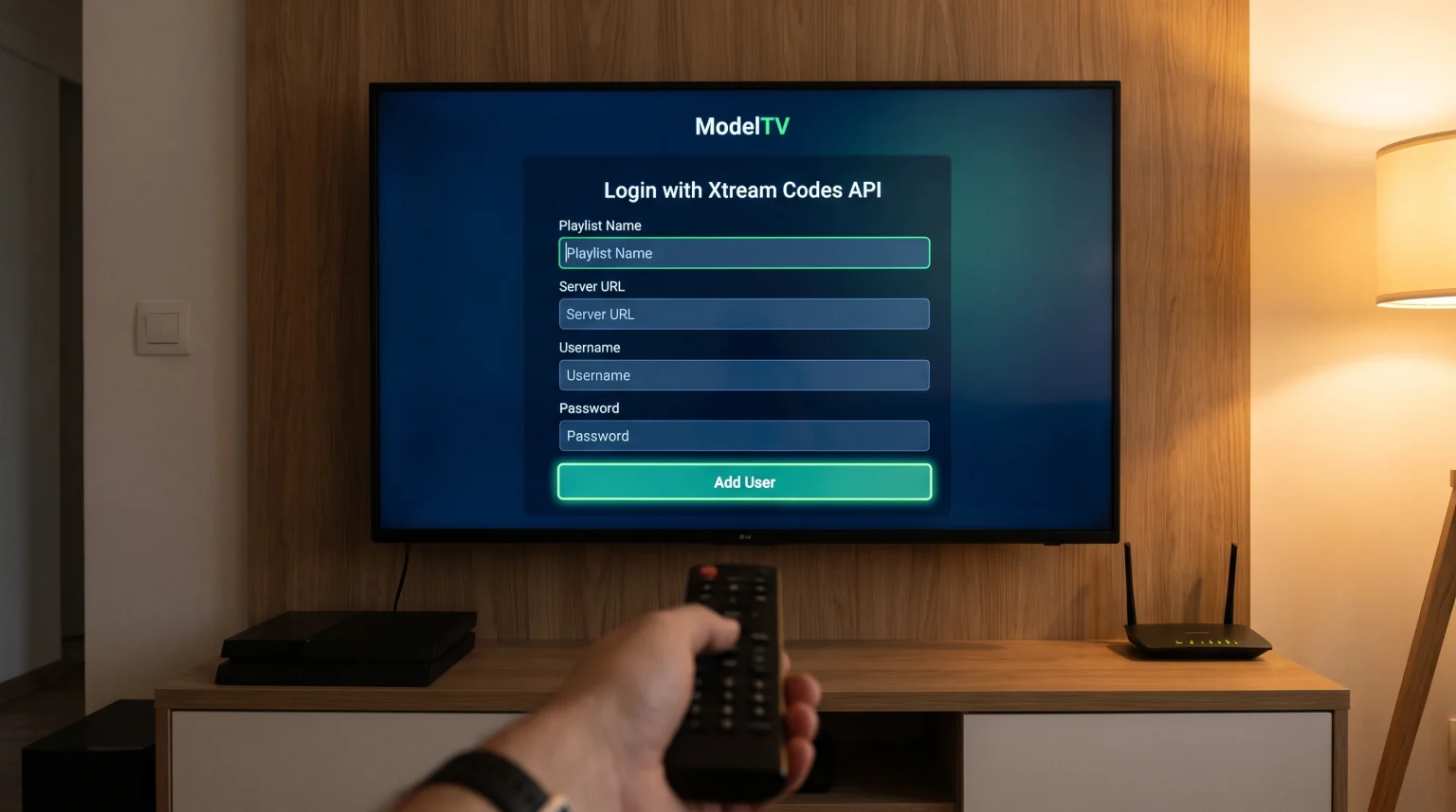
Open the ModelTV application and select the “Xtream Codes API” login option.
Type a name for your playlist in the “Name” field.
Enter the Server URL, Username, and Password provided by your IPTV service provider.
Select the “Add User” or “Login” button to load your television channels.
Using Xtream Codes automatically loads your Electronic Program Guide (EPG) and organizes your channel categories correctly.
What is the ModelTV Application?
ModelTV is an IPTV player. An IPTV player is a software application that reads digital media files. The ModelTV application does not include any television channels, movies, or sports streams. You must provide your own media content.
The application is available on multiple operating systems. You can install ModelTV on Android TV, Google TV, and Amazon Fire TV Stick devices. Some Smart TV brands also offer ModelTV in their official app stores. Application availability depends on your country and your specific television model year.
If you want to know which television is best for IPTV applications, read our guide to De bedste Smart-tv’er til IPTV i 2026: Sammenligning af Samsung, Sony, LG og TCL.
Xtream Codes vs M3U Links: Which is Better?
IPTV providers normally offer two different login methods. You can use an M3U link or you can use Xtream Codes. We strongly recommend using Xtream Codes for the ModelTV application.
| Funktion | Xtream-koder | M3U-link |
| Entry Method | Type three short details (URL, Username, Password) | Type one very long web address |
| Typing Difficulty | Easy to type with a television remote control | Difficult to type with a television remote control |
| EPG Loading | Automatic | Often requires a second EPG web address |
| Content Updates | Updates automatically when the application opens | Sometimes requires manual playlist updates |
Using ModelTV Xtream Codes saves time and prevents typing errors. A standard M3U link can contain more than 60 characters. Making one mistake while typing an M3U link will cause a login failure. Xtream Codes separate the login information into short, manageable sections.
Step-by-Step Guide: ModelTV Xtream Codes Setup
Follow these detailed instructions to configure your ModelTV application.
Step 1: Install the ModelTV Application
Turn on your Smart TV or streaming device. Open the official application store on your device. Search for the word “ModelTV”. Select the download button to install the application. Wait for the installation process to finish completely.
Step 2: Open the Login Screen
Open the ModelTV application. The first screen will ask you to choose a login method. Select the option labeled “Login with Xtream Codes API”. Do not select the “Load Your Playlist or File/URL” option, because that option is for M3U links.
Step 3: Enter Your Xtream Codes Details
You will see a screen with four empty text fields. You must fill in all four fields using the television remote control. Your IPTV service provider will give you these details.
Navn på afspilningsliste: Type any name you want. For example, type “TV Shadow IPTV“. This name only helps you identify the playlist.
Server-URL: Enter the server web address provided by your IPTV service. You must include “http://” or “https://” at the beginning of the URL. You must also include the port number at the end, such as “:8080”.
Brugernavn: Enter your unique username. The username is sensitive to capital and lowercase letters.
Adgangskode: Enter your unique password. The password is also sensitive to capital and lowercase letters.
Step 4: Load Channels and EPG
After you enter the four details, select the “Add User” button. The ModelTV application will connect to the server. The application will download your live television channels, movies, series, and the Electronic Program Guide (EPG).
This downloading process may take two or three minutes depending on your internet speed. Do not close the application during this process.
Best Settings for Live Football on ModelTV
Watching live football requires a stable internet connection and good hardware. Fast camera movements during sports broadcasts can cause video stuttering if the television settings are wrong.
Internet Connection Settings
We recommend connecting your Smart TV directly to your internet router using an Ethernet cable. An Ethernet cable provides a more stable connection than Wi-Fi. A stable connection prevents buffering during important live football matches. If you must use Wi-Fi, connect your television to the 5GHz Wi-Fi band instead of the 2.4GHz band. The 5GHz band provides faster download speeds.
Television Picture Settings
Modern televisions include motion processing features. These features try to make fast movements look smoother. However, artificial motion processing can create visual errors around football players. We recommend turning off motion processing in your Smart TV picture settings while using the ModelTV application.
To understand how screen speed affects sports broadcasts, read our comparison of 60 Hz kontra 120 Hz-tv til livefodbold].
Video Resolution and Upscaling
Many live football streams broadcast in 4K resolution. If your television supports 4K, the picture quality will be excellent. If the stream resolution is lower than your television resolution, the television will upscale the image to fit the screen. Learn more about this process in our explanation of Hvad er TV-opskalering, og er det en fordel for IPTV?.
Troubleshooting Common ModelTV Login Errors
Sometimes you might experience problems when entering your ModelTV Xtream Codes. Here are the most common errors and how to fix the errors quickly.
Authorization Failed Error
This error means the server rejected your login details. Check your username and password again. Make sure you did not type a space before or after the username. Verify that you used the correct capital and lowercase letters.
Check Internet Connection Error
This error means the ModelTV application cannot reach the server. Check your television internet connection. Verify that the Server URL is absolutely correct. Ensure you typed the port number at the end of the Server URL. A missing port number will cause a connection failure.
EPG Not Loading
If your television channels load but the television guide is empty, refresh the application data. Go to the main ModelTV settings menu. Select the “Update EPG” option. Wait for the download process to finish. The television guide should now display the correct programming schedule.
Konklusion
Setting up your ModelTV Xtream Codes is a simple process that takes only a few minutes. By choosing the Xtream Codes API login method instead of a long M3U link, you reduce typing errors and ensure your Electronic Program Guide loads correctly. Always double-check your username, password, and Server URL if you experience connection errors.
For the best live football streaming experience, use an Ethernet cable to connect your television to the internet. If you are looking for a reliable media service to use with your configured application, TV Shadow IPTV provides excellent compatibility with the ModelTV application.
Ofte stillede spørgsmål (FAQ)
Do I need a VPN to use ModelTV?
Using a Virtual Private Network (VPN) is optional but recommended. A VPN prevents your internet service provider from slowing down your internet speed during live football matches.
Are channels included with the ModelTV application?
No. The ModelTV application does not include any media content. You must purchase an IPTV subscription from a provider like TV Shadow IPTV to watch television channels.
Can I use ModelTV on a Samsung Smart TV?
ModelTV availability depends on the Samsung Tizen application store in your specific country. If the ModelTV application is not available in your region, you can download other excellent IPTV players from the Samsung app store.