
Families need streaming devices that organize content for multiple people. When a household shares one television, different family members want their own movie recommendations, watchlists, and app layouts. Both Apple and Google offer user profiles on their television platforms to solve this problem.
This article compares how user profiles work on Apple TV 4K and Google TV devices. We will examine how each operating system handles multiple accounts, parental controls, and app management. We will also explore how these profiles interact with sports broadcasting and IPTV services like TV Shadow IPTV.
Kurze Antwort
When comparing Apple TV vs Google TV profiles for a family, the best choice depends on your software ecosystem. Apple TV is better for families who already use iPhones and Apple services, offering fast profile switching and shared Apple Music or Apple Arcade access. Google TV is better for families who want highly personalized home screens, as Google TV changes the entire content recommendation layout for each user. Both platforms provide excellent kids profiles with strong parental controls.
How User Profiles Work on Streaming Devices
A user profile creates a separate digital space for one person on a shared device. Instead of mixing everyone’s viewing history together, the television remembers what each person watches.
Apple TV User Profiles
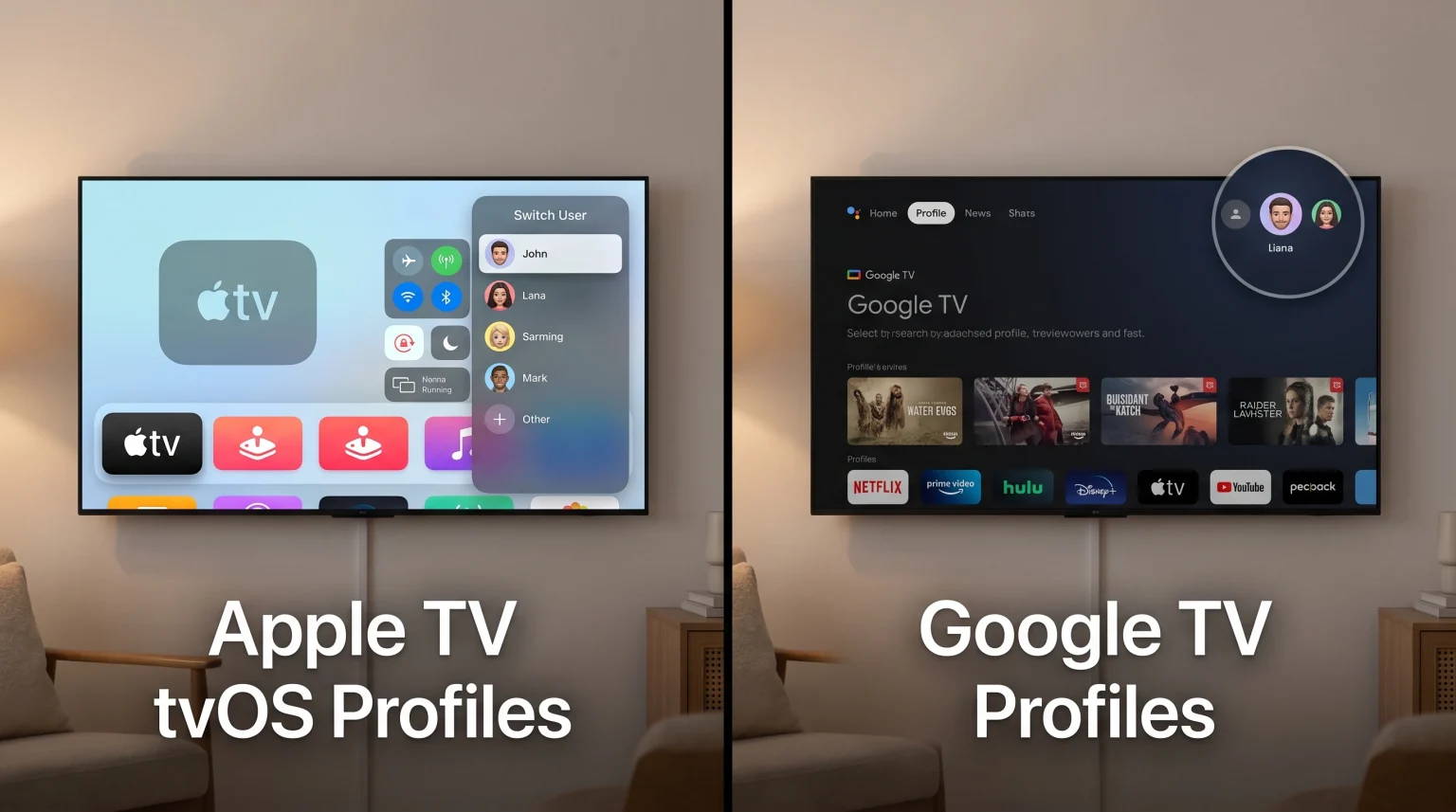
Apple TV uses the tvOS operating system. When you create multiple profiles on an Apple TV, the system connects each profile to a different Apple ID.
Apple TV profiles separate your “Up Next” watchlist in the Apple TV app. The system also separates your Apple Music library and your Apple Arcade game save files. However, Apple TV does not change the layout of the main home screen. Every user sees the exact same grid of applications. If one user downloads a new application, that application appears on the home screen for all users.
Google TV User Profiles
Google TV connects each user profile to a separate Google account. Google TV handles profiles differently than Apple TV.
When you switch profiles on Google TV, the entire home screen changes. Google TV focuses heavily on content recommendations. The operating system learns what movies and television shows each user likes. It then displays personalized recommendations directly on the home screen. Your YouTube watch history, Google Assistant settings, and personal watchlist remain separate from other family members.
Comparison Table: Apple TV vs Google TV Profiles
| Funktion | Apple TV Profiles | Google TV Profiles |
| Account requirement | Apple ID | Google Account |
| Changes home screen apps | No. All apps stay the same. | No. Apps are shared. |
| Changes home screen recommendations | No. Only the Apple TV app changes. | Yes. The main screen changes completely. |
| Profile switching speed | Very fast (via Control Center) | Fast (via top navigation menu) |
| Kids profile available | Yes (Restrictions and Screen Time) | Yes (Google Kids Space) |
| Separate app data (Netflix, etc.) | No. You must switch profiles inside the app. | No. You must switch profiles inside the app. |
Setting Up and Switching Profiles
Switching between user accounts must be easy, or family members will not use the feature.
On Apple TV, you switch profiles by pressing and holding the TV button on the Siri Remote. This opens the Control Center on the side of the screen. You can then select a different user. The process takes only a few seconds. Apple TV also recognizes different users automatically if they switch profiles using the Remote app on their personal iPhone.
On Google TV, the profile picture sits in the top corner of the home screen. You use the directional pad on the remote control to navigate to the picture, select it, and choose a different user. When the new profile loads, the television refreshes the background image and the recommended content rows.
If you want to understand how Google TV compares to other Smart TV platforms, read our guide to the Das beste Smart-TV-Betriebssystem für IPTV im Jahr 2026.
Kids Profiles and Parental Controls
Families with young children need strict parental controls to block inappropriate content.
Apple TV offers powerful restrictions. Parents can lock content based on age ratings. You can require a four-digit PIN code to open specific applications or to make purchases. Apple TV also integrates with Apple’s Screen Time feature, allowing parents to limit how many hours a child watches television.
Google TV offers a dedicated Kids Profile mode. When you create a Kids Profile, the interface becomes bright and simple. Google TV only shows applications that the parent approves. Parents can set daily screen time limits and schedule a mandatory bedtime. When bedtime arrives, the television blocks access to the Kids Profile.
IPTV Compatibility and Profiles
Many users stream live television using IPTV services. TV Shadow IPTV delivers thousands of channels, but you need a compatible IPTV player application on your device.
The choice between Apple TV and Google TV affects which IPTV applications you can install. Google TV allows you to download popular Android applications like TiviMate or Smarters Pro directly from the Google Play Store. Apple TV uses the Apple App Store, which features different applications like UHF or Snapp. For a deeper look at application differences, read our article about Tizen vs. Google TV für IPTV-Apps: Was ist der Unterschied?.
It is important to understand how device profiles affect IPTV applications. Changing the user profile on your Apple TV or Google TV does not change the user profile inside your IPTV application.
If you open an IPTV player, it will show the same favorites list and the same channel history for every family member. The device operating system does not separate data inside third-party applications. If you want separate favorites lists for live television, you must use an IPTV application that has its own internal profile system.
Watching Live Football and Sports
Families often share a television to watch live sports. Live football requires a television and a streaming device that process fast motion smoothly.
Neither Apple TV profiles nor Google TV profiles directly improve picture quality. However, both devices support 4K resolution and high frame rates. Apple TV 4K provides excellent processing power, which helps sports applications run smoothly without freezing. Google TV devices, such as the Chromecast with Google TV or the NVIDIA Shield, also provide good streaming stability for live football.
When streaming live football through an IPTV service or an official sports application, use a wired Ethernet cable instead of Wi-Fi. A wired connection prevents buffering when the entire family is watching a crucial match.
If you are buying a new television for sports, the screen refresh rate is very important. Learn more in our comparison of 60-Hz- vs. 120-Hz-Fernseher für Live-Fußball.
Schlussfolgerung
Choosing between Apple TV vs Google TV profiles comes down to how your family prefers to organize content.
Apple TV offers a clean, shared home screen where applications stay in exactly the same place for everyone. The profiles work quietly in the background to keep watch histories and Apple Music libraries separate.
Google TV offers a highly personalized experience. Each user gets a customized home screen filled with specific movie and television recommendations based on their own viewing habits.
Both systems support excellent parental controls and work very well with high-quality IPTV services like TV Shadow IPTV. Review your current smartphones and preferred applications to decide which streaming device fits your family best.
Häufig gestellte Fragen (FAQ)
Can I lock a user profile with a PIN code?
Yes. Both systems allow you to protect your profile. Apple TV allows you to set a PIN code for purchases and specific apps. Google TV allows you to lock your individual profile with a PIN so other family members cannot access your personal recommendations.
Do streaming apps like Netflix automatically switch profiles?
No. When you switch your Apple TV or Google TV device profile, Netflix does not automatically switch the Netflix user profile. You still need to select your name when you open the Netflix application.
Does changing the profile change the TV picture settings?
No. Picture settings like brightness, color, and contrast are controlled by the television hardware. Changing the Apple TV or Google TV user profile does not change how bright the screen is.
Which device is better for a family with iPhones?
Apple TV is better for families with iPhones. The Apple ecosystem allows family members to type passwords using their phone keyboards, share Apple Photo albums, and connect AirPods easily.
Can I hide specific applications from my children?
Yes. On Google TV, you can use a Kids Profile and only approve specific applications. On Apple TV, you can use Restrictions to hide applications based on age ratings, or put applications inside a folder away from the main screen.