
Google TV devices often receive system software updates. These software updates improve television security and add new system features. However, many users notice a serious problem after a system update installs. A system update can cause a Google TV app permissions reset.
When this reset happens, your installed applications lose their previous data access rights. For example, a video player application may lose access to your television’s internal storage. If the application cannot read the internal storage, the application cannot play your media files.
This guide explains why this permission problem happens. This guide also shows you the exact steps to restore your application permissions quickly.
Kurze Antwort
A Google TV app permissions reset happens when a system software update automatically removes data access rights from installed applications for security reasons.
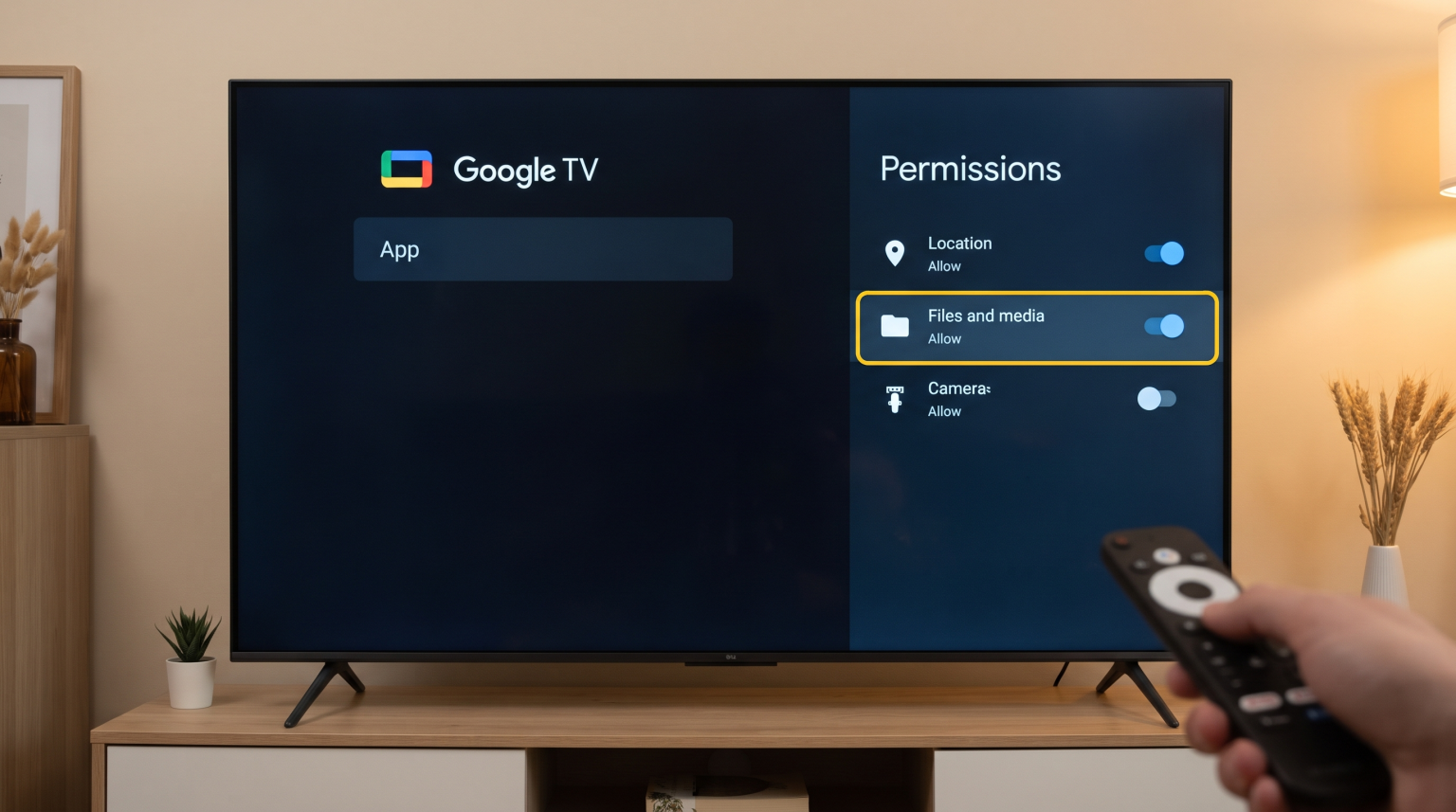
To fix this problem, you must manually grant the permissions again. Go to Einstellungen on your Google TV home screen. Select Apps, then select Alle Apps anzeigen. Choose the specific application that is not working. Scroll down and select Berechtigungen. Finally, change the permission switches to Allow. You must repeat this manual process for every application that stopped working after the system update.
Why Does a Google TV App Permissions Reset Happen?
Google TV uses the Android TV operating system. The Android operating system includes built-in security features to protect user data. When a major system software update occurs, the operating system sometimes resets privacy settings automatically.
The operating system does this to ensure that old applications do not keep access to sensitive data without your current approval.
Sometimes, a Google TV app permissions reset also happens if you do not use a specific application for several months. Google TV calls this security feature “auto-revoke permissions.” This feature protects your privacy, but the feature can stop your favorite streaming applications from working correctly when you finally try to use them again.
How to Restore App Permissions on Google TV
You can fix the Google TV app permissions reset manually. You only need your television remote control. Follow these exact steps:
Turn on your television and go to the main Google TV home screen.
Navigate to the top right corner of the screen and select the Einstellungen gear icon.
Scroll down the menu and select Apps.
Auswählen Alle Apps anzeigen to view your complete list of installed applications.
Select the specific application that is experiencing problems.
Scroll down the application menu and select Berechtigungen.
You will see a list of permission types. Select the required permission and change the setting to Allow.
Restart the application to test the software.
Wenn Sie verschiedene Fernsehsysteme vergleichen möchten, finden Sie in unserem Leitfaden zu Tizen vs. Google TV für IPTV-Apps: Was ist der Unterschied?] explains how the Google TV settings menu compares to Samsung’s interface.
Understanding Google TV App Permissions
Different applications require different permissions to function correctly. The table below explains the most common permission types on Google TV.
| Permission Type | Common Function | Example Application |
| Dateien und Medien | Allows the app to read local files and save data | Video players, file managers |
| Microphone | Allows the app to hear voice commands | Voice search apps, smart home apps |
| Location | Allows the app to provide local weather or news | Weather apps, local news channels |
| Camera | Allows the app to use a connected USB camera | Video calling apps |
How Permission Resets Affect IPTV Apps
IPTV applications require specific device permissions to work correctly on Google TV. If a Google TV app permissions reset occurs, your IPTV player might fail to load your channel list or menu.
Many IPTV applications require the “Files and media” permission. The application needs this storage permission to read local M3U playlist files. The application also needs this storage permission to save Electronic Program Guide (EPG) data on the television storage drive.
If you use a service like TV Shadow IPTV, you must ensure your chosen IPTV player application has the correct storage permissions enabled in the Google TV settings. If you do not grant these storage permissions, the IPTV application will usually show a blank screen or a loading error.
For users who want to know more about television operating systems, our guide to Das beste Smart-TV-Betriebssystem für IPTV im Jahr 2026 details how different brands manage application permissions.
Troubleshooting Live Football Streaming Apps
Live sports broadcasting requires a very stable software environment. When you watch live football, your television must process large amounts of video data quickly.
If a Google TV app permissions reset removes storage access from a sports streaming application, the application cannot save temporary video cache files. This cache problem causes the live football stream to freeze, pause, or buffer constantly.
To ensure smooth motion handling and a stable picture during a football match, always verify your application permissions after a system software update. You should also connect your television to the internet using a physical Ethernet cable instead of a wireless Wi-Fi connection. An Ethernet cable provides the most stable connection for live sports.
Schlussfolgerung
A Google TV app permissions reset is a common issue after a television system software update. This automatic security feature protects your personal data, but the feature can stop installed applications from working properly.
You can easily fix this problem by navigating to the Google TV settings menu and granting the necessary access rights manually. Always check your application permissions first if an IPTV player or streaming application suddenly stops working on your Google TV device.
Häufig gestellte Fragen (FAQ)
Do all Google TV updates reset app permissions?
No. Minor security patches usually do not change application permissions. Major operating-system version upgrades are the most common cause of a Google TV app permissions reset.
How do I stop Google TV from removing permissions automatically?
You can disable the auto-revoke feature for individual applications. Go to Settings, select Apps, select the specific application, and turn off the switch labeled “Remove permissions if app isn’t used”.
Why does my TV screen go black when opening an app?
A black screen often means the application lacks the required permissions to load the user interface or access the video player. Follow the steps in this guide to check the application permissions.