
Many users buy a modern television but unknowingly watch standard high-definition video. Your television screen has a 4K resolution, but the video source might provide a lower resolution. High Dynamic Range (HDR) also requires a compatible source file, a compatible cable, and a compatible display. If one of these elements fails, the television will not show the best possible picture.
This guide explains how to check real 4K HDR TV playback on your television. We will show you how to verify the active video signal using the built-in television menus. We will also explain the common reasons why a video might play in a lower resolution without HDR. By following these steps, you can ensure your television displays the correct picture format.
Kurze Antwort
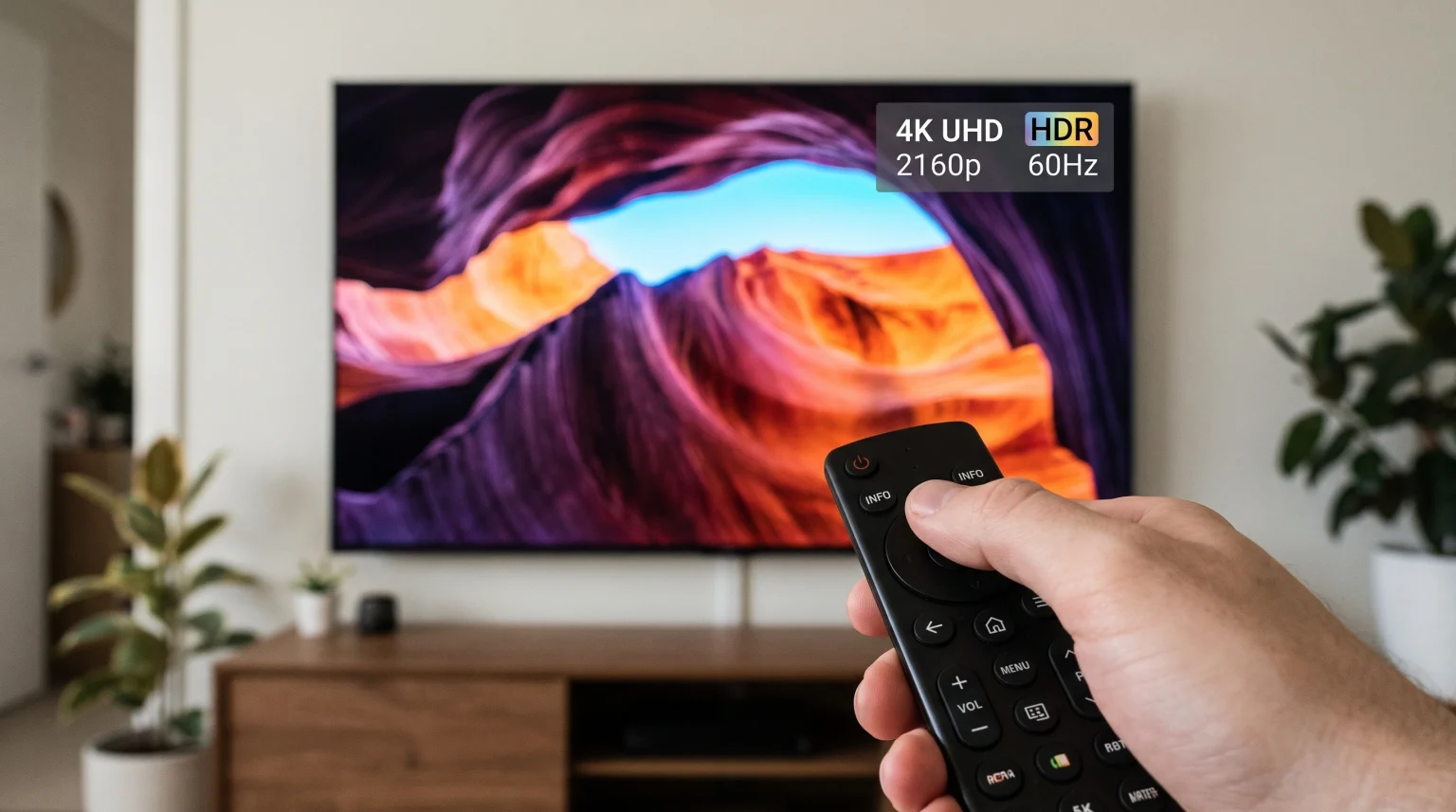
To check real 4K HDR TV playback, press the “Information” or “Display” button on your television remote control. A status banner will appear on the screen. Look for the text “4K”, “UHD”, or “2160p”. Next to the resolution text, look for an HDR logo. This logo might say “HDR”, “HDR10”, “HDR10+”, “Dolby Vision”, or “HLG”.
If the status banner shows “1080p” or “HD”, the video source is not 4K. The television is upscaling a lower-quality video to fit the screen. If the banner does not show an HDR logo, the video is playing in Standard Dynamic Range (SDR).
Understanding 4K and HDR Technology
Before you test your television, you must understand the difference between screen resolution and color format.
What Is 4K Resolution?
The term “4K” refers to the number of pixels on the television screen. A 4K television has approximately 3,840 horizontal pixels and 2,160 vertical pixels. This is also called Ultra High Definition (UHD) or 2160p. If a video is recorded in 1080p, the television must stretch the video to fill the 4K screen. This process is called upscaling.
What Is HDR?
HDR stands for High Dynamic Range. HDR is not a resolution. HDR is a color and brightness technology. HDR provides brighter highlights, deeper shadows, and a wider range of colors compared to Standard Dynamic Range (SDR).
Common HDR formats include:
HDR10: The standard format supported by almost all 4K HDR televisions.
HDR10+: An advanced format created by Samsung.
Dolby Vision: A premium format that adjusts brightness frame by frame.
HLG (Hybrid Log-Gamma): An HDR format used mostly for live television broadcasting.
You can have a 4K video without HDR. You can also have a 1080p video with HDR. To get the best picture, you need both 4K resolution and an HDR format at the same time.
How to Check Real 4K HDR TV Playback by Brand
Different television brands use different menus to show the video signal information. Here is how to check the active video signal on popular television brands.
Checking a Samsung Tizen TV
Samsung televisions use the Tizen operating system. To check the video signal on a Samsung television, press the “Information” button on the remote control. If your Samsung remote does not have an “Information” button, press the central “OK” or “Select” button while watching a video.
A banner will appear at the top of the screen. Look for the text “UHD” and an “HDR” logo. If you only see “HD”, the video is not 4K.
Checking an LG webOS TV
LG televisions use the webOS operating system. To check the video signal, press the central scroll wheel button or the “Information” button on the LG Magic Remote. A small box will appear in the top corner of the screen.
If the video contains HDR, a small logo will appear for a few seconds when the video starts. This logo will say “HDR” or “Dolby Vision”. You can also open the LG picture settings. If the picture mode says “HDR Standard” or “Dolby Vision Cinema”, the television is playing real HDR.
Checking a Sony BRAVIA Google TV
Sony BRAVIA televisions use the Google TV operating system. Press the “Display” or “Info” button on the Sony remote control. A menu will appear at the bottom of the screen. This menu will show the resolution, such as “3840 x 2160” or “4K”. It will also show the HDR format, such as “HDR10” or “Dolby Vision”.
If you are comparing different operating systems, our guide to Das beste Smart-TV-Betriebssystem für IPTV im Jahr 2026 explains the differences between Tizen, Google TV and webOS in detail.
Common Reasons Why 4K HDR Is Not Playing
If you check your television and the video is not playing in 4K HDR, there are several possible reasons.
Incorrect TV HDMI Port Settings
Most modern televisions have a setting to enable full HDMI bandwidth. By default, many televisions set the HDMI ports to “Standard” mode to ensure basic compatibility with old devices. “Standard” mode cannot transfer a 4K HDR signal at 60 frames per second.
You must open your television settings and change the HDMI port setting to “Enhanced”, “HDMI Deep Color”, or “Input Signal Plus”.
Old HDMI Cables
An old HDMI cable cannot transmit the large amount of data required for 4K HDR. You need a High-Speed HDMI cable. Look for a cable labeled “Premium High Speed” (HDMI 2.0) or “Ultra High Speed” (HDMI 2.1). If your cable is too old, the television will lower the resolution to 1080p or turn off HDR.
Streaming App Subscription Tiers
Many streaming applications require a more expensive subscription plan to unlock 4K HDR video. If you pay for a basic subscription plan, the application will only send a 1080p SDR signal to your television. Check your application settings and subscription details.
Slow Internet Connection Speed
Streaming real 4K HDR video requires a fast and stable internet connection. You need a minimum download speed of 25 Megabits per second (Mbps). If your internet speed drops, the streaming application will automatically lower the video resolution to prevent buffering.
Video Format Comparison
This table shows the technical differences between common video formats.
| Funktion | Standard High Definition (HD) | 4K Standard Dynamic Range (SDR) | 4K High Dynamic Range (HDR) |
| Beschluss | 1920 x 1080 pixels | 3840 x 2160 pixels | 3840 x 2160 pixels |
| Picture Details | Standard | Sehr hoch | Sehr hoch |
| Color Range | Limited color palette | Limited color palette | Wide color palette |
| Contrast | Standard brightness | Standard brightness | High brightness and deep shadows |
| Internet Speed Needed | 5 Mbit/s | 15 Mbit/s | 25 Mbit/s |
IPTV Compatibility with 4K HDR
Using an IPTV service on a Smart TV requires specific software. TV Shadow IPTV does not have an official relationship with Samsung, Sony, LG, or Google. However, you can use third-party IPTV player applications to connect to your service.
When you check real 4K HDR TV playback using an IPTV application, the result depends entirely on the original video source.
Video Source Quality
If an IPTV provider transmits a television channel in 1080p, your 4K television will upscale that 1080p video. The television screen will show a picture, but it is not real 4K. If the IPTV provider transmits a video file in true 4K HDR, and your IPTV application supports the format, the television will activate HDR mode.
IPTV Application Limitations
Not every IPTV player application supports HDR metadata. You must use an application that supports modern video decoders. Applications that use Xtream Codes API or M3U playlists only read the video link. The application must then tell the television operating system to decode the HDR video file. If the application has a basic video player, the television might only play the video in SDR.
If your television shows a blurry picture when using IPTV applications, you can read our guide to understand Warum sieht IPTV auf einem neuen 4K-Fernseher verschwommen aus?.
Watching Live Football in 4K HDR
Watching live sports requires high performance from your television. Football involves fast camera movements and small objects moving quickly across the screen.
The HLG Standard for Broadcasts
Live television broadcasts use a specific HDR format called Hybrid Log-Gamma (HLG). HLG is different from HDR10. HLG allows broadcasters to send one single video signal that works on both SDR televisions and HDR televisions. If you watch live football in 4K HDR, your television info banner should show the “HLG” logo.
Bewegungsdarstellung und Bildwiederholfrequenz
Resolution is not the only important specification for live football. The refresh rate determines how many times the screen updates per second. A 120Hz television will display fast-moving footballs more smoothly than a 60Hz television. If you want to learn more about motion handling for sports, read our comparison of 60-Hz- vs. 120-Hz-Fernseher für Live-Fußball.
Internet Stability for Live Sports
Live sports streaming cannot buffer audio and video in advance the way movie streaming can. Therefore, live football requires a very stable internet connection. Using an Ethernet cable directly from your router to your television is recommended for live 4K HDR sports. An Ethernet cable provides a more stable connection than Wi-Fi.
Schlussfolgerung
Understanding how to check real 4K HDR TV playback ensures you get the best possible picture quality. You must check the information banner on your television to confirm the resolution and the HDR format. Remember that the television hardware, the HDMI cable, the internet connection, and the video source must all support 4K HDR.
Whether you are streaming a movie or watching live football using TV Shadow IPTV, verifying your signal guarantees you are using your television correctly. Always ensure your television HDMI ports are set to “Enhanced” and that your internet connection is fast enough for high-quality streaming.
Häufig gestellte Fragen (FAQ)
Does every 4K TV support HDR?
No, not every 4K television supports HDR. Early 4K televisions did not have HDR technology. Today, most new 4K televisions accept an HDR signal, but cheap models do not get bright enough to display HDR correctly.
Why does the screen turn black for a second before a movie starts?
The screen turns black because the television is changing its display mode. When a television switches from the SDR operating system menu to an HDR video signal, the screen must restart the display panel briefly.
Can an old HDMI cable cause my video to lose HDR?
Yes, an old HDMI cable can cause this problem. HDR requires extra data. If the cable does not have enough bandwidth, the connected device will disable HDR to keep the video playing.