
There is nothing more frustrating than getting ready for movie night, only to find your IPTV app stuck loading. If you are staring at an endless spinning circle, you are not alone. Users across the Vereinigte Staaten frequently face this exact issue due to network or device glitches. Fortunately, you can fix it in minutes.
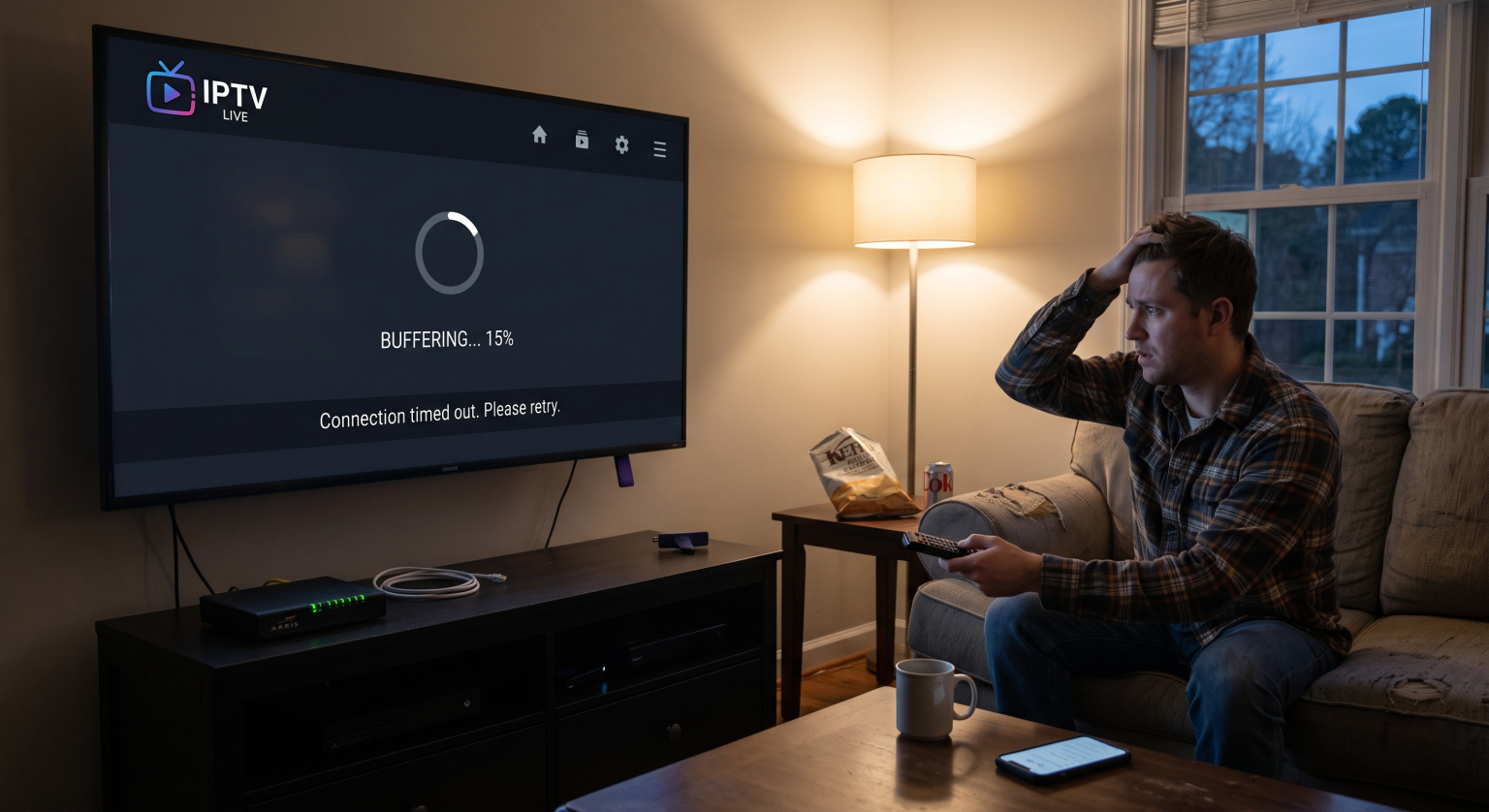
Why Is Your IPTV App Stuck Loading?
When your stream refuses to play, the culprit usually falls into one of three categories: device memory, network stability, or provider servers. Smart TVs and Android TV boxes often store temporary files that corrupt over time.
Here are the most common triggers for an infinite loading screen:
Netzwerkinstabilität: Fluctuating Wi-Fi speeds interrupt the data stream.
Beschädigter Cache: Overloaded device memory causes the app to freeze.
Veraltete Software: Using an old player version leads to a connection timeout.
9 Proven Fixes for an IPTV App Stuck Loading in the US
Whether you are using a Firestick, Android TV, or a native Smart TV application, these solutions will get your channels back online.
1. Perform a Full Power Cycle
The quickest way to fix an IPTV app stuck loading is to reboot everything. Unplug your TV, Android box, and router directly from the wall. Wait a full 60 seconds before plugging them back in to clear temporary memory glitches.
2. Clear Your IPTV App Cache
Smart TVs accumulate cached data that can easily freeze your application. On your Android TV, navigate to Einstellungen > Apps, select your IPTV player, and hit Cache leeren. This forces the app to download fresh connection data without losing your login details.
3. Ditch Wi-Fi for Ethernet
Wireless connections are notorious for causing buffering issues and stream drops. Plugging an Ethernet cable directly into your device guarantees a highly stable stream.
4. Update Your IPTV Player
Outdated software often struggles to connect with modern servers. Check the Google Play Store or your TV’s app market for any pending updates. Installing the latest version often resolves underlying bugs and compatibility issues.
5. Adjust the Video Decoder Settings
If you hear audio but experience a black screen error, your video decoder is likely struggling. Open your app settings and switch the decoder to Hardware (HW+). This optimizes processing power and often resolves freezing instantly.
6. Change Your DNS Settings
ISPs sometimes throttle streaming traffic, causing your application to hang. Changing your device’s DNS to Google’s public DNS (8.8.8.8) can bypass these restrictions. It provides a faster, more direct route to your provider’s servers.
7. Temporarily Disable Your VPN
While VPNs are excellent for privacy, a slow server can trigger a connection timeout. Turn off your VPN and try reloading the application. If the channels load perfectly, switch to a faster VPN server located closer to your home.
8. Free Up Device Storage
Android TVs need at least 1-2 GB of free space to run applications smoothly. Delete unused games and files to give your IPTV player room to operate. A crowded hard drive is a leading cause of sluggish performance.
9. Contact Your IPTV Provider
If you have tried everything and your app is still stuck, the issue might be on the provider’s end. Server maintenance, expired links, or downtime can cause an endless loading loop. Reach out to their support team for a status update.
Best Connection Types for IPTV Streaming
| Verbindungstyp | Speed & Stability | Am besten geeignet für |
| Standard Wi-Fi | Moderate / Variable | Casual streaming on mobile devices or tablets |
| Ethernet Cable | High / Very Stable | 4K streaming on Smart TVs & Android TV Boxes |
| Powerline-Adapter | High / Stable | Rooms where running a direct Ethernet cable isn’t possible |
Conclusion: Enjoy Uninterrupted Streaming in the US
Der Umgang mit einem IPTV app stuck loading doesn’t have to ruin your entertainment plans. By clearing your cache, securing your network, and keeping your device updated, users across the Vereinigte Staaten can enjoy seamless streaming all year round.
Sind Sie bereit, Ihr Fernseherlebnis auf ein neues Niveau zu heben? Check out our premium IPTV subscription plans today for reliable, buffer-free servers and 24/7 customer support! [Click here to choose your plan and sign up now!]How do I fix a black screen error on my Android TV?
Häufig gestellte Fragen (FAQ)
Why is my IPTV Smarters freezing on the loading screen?
This is usually caused by a corrupted app cache or a weak Wi-Fi signal. Force close the app, clear the cache in your device settings, and restart your router.
How do I fix a black screen error on my Android TV?
A black screen often indicates a decoding issue within the player. Go into your IPTV app’s settings and change the video decoder from Software to Hardware (HW+).
Does internet speed affect IPTV loading?
Yes. For smooth HD streaming, you need a stable connection of at least 15-25 Mbps. Using a wired Ethernet connection is highly recommended to prevent drop-offs.