
You settle in to watch your favorite channel, hit the cast button, and the video appears perfectly on the big screen. But there is a glaring problem: you are facing the dreaded IPTV cast no sound issue. Seeing the action without hearing the dialogue is incredibly frustrating, but fortunately, this is a common problem with straightforward solutions.
Whether you are streaming from a smartphone, tablet, or PC, audio loss during casting usually boils down to a few basic miscommunications between your devices. Let’s explore exactly why your screen mirroring sound is missing and how to fix it immediately.
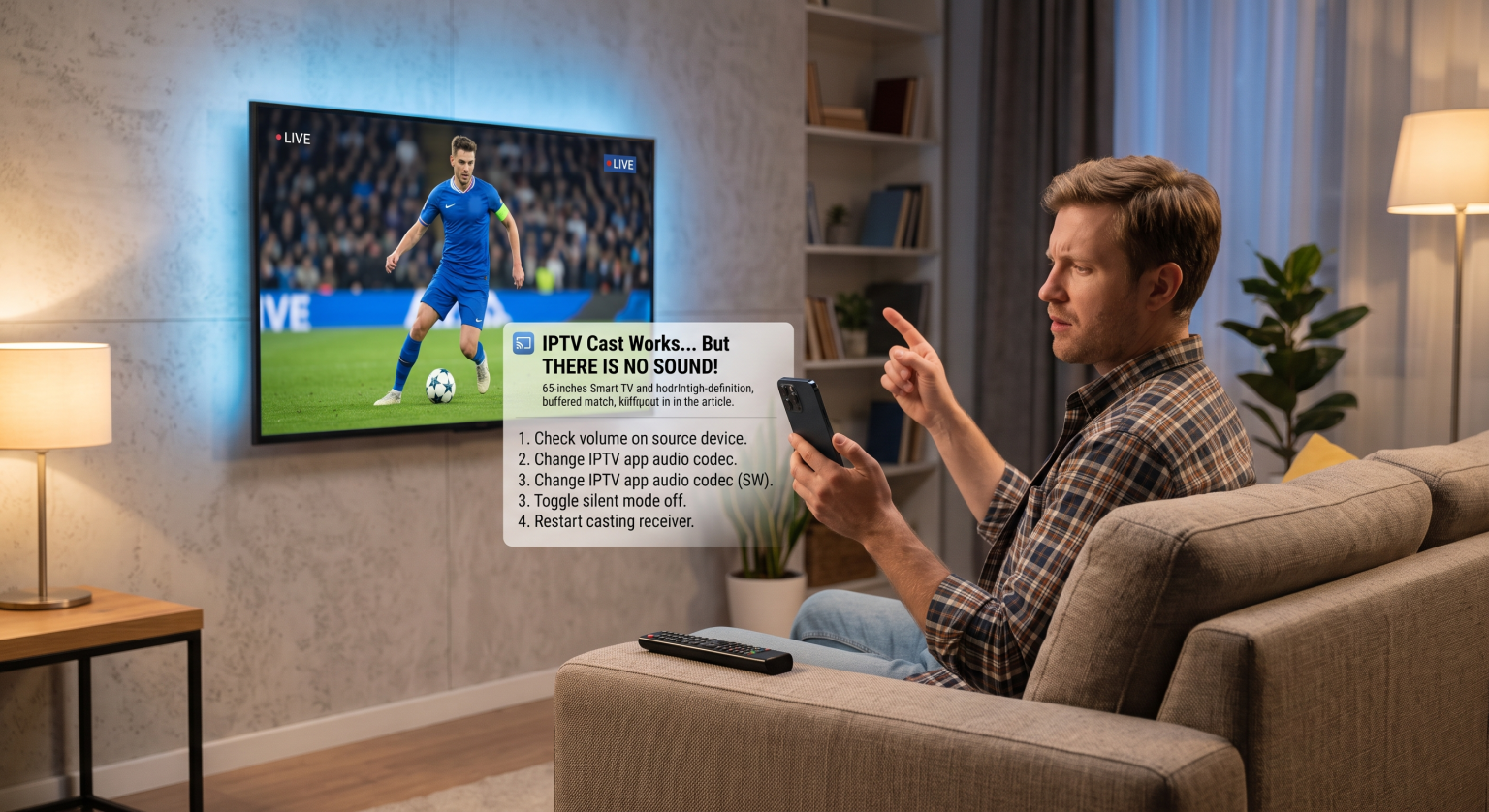
Why You Are Experiencing the IPTV Cast No Sound Issue
When you cast media to your Smart TV, you are transmitting two separate data streams: video and audio. Sometimes, your television successfully decodes the video package but fails to process the audio track.
This disconnect typically happens for one of three reasons. First, the media player on your phone might be using an audio codec (like AC3 or DTS) that your TV does not natively support. Second, the Streaming sound problems could stem from a temporary glitch in your casting protocol. Finally, it might be as simple as hardware volume configurations fighting against software settings.
Understanding Casting Protocols and Audio
Different casting technologies handle audio routing differently. If you are dealing with a Chromecast IPTV no audio error, the solution will look different than if you are using Apple’s ecosystem.
Here is a breakdown of how the most popular casting methods process your stream’s audio:
| Gussverfahren | Audio Transmission Protocol | Common Audio Issue | Die beste Sofortlösung |
| Google Chromecast | Direct stream routing | Codec incompatibility with destination TV | Switch IPTV app audio decoder to “Software (SW)” |
| Apple AirPlay | ALAC / AAC streaming | Audio blocked by iOS “Silent Mode” switch | Turn off physical mute switch on iPhone/iPad |
| Miracast (Screen Mirroring) | Wi-Fi Direct (Audio/Video muxed) | Out-of-sync audio or total dropouts | Disconnect, reboot TV, and rebuild the connection |
Step-by-Step Fixes for IPTV Audio Issues
Wenn du möchtest, fix IPTV audio fast, follow these proven troubleshooting steps in order. They address both hardware oversights and software decoding errors.
Check the Source Device Volume: This sounds obvious, but casting apps often separate media volume from casting volume. Ensure the volume rocker on your smartphone is turned all the way up while the casting session is active.
Switch to Software (SW) Audio Decoding: Open your IPTV app’s settings and look for the internal media player options. Change the audio decoder from Hardware (HW) to Software (SW) so your phone processes the complex audio codecs before sending them to the TV.
Toggle Your Device’s Silent Mode: If you are using an iPhone or iPad, ensure the physical ringer switch on the side of the device is not set to silent. Many casting apps accidentally mute the audio feed when iOS is in silent mode.
Restart the Casting Receiver: Unplug your Smart TV or casting dongle from the wall power for 30 seconds. This clears the cache and forces a fresh digital handshake between your devices.
Try a Different IPTV Player: Not all apps are created equal. If the problem persists, download a highly-rated alternative player like Smarters Pro, VLC, or TiviMate, which offer better built-in audio codec support.
Upgrade Your Streaming Experience Today
Dealing with the IPTV cast no sound problem disrupts your entertainment, but you don’t have to settle for glitchy, silent streams. Having the right setup and a premium service ensures you get flawless, high-definition video and crisp audio every time you cast to your big screen.
If you are tired of constantly troubleshooting your current provider, it is time to make a change. Check out our premium, fully-supported IPTV subscription plans today to experience seamless, buffer-free streaming with perfect audio compatibility across all your devices!
People Also Ask: Streaming Sound Problems
Why does my Chromecast have video but no sound with IPTV?
Chromecast devices rely on the destination TV to decode audio. If the IPTV stream uses an unsupported format (like Dolby Digital Plus) and your TV cannot decode it, the video will play in total silence. Changing your app’s decoder to SW usually resolves this.
Can I fix screen mirroring sound missing without buying a new TV?
Yes. You rarely need new hardware to fix audio casting bugs. Simply updating your IPTV app, clearing the cache of your casting receiver, or using a third-party media player with better codec support will restore your sound.
Does changing the media player fix IPTV audio?
Absolutely. External players like VLC or MX Player come bundled with extensive libraries of custom audio codecs. Routing your IPTV stream through one of these players before casting often bypasses native device limitations.