
Sie können sich nicht entscheiden, ob Sie lieber ein Live-Sportspiel anschauen oder die Nachrichten verfolgen sollen? Sie müssen keine Kompromisse eingehen. IPTV Bild-in-Bild (PiP) revolutioniert die Art und Weise, wie wir Medien konsumieren, und ermöglicht Ihnen nahtloses Multitasking. Ganz gleich, ob Sie Inhalte aus den USA streamen oder im Ausland unterwegs sind – hier finden Sie alles, was Sie über diese bahnbrechende Funktion wissen müssen.
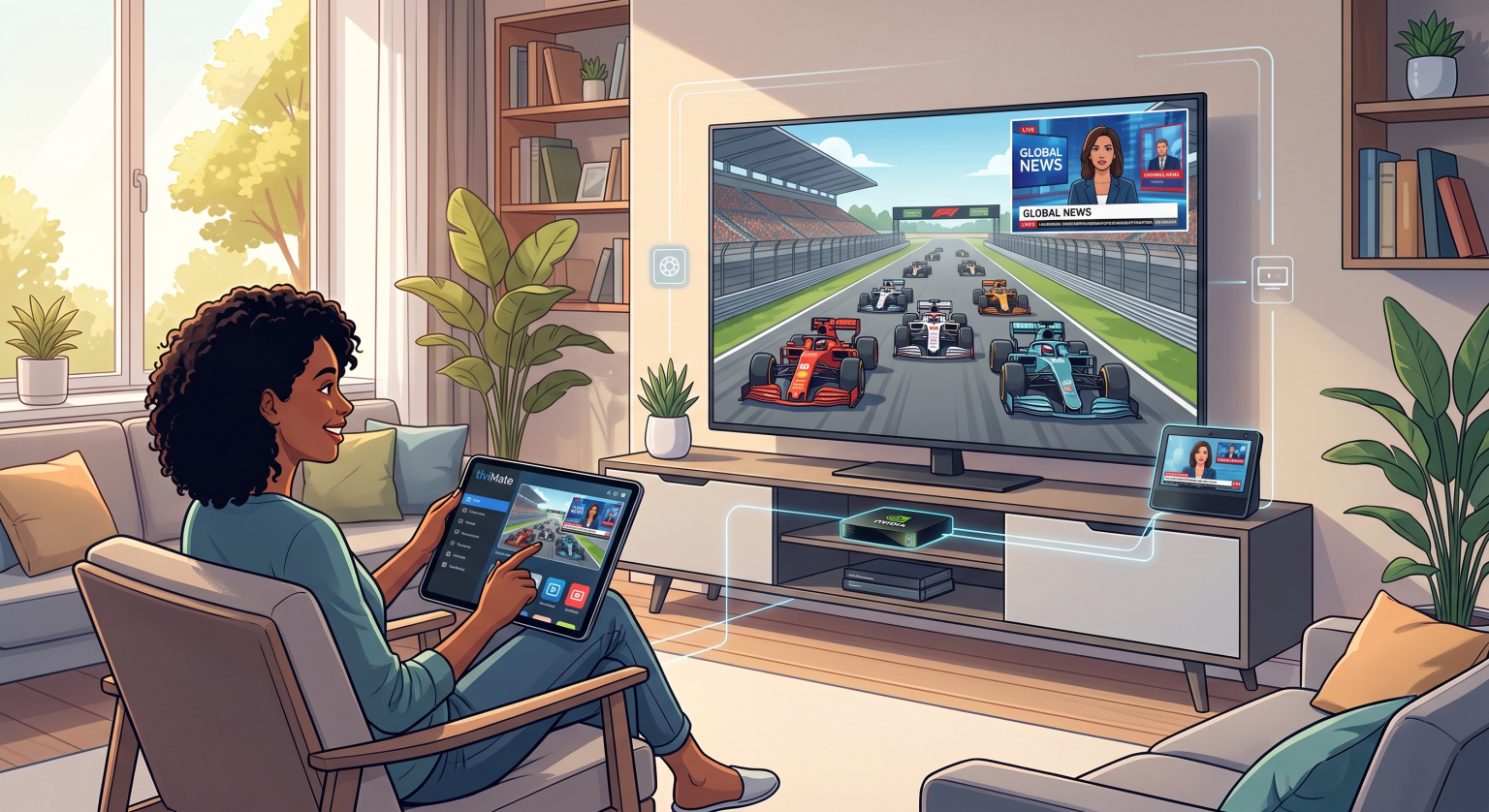
Was genau ist IPTV „Picture-in-Picture“?
Im Kern ist die IPTV Bild-in-Bild Mit dieser Funktion können Sie Ihren Live-TV-Stream oder Ihr Video-on-Demand (VOD) in ein kleines, frei positionierbares Fenster minimieren. Das bedeutet, dass Sie Ihren bevorzugten M3U-Playlist-Player weiter ansehen können, während Sie in anderen Apps stöbern, E-Mails abrufen oder nach Ihrer nächsten Sendung suchen.
Anstatt Ihre Übertragung anzuhalten, lassen PiP-Streaming-Apps das Video in einer Ecke Ihres Bildschirms weiterlaufen. Dieses Multi-Screen-Erlebnis ist ideal für Sportfans, Nachrichtenjunkies und moderne Multitasker, die ihre Bildschirmzeit optimal nutzen möchten.
Die besten Apps und Geräte, die „Picture-in-Picture“ bei IPTV in den USA unterstützen
Die richtige Software und Hardware zu finden, ist für ein reibungsloses PiP-Erlebnis unerlässlich. Glücklicherweise haben viele führende Entwickler diese Funktion integriert, um der wachsenden Nachfrage auf dem US-Markt gerecht zu werden.
Die besten Geräte für PiP-Streaming
Nicht jede Streaming-Box kommt gut mit Multitasking zurecht. Für eine optimale Leistung benötigen Sie Geräte mit hoher Rechenleistung:
Android TV & Google TV: Geräte wie das NVIDIA Shield oder Chromecast mit Google TV bieten native PiP-Unterstützung.
Apple TV (tvOS): Moderne Apple TV 4K-Modelle können in Verbindung mit der richtigen App problemlos schwebende Videofenster anzeigen.
Smartphones und Tablets: Sowohl iOS- als auch moderne Android-Geräte verfügen über integrierte PiP-Protokolle, die von den führenden IPTV-Playern optimal genutzt werden.
Ein Vergleich der besten PiP-kompatiblen IPTV-Player
Wenn Sie die erweiterten Funktionen eines IPTV-Players nutzen möchten, ist die Wahl der richtigen Anwendung entscheidend. Hier finden Sie einen kurzen Vergleich der derzeit besten Optionen:
| IPTV-Player-App | Unterstützte Plattformen | PiP-Supportqualität | Beste Funktion |
| TiviMate | Android TV, Fire TV | Ausgezeichnet (Premium-Version) | Erweiterte Programmübersicht und Multi-View |
| iMPlayer | Android TV, Apple TV, iOS | Sehr gut | Kabelfernsehen-ähnliche Benutzeroberfläche & Catch-up |
| IP-Fernsehen | iOS, Android, Chromecast | Gut | Mini-Player mit Schnellwechsel |
So aktivieren Sie den Bild-in-Bild-Modus auf Ihrem Gerät
Die Aktivierung dieser Funktion ist in der Regel kinderleicht. In den meisten Premium-Apps, die mit Xtream Codes kompatibel sind, Bild-in-Bild-Modus kann direkt über die Benutzeroberfläche des Videoplayers umgeschaltet werden.
In der Regel drücken Sie einfach die “Home”-Taste auf Ihrer Fernbedienung oder tippen auf das entsprechende PiP-Symbol auf Ihrem Smartphone. Die Haupt-App wird geschlossen, das minimierte Videofenster bleibt jedoch auf Ihrem Startbildschirm angezeigt, sodass Sie völlig frei durch andere Bereiche navigieren können.
Optimieren Sie noch heute Ihr US-Streaming-Setup
In der heutigen schnelllebigen digitalen Welt gibt es keinen Grund, sich auf einen einzigen Bildschirm zu beschränken. Durch den Umstieg auf einen Premium-Player, der IPTV Bild-in-Bild, können sich die Zuschauer in den USA auf beispiellose Flexibilität und ein erstklassiges Unterhaltungserlebnis freuen.
Sind Sie bereit, Ihre Streaming-Gewohnheiten zu ändern? Schauen Sie sich noch heute die Premium-Versionen von Apps wie TiviMate oder iMPlayer an, stellen Sie Ihre Lieblings-Playlist mit legalen Inhalten zusammen und übernehmen Sie die volle Kontrolle über Ihr Fernseherlebnis!
„Das fragen andere Nutzer auch“ (PAA)
Unterstützt IPTV Smarters die Bild-in-Bild-Funktion?
Ja, die jüngsten Updates für IPTV Smarters Pro umfassen die Unterstützung für die Anzeige auf mehreren Bildschirmen und PiP auf kompatiblen Geräten, sodass Sie mehrere Streams gleichzeitig ansehen oder ein Fenster über Ihrem Dashboard einblenden können.
Warum funktioniert „Bild-in-Bild“ bei mir auf Android TV nicht?
Falls PiP nicht funktioniert, stellen Sie sicher, dass in den Android-Einstellungen Ihrer jeweiligen IPTV-App die Berechtigung “Über anderen Apps anzeigen” aktiviert ist. Vergewissern Sie sich außerdem, dass Sie eine aktuelle Version des Betriebssystems verwenden.
Verbraucht „Bild-in-Bild“ mehr Bandbreite?
Nein, die Nutzung von PiP verbraucht im Vergleich zum Ansehen des Streams im Vollbildmodus keine zusätzliche Bandbreite. Allerdings beansprucht die gleichzeitige Ausführung mehrerer Apps mehr Arbeitsspeicher und Rechenleistung Ihres Geräts.