
ModelTV is a modern application for watching IPTV. Many users want to know if the ModelTV application works better on an Apple TV device or an Android TV device. Both platforms offer excellent streaming performance. However, they use entirely different operating systems. This creates differences in how you install ModelTV and how you manage your IPTV playlists. This guide provides a complete ModelTV Apple TV Android TV comparison. We will explain compatibility, installation methods, and performance for live television.
Kurze Antwort
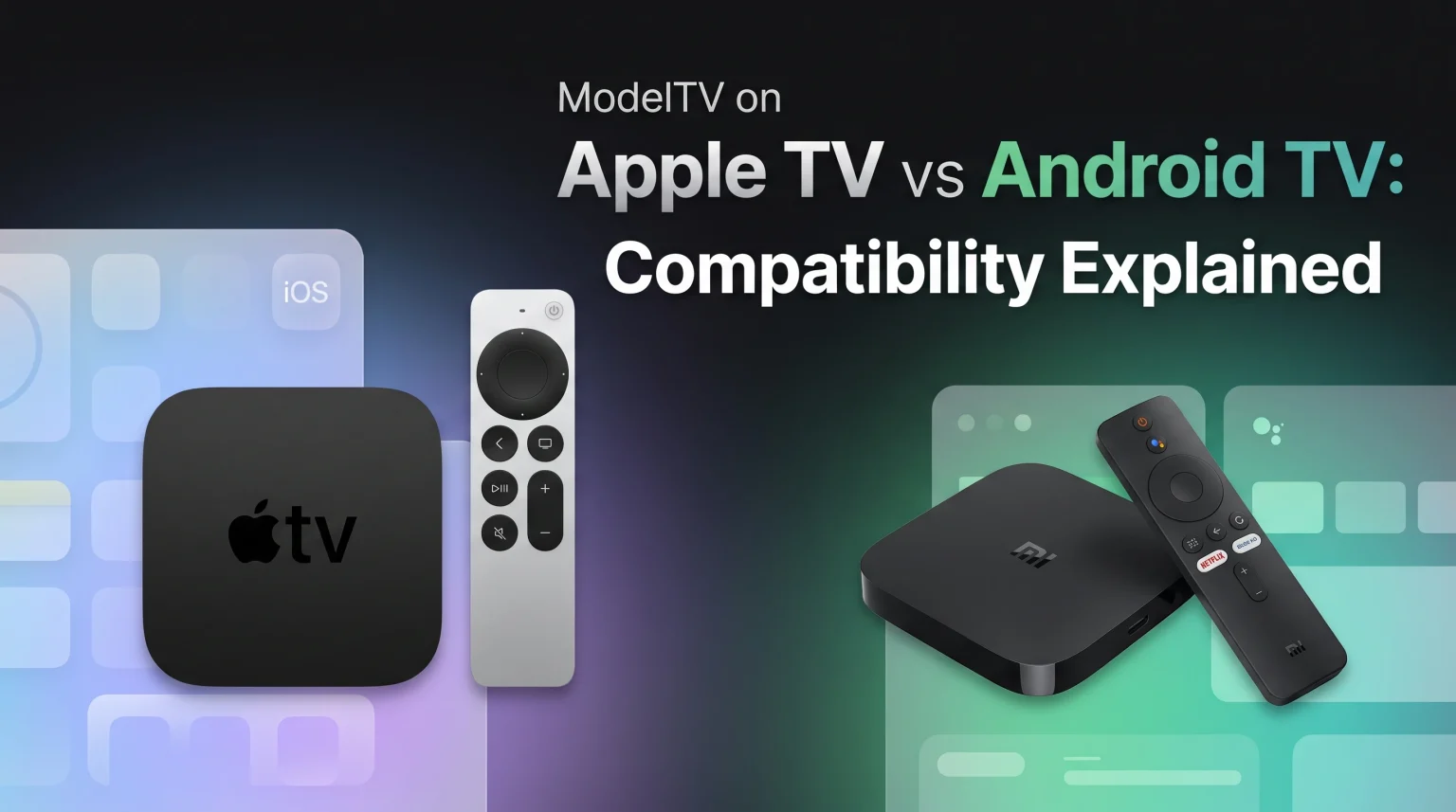
ModelTV is fully compatible with both Apple TV and Android TV. Apple TV provides a very fast processor and a premium user interface. Android TV offers more flexibility because you can install the application from the Google Play Store or via a direct APK download. If you already use Apple devices, Apple TV is the logical choice. If you prefer lower hardware prices and open system customization, Android TV is the better option for your TV Shadow IPTV Einrichtung.
Operating Systems: tvOS vs Android TV
Apple TV uses an operating system called tvOS. This system is closed. Apple controls every application in the App Store carefully. This guarantees high security and smooth performance. However, this closed system also limits your choices. You cannot modify the system files easily.
Android TV is an operating system from Google. Many television manufacturers use Android TV, including Sony, Philips, and Xiaomi. Google TV is a newer version of the Android TV interface. Android TV is an open system. You have direct access to the Google Play Store. You can also install applications from other sources on the internet. This open system gives Android TV users more freedom when configuring a home entertainment setup.
If you want to understand these operating systems deeply, our guide to Das beste Smart-TV-Betriebssystem für IPTV im Jahr 2026 explains tvOS, Android TV, and Samsung Tizen in detail.
ModelTV App Installation
Installing the ModelTV application is different on each platform.
On Apple TV, you must use the official Apple App Store. ModelTV requires the tvOS 16.0 operating system or a newer version. You open the App Store on your television screen, search for “ModelTV,” and click the download button. You cannot install applications from outside the App Store on an Apple TV device. The installation process is very secure and simple.
On Android TV, you have two different installation options. Your first option is the official store. You can search for ModelTV in the Google Play Store and install the application directly. Your second option is manual installation. If the application is not visible in your specific country, you can download the ModelTV APK file from the internet. You can install this APK file using a downloader application on your TV. This manual installation makes Android TV very flexible for IPTV users.
Using ModelTV for IPTV
ModelTV is an empty media player. The application does not include any television channels or movies. You must add your own IPTV playlist.
ModelTV supports standard IPTV connection formats. You can use a traditional M3U link or Xtream Codes. When you use TV Shadow IPTV, you simply enter your subscription login details into the ModelTV application. ModelTV will load your live channels, movies, and series automatically from the server.
The application also supports EPG. EPG stands for Electronic Program Guide. The EPG shows you the daily television schedule. Both the Apple TV version and the Android TV version of ModelTV display the EPG correctly. The application interface looks like a premium cinema library on both platforms. The user experience remains very similar regardless of the hardware you choose.
Picture Quality and Live Football
Watching live football requires a stable device and a fast network. Sports broadcasts use high frame rates and fast camera movements.
Apple TV 4K is excellent for live sports. The Apple processor is extremely powerful. It processes 4K video streams and fast motion without stuttering. Apple TV supports a 60Hz output perfectly. This 60Hz specification matches standard television sports streams around the world.
High-end Android TV devices, such as the NVIDIA Shield TV or Sony BRAVIA televisions, also provide excellent sports performance. However, cheap Android TV boxes often have weak processors. A weak processor can cause the video to stutter when you watch live football. If you watch sports frequently, you must buy a premium Android TV device or an Apple TV.
Modern televisions also have motion smoothing technologies. We recommend turning off motion smoothing when you watch live football. Motion smoothing can create a blurry picture during fast action. You should also check your television refresh rate. A 60Hz television updates the screen 60 times per second. A 120Hz television updates the screen 120 times per second. For more information about hardware specifications, read our article about 60-Hz- vs. 120-Hz-Fernseher für Live-Fußball.
Finally, we strongly recommend using an Ethernet cable. An Ethernet cable connects your TV device directly to your internet router. Wi-Fi connections can lose signal quality because of physical walls or other electronic devices. Live IPTV requires a continuous internet connection. A wired Ethernet connection prevents buffering during important football matches.
Interface and Remote Control
The ModelTV interface is modern, clean, and completely free of advertisements. It works perfectly with a standard remote control.
The Apple TV Siri Remote has a touch-sensitive pad. Some users find this touch pad very precise for scrolling through movie libraries. Other users find the touch pad too sensitive for navigating live IPTV channels. Fortunately, you can change the remote settings in the Apple TV menu. You can disable the touch function and use the edges of the pad as normal buttons.
Android TV remote controls usually have traditional directional buttons. Many IPTV users prefer traditional buttons. Physical buttons make it easy to change channels quickly. Android TV remotes often include dedicated numbers. Number buttons help greatly when you know the exact channel number you want to watch.
Apple TV also allows you to switch between applications quickly. You can pause ModelTV, open a different application, and return to ModelTV instantly. Android TV also supports multitasking. However, budget Android TV boxes have less internal memory. Less memory can force the Android system to close the ModelTV application while it runs in the background.
Vergleichstabelle der Funktionen
| Funktion | ModelTV on Apple TV | ModelTV on Android TV |
| Betriebssystem | tvOS | Android TV / Google TV |
| Official app store | Apple App Store | Google Play Store |
| Manual APK installation | Nein | Ja |
| M3U playlist support | Ja | Ja |
| Xtream Codes support | Ja | Ja |
| Live football performance | Excellent (powerful processor) | Varies depending on device processor |
| Remote control style | Touch pad or directional clicks | Traditional directional buttons |
| Multitasking memory | Hoch | Varies by device price |
Schlussfolgerung
Both Apple TV and Android TV are excellent platforms for running the ModelTV application. The Apple TV provides incredible operating speed, a premium interface, and guaranteed smooth performance for 4K video. It is the perfect choice for users who already own Apple products and want a simple, secure experience.
Android TV provides total freedom. You can install applications manually outside the official store, and you have many hardware options at different price levels. Whichever device you ultimately choose, ModelTV provides a clean, cinema-style interface that works perfectly with TV Shadow IPTV.
Häufig gestellte Fragen
Is the ModelTV application free to use?
Yes, ModelTV is a completely free application. The application does not contain advertisements. You only pay for your actual IPTV service subscription.
Can I watch TV Shadow IPTV on ModelTV?
Yes, ModelTV is fully compatible with our IPTV service. You can connect your account using your standard M3U link or your Xtream Codes login details.
Does ModelTV display an Electronic Program Guide (EPG)?
Yes, ModelTV supports EPG natively. The application downloads the TV schedule directly from your IPTV provider and displays the programs in a clear timeline.