
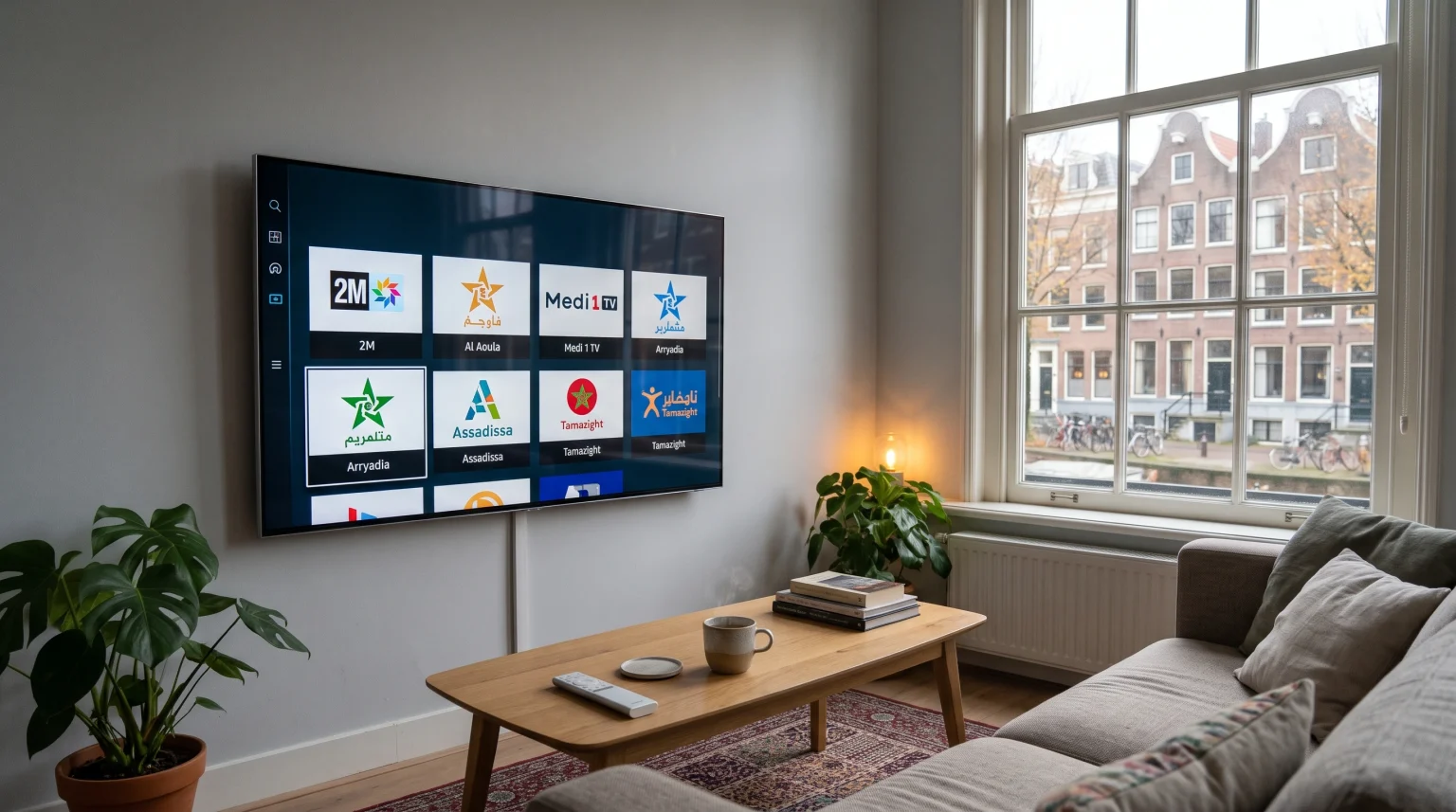
Watching Moroccan television in the Netherlands is a common goal for many households. Viewers often want access to national broadcasters, news, cultural programs, and live football on a large living-room screen. Samsung Smart TVs are very popular in the Netherlands, and these televisions run on the Samsung Tizen operating system. Because Samsung Tizen uses its own app store instead of the Google Play Store, setting up Moroccan television requires specific methods.
This guide explains how to watch Moroccan channels on a Samsung Smart TV in the Netherlands in 2026. You will learn which methods work on Samsung Tizen, how Internet Protocol Television (IPTV) players function on Samsung televisions, and how to improve streaming stability for live sports.
Kurze Antwort
To watch Moroccan channels on a Samsung Smart TV in the Netherlands, you have three main options. First, you can install a compatible IPTV player directly from the Samsung App Store and load a playlist. Second, you can connect an external streaming device, such as a Google TV box, to the Samsung television via High-Definition Multimedia Interface (HDMI) to access more applications. Third, you can cast official Moroccan broadcaster apps from a smartphone or tablet. Native Samsung Tizen apps are convenient for everyday use, while external streaming devices offer wider application compatibility.
How Samsung Smart TVs Work with International Channels
Samsung Smart TVs use the Tizen operating system. Tizen is a closed operating system developed by Samsung. Unlike Sony BRAVIA or TCL televisions that use Google TV, Samsung Tizen does not support Android applications from the Google Play Store.
Because of this difference, you can only install applications that are officially approved and listed in the Samsung App Store. App availability on a Samsung Smart TV depends on several factors:
Country setting: A Samsung television set to the Netherlands region displays apps approved for the Dutch market.
TV model and model year: Older Samsung models may not support newer applications or recent updates.
Tizen operating-system version: Some modern media players require a recent Tizen software version to run smoothly.
App-store policy: Samsung regularly updates its app store rules, which can add or remove specific applications over time.
If you want to understand how Samsung’s operating system compares to other platforms, read our guide on Ist Samsung Tizen im Jahr 2026 für IPTV geeignet?].
Main Ways to Watch Moroccan Channels on a Samsung Smart TV in the Netherlands
Viewers in the Netherlands generally choose between three technical setups to watch Moroccan television on a Samsung screen. Each method has clear advantages and limitations.
1. Native IPTV Player Apps on Samsung Tizen
The most direct method is installing an IPTV player from the Samsung App Store. An IPTV player is a media application that plays television streams over an internet connection. The player itself does not include television channels. Instead, the user adds a channel playlist provided by an IPTV service.
In the Netherlands, several IPTV players are available on compatible Samsung Smart TVs, including Smart IPTV, IBO Player Pro, and MaxPlayer. Availability depends on the specific Samsung model year. For example, some players support Samsung televisions from 2017 or 2019 onward, while older models may have fewer options.
2. Official Broadcaster Apps and Screen Casting
Morocco’s national public broadcaster, the Société Nationale de Radiodiffusion et de Télévision (SNRT), offers the official SNRT Live application. SNRT Live provides access to national and regional Moroccan television and radio channels.
However, official Moroccan broadcaster apps are primarily designed for smartphones, tablets, web browsers, and Android-based platforms. If an official Moroccan app is not listed in the Dutch Samsung App Store, you can install the app on an Android phone or iPhone and mirror the screen to your Samsung Smart TV. Most modern Samsung Smart TVs support Apple AirPlay and Samsung Smart View for wireless screen mirroring.
3. External Streaming Devices Connected via HDMI
If you want more flexibility than the Samsung App Store provides, you can connect an external streaming device to an HDMI port on your Samsung Smart TV. Common examples include Google TV streamers, Android TV boxes, Amazon Fire TV devices, and Apple TV.
An external Google TV or Android TV device gives you access to the Google Play Store. This allows you to install Android-based IPTV players such as TiviMate or official broadcaster apps that are not available on Samsung Tizen. You still use your Samsung television for the display, while the external box handles the apps and streaming.
Comparison of Viewing Methods on Samsung Smart TV
The table below compares the three main ways to watch Moroccan channels on a Samsung Smart TV in the Netherlands.
| Funktion | Native Samsung Tizen IPTV Player | External Google TV / Android TV Box | Mobile App + Screen Mirroring |
| Betriebssystem | Samsung Tizen | Google TV or Android TV | iOS or Android (cast to TV) |
| App-Ökosystem | Samsung App Store | Google Play Store | Apple App Store or Google Play |
| Remote-control usability | Uses the standard Samsung remote | Uses the external device remote (or HDMI-CEC) | Controlled mainly from the smartphone |
| Verfügbarkeit der IPTV-App | Depends on TV model, year, and country | Wide selection of Android IPTV players | Depends on mobile app support |
| Extra hardware needed | Keine | External streaming box and HDMI cable | Smartphone or tablet |
| Setup complexity | Moderate (playlist upload via web or app) | Moderate (HDMI setup and app login) | Simple (wireless connection) |
If you are deciding between a Samsung television and a television with built-in Google TV, our comparison of Tizen vs. Google TV für IPTV-Apps: Was ist der Unterschied? explains the practical differences in detail.
IPTV Compatibility on Samsung Smart TVs
For households using an IPTV service such as TV Shadow IPTV, understanding how Samsung Tizen handles IPTV players is important. TV Shadow IPTV has no official affiliation with Samsung, Google, LG, or any television manufacturer. Furthermore, no single IPTV player works on every Samsung television model.
M3U and Xtream Codes Compatibility
Most IPTV services deliver channel lists in two standard formats:
M3U-URL: A web link that contains the playlist of live channels and video-on-demand content.
Xtream Codes API: A login method that uses a server URL, a username, and a password.
Many Samsung Tizen IPTV players, such as Smart IPTV and IBO Player Pro, rely primarily on M3U playlists uploaded through the app developer’s website using the television’s Media Access Control (MAC) address or device ID. Other Tizen players, such as MaxPlayer, support both M3U links and Xtream Codes login credentials. Always check which format your chosen player supports before activating the app.
Electronic Program Guide (EPG) Support
An Electronic Program Guide (EPG) displays the current and upcoming television schedule on your screen. Most modern Samsung Tizen IPTV players support EPG data. However, the EPG only appears if your IPTV provider includes EPG data for the Moroccan channels in your playlist. You should also make sure your Samsung Smart TV clock and time zone are set correctly for the Netherlands (Central European Time) so that program times match local schedules.
Remote-Control Usability and Interface
Modern Samsung Smart TVs often come with a compact SolarCell Remote that has very few buttons. While this remote works well for basic navigation, it does not have a traditional number pad.
When browsing a large list of Moroccan and international channels, navigating without number buttons can feel slow. Organizing your favorite Moroccan channels into a dedicated “Favorites” group inside your IPTV player makes daily browsing much faster.
Samsung Tizen Operating-System Limitations
Samsung Tizen has strict memory and storage limits compared to dedicated external streaming boxes. If you load a very large IPTV playlist containing tens of thousands of channels and movies, a Samsung Smart TV may load the list slowly or freeze.
To prevent performance issues on Samsung Tizen, ask your IPTV provider to filter your playlist so that it only includes the countries and categories you actually watch, such as Moroccan and Dutch channels.
Watching Moroccan Live Football on a Samsung Smart TV
Live football is one of the main reasons viewers in the Netherlands search for Moroccan channels. Watching fast-moving sports over an internet connection puts extra demand on both your home network and your television hardware. Note that TV Shadow IPTV does not own broadcasting rights for any football league or tournament, and viewers should always use authorized and lawful viewing methods.
Wi-Fi vs. Wired Ethernet Connection
Live sports streams require a steady internet connection. Wireless Wi-Fi signals in Dutch homes can be affected by thick concrete walls, floor heating, or interference from neighboring routers.
Whenever possible, connect your Samsung Smart TV directly to your router using an Ethernet cable. A wired Ethernet connection reduces sudden speed drops and helps prevent buffering during live matches. If you must use Wi-Fi, connect the television to the 5 GHz Wi-Fi band rather than the 2.4 GHz band for better stability.
Refresh Rate and Motion Handling
Football involves fast camera pans across a green pitch. A television’s refresh rate—measured in Hertz (Hz)—determines how many times per second the screen updates the image.
60Hz Samsung TVs: Standard entry-level and mid-range Samsung models typically use a 60Hz panel. These panels handle regular television well, though fast-moving footballs may show slight motion blur.
120Hz Samsung TVs: Higher-end Samsung QLED, Neo QLED, and OLED models often feature 120Hz panels. A 120Hz panel can display smoother motion during fast sports scenes.
To learn more about how panel speed affects live sports, read our article on 60-Hz- vs. 120-Hz-Fernseher für Live-Fußball.
Input Signal Quality, 4K Upscaling, and Picture Settings
Many international television streams broadcast in Standard Definition (SD) or High Definition (HD, 720p or 1080p) rather than native Ultra High Definition (4K UHD). When a 4K Samsung Smart TV plays an HD stream, the television uses a process called upscaling to fit the image onto the 4K screen.
If a Moroccan channel looks soft or pixelated, the cause is usually low stream resolution or heavy video compression from the source. Our guide on Warum sieht IPTV auf einem neuen 4K-Fernseher verschwommen aus? explains how signal quality and upscaling interact.
For better football viewing on a Samsung Smart TV, adjust these picture settings:
Picture Mode: Switch from “Vivid” or “Dynamic” to “Standard” or “Movie” for more natural grass colors.
Picture Clarity Settings: Turn down or disable aggressive motion smoothing if you notice visual artifacts around moving players.
High Dynamic Range (HDR): Most live television channels broadcast in Standard Dynamic Range (SDR). Let the Samsung television handle HDR automatically rather than forcing HDR effects onto standard broadcasts.
Step-by-Step Setup Overview for Samsung Smart TV
If you decide to use a native IPTV player on your Samsung Smart TV in the Netherlands, the general setup follows these steps:
Connect to the internet: Plug in an Ethernet cable or connect your Samsung Smart TV to your home Wi-Fi network.
Öffnen Sie den Samsung App Store: Press the Home button on your Samsung remote and navigate to the Apps Abschnitt.
Search for an IPTV player: Use the search icon to find a compatible player available on your model, such as Smart IPTV, IBO Player Pro, or MaxPlayer.
Install and open the app: Auswählen Installieren, wait for the download to finish, and open the application.
Note your device details: Most Tizen IPTV players display a MAC address, device ID, or activation code on the screen.
Add your playlist: Visit the player’s official website on a phone or computer to upload your M3U URL, or enter your Xtream Codes login details directly inside the app.
Restart the app: Close and reopen the IPTV player on your Samsung Smart TV so the application loads the updated channel list and EPG.
Schlussfolgerung
Watching Moroccan channels on a Samsung Smart TV in the Netherlands is straightforward once you choose the right setup for your household. Native Samsung Tizen IPTV players offer a clean experience with a single remote control, provided your TV model supports the app and your playlist is well-organized. External Google TV or Android TV devices are a better fit for viewers who want access to Android-only applications and broader customization.
Whether you use a native Tizen app or an external streaming device with a service like TV Shadow IPTV, a wired Ethernet connection and proper picture settings will give you the most reliable viewing experience.
Häufig gestellte Fragen (FAQ)
Can I watch Moroccan channels on a Samsung Smart TV in the Netherlands without an external box?
Yes, you can watch Moroccan channels directly on a Samsung Smart TV without an external box. You can install a compatible IPTV player from the Samsung App Store and load a playlist, or cast official broadcaster apps from your smartphone.
Is the SNRT Live app available in the Samsung App Store in the Netherlands?
App availability in the Samsung App Store depends on your TV model, model year, and country settings. Official Moroccan apps like SNRT Live are widely available on Android and iOS devices, but they are often not listed on Samsung Tizen in the Netherlands. In that case, screen mirroring or an external streaming device is required.
Why can I not install TiviMate on my Samsung Smart TV?
TiviMate is an Android application designed for Android TV, Google TV, and Fire OS. Samsung Smart TVs run on the Tizen operating system, which does not support Android applications or the Google Play Store. To use TiviMate on a Samsung television, you must connect an external Google TV or Android TV device via HDMI.