
Many IPTV users experience a frustrating problem where the television screen turns black, but the audio continues to play normally. This often happens when you use the Nexstream application or similar media players.
The cause of this error is usually a video decoding failure. Your device receives the stream, but it cannot display the video picture. Fortunately, you can fix this problem quickly. The solution is to activate the Nexstream compatibility mode.
This article explains exactly how this playback mode works. It also shows you how to activate the setting on your Smart TV or streaming device. By following these clear steps, you can fix the black screen error and continue watching your favorite channels.
Kurze Antwort
What is the Nexstream compatibility mode? It is a built-in application setting that changes how the media player processes video signals.
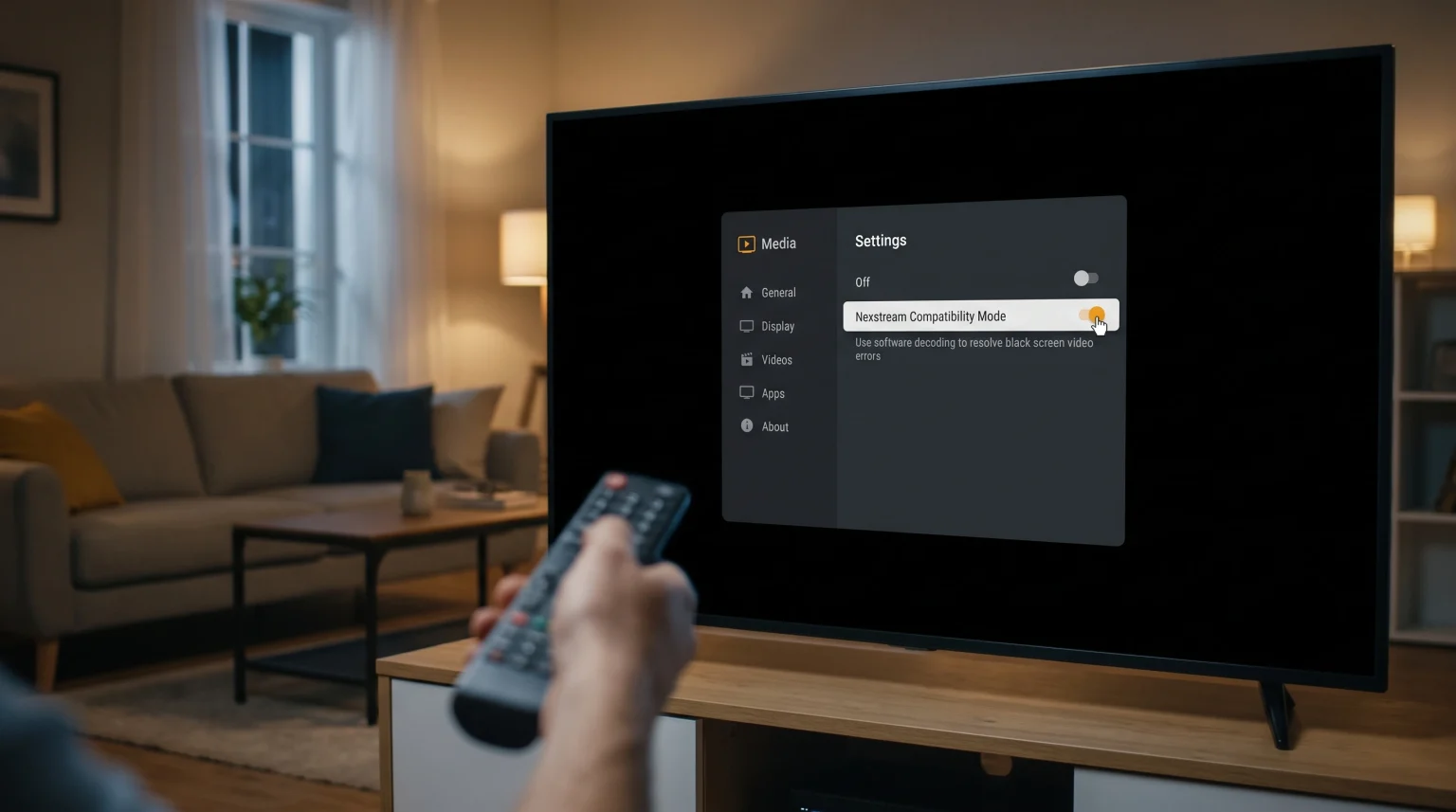
When your television hardware cannot read a specific video codec, the screen turns black while the sound continues. Turning on the Nexstream compatibility mode forces the application to use software decoding instead of the television’s hardware decoding.
To fix the black screen, open the Nexstream settings. Go to the “Player” or “Playback” menu. Find the setting named “Compatibility Mode” or “Software Decoding” and turn it on. Restart your channel, and the video picture will appear.
Why Does the Video Turn Black?
To understand the black screen problem, you must understand how your television processes video streams.
Your Smart TV or streaming stick uses an internal microchip to read video signals. This physical process is called hardware decoding. Hardware decoding is fast, smooth, and uses very little electrical power. However, hardware decoding only works if the television chip recognizes the exact video format.
Sometimes, an IPTV stream uses a new or complex video format. If your television chip does not support this specific format, the hardware decoding fails. When this happens, the television successfully plays the audio track, but it cannot show the visual track. The screen remains completely black.
How Compatibility Mode Fixes the Error
The Nexstream compatibility mode provides a direct solution. When you turn on this setting, the application stops using the television’s microchip for video processing.
Instead, the Nexstream application processes the video stream using its own internal software. This process is called software decoding. Software decoding is highly compatible with almost all known video formats. Therefore, it can display the video picture even when the television hardware fails.
How to Enable Nexstream Compatibility Mode
You can activate this feature in a few easy steps. The exact menu layout might look slightly different depending on your version of the app, but the basic process remains the same.
Open the Nexstream application on your television or streaming device.
Navigate to the main menu screen.
Select the “Settings” icon. This icon usually looks like a small gear.
Choose the “Player” or “Playback” category.
Scroll down the list until you find the option named “Nexstream Compatibility Mode” or “Software Decoding”.
Turn this setting to the “On” or “Enabled” position.
Close the settings menu and return to your channel list.
Open your live TV channel or movie again. The video should now play correctly.
Normal Mode vs. Compatibility Mode
This table explains the main differences between the standard viewing mode and the compatibility mode.
| Funktion | Normal Mode (Hardware Decoding) | Nexstream Compatibility Mode (Software Decoding) |
| Processing method | Uses the television microchip | Uses the application software |
| Video format support | Limited by TV hardware | Excellent compatibility |
| Black screen errors | Common with unsupported streams | Very rare |
| Processor usage | Niedrig | Hoch |
| Performance on older TVs | Fast and smooth | Can sometimes pause or stutter |
TV Shadow IPTV and Video Codecs
When you use a premium service like TV Shadow IPTV, your playlist contains many different types of video streams.
Some channels use older video formats, such as H.264. Newer 4K channels and high-definition movies often use the modern HEVC (H.265) format. Most modern Smart TVs can read the HEVC format perfectly using normal hardware decoding.
However, older televisions or budget streaming sticks might fail to read HEVC streams. If you use TV Shadow IPTV on an older device, you might encounter a black screen on the 4K channels.
Activating the Nexstream compatibility mode ensures that your device can play all the different streams provided by your IPTV subscription. This includes standard M3U playlists and Xtream Codes formats. To understand which devices handle modern video codecs best, read our guide comparing Die besten Smart-TVs für IPTV im Jahr 2026: Samsung, Sony, LG und TCL im Vergleich.
Fixing Black Screens During Live Football
Live football and other fast-moving sports require a strong and stable video connection. Getting a black screen exactly when a football match starts is very frustrating.
The Nexstream compatibility mode will restore the video picture for the football match. However, you must also consider motion handling.
Motion Handling Differences
Because compatibility mode uses software decoding, it requires more processing power from your television. On a weak device, software decoding can cause the football to look slightly blurry during very fast camera movements.
If you watch a lot of live football, a television with a strong internal processor is always better. A strong processor can decode the video natively using normal hardware decoding. This provides the smoothest possible picture. If you want to know more about sports viewing, read our article about 60-Hz- vs. 120-Hz-Fernseher für Live-Fußball.
If you experience a black screen during a live game, turn on the compatibility mode immediately so you can watch the match. Later, you can check if your television requires a system update to improve its native hardware decoding.
Does the TV Operating System Matter?
The operating system of your Smart TV strongly affects how video players perform. The need for compatibility mode changes depending on your TV brand.
Google TV und Android TV
Google TV and Android TV are open operating systems. They allow applications to install their own software decoders. Therefore, the Nexstream compatibility mode works very effectively on devices running these systems. This includes televisions like Sony BRAVIA, Philips, and streaming devices like the Nvidia Shield. For more information about Android-based televisions, read our guide asking Eignet sich Sony BRAVIA im Jahr 2026 für IPTV?.
Samsung Tizen and LG webOS
Samsung Tizen and LG webOS operate differently. They usually require applications to use the television’s native hardware video player. If the built-in Samsung or LG video player cannot read the format, you will get a black screen. On these systems, third-party applications have less freedom to use advanced software decoding. This is why you must check specific application settings carefully when using Tizen or webOS.
Other Common Troubleshooting Steps
If turning on the Nexstream compatibility mode does not fix the black screen, the problem might not be a decoding error. Try these additional troubleshooting steps:
Restart the device: Turn your television or streaming stick completely off. Remove the power cable for one minute. Plug the cable back in and start the device again.
Check your internet connection: A very slow internet connection can cause the video to stop loading, leaving a black screen. Connect your television to your router using an Ethernet cable instead of a wireless Wi-Fi connection.
Clear the application cache: Go to your device’s main settings menu. Find the Nexstream application in the app list. Select the option to “Clear Cache”. This removes temporary error files.
Update the application: Ensure you have the latest 2026 version of the Nexstream application installed. Older versions contain bugs that cause video failures.
Schlussfolgerung
Experiencing a black screen with playing audio is a common problem in IPTV streaming. It is almost always caused by a hardware video decoding failure.
The Nexstream compatibility mode is a simple and highly effective solution. By switching from hardware decoding to software decoding, the application can read and display complex video formats. This ensures your viewing is not interrupted.
Remember to keep your television software updated regularly. If you use a modern streaming device with a strong internal processor, you will rarely need to use compatibility mode. But when an unexpected error occurs, knowing how to enable this setting allows you to continue watching your TV Shadow IPTV streams without losing time.
Häufig gestellte Fragen (FAQ)
Why do I hear audio but see no video on my IPTV app?
Your device is successfully receiving the audio track, but it cannot read the video format. Turning on the Nexstream compatibility mode will usually fix this problem by changing the decoding method.
Is Nexstream compatibility mode the same as software decoding?
Yes. The compatibility mode forces the application to decode the video using its own software, rather than using the television’s physical microchip.
Will compatibility mode lower the picture quality?
The visual picture quality usually remains exactly the same. However, on older or weaker devices, the video might pause or stutter slightly because software decoding requires high processor speed.