
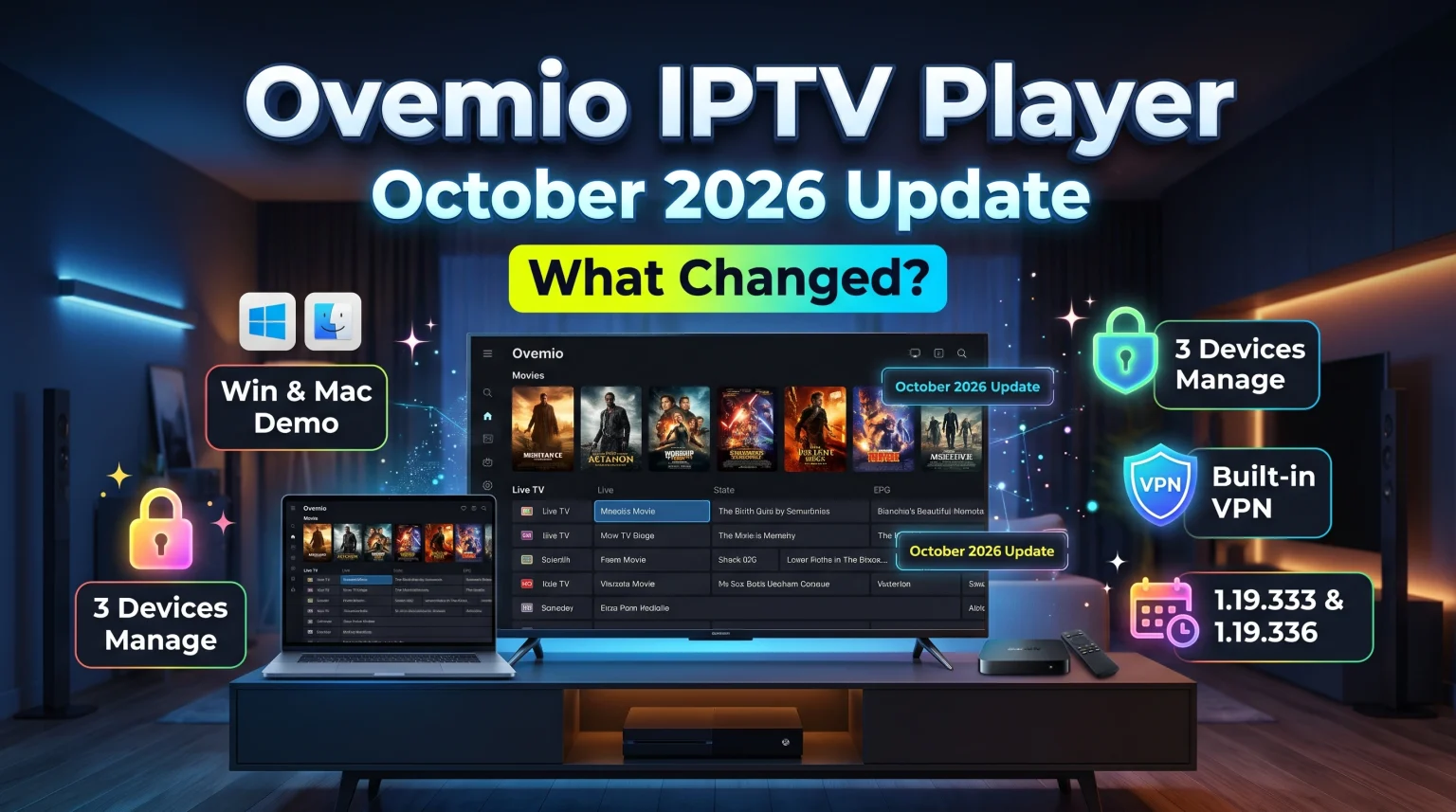
The Ovemio IPTV Player received an important software update in October 2026. The developers released version 1.19.333 and version 1.19.336 during this month. These updates introduced new features for desktop computers and improved how the application manages device limits. Ovemio is a premium media player that supports live television, recordings, and Video on Demand (VOD). The application does not provide any television channels. Users must supply an M3U playlist or an Xtream Codes account. This article explains the new changes and reviews the main features of the Ovemio IPTV Player.
Kurze Antwort
The Ovemio IPTV Player update 2026 introduces new software features for Windows and macOS. The October 2026 update allows users to run demo versions of the application directly on desktop computers. The update also improves how the software manages device limits. Ovemio remains a premium IPTV application that costs €9.99 for three devices. Ovemio does not provide television content. Ovemio is a very good choice for Android TV and Fire TV users who want a built-in VPN and reliable recording features.
What Is New in the Ovemio IPTV Player Update 2026?
The Ovemio IPTV Player received two main updates in October 2026. The developers released version 1.19.333 on October 19, 2026. One week later, the developers released version 1.19.336 on October 26, 2026. These software updates focus on desktop computer support and device management.
Windows and Mac Demo Versions
Before October 2026, the Ovemio demo version only worked on Android devices and Smart TVs. The new Ovemio IPTV Player update 2026 allows users to test the application on Windows computers and Apple Mac computers. The demo period now starts automatically when a user opens the reseller application on a desktop computer. This change makes testing Ovemio much easier for computer users.
Device Management Changes
Ovemio changed how device limits work. A standard Ovemio software licence allows the user to connect three devices. However, some IPTV providers only allow one or two devices on their server. The October 2026 update makes this distinction clear. The application now clearly shows whether Ovemio or the IPTV provider is restricting the number of active devices.
Fügen Sie hier Ihren Überschriftentext ein
Ovemio offers many advanced features for IPTV users. The application works very well with Xtream Codes accounts and M3U playlists.
Live TV and Electronic Program Guide (EPG)
Ovemio provides a clean interface for live television. The application supports Electronic Program Guide (EPG) data. The EPG shows the user what television program is currently playing. The EPG also shows upcoming television programs. If an IPTV provider supplies EPG data, Ovemio loads this data quickly. During video playback, an information bar displays the current program and the next program.
Recordings and Pause Features
Ovemio allows users to pause live television. If the IPTV provider supports catch-up television, users can restart a television program from the beginning. Ovemio also supports scheduled recordings. A user can select a future program in the EPG and schedule a recording. The application must remain open at the broadcast time to record the program. The application saves all recordings in a separate menu section.
Built-in Virtual Private Network (VPN)
Many IPTV users want privacy when they watch television. Ovemio for Android includes a built-in OpenVPN client. Users can configure up to three OpenVPN accounts directly inside the Ovemio application. Users can switch these VPN accounts on and off inside the application. Users do not need to install a separate VPN application on their Android TV box. Windows users must use the standard Windows VPN settings instead.
Movie and Series Information
Ovemio integrates with The Movie Database (TMDB). Users can enter a free TMDB application programming interface (API) key into Ovemio. When the user provides this key, Ovemio downloads actor photographs, movie descriptions, and video trailers. The application uses this information to supplement the basic details provided by the IPTV provider. On Android devices, video trailers play directly inside the Ovemio application.
Ovemio IPTV Player vs TiviMate
TiviMate and Ovemio are both very popular IPTV applications. This comparison table shows the differences between Ovemio and TiviMate.
| Funktion | Ovemio IPTV Player | TiviMate |
| Operating system support | Android, Windows, macOS | Android only |
| Built-in VPN | Yes (Android only) | No native VPN support |
| Movie metadata | Uses external TMDB key | Uses provider metadata |
| Demo availability | Android, Windows, macOS | Android only |
| Price | €9.99 for three devices | Subscription or lifetime payment |
Ovemio may be more suitable for users who want to watch television on a Windows computer and an Android TV box. TiviMate may be more suitable for users who only use Android TV and prefer the TiviMate user interface.
How Ovemio IPTV Player Handles Live Football
Watching live football requires a good television and a fast IPTV application. The Ovemio IPTV Player update 2026 includes excellent technology for live sports.
Fast Channel Switching
Live football viewers often change channels to check different matches. Ovemio uses a dynamic buffer system. The application measures the device hardware speed and the internet connection speed. Ovemio adjusts the video buffer automatically based on these measurements. This technology makes channel switching very fast.
Network Stability and Buffer Management
Live sports streaming requires a stable internet connection. We recommend connecting your Smart TV or Android TV box to the internet router using an Ethernet cable. An Ethernet cable provides a more stable internet connection than a wireless Wi-Fi connection. If the wireless connection drops, the live football match will stop playing.
Bewegungsdarstellung und Bildwiederholfrequenz
The IPTV application does not control motion handling. The television hardware controls motion handling. For the best live football experience, users need a television with a 120Hz refresh rate. A 120Hz television displays fast-moving footballs smoothly. Our guide to a 60-Hz- vs. 120-Hz-Fernseher für Live-Fußball explains why this hardware specification is important for sports fans.
Managing User Profiles and Parental Controls
Ovemio supports separate user profiles. A family can create different profiles for different family members. Parents can use the parental control features. Parents can set age ratings for each profile. These age ratings prevent children from watching inappropriate television channels or movies. The application remembers where each profile stopped watching a movie. If a user stops watching a movie on the television, the user can continue watching from the same point on a mobile phone.
Video on Demand (VOD) and Local Files
Ovemio is an excellent player for Video on Demand (VOD) and local media files.
Choosing Video Quality
Some IPTV providers offer movies in different video qualities. A movie might be available in 4K resolution and Full High Definition (1080p) resolution. Ovemio allows the user to choose the video quality on the movie page. If the user switches the video quality during the movie, playback continues at the exact same point.
Audio Tracks and Subtitles
Many movies and television series have multiple audio languages. Ovemio allows the user to switch audio tracks easily while watching a video. Ovemio also supports subtitles. The application displays readable language names for audio tracks and subtitles. Ovemio does not display confusing track numbers.
Playing Local Media Files
Ovemio can play media files from local storage. Users can play movies and series from the internal memory of the device. Users can also connect a Universal Serial Bus (USB) storage drive to the Android TV box. Furthermore, Ovemio connects to Network Attached Storage (NAS) devices. The application supports Web Distributed Authoring and Versioning (WebDAV), Hypertext Transfer Protocol (HTTP), and File Transfer Protocol (FTP) connections.
IPTV Compatibility on Smart TVs
Ovemio is not available on every Smart TV operating system. Users must understand which televisions support the Ovemio application.
Android TV and Google TV Installation
Ovemio works perfectly on Android TV and Google TV. Users can install Ovemio on televisions manufactured by Sony, Philips, and TCL. Users can also install Ovemio on Android TV boxes and the Amazon Fire TV Stick. Users can use the Downloader application to install the Ovemio Android Package Kit (APK) file. Read our comparison of the Die besten Smart-TVs für IPTV im Jahr 2026: Samsung, Sony, LG und TCL im Vergleich to learn more about Android TV hardware.
Samsung Tizen and LG webOS Limitations
Ovemio is not currently available in the official Samsung Apps store. Ovemio is not currently available in the official LG Content Store. Samsung Tizen and LG webOS do not support Android applications. If you own a Samsung Smart TV or an LG Smart TV, you cannot install Ovemio directly. You must connect an Android TV box or an Amazon Fire TV Stick to your television using a High-Definition Multimedia Interface (HDMI) cable. Our guide comparing Samsung vs. LG Smart-TV für IPTV: Tizen vs. webOS] explains these operating system differences in detail.
Setting Up the Ovemio Application
Installing Ovemio on an Android TV box or an Amazon Fire TV Stick requires sideloading. Sideloading means installing an application outside the official Google Play Store.
To install Ovemio, users should download the application called Downloader. Inside the Downloader application, users must enter the code 6434105. This Downloader code downloads the latest Ovemio Android Package Kit (APK) file automatically. Alternatively, users can type the website address ovemio.com/app/Ovemio.apk into the Downloader browser.
When the user opens the Ovemio APK file for the first time, the Android operating system will ask for permission. The operating system wants to know if the device may install applications from unknown sources. The user must grant this permission to install Ovemio. This security question only appears during the first installation.
Pricing and Device Limits
Ovemio is a premium media player. The software does not contain any television channels or playlists. The user is entirely responsible for providing legal video sources.
A standard Ovemio software licence costs €9.99. This is a one-time payment. The licence does not expire. The standard licence allows the user to install Ovemio on three different devices. For example, a user can install Ovemio on one Android TV, one Windows computer, and one Android mobile phone.
If a user needs more devices, each additional device costs €3.99. The purchase includes all software updates for Ovemio version 1.
Schlussfolgerung
The Ovemio IPTV Player update 2026 brings helpful improvements to an already powerful IPTV application. The addition of Windows and macOS demo versions makes testing the software much easier for new users. Ovemio offers excellent features such as built-in OpenVPN support, fast channel switching, and TMDB integration. The application costs €9.99 for three devices, which offers very good value for a permanent software licence. Ovemio is a very good choice for Android TV users and desktop computer users who want a reliable IPTV media player. TV Shadow IPTV reminds all users to ensure their video sources are legal before using any media player.
Häufig gestellte Fragen (FAQ)
Can I install Ovemio on a Samsung Smart TV?
No, you cannot install Ovemio directly on a Samsung Smart TV. Samsung Tizen does not support Android applications. You must use an external Android TV box.
Does Ovemio have a built-in VPN?
Yes, the Android version of Ovemio has a built-in OpenVPN client. You can configure up to three OpenVPN accounts inside the application.
How much does Ovemio cost?
A standard Ovemio licence costs €9.99. This licence allows you to use the application on three different devices.