
Ist TiviMate not working right when you’re ready to relax and stream? You aren’t alone. Whether you’re in the US and worldwide, streaming interruptions can instantly ruin your evening. Let’s fix your setup fast so you can get back to your favorite shows!
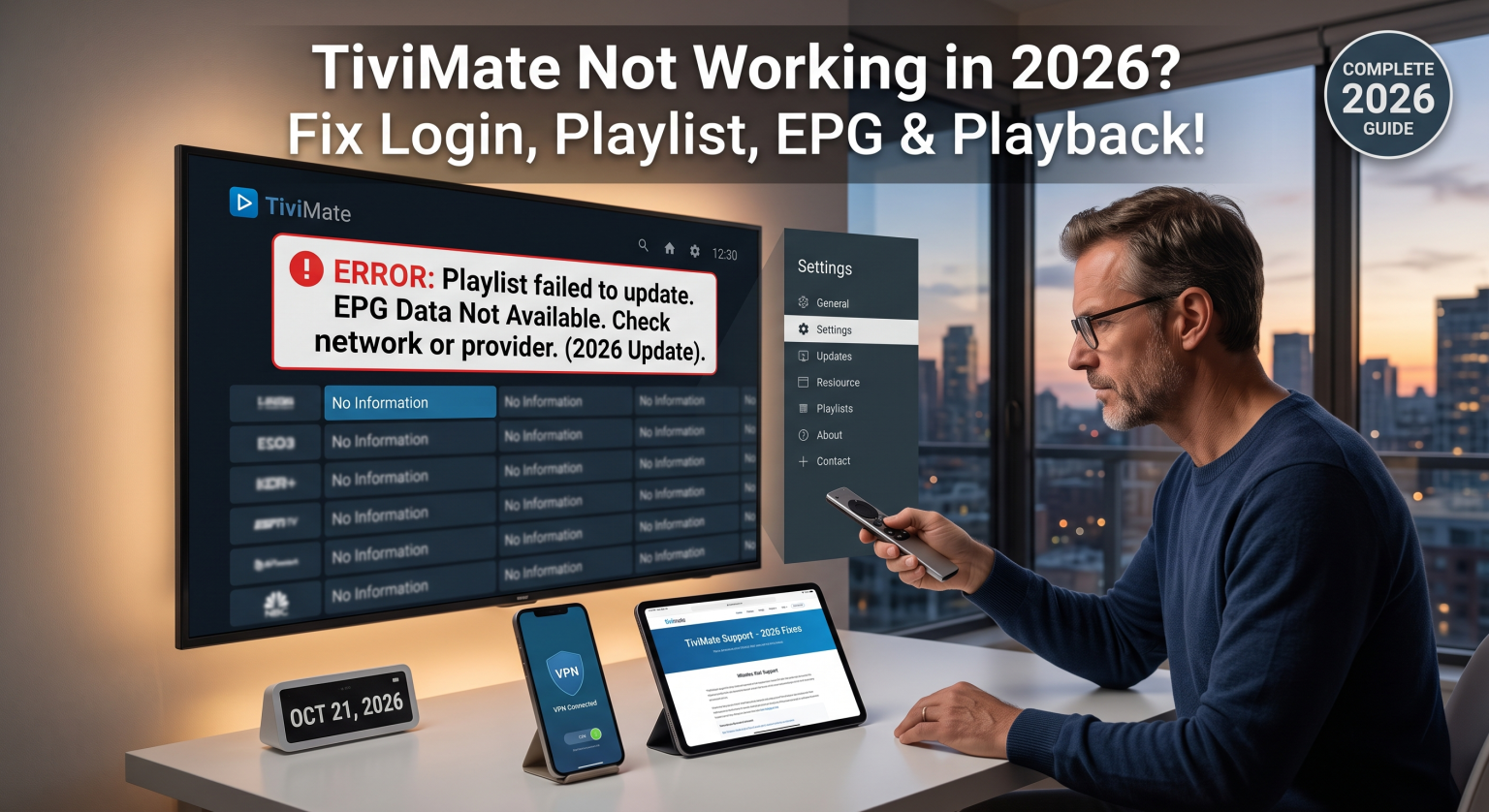
Why is TiviMate Not Working in the US and Worldwide?
Wenn ein IPTV player troubleshooting session begins, you must isolate the root cause. TiviMate is just a media shell; it doesn’t provide the content itself. Most errors originate from your provider, internet service provider (ISP), or app settings.
Provider downtime: The server URL may have changed, crashed, or your trial expired.
ISP blocking: Local ISPs aggressively throttle or block streaming traffic.
Invalid details: A single typo in your Xtream Codes or M3U link will completely ruin the connection.
How to Fix a TiviMate Playlist Failed to Update Error
One of the most common issues is a TiviMate playlist failed to update message. This happens when the app cannot communicate with your provider’s servers.
Check for typos: Ensure there are no spaces in your M3U or portal URL.
Contact your provider: Server links change frequently in 2026. Ask them for an updated URL.
Add a User Agent: Navigate to Settings > General > User Agent and type
VLC. This simple trick often bypasses basic provider blocks.
Troubleshooting When TiviMate EPG Not Updating
A blank TV guide is incredibly frustrating. If your TiviMate EPG not updating is causing headaches, the data cache might be corrupted.
Force an update: Go to Settings > EPG > Update EPG to force a manual sync.
Clear app cache: Go to your streaming device’s settings, find TiviMate, and clear the cache (do not clear data unless you want a factory reset).
Check EPG Priorities: If you use multiple playlists, ensure your primary EPG source is prioritized correctly in the settings.
Quick Issue Comparison Table
Need a fast diagnosis? Compare these common TiviMate errors, their typical causes, and the fastest resolution steps.
| Feature / Error Type | Common Cause | Quick Fix Option |
| Playlist Failed to Load | Dead URL, Typo, or ISP Block | Update provider URL, turn on a VPN, or set User Agent to VLC. |
| EPG Shows “No Information” | Corrupted cache or expired EPG link | Clear device cache, manually hit “Update EPG” in Settings. |
| Constant Playback Buffering | ISP throttling or overloaded server | Switch to a premium VPN, test during off-peak hours. |
| “Invalid Details” on Login | Expired trial or incorrect Xtream Codes | Double-check username/password; confirm account status with provider. |
Solving TiviMate Buffering and Playback Glitches
If you constantly encounter TiviMate buffering, the app itself is rarely the culprit. Live streaming requires a fast, stable internet connection.
Verwenden Sie ein VPN: ISPs often throttle high-bandwidth IPTV traffic, especially during evening peak hours. A VPN hides your traffic.
Change the Decoder: Go to Settings > Playback and switch from Hardware to Software decoding (or vice versa).
Stellen Sie eine kabelgebundene Verbindung her: Wi-Fi interference causes lag. Connect your device directly to your router using an Ethernet cable.
Conclusion: Get Back to Streaming
Umgang mit TiviMate not working can be stressful, but these simple steps usually resolve the issue in minutes. Whether you are tuning in from the US and worldwide, keeping your app updated and using a reliable VPN will ensure smooth sailing.
Sind Sie bereit, Ihr Streaming-Erlebnis zu verbessern? [Click here to check out our top-rated VPN recommendations for 2026] and never deal with ISP buffering again!
Häufig gestellte Fragen (FAQ)
Why does TiviMate say "Failed to update playlist"?
This usually means your provider’s URL is dead, your ISP is blocking the connection, or you typed the link incorrectly. Verify the URL with your provider and consider using a VPN.
How do I fix a parser error in TiviMate?
A TiviMate parser error happens when the app cannot read the M3U file format. Double-check your playlist URL for extra spaces or formatting mistakes.
Does clearing the cache delete my playlists?
No, clearing the cache simply removes temporary data and can fix freezing or EPG issues. However, hitting “Clear Data” will completely wipe your playlists and settings.