
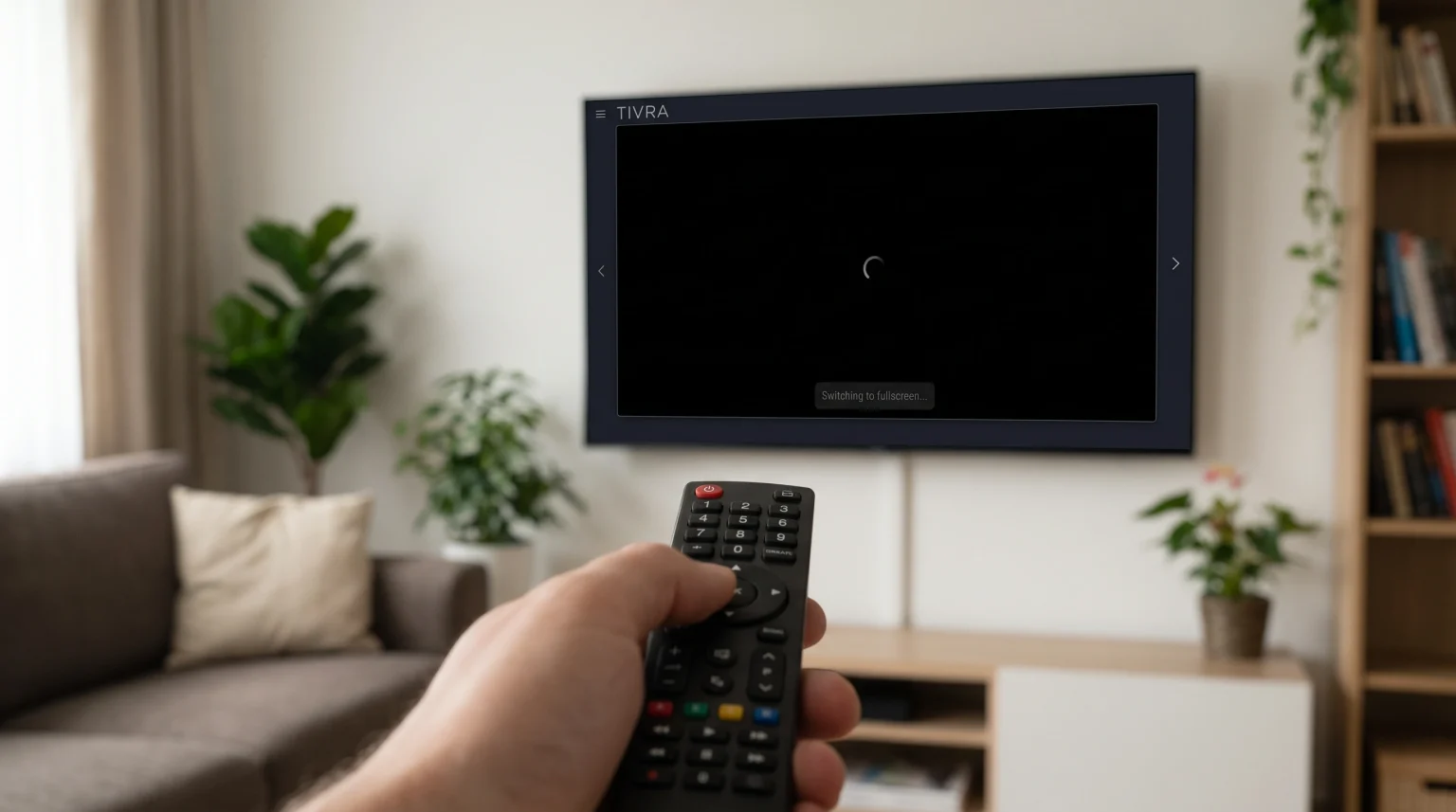
The TIVRA IPTV application is a popular choice for watching live television and on-demand video. However, many users experience a TIVRA fullscreen black screen error. When this error occurs, the user can hear the television audio, but the video picture disappears completely. This problem often happens when the user switches a live video stream to fullscreen mode.
The newest software update for the TIVRA application fixes this black screen problem. The software developers have changed how the application processes video signals. This article explains why the TIVRA fullscreen black screen happens, what the new software update changes, and how you can optimize your television settings for the best viewing experience with TV Shadow IPTV.
Kurze Antwort
The TIVRA fullscreen black screen error usually happens because the device hardware decoder cannot process the video stream format. The latest TIVRA software update fixes this error by adding an automatic decoder switch. The application now detects when the hardware decoder fails. It then automatically switches to the software decoder. This update restores the video picture immediately. To receive this fix, users must install the newest version of the TIVRA application from their device app store.
What Causes the TIVRA Fullscreen Black Screen?
When you understand the cause of the video error, you can prevent future problems. The black screen happens for three main reasons.
Hardware Decoder Limitations
Most streaming devices use a hardware decoder to process video. A hardware decoder uses a specific physical microchip inside the television or the streaming box. If the IPTV stream uses a video format that the physical microchip does not understand, the video fails. The audio continues to play because the device uses a different process for audio decoding.
Cache Memory Problems
Every Smart TV application stores temporary files. These files are called cache data. Sometimes, this cache data becomes corrupted. When the TIVRA application tries to load a fullscreen video using corrupted data, the application freezes. This freeze creates a black screen.
HDMI Cable Handshake Errors
Sometimes the television and the streaming device fail to communicate correctly. This communication failure is called an HDMI handshake error. When the HDMI handshake fails during a switch to fullscreen mode, the television screen becomes black.
What the Latest TIVRA Update Fixes
The newest version of the TIVRA application introduces important technical improvements.
Automatic Hardware and Software Decoder Switching
Before the update, users had to manually change the settings from “Hardware Decoding” to “Software Decoding”. The new update introduces an automatic switching feature. If the hardware decoder fails to load the fullscreen video, the application instantly switches to the software decoder. This change eliminates the TIVRA fullscreen black screen for most users.
Improved Video Codec Support
The software update includes better support for modern video codecs. A video codec is software that compresses and decompresses digital video. The new update supports the H.265 (HEVC) codec much better. Many IPTV providers use H.265 because it offers high video quality and requires less internet speed. The updated TIVRA application reads these H.265 streams more reliably.
Better Buffer Management
Buffering happens when the application downloads a small piece of the video before playing it. The new update manages this buffer memory more efficiently. This improvement stops the video from crashing when you switch to fullscreen mode.
Hardware-Decodierung vs. Software-Decodierung
The TIVRA application uses two different methods to display video. Here is a simple comparison between the two methods.
| Funktion | Hardware-Decodierung (HW) | Software-Decodierung (SW) |
| Processing method | Uses a physical video microchip | Uses the main device processor (CPU) |
| Power usage | Uses very little power | Uses more power |
| Gerätetemperatur | Device stays cool | Device may become warm |
| Video format support | Limited to specific video formats | Supports almost all video formats |
| Processing speed | Sehr schnell | Can be slower on older devices |
Hardware decoding is best for users who want maximum processing speed and low device temperatures. Software decoding is best for users who need maximum compatibility with different IPTV video formats.
How to Update the TIVRA Application
You must install the newest update to fix the black screen error. The process depends on your device.
Updating on Android TV and Google TV
Öffnen Sie den Google Play Store auf Ihrem Fernseher.
Select your profile icon in the top right corner.
Select “Manage apps and games”.
Select “Updates”.
Find the TIVRA application and select “Update”.
Updating on Amazon Fire TV Stick
Select the application icon on your Fire TV home screen.
Press the “Menu” button on your remote control.
Select “More Info”.
Select “Update” if a new version is available.
How to Clear the Cache Memory Manually
If you still see a black screen after the software update, you should clear the application cache memory.
Open your television “Settings” menu.
Select “Applications” or “Apps”.
Select the TIVRA application from the list.
Select “Clear Cache”.
Do not select “Clear Data”. If you clear the data, you will delete your TV Shadow IPTV login details.
Watching Live Football on TIVRA After the Update
Live football requires excellent video processing. The football moves very quickly, and the television camera pans across the field constantly. The TIVRA fullscreen black screen update improves application stability during live sports broadcasts.
Bewegungsdarstellung und Bildwiederholraten
Motion handling is how well a television displays fast movement. If you are buying a new television for live football, you should consider the television refresh rate. We recommend 60-Hz- vs. 120-Hz-Fernseher für Live-Fußball. A 120Hz television refreshes the picture 120 times every second. This high refresh rate makes the moving football look much smoother.
Wi-Fi Versus Ethernet Connections
When you watch live football on TV Shadow IPTV, a stable internet connection is essential. Wi-Fi connections can lose signal strength. We recommend that you connect your television directly to your internet router with an Ethernet cable. An Ethernet cable provides a constant and stable connection. This stability stops the video stream from freezing.
IPTV Compatibility with Smart TV Operating Systems
The performance of the TIVRA application also depends on your television operating system. Not all Smart TVs process IPTV applications in the same way.
For example, televisions that use the Android TV or Google TV operating systems usually have excellent application compatibility. If you want to compare different television brands, read our guide to Das beste Smart-TV-Betriebssystem für IPTV im Jahr 2026: Tizen vs. Google TV vs. webOS.
TV Shadow IPTV provides M3U playlists and Xtream Codes login details. These playlist formats work perfectly with the updated TIVRA application. However, if you use a very large 4K television, older standard-definition video streams might look pixelated. You can learn more about Warum sieht IPTV auf einem neuen 4K-Fernseher verschwommen aus?.
Schlussfolgerung
The TIVRA fullscreen black screen error has caused problems for many television viewers. Fortunately, the newest software update resolves this issue effectively. By adding automatic decoder switching and better video codec support, the developers have made the application much more reliable. Make sure that you update your application to the newest version. When you combine the updated TIVRA application with a stable service like TV Shadow IPTV, you can enjoy uninterrupted live television and smooth sports broadcasts.
Häufig gestellte Fragen (FAQ)
How do I fix the TIVRA fullscreen black screen immediately?
You can fix the error by manually changing the video decoder. Open the TIVRA application settings. Find the “Video Decoder” option. Change the setting from “Hardware” to “Software”. This change usually restores the video picture immediately.
Do I need to uninstall the old TIVRA application before updating?
No, you do not usually need to uninstall the old application. You can simply download the new update from the app store. The new software files will replace the old software files automatically.
Why do I hear audio when the television screen is black?
The TIVRA application processes the audio data and the video data separately. The video decoder can fail while the audio decoder continues to work perfectly.