
Just updated your streaming device and now you are stuck on an endless “installing” loop? You aren’t alone in this. When a Fire TV app not installing after update becomes your reality, movie night quickly turns into a frustrating troubleshooting session. Let’s fix this immediately so you can get back to streaming your favorite shows.
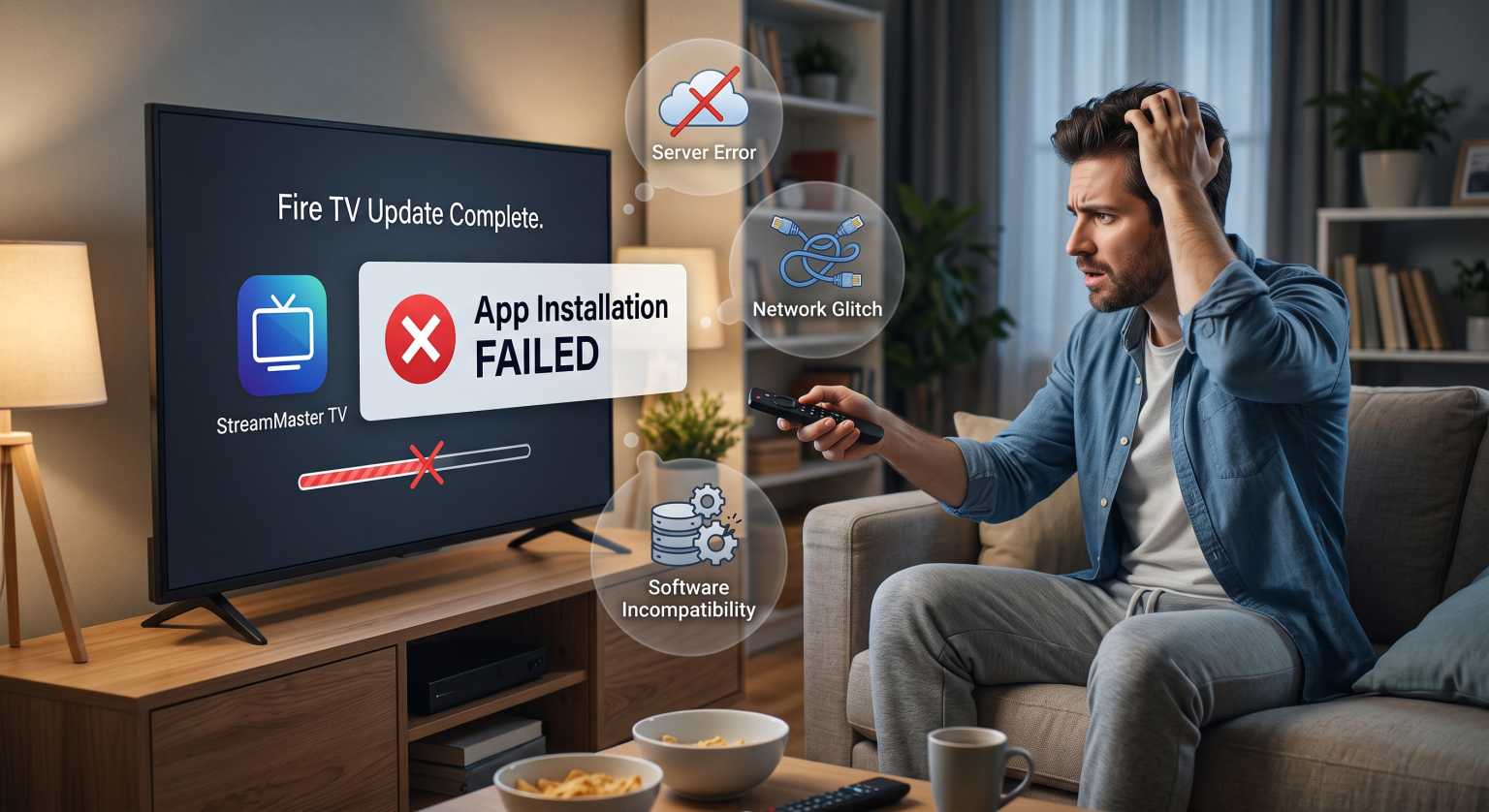
Why Does a Fire OS Update Break App Installations?
System updates are meant to improve your device, but they frequently bring unexpected glitches. During a major system patch, background files can fragment or become corrupted. This leaves your device confused when trying to unpack and install new software.
Additionally, new firmware patches often introduce strict security protocols. This is especially true if you are dealing with sideloaded apps not working on newer operating systems.
Common Culprits Behind the Error
Insufficient Storage: Large system updates consume internal space, leaving no room for new downloads.
Corrupted Cache Data: Leftover junk files from the old OS blocking the installation path.
Network Timeouts: Temporary server disconnects triggered during the reboot sequence.
Incompatible APKs: Third-party applications that haven’t been optimized for the latest software.
Comparing Your Troubleshooting Options
Before diving into the step-by-step fixes, here is a quick breakdown of the best methods to resolve this issue based on time and effectiveness.
| Troubleshooting Method | Time Required | Effectiveness & Risk Profile |
| 1. Power Cycle / Restart | 2 Minutes | Medium Success / Zero risk to your personal data. |
| 2. Clear Appstore Cache | 3 Minutes | High Success / Safe, keeps your downloaded apps intact. |
| 3. Factory Reset | 15+ Minutes | Guaranteed Fix / High risk, wipes all data and logins. |
Step-by-Step Fixes for a Fire TV App Not Installing After Update
If you are tired of staring at a stuck loading bar, follow these proven steps. We will start with the easiest fixes before moving to advanced methods.
1. Clear Data and Cache for the Appstore
The fastest way to resolve an app installation failed Amazon Fire error is to target the Appstore itself. Fire OS update bugs often lodge themselves in the store’s temporary memory.
Navigate to Settings > Applications > Manage Installed Applications. Find the Amazon Appstore in the list, click it, and select both Clear Cache and Clear Data.
2. Free Up Internal Storage Space
Updates are incredibly bulky. If your device is full, you need to fix the Fire TV storage error before downloading anything else.
Go to your application manager and delete unused applications or old games. Aim to free up at least 500MB of space to ensure smooth installations moving forward.
3. Perform a Hard Power Cycle
Sometimes, basic Amazon Fire Stick troubleshooting is the most effective approach. A simple software restart isn’t always enough to clear out system-level bugs.
Unplug your streaming device directly from the wall outlet for 60 seconds, then plug it back in. This forces a completely fresh boot sequence and clears any lingering update errors.
Get Back to Streaming
Dealing with a Fire TV app not installing after update is incredibly annoying, but it is rarely a permanent issue. By clearing your cache, managing your storage space, or performing a hard reboot, you can usually restore full functionality in a matter of minutes.
Are you tired of dealing with confusing tech glitches on your own? Subscribe to our premium tech newsletter today! Get exclusive streaming hacks, early-access troubleshooting guides, and smart home tips delivered straight to your inbox. Sign up now and never let a glitch ruin your entertainment again.
People Also Ask (FAQ)
Why do third-party apps fail to install after an update?
Amazon routinely tightens its security measures with new updates. If an APK isn’t signed correctly or lacks the proper permissions, the new Fire OS update will automatically block the installation.
Will a factory reset delete all my currently installed apps?
Yes. A factory reset wipes the device completely clean, returning it to its out-of-the-box state. You should only use this as a last resort if you cannot clear cache Firestick files or if standard fixes fail.