
Frustrated by hearing the big game but staring at a dark TV? You’re not the only one experiencing this. An IPTV black screen with sound is one of the most annoying streaming glitches for viewers in the US today. Fortunately, getting your picture back is usually a quick DIY fix.
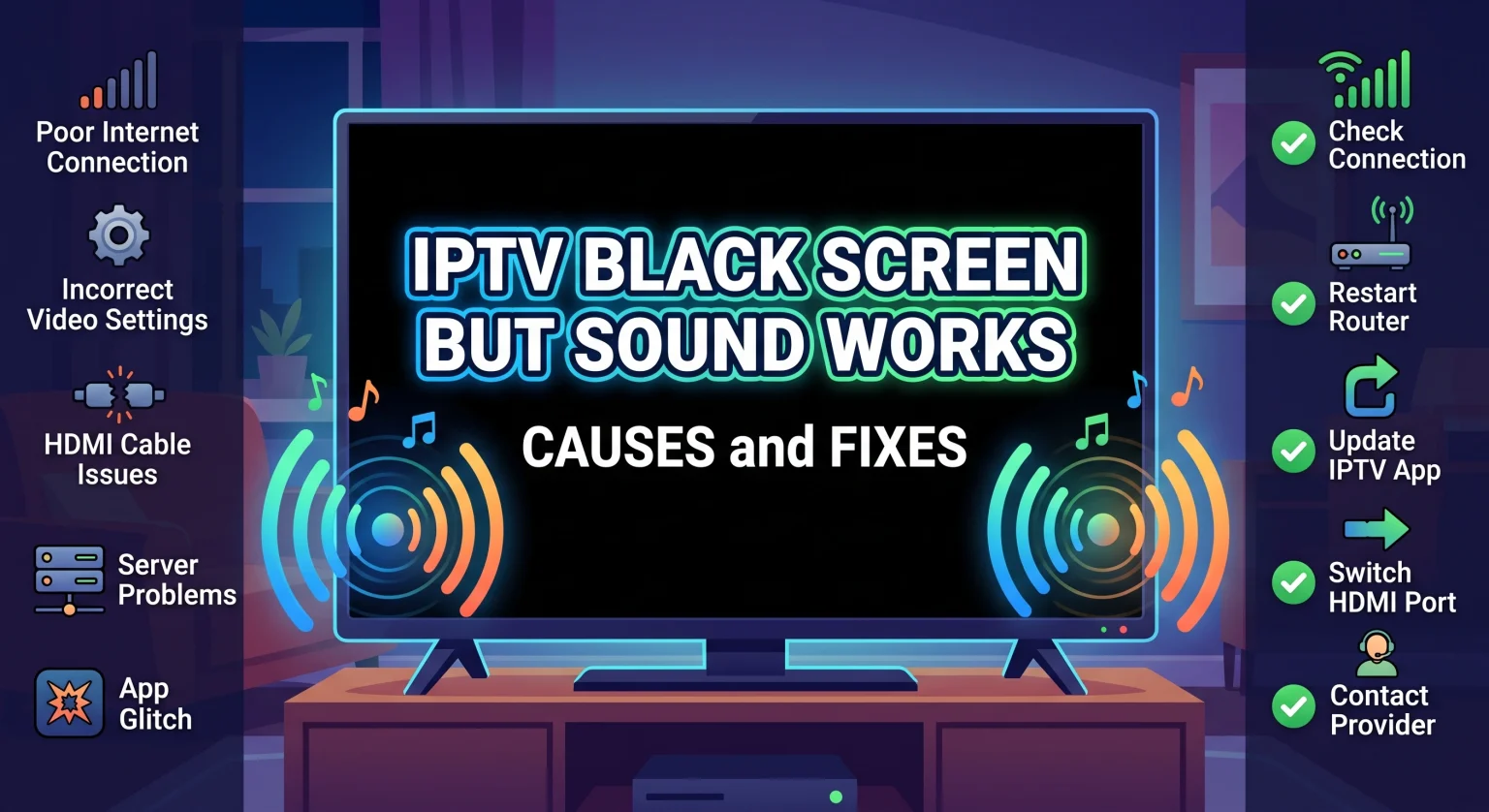
Why You Have an Audio but No Video IPTV Issue
When your audio plays perfectly but the video is missing, the culprit is usually a mismatch in how the data is processed. This specific blank screen IPTV issue can stem from a few highly common faults in your device or software setup.
Unsupported Video Codecs
Your streaming device might easily understand the audio format of the channel, but lack the proper video codec to decode the picture. This results in the app playing the sound while leaving the display totally black.
Hardware Acceleration Glitches
Many modern IPTV players use hardware acceleration to smooth out high-resolution video playback. However, if your TV or streaming stick isn’t fully compatible, this feature will actively cause an IPTV video not playing error.
Outdated IPTV Applications
Using an older version of your favorite streaming app can lead to sudden compatibility bugs. App developers frequently release backend patches specifically designed to fix IPTV stream rendering issues.
At-a-Glance: Troubleshooting Comparison
Let’s compare the most common culprits so you can identify your specific issue quickly and apply the correct fix.
| Issue Type | Primary Symptom | Best Quick Fix |
| Codec Incompatibility | Clear audio, totally black screen. | Switch to an external player (e.g., VLC). |
| Hardware Acceleration | Screen flickers black, then stays dark. | Disable HW Decoding in settings. |
| Network Packet Loss | Audio buffers occasionally, no video. | Reboot router or switch to Ethernet. |
| Corrupted App Cache | Screen goes black immediately on launch. | Clear the app cache and force stop. |
How to Fix the IPTV Black Screen With Sound in the US
Ready to restore your video? Follow these localized IPTV player troubleshooting steps to get your US-based home theater setup back to normal.
1. Change the Media Player Engine
Most popular IPTV applications allow you to change the default media engine rendering the video.
Open your IPTV application’s main settings menu.
Navigate to the Media Player or Playback section.
Switch your built-in player to EXO Player or an external option like VLC.
2. Disable Hardware Acceleration
If changing the player didn’t work, hardware decoding is likely the issue. Navigate back to your app’s settings and look for “Hardware Acceleration” or “HW Decoder.” Toggle this feature off, switch to software decoding (SW), and restart the stream.
3. Clear IPTV Cache and Data
Over time, your streaming app builds up temporary files that can corrupt your daily stream.
Go to your streaming device’s main system settings.
Find the “Applications” tab and select your specific IPTV app.
Click clear IPTV cache and select “Force Stop.” This forces the app to pull a fresh, uncorrupted video feed the next time you open it.
Conclusion: Get Back to Seamless Streaming in the US
Dealing with an IPTV black screen with sound shouldn’t ruin your weekend entertainment. By adjusting your codecs, turning off hardware acceleration, and properly clearing your cache, you can resolve this issue in minutes. Don’t let a simple software glitch keep you from enjoying top-tier US content.
Tired of constant buffering, black screens, and unreliable app configurations? Upgrade to a premium, headache-free viewing experience today! [Click here to explore our top-rated IPTV subscription plans] and enjoy flawless, crystal-clear 4K streaming with dedicated 24/7 VIP support.
People Also Ask (FAQ)
Why does my IPTV have sound but no picture?
This usually happens due to missing video codecs, incorrectly enabled hardware acceleration, or a corrupted app cache. Your device can process the audio track, but it fails to render the video track simultaneously.
How do I restart my IPTV stream to fix a blank screen?
First, force stop the application from your device’s app settings. Then, unplug your streaming device (like an Android box or Firestick) from the wall outlet for 60 seconds before plugging it back in and reopening the app.