
Whether you are streaming live sports in the US or catching up on global news, a frozen IPTV app is incredibly frustrating. Smart TVs running webOS are fantastic, but they often face cache build-ups and network blocks.
If you are wondering why your IPTV not working on LG TV, we have the answers. In this guide, we will walk you through the fastest troubleshooting steps. You will be back to smooth, uninterrupted streaming in minutes.
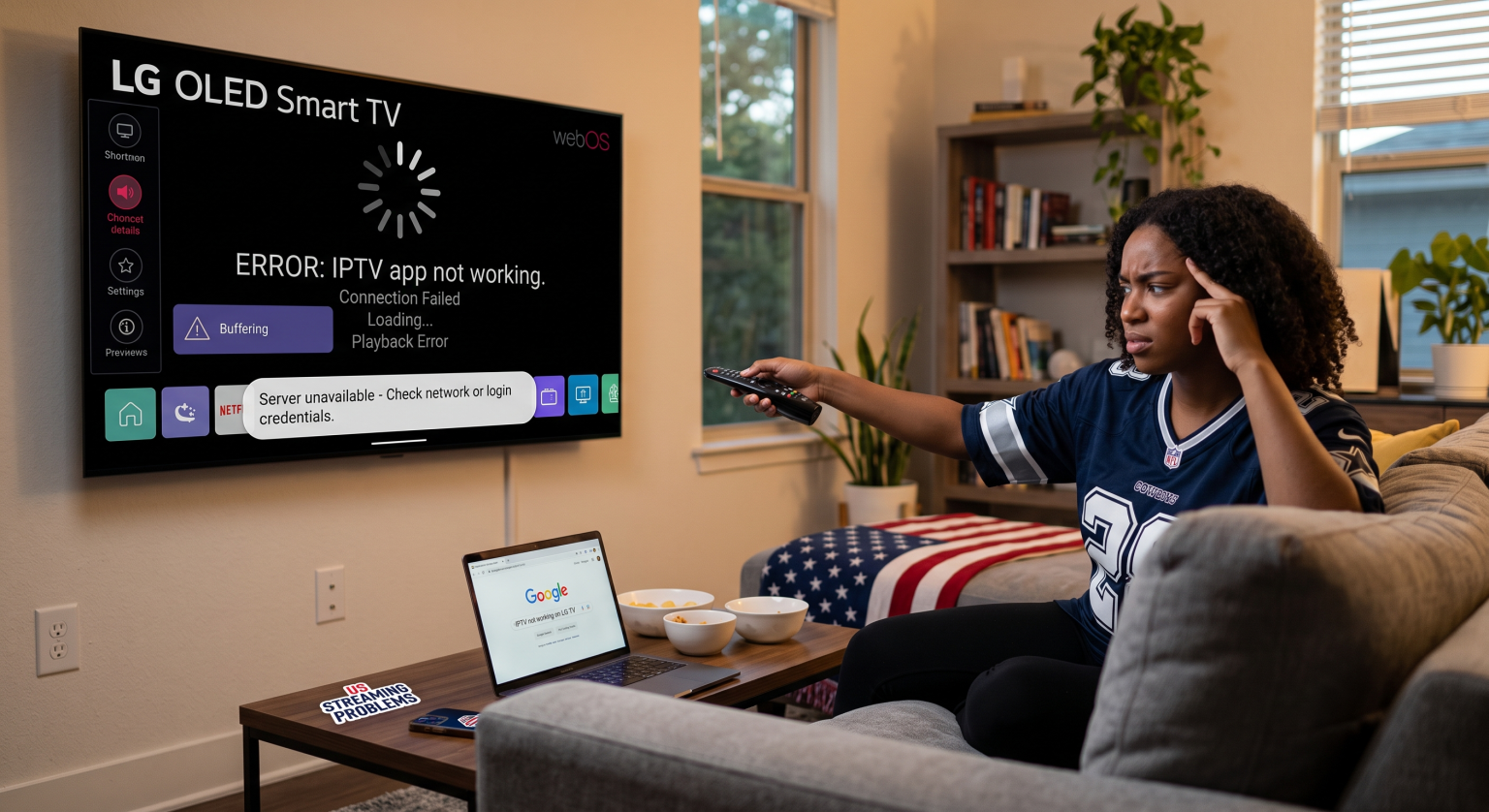
Common Reasons Why IPTV App Fails on webOS
Before diving into the fixes, it helps to know the root cause. Many LG Smart TV streaming problems stem from simple network misconfigurations or outdated software.
Here are the most frequent culprits behind your IPTV login failed messages and playback errors:
Corrupted App Cache: Leftover temporary files can crash your player on launch.
ISP Throttling: Internet Service Providers often block or slow down IPTV servers.
Outdated webOS Firmware: An older TV operating system might lack the necessary media codecs.
Invalid Login Credentials: An expired M3U playlist or incorrect Xtream Codes easily trigger errors.
Step-by-Step Fixes for IPTV Not Working on LG TV
1. Clear Cache and Restart Your Devices
When users search for a reliable LG webOS IPTV issues fix, power cycling is always step one.
Turn off your LG Smart TV and unplug it from the wall for 60 seconds. Doing this clears the temporary memory and often resolves minor glitches instantly. Also, restart your internet router to ensure a fresh connection to the server.
2. Update Your IPTV Player and webOS
If you are facing an IPTV Smarters Pro error, an outdated app is likely to blame.
Head to the LG Content Store and search for your specific app to see if an update is available. Next, navigate to your TV’s Settings > General > About This TV to check for webOS system updates. Installing the latest firmware ensures optimal compatibility.
3. Change Your DNS Settings
Sometimes, your local internet provider blocks access to specific IPTV portals. You can bypass this by changing your DNS on the TV.
Go to Network > Advanced Settings on your LG TV. Disable “Set Automatically” and enter a public DNS like 8.8.8.8 (Google) or 1.1.1.1 (Cloudflare). This simple tweak often fixes persistent loading and server connection problems.
Compare Top Fixes for LG TV Streaming Problems
Not sure which troubleshooting step to try first? Use this quick comparison table to identify the best solution based on your specific issue.
| Troubleshooting Method | Best For Solving | Estimated Time | Success Rate |
| Power Cycling (Reboot) | App freezing, endless buffering | 2 Minutes | High |
| Changing DNS Settings | ISP blocking, “Login Failed” errors | 5 Minutes | Very High |
| Updating webOS Firmware | Black screen, audio sync issues | 10 Minutes | Medium |
| Reinstalling the App | Corrupted files, app crashing on launch | 5 Minutes | High |
Say Goodbye to Constant Buffering Across the US
If you have tried the steps above and are still having trouble, the issue might be with your IPTV provider. Cheap or overloaded servers cannot handle high-traffic events, especially during major sports broadcasts in the US.
Always verify your M3U playlist URL on a secondary device like your smartphone. If it fails there too, it is time to contact your provider or find a more reliable service.
Ready to stop buffering and start streaming? Don’t let a bad connection ruin your entertainment. Click here to explore our premium, high-speed IPTV plans and enjoy a flawless, 4K viewing experience on your LG Smart TV today!
People Also Ask (PAA)
How do I clear the cache on my LG Smart TV?
LG webOS manages cache automatically, but you can force a clear by unplugging the TV for 60 seconds. Alternatively, uninstalling and reinstalling your IPTV app will completely wipe its cached data.
Why does my IPTV app say login failed?
This usually means your subscription has expired, your M3U link is typed incorrectly, or your ISP is blocking the server. Double-check your credentials and try changing your TV’s DNS settings.
What is the best IPTV app for LG TV?
Popular and stable choices include IPTV Smarters Pro, Smart IPTV, and Easy IP TV. Make sure to download them directly from the official LG Content Store for the safest performance.