
Are you staring at a black screen because Smart IPTV is not working after an update? You are certainly not alone. When a routine software patch breaks your streams, it is incredibly frustrating. For users across the USA, regional ISP blocks and software glitches are common culprits, but they are easy to solve.
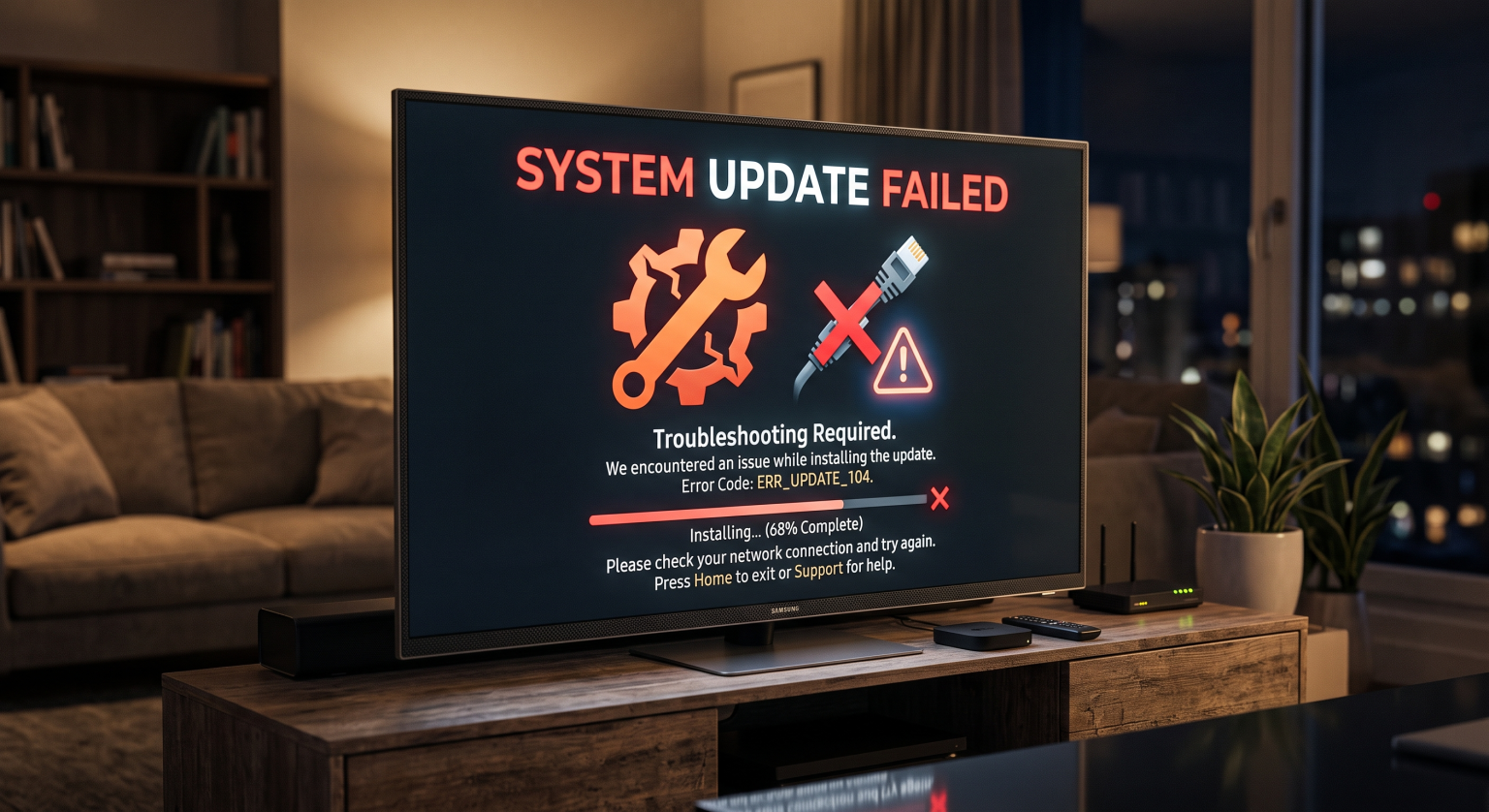
Why is Smart IPTV Not Working After an Update?
It is common to experience streaming connection issues right after downloading the latest firmware. An app update can easily overwrite your stored settings or corrupt your local cache memory.
Corrupted Data: Old cache files often conflict directly with the new application code.
Playlist Wipes: The update process accidentally erases your active links, resulting in an M3U playlist error.
Hardware Limits: Your television or streaming stick simply runs out of background memory processing the app’s new features.
Top Fixes for Smart IPTV Not Working After Update
If your Smart IPTV not working after update issue persists, follow these sequential steps to quickly restore your live channels.
1. Clear the App Cache and Restart
Clearing app cache is the fastest and most reliable way to resolve a stubborn firmware update glitch.
Navigate to your device’s main settings menu and find your installed applications.
Select the SIPTV app and hit “Clear Cache” (do not click “Clear Data” unless you want to log in again).
Unplug your television or streaming device from the wall for 60 seconds, then reboot.
2. Force Refresh Your M3U Playlist URL
Sometimes, a background update permanently disconnects the app from your provider’s hosting server. You will need to manually refresh your subscription link.
Visit the official SIPTV activation website on your smartphone or computer.
Enter your device’s unique MAC address along with your provider’s M3U link.
Click the “Reload” button to forcefully push the playlist back to your device.
3. Verify Your MAC Address Privacy Settings
Recent operating system updates on Android TV and Firestick often change default privacy settings. If your device switches to a “Randomized MAC,” your provider’s server will immediately block your access. Change this setting back to “Use Device MAC” in your Wi-Fi network settings.
Smart IPTV vs. Alternative Players: A Quick Comparison
If you cannot resolve the underlying update bugs, it might be time to test out other IPTV player alternatives. Here is a quick breakdown of the most stable options available today:
| Feature / Player | Smart IPTV (SIPTV) | TiviMate | IPTV Smarters Pro |
| Best For | Older Smart TVs (LG, Samsung) | Android TV & Firestick | Cross-Platform Viewing |
| Performance | Highly Lightweight | Premium (Heavy Features) | Balanced & Reliable |
| Playlist Format | MAC Address & M3U | M3U & Xtream Codes | Xtream Codes |
Dealing with USA ISP Throttling and Network Blocks
Sometimes, the app update coincides with backend network changes that are entirely out of your control. In the USA, major internet providers like Spectrum, AT&T, or Comcast regularly block IPTV traffic during high-profile sporting events.
If your application loads perfectly but the channels buffer relentlessly, aggressive ISP throttling is likely the main culprit. Connecting your device to a reputable, high-speed VPN will mask your streaming traffic and instantly bypass these regional restrictions.
Conclusion: Get Your USA Streaming Setup Back on Track
Fixing a Smart IPTV not working after update error does not require an advanced technical degree. By completely clearing your cache, accurately reloading your playlist, and bypassing USA ISP restrictions, your favorite premium channels should be running smoothly again. Do not let a minor software glitch ruin your weekend entertainment!
Ready for a buffer-free viewing experience? Subscribe to a premium VPN today to secure your network, or sign up for our top-rated IPTV service plans to unlock uninterrupted, high-quality streaming!
People Also Ask (FAQ)
Why does my Smart IPTV say "Check Playlist URL" after updating?
This error occurs when the app update accidentally deletes your saved provider data. You simply need to visit the SIPTV developer web portal, enter your TV’s MAC address, and upload your M3U link again.
This error occurs when the app update accidentally deletes your saved provider data. You simply need to visit the SIPTV developer web portal, enter your TV's MAC address, and upload your M3U link again.
The IPTV app itself cannot change your hardware MAC address. However, recent Android system updates often default to a “Randomized MAC” for Wi-Fi privacy, which you must manually disable so your provider recognizes your account.
How do I downgrade my Smart IPTV app to the old version?
Downgrading is incredibly difficult on locked, proprietary Smart TVs. Instead of attempting to roll back, completely uninstall the application, restart your device, and install a fresh version to successfully clear out corrupted update files.