
Searching for live and upcoming broadcasts in an Electronic Program Guide (EPG) saves time when managing large channel lists. The IMD TV EPG search feature allows users to find specific television programs, movies, and live sports events directly inside the IMD TV application on Android TV and Google TV devices. Instead of scrolling through hundreds of individual television channels, users can type a program title into the unified search tool. IMD TV displays matching broadcasts in real time as the user types. This guide explains how the IMD TV EPG search works, how to set up guide sources, and how to watch or schedule recordings from search results.
Respuesta rápida
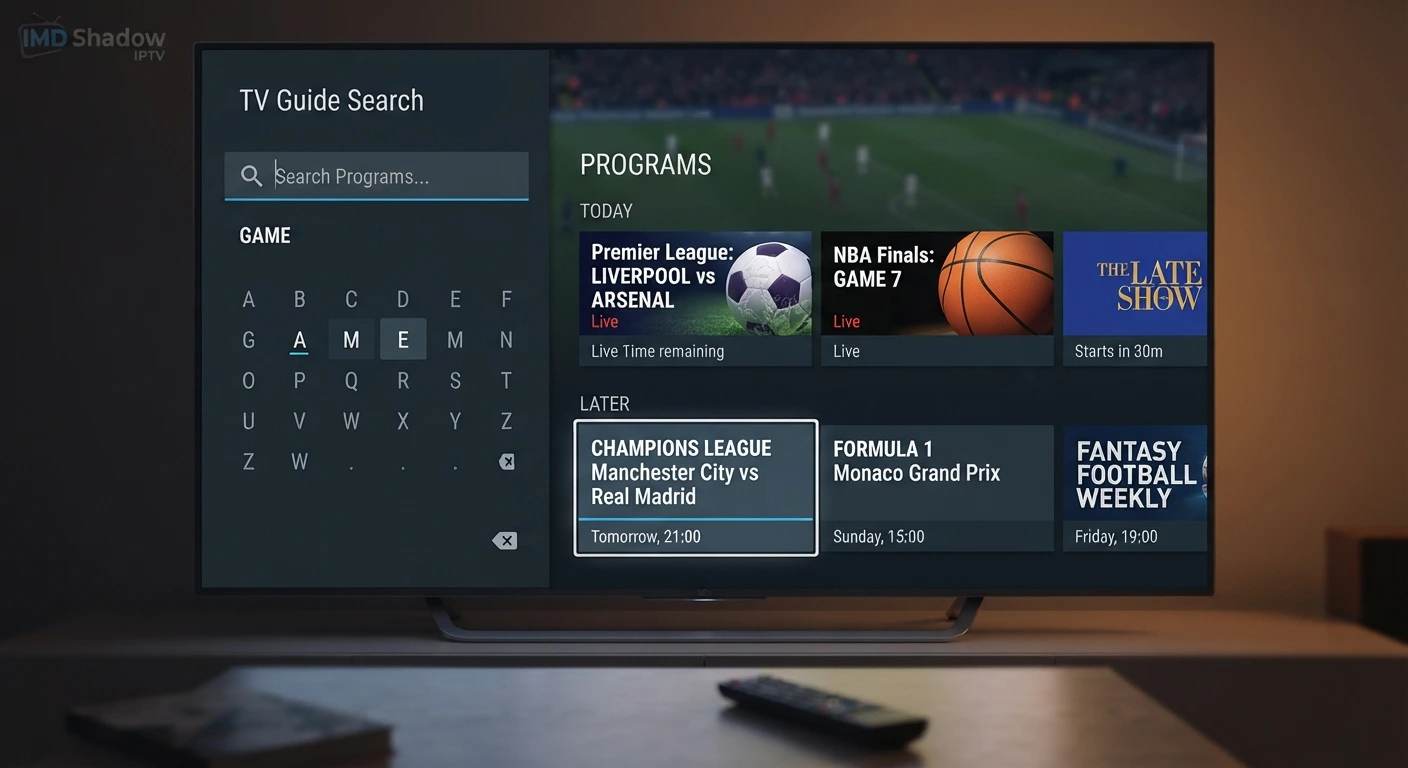
To use the IMD TV EPG search feature, open the search menu in the IMD TV application on your Android TV or Google TV device and enter the title of a television program. IMD TV displays matching guide results as you type, organized into two separate rows labeled Today y Later. Pressing OK on a program that is currently airing starts playback immediately. Pressing OK on a program scheduled for a later time opens the option to record the broadcast. Program search requires IMD TV version 0.7.0 or newer and active EPG data.
What Is the IMD TV EPG Search Feature?
IMD TV is a free, open-source media player designed for Android TV and Google TV devices. The application plays user-supplied Internet Protocol Television (IPTV) playlists, including Xtream Codes logins, M3U links, and Stalker portals. IMD TV also integrates with personal media servers such as Plex, Jellyfin, and Stremio. IMD TV does not provide, host, or sell television channels or video content.
An Electronic Program Guide (EPG) is a digital schedule that shows current and upcoming television broadcasts for each channel. The IMD TV EPG search tool indexes program titles across up to seven days of guide data.
In IMD TV version 0.7.0, the developer introduced dedicated EPG program searching inside the main search interface. One search bar queries live channels, movies, series, and television guide programs simultaneously.
This unified search design is helpful for users who manage multiple playlists or large channel lineups. Users do not need to know which specific television network broadcasts a show or sports match. Typing the name of the program locates every matching broadcast across all active playlists.
Prerequisites for Using IMD TV EPG Search
Before searching for television programs in IMD TV, verify that your setup meets four technical requirements.
Compatible Operating System: IMD TV requires Android TV or Google TV version 8.0 or newer. The application does not run natively on Samsung Tizen or LG webOS televisions without an external Android TV or Google TV streaming device. If you are comparing Smart TV platforms, our guide to El mejor sistema operativo para Smart TV para IPTV en 2026 explains the differences between Tizen, Google TV, and webOS.
Updated Application Version: EPG program searching was added in IMD TV update 0.7.0. Earlier versions of IMD TV only searched channel names, movies, and series titles. Check the Configuración menu to confirm that your device runs version 0.7.0 or higher.
Loaded Playlist: You must have at least one active Xtream Codes login, M3U playlist link, or Stalker portal configured inside IMD TV.
Active EPG Data: Program search only finds broadcasts that exist in your loaded guide data. If a channel has an empty guide, its programs will not appear in search results.
Step-by-Step Guide: How to Search TV Guide Programs in IMD TV
Searching for programs in IMD TV uses standard remote-control navigation. Follow these steps to locate a broadcast.
Open the IMD TV Application: Launch IMD TV on your Android TV or Google TV streaming device.
Navigate to the Search Menu: Pulsa la tecla Back button or the Left directional button on your remote control to open the main navigation rail. Select the Buscar icono.
Enter the Program Name: Select the search input field to open the on-screen keyboard. Type the name of the television show, movie, or live event. Results update dynamically as you enter each letter.
Locate the TV Guide Rows: Scroll down past the channel, movie, and series matches to view the Electronic Program Guide results. IMD TV separates program matches into two rows: Today y Later.
Select a Program: Highlight the broadcast you want to watch or record.
Confirm Your Action: Pulsa la tecla OK button on your remote control. If the program is airing right now, IMD TV switches directly to that live channel. If the program airs at a future time, IMD TV lets you schedule a recording.
Searching Within Specific Categories vs. Global Search
IMD TV allows users to search within a single category or across all connected sources. When you open search from a specific playlist or category, IMD TV filters results to that section. When you search under the All view, IMD TV searches every configured playlist and media server at the same time.
Users with multiple IPTV playlists should use the All search view when looking for television guide programs. This approach ensures that broadcasts from secondary playlists are not missed.
How IMD TV Organizes EPG Search Results
Understanding how IMD TV displays search matches makes navigation faster with a standard television remote control.
| Search Result Row | Content Included | Action When Pressing OK |
| Canales | Live television channel names matching the query | Opens the live channel stream |
| Movies and Series | Video on Demand (VOD) items and Plex, Jellyfin, or Stremio titles | Opens the title details page |
| Today | EPG programs airing on the current calendar day | Starts live playback if airing now, or sets recording if airing later today |
| Later | EPG programs scheduled for upcoming days within the seven-day guide | Schedules a recording for the future broadcast |
How to Fix Missing EPG Data in IMD TV
If the IMD TV EPG search returns no program results, the application likely lacks guide data for your channels. IMD TV includes several built-in tools to populate missing television schedules without requiring manual file editing.
Enable the Built-In Open-Source EPG
IMD TV includes a free, open-source Electronic Program Guide covering seven days of programming. When an IPTV provider leaves certain channels blank, IMD TV can automatically fill in the missing schedule.
You can control how IMD TV prioritizes guide data in the application settings. Users can choose whether the application uses the playlist’s built-in EPG first, a custom XMLTV source first, or the open-source EPG first.
Assign Guide Data from Similar Channels
Many playlists contain duplicate channels in different video resolutions, such as HD, HEVC, and 4K versions. Sometimes the provider attaches guide data to the standard HD channel but leaves the 4K or HEVC channel blank.
IMD TV handles this issue in two ways:
Automatic Borrowing: IMD TV automatically borrows guide data from matching channel names. For example, a channel named “Sport HEVC” can borrow guide data from “Sport”.
Manual Assignment: Users can select the Use guide from… option on any channel to copy the schedule from another working channel.
Adjust EPG Time Offsets
Incorrect time zones cause search results to appear in the wrong row or show inaccurate start times. IMD TV allows users to shift the time offset for each EPG source individually. Version 0.6.0 also introduced per-channel time offsets for fine-tuning individual broadcasts.
Check Automatic EPG Update Intervals
Guide data expires over time if the application does not refresh its database. IMD TV updates EPG data automatically on a timer, whenever the application opens, or whenever a playlist changes. Background playlist and server updates can be configured to run every 6, 12, 24, or 48 hours.
Recording Future Programs Found via EPG Search
Finding an upcoming broadcast in the Later row allows you to schedule a recording with one press of the OK button. Before relying on scheduled recordings, keep the following technical limitations of IMD TV in mind:
Storage Capacity: Small streaming sticks, such as a Chromecast with Google TV, have limited internal storage that holds roughly two hours of High Definition (HD) video. Connect a USB drive or configure a network share for longer recordings.
Stream Connections: Watching one channel while recording another requires two simultaneous connections from your IPTV provider. Recording the exact channel you are currently watching also requires two connections.
Device Power State: If your Android TV box enters deep standby mode, it may not wake up in time for a scheduled recording. IMD TV marks missed recordings in the recordings list.
Stream Formats: IMD TV saves recordings in the
.tstransport stream format. Streams protected by Digital Rights Management (DRM) or delivered via Dynamic Adaptive Streaming over HTTP (DASH) cannot be recorded.
IPTV Compatibility and Smart TV Operating System Considerations
IMD TV is built specifically for Android TV and Google TV. It supports Xtream Codes logins, M3U links, and Stalker portals (in beta). Users who rely on a TV Shadow IPTV playlist can load their credentials into IMD TV using either the on-screen interface or the mobile QR code login tool.
Because IMD TV uses native Android TV frameworks, it cannot be installed directly on Smart TVs running proprietary operating systems. For example, Samsung televisions use Tizen, and LG televisions use webOS. Users with Samsung or LG televisions must connect an external Android TV or Google TV streaming box to use IMD TV.
If you are choosing hardware for IPTV viewing, review our comparison of Samsung Tizen frente a Sony BRAVIA Google TV: ¿cuál es mejor para la IPTV en 2026? or read our guide on ¿Es Sony BRAVIA una buena opción para la IPTV en 2026?.
For users managing multiple channels across different regions, TV Shadow IPTV works with standard M3U and Xtream Codes players that support XMLTV guide parsing. App availability and performance always depend on your specific television model, operating-system version, and country. TV Shadow IPTV is an independent service and has no official partnership or affiliation with IMD TV, Google, Samsung, Sony, or LG.
Using IMD TV EPG Search for Live Football and Sports
Live football matches often air across different sports networks depending on the competition and broadcast region. Instead of checking every sports channel manually, fans can type the name of a football club or tournament into the IMD TV EPG search bar.
The search results show every channel broadcasting that match today or later in the week. When multiple versions of the same sports channel exist such as a 1080p stream and a 4K stream IMD TV allows you to merge duplicate channels into a single guide entry. You can set your preferred resolution priority so the application plays the highest quality stream first.
To ensure stable playback during live football broadcasts, connect your Android TV or Google TV device using a wired Ethernet cable rather than Wi-Fi whenever possible. Wired connections reduce packet loss and prevent buffering during high-bitrate sports streams. If you are upgrading your television for sports, our comparison of Televisores de 60 Hz frente a 120 Hz para ver el fútbol en directo explains how refresh rates affect fast motion on the pitch.
Conclusión
The IMD TV EPG search feature simplifies finding live broadcasts, movies, and sports events across large IPTV playlists. By organizing results into Today y Later rows, the application lets Android TV and Google TV users start live playback or schedule recordings with a single button press. Combining unified program search with built-in open-source EPG fallbacks and duplicate channel merging makes IMD TV a practical media player for managing daily television schedules. Users who connect a compatible service such as TV Shadow IPTV can use these guide tools to navigate live channels efficiently without endless scrolling.
Preguntas frecuentes (FAQ)
Does IMD TV include its own television channels?
No, IMD TV is strictly a media player application. It does not provide, sell, or host any television channels, movies, or IPTV subscriptions. Users must add their own legal M3U link, Xtream Codes login, Stalker portal, or personal media server.
Why does EPG program search not appear in my IMD TV app?
EPG program search requires IMD TV version 0.7.0 or newer. If you are running version 0.6.0 or earlier, the search tool only indexes channel names, movies, and series. Update the application through the built-in updater or via the official GitHub releases page to enable program search.
Can I use IMD TV EPG search on a Samsung or LG Smart TV?
No, IMD TV is only available for Android TV and Google TV version 8.0 or newer. Samsung Tizen and LG webOS do not support Android APK files. To use IMD TV on a Samsung or LG television, you must attach an external Android TV or Google TV streaming device.