
If you own a Samsung Smart TV, you already know the Tizen operating system is sleek, fast, and visually stunning. But when it comes to setting up a custom 4K Servicio IPTV, Tizen can be incredibly frustrating. Unlike Android TV, you can’t just sideload any random APK file and call it a day. The Tizen app store is walled off, and Samsung frequently purges third-party IPTV players.
However, getting a flawless 4K Video on Demand (VOD) setup running natively on your Samsung TV is absolutely possible if you use the right apps and configuration methods.
Here is exactly how to bypass the restrictions, pick a player that hasn’t been pulled from the store, and get your Listas de reproducción M3U rendering in crisp 4K without constant buffering.
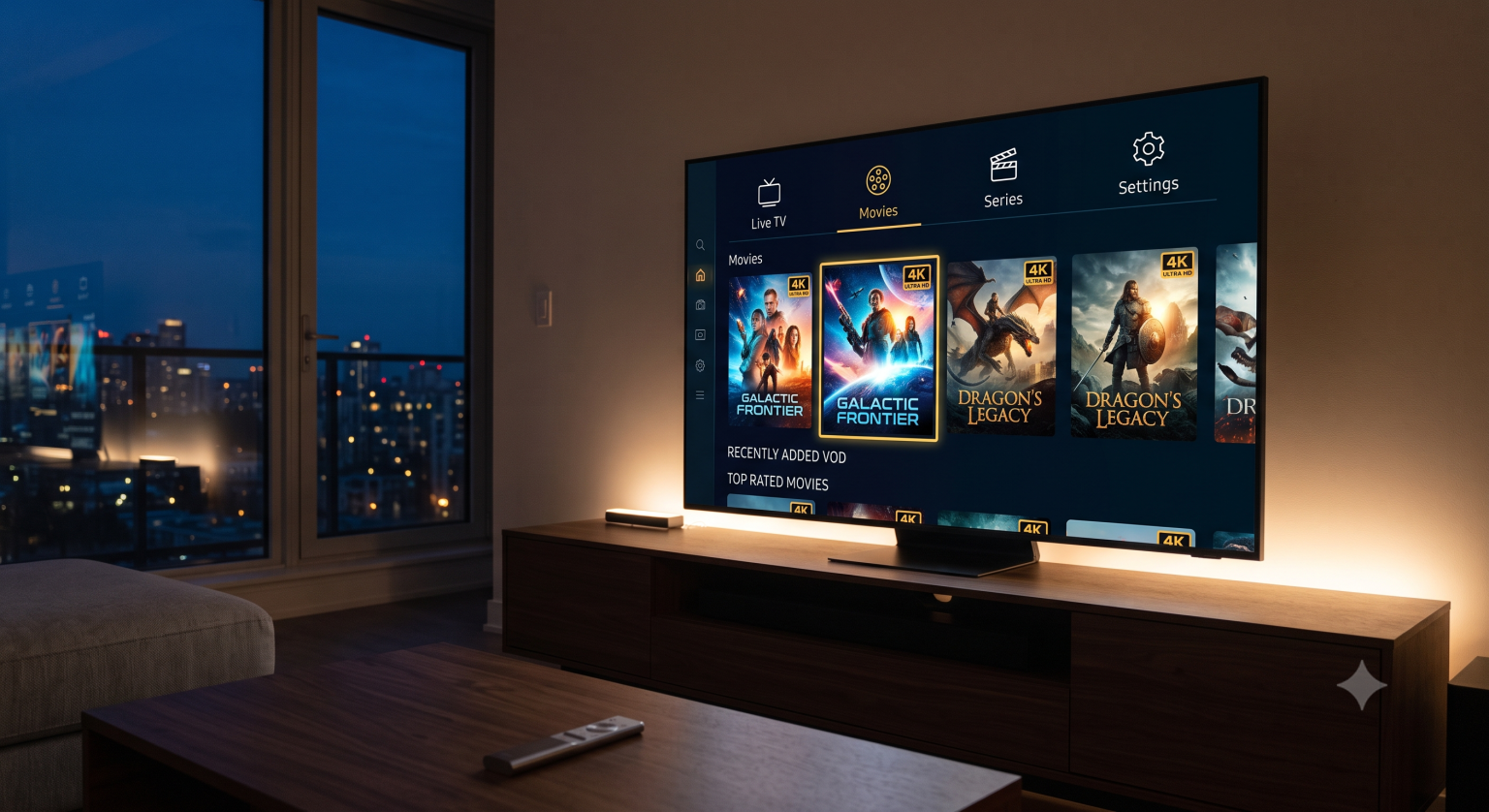
Why 4K VOD Stutters on Tizen (And How to Fix It First)
Before downloading any app, you need to prep your TV network connection. 4K VOD files (especially untouched MKV rips or high-bitrate HDR content) require serious bandwidth.
Ditch the WiFi: Even if your router is right next to the TV, Samsung’s internal WiFi cards are notoriously inconsistent for sustained heavy downloads. Hardwire the TV via Ethernet.
Clear the Cache: Tizen OS holds onto memory. Hold down the power button on your remote until the Samsung logo flashes to hard-reboot the TV and clear the RAM.
The Best Surviving IPTV Players for Samsung Tizen
Because Samsung constantly updates its store policies, old favorites disappear all the time. As of 2026, here are the most reliable apps still available in the official Samsung App Store that handle heavy 4K VOD libraries properly.
1. IPTV Smarters Pro
Still the undisputed king of ease-of-use. It categorizes Live TV, Movies, and Series (VOD) perfectly. The VOD section pulls metadata, posters, and IMDb ratings cleanly.
Search for: “IPTV Smarters” in the Tizen store. (If it’s missing in your region, change your TV’s region to US or UK).
2. SET IPTV
A great lightweight alternative if Smarters is giving you playback errors. It handles large M3U lists exceptionally well and loads VOD categories without lagging the TV menu.
3. Smart IPTV (SIPTV)
The classic fallback. It’s paid (a one-time €5.49 fee after a 7-day trial) but incredibly stable. The interface looks a bit dated, but it decodes 4K streams smoothly.
Step-by-Step Setup (Using IPTV Smarters Pro)
Let’s walk through the setup using the Xtream Codes API method. It is vastly superior to uploading a raw M3U link because it automatically updates your VOD library and sorts categories perfectly.
Install the App: Abra el Aplicaciones section on your Samsung TV, click the magnifying glass, and download IPTV Smarters Pro.
Choose Your Login Method: Open the app and select Login with Códigos Xtream API.
Enter Your Provider Details:
Cualquier nombre: Type whatever you want (e.g., “My 4K VOD”).
Nombre de usuario y contraseña: Introduce las credenciales proporcionadas por tu servicio de IPTV.
URL: Input the portal address exactly as given. Watch out for typos; getting one slash or colon wrong will result in an “Invalid Details” error.
Load the Library: Éxito Añadir usuario. The app will take a minute to pull down the channel list and VOD library.
Once you are in, click the Movies o Series tab. You should see all your 4K content neatly organized with cover art.
Troubleshooting Common Tizen VOD Errors
“Playback Error” on Specific 4K Movies Tizen has strict native codec limitations. If a VOD file uses an unsupported audio codec (like some uncompressed TrueHD tracks) or an exotic video container, the built-in Samsung player engine will fail. If you get a playback error:
Switch the media engine in the app settings (e.g., change from Hardware Decoding to Software Decoding, or vice versa).
If the app allows external players, see if switching helps, though Tizen severely limits this compared to Android.
Subtitles Aren’t Syncing When watching foreign 4K VODs, Tizen’s built-in subtitle handler can get sluggish. Inside the player interface, try disabling the subtitles, waiting five seconds, and re-enabling them to force a sync.
The Last Resort: Hardware Bypassing
If your Samsung TV is older (2018 or prior) and the CPU is just too weak to process a massive 100,000+ VOD playlist without crashing, stop fighting the hardware. Grab a dedicated 4K streaming stick, plug it into the HDMI port, and run your IPTV apps there. You get the beautiful Samsung display without the Tizen operating system headaches.
Setting Up IPTV Smarters Pro on Samsung This visual guide walks through the exact menu options and login screens needed to get your Xtream Codes API details correctly loaded into the app.