
Are you trying to sideload your favorite streaming applications, only to find the Install Unknown Apps missing Firestick error? You are certainly not alone. Recent 2026 Amazon updates have fundamentally changed how these devices operate, frustrating millions of users across the United States.
Fortunately, your streaming device isn’t broken. Amazon simply concealed this essential menu to deter novice users from modifying their software. In this guide, we will show you exactly how to restore this setting in under a minute so you can get back to unrestricted streaming.
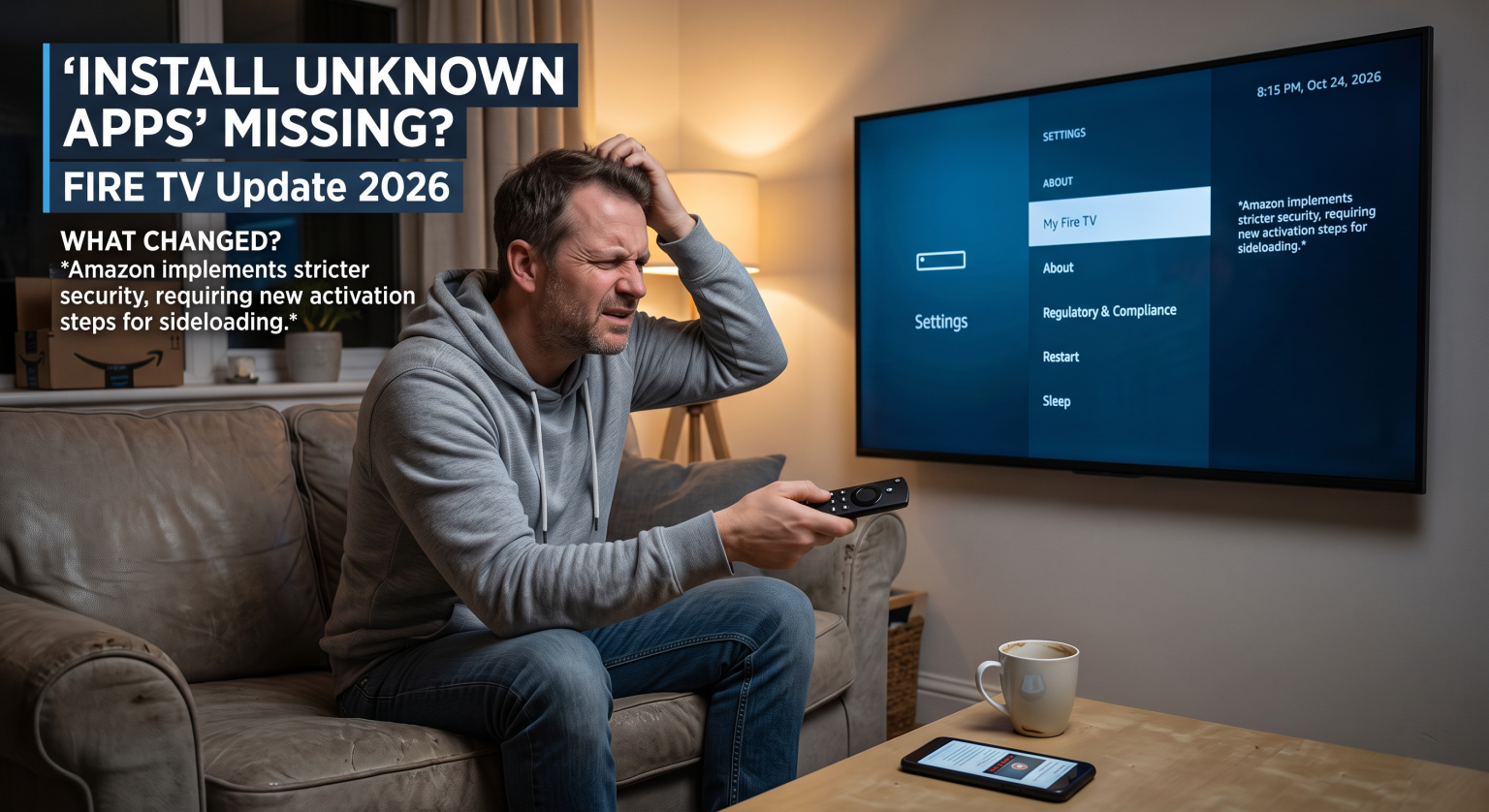
Why is the Install Unknown Apps Missing Firestick Error Happening?
If you recently bought a new device or allowed your current one to run a system update, you probably noticed some major interface changes. The reason you face the Install Unknown Apps missing Firestick issue comes down to Amazon’s latest security protocols.
Historically, this menu was immediately visible under the device settings. Now, Amazon has intentionally kept the developer options hidden behind a secret remote-control sequence to discourage users from installing unofficial apps.
The 2026 Shift: Fire OS vs. Vega OS
To make matters more complicated, Amazon has started transitioning away from its Android-based Fire OS. Newer 2026 releases, like the Fire TV Stick 4K Select, operate on a completely different system called Vega OS. If your device runs on Vega OS, sideloading APKs is no longer supported, meaning third-party apps will not work at all.
Sideloading in the United States: What Changed?
For years, users in the United States have relied on sideloading to access geographically restricted content or independent apps not found in the Amazon Appstore. Because of the recent Fire TV update 2026, gaining the proper Downloader app permission requires a few extra steps. You must now unlock the menu manually before you can enable unknown sources.
How to Fix the Missing Menu in 30 Seconds
Restoring your ability to install third-party apps is surprisingly simple. As long as your device runs on Fire OS 7 or Fire OS 8, you can unlock the hidden menu using the “7 Clicks” method.
Follow these steps to unhide your developer settings:
Navigate to Settings: From your Fire TV home screen, scroll to the gear icon on the far right.
Open Device Settings: Scroll down and click on Mi Fire TV (on some smart TVs, this is labeled Device & Software).
Select About: Click the first option titled Acerca de.
Click 7 Times: Highlight your device’s name (e.g., Fire TV Stick 4K Max). Rapidly press the center Select button on your remote exactly 7 times.
Unlock the Menu: A countdown will appear at the bottom of the screen. Keep clicking until you see the message: “No need, you are already a developer”.
Once you complete these steps, press the back button. You will now see the Developer Options menu restored, allowing you to finally turn on the installation permission for your specific downloader app!
Operating System Comparison: What Device Do You Have?
Understanding your specific operating system is crucial before you attempt to jailbreak Amazon Firestick hardware. Here is a breakdown of how different operating systems impact your menus:
| Fire TV Operating System | Location of “Unknown Apps” Menu | Sideloading Status |
| Fire OS 6 (Older Models) | Visible by default in Settings > My Fire TV | Global Toggle (One switch allows all unknown apps) |
| Fire OS 7 & 8 (Current) | Hidden by default (Requires the 7-click trick) | Per-App Permission (Must grant access to Downloader specifically) |
| Vega OS (2026 Releases) | Completely removed from the interface | Discapacitado (Does not support Android APK files) |
Local Tip: If you have a Vega OS device and need to sideload, consider trading it in for an older Fire OS 8 model while they are still available in US retail stores.
Take Control of Your Streaming Experience
Resolving the Install Unknown Apps missing Firestick hurdle can be a headache, but the 7-click workaround ensures you maintain full control over your media. Sideloading gives you the freedom to customize your entertainment, but it also exposes your device to unverified networks.
If you are a US streamer unlocking your device to view independent media, your internet service provider can monitor your activity.
Ready to stream safely and anonymously? Protect your digital privacy and avoid ISP throttling today. Click Here to Start Your Risk-Free Trial with a Premium VPN and secure your connection before you install your next third-party app!
Preguntas frecuentes (FAQ)
Why is my Firestick not showing Developer Options?
Amazon hides this menu by default on newer software versions to prevent accidental malware installations. You must manually reveal it by navigating to Ajustes > Mi Fire TV > Acerca de and clicking your device’s name seven times with the select button.
Does the 7-click trick work on all Fire TV devices?
The 7-click method works on devices running Fire OS 7 and Fire OS 8, including the Fire TV Cube and Firestick 4K Max. However, it will not work on new 2026 models running Vega OS, as those devices do not support Android applications.
How do I allow Downloader to install apps?
Once you unlock the Developer Options, click on Instalar aplicaciones desconocidas. You will see a list of your installed applications. Buscar Descargador and toggle the permission switch to “ON”.