
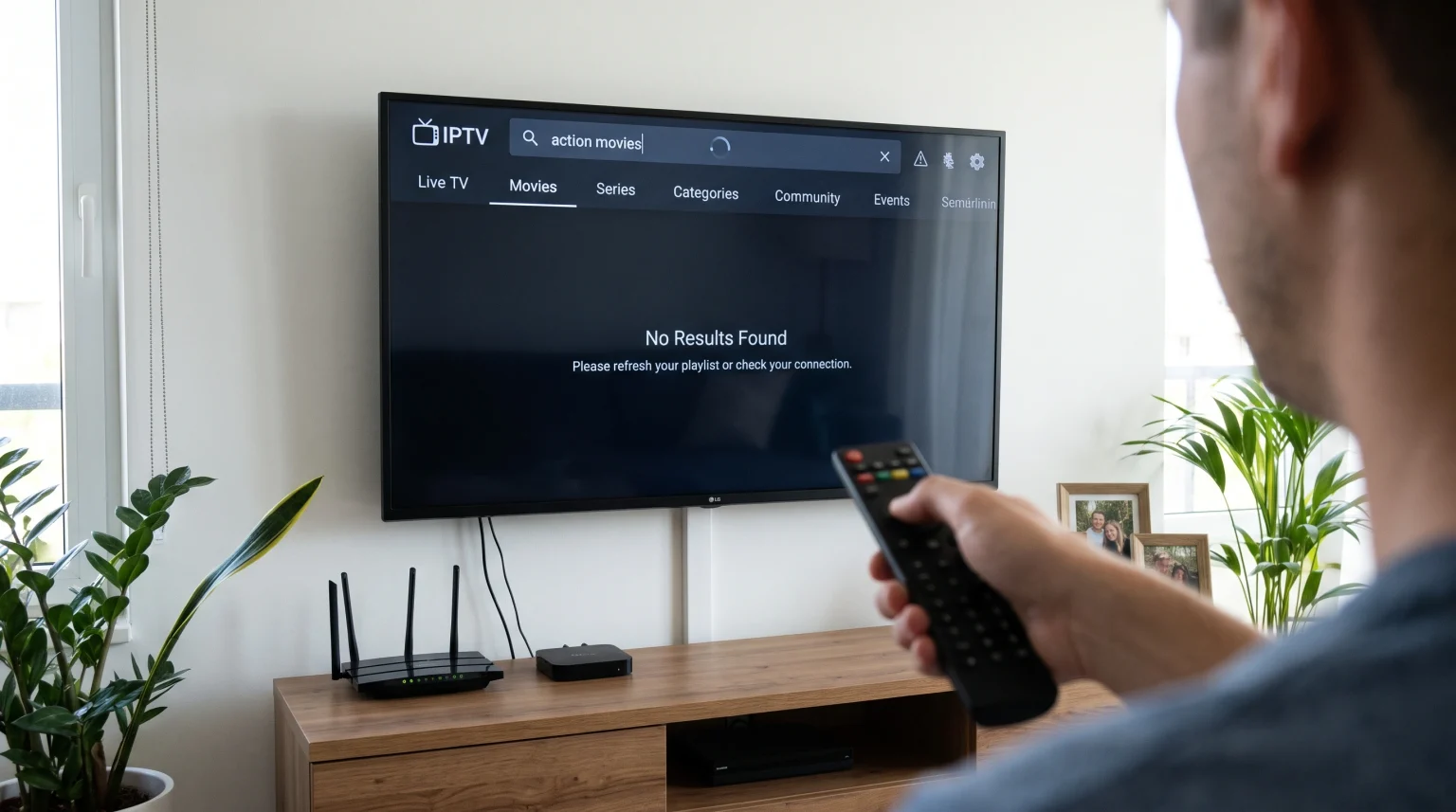
When you open your IPTV media player, you expect quick access to your favorite on-demand entertainment. It is frustrating when your IPTV movie search is not working or when series titles do not appear in search results. In most cases, this issue does not mean that the titles have been permanently removed.
Search failures in IPTV applications usually stem from un-synchronized Video on Demand (VOD) playlists, local cache corruption, or memory limits on your streaming device. In other cases, restrictive search filters, slow network connections, or temporary server updates prevent your application from indexing the content catalog. By systematically checking your application settings, playlist sync status, and device memory, you can resolve most search problems quickly.
Respuesta rápida
If your IPTV movie search is not working, the most common cause is an outdated local playlist cache. IPTV players store titles in local memory to speed up navigation. If the playlist does not reload completely, new or existing movies and series will not show up in search results. To resolve the issue, manually force a playlist update or refresh the VOD and series database in your app settings. If searching still fails, clear the application cache, check that title filters are set to search all categories, and verify that your device has sufficient free storage space.
Why IPTV Search Fails to Return Movies and Series
To understand why search functions fail, it helps to understand how IPTV players index content. Unlike native streaming platforms that query a cloud server for every single keystroke, most IPTV media players download a complete text list of available channels, movies, and series when you log in. The application stores this index in the temporary memory of your streaming device.
Several technical factors can disrupt this indexing process:
Incomplete playlist synchronization: If your internet connection drops for a few seconds while loading a large catalog, the player stops downloading the list. The titles that were not downloaded will not appear in search queries.
Local cache memory exhaustion: Low-cost streaming sticks and Smart TVs often have limited internal storage. If the video list exceeds the available memory, the app cannot index the entire library.
Xtream Codes API vs. M3U format differences: An M3U playlist loads as one single, large text file. An Xtream Codes API connection separates live streams, movies, and series into distinct categories. If an application fails to parse a large M3U file, search functions across movies often break completely.
Active parental control or category filters: Many applications automatically hide adult categories or unselected genres, which removes matching titles from search results.
Provider server maintenance: IPTV services occasionally perform database updates or reorganize category structures, which temporarily makes search indexing unresponsive.
Step-by-Step Checklist to Fix IPTV Movie Search
Work through the following troubleshooting steps in order. These steps solve search errors on most IPTV players and streaming devices.
1. Force a Manual Playlist and VOD Refresh
Do not rely only on automatic updates. Many applications only check for updates once every 24 hours to save bandwidth.
Open your IPTV application settings.
Locate the menu labeled Listas de reproducción, Data, o Accounts.
Select your active playlist or provider profile.
Haz clic Update Playlist, Reload Channels and Movies, o Refresh Xtream Database.
Wait until the progress bar reaches 100 percent before navigating away from the screen.
If your provider offers separate reload buttons for Live TV, Movies, and Series, reload each section individually.
2. Clear the IPTV Application Cache
As you stream content, your media player saves temporary files, channel logos, and partial indexes. Over time, this data can become corrupted and cause the search function to freeze or return blank screens.
On Google TV and Android TV:
Open the television Configuración.
Seleccionar Aplicaciones y elige Ver todas las aplicaciones.
Select your IPTV player application.
Elige Borrar caché.
Restart the application and test your movie search again.
Note: Do not click “Clear Data” unless you have your login credentials ready, as clearing data will remove your account configuration.
On Fire TV devices:
Abrir Configuración from the home screen.
Seleccionar Aplicaciones, y luego selecciona Gestionar las aplicaciones instaladas.
Find your IPTV player.
Haz clic Borrar caché.
On Samsung Tizen and LG webOS Smart TVs: Smart TV operating systems manage cache differently. Close the IPTV app completely. Press and hold the Power button on your TV remote control for five seconds until the TV turns off and reboots, which clears the system application cache. If you are comparing television platforms for your setup, our guide to the El mejor sistema operativo para Smart TV para IPTV en 2026: Tizen, Google TV y webOS explains how operating systems differ in storage management and app performance.
3. Check App Search Filters and Settings
Many IPTV applications feature category toggles inside their search interface. If a toggle is set incorrectly, the player will only search for live television channels and will ignore the movie database.
Verify that your search bar is set to All, VOD, o Movies, rather than Live TV Only.
Ensure that you are typing at least three or four characters. Some IPTV media players do not trigger a search query for one- or two-letter entries.
Check spelling carefully. Unlike major search engines, most IPTV search algorithms do not automatically correct typos.
Review your parental control settings. If certain categories are locked behind a PIN, titles inside those folders will not show up in general search results.
4. Verify Local Device Storage Capacity
A comprehensive IPTV playlist containing thousands of movies and series episodes requires significant local storage space to maintain its search index.
If your streaming stick or television has less than 500 MB of free storage, the operating system may block apps from creating local index databases. Go to the storage settings of your device. If your available space is low, uninstall unused applications and delete downloaded system update files.
5. Check Network Speed and Connection Type
Downloading a large movie index requires a stable data transfer. When a connection experiences packet loss, the playlist file can download with missing lines.
Whenever possible, connect your streaming box or television with an Ethernet cable instead of Wi-Fi.
If you must use Wi-Fi, connect to the 5 GHz band rather than the 2.4 GHz band to reduce interference.
Restart your home internet router to resolve temporary domain name system (DNS) or routing bottlenecks.
| Issue | Technical Cause | Immediate Solution |
| Search returns zero results | Outdated or partial playlist download | Force a manual playlist refresh |
| App freezes when typing in search | Corrupted search index in cache memory | Clear the application cache in device settings |
| Only live channels appear in search | Restrictive search filter enabled | Set search filter to “All” or “Movies/Series” |
| New titles missing from search | Playlist has not updated automatically | Reload the VOD and Series database manually |
| App crashes during playlist reload | Device storage is completely full | Delete unused apps to free up internal storage |
Xtream Codes API vs. M3U Playlists for Search Stability
The connection format you use directly influences how well search functions work inside your IPTV player.
API de Xtream Codes
Xtream Codes API uses a structured database format. It breaks content into three distinct groups: Live Streams, Movies (VOD), and Series. When you search for a movie using an Xtream connection, the player queries only the movie database table. This structure is efficient, loads quickly, and keeps search fast even on devices with modest hardware specifications.
M3U Playlists
An M3U playlist is a single plain-text file. If a playlist contains tens of thousands of channels, movies, and episodes, your television must load and parse every single text line simultaneously. Many Smart TV processors struggle to process this volume of text, which leads to incomplete searches or application crashes.
If your IPTV player gives you the choice, always choose Xtream Codes API login credentials (server URL, username, and password) rather than an M3U file link. Xtream connections provide significantly better search accuracy and catalog organization.
Hardware and Smart TV Operating System Considerations
Your television hardware plays an important role in how quickly searches process.
Smart TVs running Samsung Tizen or LG webOS generally have more limited internal storage and memory allocation for third-party media players than dedicated streaming boxes. If your Smart TV struggles to index large movie catalogs, search queries may time out or show missing content.
In contrast, modern streaming devices running Google TV or Android TV feature larger internal memory pools and faster processors, which handle large database queries smoothly. If you are shopping for a television to use with on-demand streaming, our detailed analysis of the Los mejores televisores inteligentes para IPTV en 2026: comparación entre Samsung, Sony, LG y TCL outlines how different TV processors handle heavy IPTV media applications.
Furthermore, app availability and performance depend heavily on your country, TV model, model year, operating system version, and individual app store policies. Some TV app stores restrict advanced third-party media players, which forces users to rely on simpler players with limited search indexing. If you regularly experience search freezes on a built-in TV app, testing an external streaming stick can determine whether the problem is your TV hardware or your IPTV service playlist.
Once you find your movie or series, you also want reliable playback performance. If your streams look softer than expected on a high-resolution display, understanding ¿Qué es la mejora de resolución de la televisión y es útil para la IPTV? will help you optimize your picture settings for crisp on-demand viewing.
TV Shadow IPTV Compatibility and Best Practices
TV Shadow IPTV is designed to deliver stable streaming across diverse media formats and devices. To get the best search and on-demand experience when using TV Shadow IPTV:
Use recommended media players: Modern applications such as TiviMate, IPTV Smarters Pro, or XCIPTV offer advanced search engines with dedicated VOD filtering.
Select Xtream Codes login: Always configure your account using Xtream Codes credentials rather than raw M3U URLs. This enables clean category indexing for movies and series.
Enable regular database updates: Configure your media player settings to update playlist data automatically on app launch, or at least once every 24 hours.
Ensure network stability: A steady internet connection prevents playlist sync interruptions, ensuring that every newly added movie title appears in your search results immediately.
Note: TV Shadow IPTV is an independent streaming service and has no official affiliation with Samsung, LG, Sony, Google, or any television manufacturer. App availability and search behavior can vary depending on your specific player and hardware.
Conclusión
When your IPTV movie search is not working, the problem almost always relates to local playlist synchronization, search filters, or device memory limits rather than missing content. By manually refreshing your playlist database, clearing temporary application cache files, and ensuring your device has sufficient storage space, you can restore full search functionality. Using structured connection methods such as Xtream Codes API with reliable players on TV Shadow IPTV ensures that your favorite movies and series remain easy to find whenever you want to watch.
Preguntas frecuentes
Why does my IPTV search find live channels but no movies?
Your search filter is likely set to Live TV only. Open the search screen in your IPTV player and verify that the category toggle is set to “Movies”, “VOD”, or “All Content”. In addition, confirm that your IPTV subscription plan includes on-demand video libraries.
Why do some movie titles appear in category lists but not in search?
This issue occurs when the search index is corrupted while the folder view remains intact. Clear your application cache in your device settings and perform a manual playlist reload to rebuild the search index.
How often should I refresh my IPTV playlist for new movies?
You should refresh your playlist at least once or twice per week. If your provider regularly adds new movie releases or series episodes, performing a manual update ensures your local search engine includes those new titles right away.