
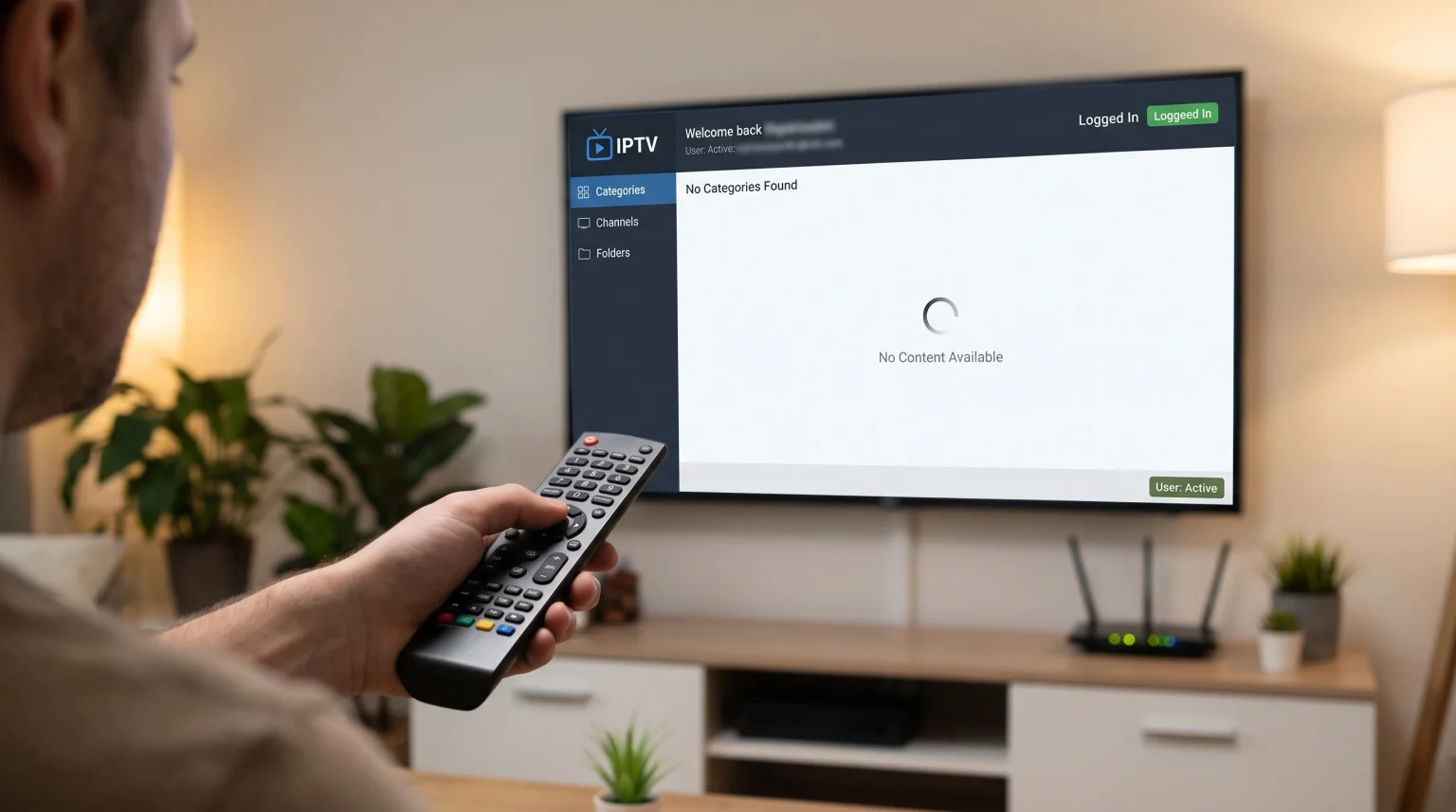
You enter your username and password into your IPTV application. The application accepts the details and logs you in successfully. However, the screen remains completely empty. You see no channel lists, no movie folders, and no television series.
This is a common technical problem. When the IPTV no categories login works, the application has successfully connected to the server. The error happens during the next step. The application fails to download the actual playlist data.
This problem can happen on any device. You might experience this issue on an Android TV box, an Amazon Fire TV Stick, or a Smart TV. This guide explains why the categories fail to load and how you can fix the problem.
Respuesta rápida
Si tu IPTV no categories login works, the application successfully authenticated your account but failed to download the playlist. First, check your server URL for typing errors. A small mistake can allow login but prevent data download. Second, clear the application cache in your device settings. Third, restart your internet router and your television. If the screen remains empty, your Internet Service Provider might be blocking the connection. You can test this by connecting through a mobile data hotspot or a Virtual Private Network (VPN).
Common Causes of Missing Categories
Understanding the cause helps you choose the correct solution. Several different technical issues can prevent an IPTV application from displaying categories.
Typing Errors in the Server Details
The most common cause is a typing error in the server URL. Many IPTV applications use the Xtream Codes API system. This system requires a URL, a username, and a password. If the username and password are correct, the application might show a successful login message. However, if the server URL contains a small mistake, the application cannot locate the category folders.
Overloaded Device Memory
Smart televisions have limited internal memory. When an IPTV application tries to load a very large playlist, the device memory can become full. The application stops working before it can display the live television categories. This problem happens frequently on older Smart TVs.
Internet Service Provider Restrictions
Many Internet Service Providers (ISPs) actively monitor internet traffic. Some ISPs block connections to IPTV servers. If your ISP blocks the connection, the application might save your login details but fail to download the video streams. This blocking often happens during major sports events.
Expired Subscription
Sometimes, an IPTV provider allows you to access the application portal even after your subscription ends. The login works, but the server sends an empty playlist. You will see no categories until you renew your subscription.
Step-by-Step Solutions
Follow these steps to restore your missing categories. Test your IPTV application after completing each step.
1. Verify Your Login Credentials
Open the settings menu in your IPTV application. Look at the server URL carefully. Check for common typing mistakes. Ensure you have not added an empty space at the end of the URL. Ensure you have used the correct formatting. For example, the URL must often start with “http://” or “https://”.
2. Clear the Application Cache
The application cache stores temporary data to make the application load faster. Sometimes, this temporary data becomes corrupted. To clear the cache on an Android device or Google TV:
Open the device Settings.
Select Apps.
Find your IPTV application.
Select “Clear Cache”. Do not select “Clear Data” unless you want to delete your login details.
3. Update the IPTV Application
Older versions of IPTV applications can develop bugs. These bugs can prevent the application from reading modern playlist formats. Open the Google Play Store, the LG Content Store, or the Samsung Smart Hub. Search for your IPTV application and install any available updates.
4. Restart Your Network Equipment
Network routing errors can stop the playlist download. Unplug your internet router from the power supply. Wait for one minute. Plug the router back into the power supply. Wait for the internet connection to return. Then, restart your television or streaming device.
5. Change Your Network Connection
You must check if your Internet Service Provider is causing the problem. Disconnect your television from your home Wi-Fi. Create a mobile data hotspot using your smartphone. Connect your television to the smartphone hotspot. Open the IPTV application. If the categories load successfully on the mobile network, your home Internet Service Provider is blocking the IPTV connection. You may need to use a Virtual Private Network (VPN) on your home network to bypass this block.
Playlist Formats: Xtream Codes API vs M3U
Your IPTV provider might offer two different ways to connect: an M3U link or the Xtream Codes API. The connection method can affect how categories load.
An M3U link is one very long internet address. It contains all the channels and video-on-demand content in one single file. Large M3U files frequently cause applications to crash before categories appear.
The Xtream Codes API separates the connection into a server URL, a username, and a password. This method allows the application to download categories in smaller, faster pieces.
| Característica | API de Xtream Codes | Enlace M3U |
| Método de conexión | URL, username, and password | Single long web address |
| Data loading speed | Rápido | Slow |
| Memory usage | Bajo | Alto |
| Category loading | Loads categories automatically | Often requires manual grouping |
| Recommended for | Smart TVs and streaming sticks | Computer software (like VLC) |
If you currently use an M3U link and see no categories, ask your provider for the Xtream Codes API details instead.
Smart TV Limitations and IPTV Applications
The type of television you use affects how IPTV applications perform. Modern televisions process data much faster than older models.
Si estás comparando sistemas operativos para televisores, nuestra guía sobre El mejor sistema operativo para Smart TV para IPTV en 2026 explains the differences between Tizen, Google TV, and webOS.
For example, a Samsung television using the Tizen operating system handles memory differently than a Sony television using Google TV. If you use a basic Smart TV with limited memory, you should ask your IPTV provider to reduce your playlist size. Your provider can remove categories you do not need, such as television channels from countries you do not watch. A smaller playlist loads much faster and prevents empty screens.
Finding Live Football When Categories Are Missing
Live sports require stable connections. When categories fail to load right before a football match, the delay is frustrating. Sports categories usually contain high-definition streams that require fast data transfer.
If your categories load, but the football stream looks poor, the problem might be your television hardware. You can read our guide explaining Televisores de 60 Hz frente a 120 Hz para ver el fútbol en directo to understand how television specifications change sports viewing.
To ensure football categories load quickly, always connect your television directly to your router using an Ethernet cable. An Ethernet cable provides a much more stable connection than Wi-Fi. This stability helps the IPTV application download the category data without interruption.
When to Contact TV Shadow IPTV Support
If you have tried all the steps above and the screen remains empty, the problem might be on the server side. The provider might be performing server maintenance. During maintenance, the login server remains active, but the playlist server goes offline.
Contact your provider and explain the exact problem. Tell the support team:
The name of your IPTV application.
The device you are using.
That the application accepts your login but shows no categories.
The troubleshooting steps you have already tried.
Conclusión
Encountering a situation where your IPTV no categories login works can be frustrating, but the solutions are usually simple. The problem almost always involves data transfer. The application confirms your identity but cannot download the channel lists.
Always check your server URL for typing errors first. Ensure your device has enough memory by clearing the application cache. If necessary, switch from a heavy M3U link to the faster Xtream Codes API. By following these technical steps, you can restore your categories and return to watching your favorite content. If the problem persists, contacting your provider is the best final step to ensure your account is active and connected correctly.
Preguntas frecuentes (FAQ)
Why does my IPTV app say login successful but show nothing?
This happens when the application connects to the authentication server but cannot reach the content server. This is often caused by a typing error in the server URL or an internet connection block.
Does clearing the cache delete my IPTV subscription?
No. Clearing the application cache only deletes temporary loading files. It does not delete your username, password, or subscription time.
Why are only some categories missing from my IPTV app?
If you see live television but no movies, the provider might be updating the movie servers. Sometimes, an application settings error hides specific categories. Check the parental control settings in your application.