
Nexstream is a powerful video player application for IPTV users. Many users subscribe to multiple IPTV services to get different content. For example, a user might have one subscription for movies and a different subscription for international news. Switching between different user profiles to find a specific channel is inconvenient.
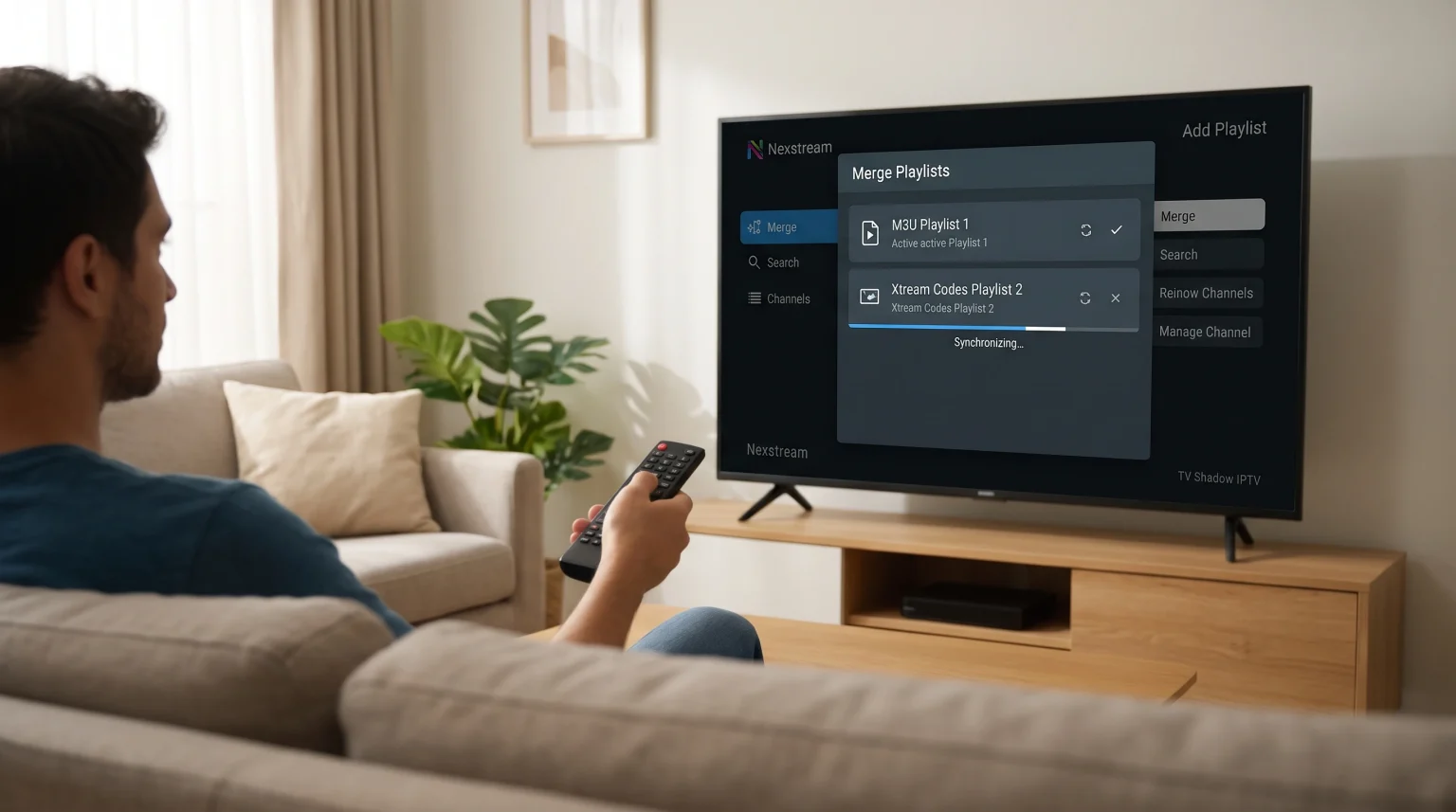
This article explains how to execute a Nexstream merge IPTV playlists configuration. By combining multiple M3U links or Xtream Codes accounts, you create one central menu. The Nexstream application automatically combines your Electronic Program Guide (EPG), your live channel lists, and your video-on-demand content. This creates a smooth and unified viewing experience. You will learn the exact steps to add multiple providers, how to organize your channels, and how to fix common errors.
Respuesta rápida
To merge multiple IPTV playlists in Nexstream, open the application settings and select the option to add a new playlist. Enter the connection details for your first provider using an M3U URL or Xtream Codes. Save the playlist and allow the data to download. Next, repeat the exact same process for your second provider. Nexstream will automatically display the content from both providers in one unified interface. You can now use the global search function to find channels across all connected playlists simultaneously without changing user profiles.
Why You Should Merge Multiple IPTV Playlists
Using multiple IPTV subscriptions separately creates a frustrating experience. You must close one profile, load another profile, and wait for the channel list to update. Merging your playlists inside Nexstream solves these problems.
When you merge your playlists, you gain three main advantages:
Global Search: You can search for a specific movie or television channel one time. Nexstream will search across every connected playlist and show all available results.
Unified Electronic Program Guide (EPG): The application builds one single TV guide. You can see the broadcast schedule for channels from Provider A and Provider B on the same screen.
Combined Favorites: You can add a sports channel from your first playlist and a news channel from your second playlist into one single “Favorites” folder.
Step-by-Step Guide: Nexstream Merge IPTV Playlists
Adding multiple playlists in Nexstream is a simple process. Follow these exact steps to combine your IPTV subscriptions.
Step 1: Add the First Playlist
Open the Nexstream application on your device.
Navigate to the main settings menu.
Select the option to add a new playlist or user.
Choose your connection method. Xtream Codes is usually the most stable option.
Enter the username, password, and server URL for your first IPTV provider.
Name this playlist “Provider 1” or use a descriptive name.
Click save and wait for the channels and EPG to download completely.
Step 2: Add the Second Playlist
Return to the main settings menu in Nexstream.
Select the option to add another playlist.
Enter the connection details for your second IPTV provider.
Name this playlist “Provider 2”.
Click save and wait for the download to finish.
Step 3: Synchronize the Data
After adding both playlists, restart the Nexstream application. When the application opens, it will merge the categories from both providers into the main menu. You can now browse all live TV channels and video-on-demand content together.
Comparing IPTV Connection Methods
When you add a playlist to Nexstream, you can usually choose between two different connection formats. This table explains the differences.
| Característica | Enlace M3U | API de Xtream Codes |
| Tipo de formato | A long web address (URL) | Username, password, and server URL |
| Setup speed | Fast, but typing the URL is difficult | Very fast and easy to type |
| EPG integration | Requires a separate EPG link | EPG loads automatically |
| Data loading speed | Más lento | Faster and more efficient |
For the best experience when merging playlists, use the Xtream Codes method if your provider allows it.
Using TV Shadow IPTV with Nexstream
TV Shadow IPTV provides high-quality streaming connections that work perfectly with modern applications. You can use TV Shadow IPTV as your primary provider inside Nexstream.
To do this, add your TV Shadow IPTV credentials using the Xtream Codes login method. Once the TV Shadow IPTV channels load, you can add a secondary playlist from a different source. For example, you might add a small local playlist for regional broadcasts. Nexstream will blend the premium channels from TV Shadow IPTV with the channels from your secondary list. This gives you complete control over your viewing options in one application.
Optimizing for Live Football
Merging playlists is very useful for sports fans. You can create a custom folder that contains all your favorite live football channels from different providers. However, the streaming application is only one part of the system.
To watch live football with clear picture quality, your television hardware is also important. Fast camera movements during a football match can cause a blurry picture. A television with a fast refresh rate and good motion handling will prevent this blur. If you are shopping for a new television, you can read our guide about Televisores de 60 Hz frente a 120 Hz para ver el fútbol en directo.
Additionally, the picture processor inside the television helps improve the image quality of the IPTV stream. You can learn more about how this works in our article explaining ¿Qué es la mejora de resolución de la televisión y es útil para la IPTV?. For a complete list of recommended hardware, view our guide to Los mejores televisores inteligentes para IPTV en 2026: comparación entre Samsung, Sony, LG y TCL.
Troubleshooting Common Merging Errors
Sometimes you may experience small problems after merging multiple playlists. Here are the most common issues and how to fix them.
Duplicate Categories
If both IPTV providers have a category named “UK Sports”, Nexstream might show two separate folders with the same name. To fix this, you can usually hide categories in the Nexstream settings menu. Hide the category from the provider that has lower video quality.
EPG Information is Missing
If the TV guide does not show program information, force the application to update. Go to the Nexstream settings and select “Update EPG”. Ensure your device is connected to the internet using an Ethernet cable for the most stable data connection.
Slow Application Loading
Adding too many playlists can make the Nexstream application slow. Every time you open the application, it must download data from multiple servers. To improve speed, only merge the playlists that you actively use. Remove any expired or inactive playlists from the settings menu.
Conclusión
Managing multiple IPTV subscriptions does not need to be complicated. By using the Nexstream merge IPTV playlists feature, you can bring all your entertainment into one single interface. This allows you to use a unified TV guide, search across all providers instantly, and build a master list of favorite channels. For the most stable experience, we recommend using the Xtream Codes connection method and hiding any channel categories that you do not watch. By organizing your Nexstream application properly, you can enjoy the premium content from TV Shadow IPTV alongside your other subscriptions without any frustration.
Preguntas frecuentes (FAQ)
Can I merge an M3U link and an Xtream Codes account together in Nexstream?
Yes. Nexstream supports multiple formats. You can add one playlist using an M3U link and add the second playlist using Xtream Codes. The application will merge the content from both sources automatically.
Does merging playlists slow down the Nexstream application?
It can slow down the initial loading time. When you open the application, Nexstream must connect to multiple servers to update the channel lists. To keep the application fast, only add active playlists and hide categories that you do not watch.
How many IPTV playlists can I add to Nexstream?
Most modern IPTV applications allow you to add many playlists. However, adding more than three large playlists is not recommended. Too much data can cause the application to freeze or crash on older streaming devices.