
Football fans use IPTV applications to watch live sports across different time zones. Remembering every match time is difficult. The o3IPTV application includes a specific feature to solve this problem. o3IPTV match reminders generate automatic alerts on your television screen before a football game begins.
This system connects directly to the Electronic Program Guide (EPG). When the EPG updates the match schedule, the application tracks the start time. This article explains how these football alerts operate, how to configure the alerts correctly, and why reliable EPG data is necessary for the feature to function properly. We will also examine how device compatibility affects notification delivery during live sports broadcasts.
Respuesta rápida
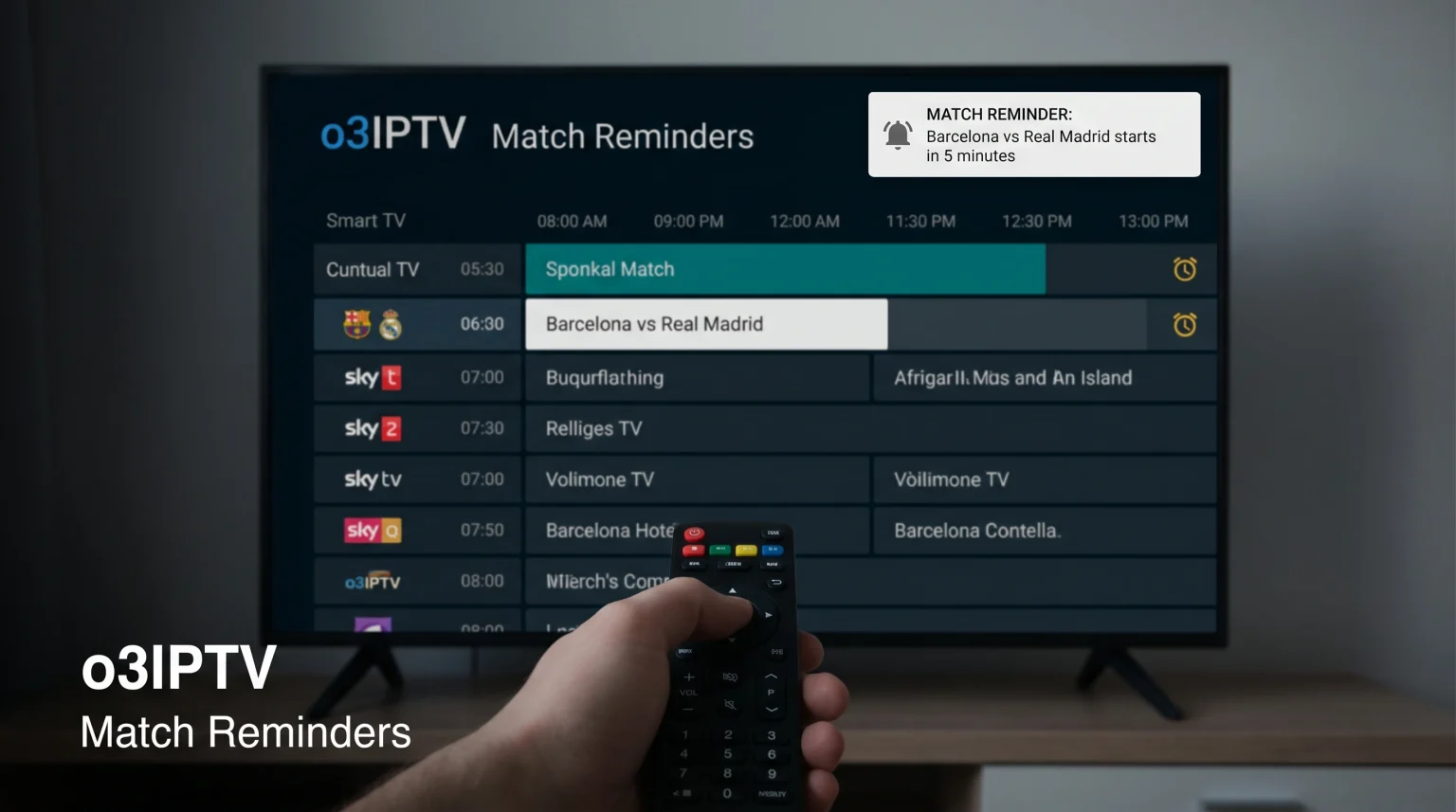
How do o3IPTV match reminders work? The system uses the Electronic Program Guide (EPG) to track television schedules. You open the EPG inside the o3IPTV application, find the upcoming football match, and select the reminder option. The application saves this time data. When the football match is about to start, the application displays a notification on your television screen. This alert system requires an active and accurate EPG link from your IPTV provider to function correctly.
The Importance of EPG Data for Reminders
The reminder system cannot work without an Electronic Program Guide. The EPG provides the exact time and date for every television broadcast.
Cuando utilizas un servicio como TV Shadow IPTV, you receive an EPG link. The o3IPTV application reads this link to create a visual television schedule. If the EPG data is empty or incorrect, the application cannot know when the football match starts. Therefore, you cannot set an alert.
For the best experience, you must update your EPG regularly. Many IPTV applications allow you to set automatic EPG updates. This ensures your football schedule remains accurate even if a broadcaster changes the match time.
How to Configure Football Alerts in o3IPTV
Puesta en marcha o3IPTV match reminders requires a few simple steps. The exact buttons may look different depending on your television model, but the process remains the same.
Open the EPG Menu: Start the o3IPTV application and navigate to the Electronic Program Guide.
Find the Channel: Scroll to the specific sports channel that will broadcast the football match.
Select the Match: Move forward in the schedule timeline to find the future match. Highlight the match with your remote control.
Activate the Alert: Press the action button on your remote control. Select the “Set Reminder” or “Add Alert” option from the menu.
Confirm the Status: The application usually displays a small clock icon or bell icon next to the match name. This icon confirms the alert is active.
Alert Types in IPTV Applications
Different applications and devices handle notifications in different ways. Here is a comparison of how alerts generally function on Smart TVs.
| Característica | In-App Alerts | System Push Notifications |
| Where the alert appears | Inside the IPTV application | On the main television menu |
| Requirements | The application must be open | The television must support background alerts |
| Visual style | A small text box over the current video | A system message from the television OS |
| Action required | Pressing “OK” to switch channels | Clicking the notification to open the application |
Most IPTV players, including o3IPTV, use In-App Alerts. You must have the application open and running to see the reminder on your screen.
Device Compatibility and Operating Systems
The way o3IPTV match reminders work depends heavily on your television operating system.
If you use an Android TV or Google TV device, background processes have more flexibility. However, if you use a television with a closed operating system, the application must remain open to display the alert. If you close the application to watch YouTube or Netflix, the IPTV application cannot send a reminder to your screen.
If you are choosing a new television for sports, our guide to El mejor sistema operativo para Smart TV para IPTV en 2026: Tizen, Google TV y webOS explains the differences between these platforms.
Live Football and Viewing Quality
Live football requires a good internet connection and a capable television. When your match reminder appears, you want the best possible picture quality for the game.
Football involves fast camera movements. For this reason, the television hardware is very important. A fast refresh rate prevents the football from looking blurry when it moves across the screen. If you watch a lot of sports, you can read our comparison regarding Televisores de 60 Hz frente a 120 Hz para ver el fútbol en directo.
Additionally, stability is crucial during a live match. We recommend connecting your Smart TV directly to your internet router using an Ethernet cable. An Ethernet cable provides a more stable connection than Wi-Fi. This stability prevents the broadcast from pausing during important moments in the football match.
Conclusión
En o3IPTV match reminders feature is an excellent tool for football fans. By using the Electronic Program Guide, the application can alert you right before a match begins. To ensure this system works perfectly, you must use a reliable EPG source and keep the application open on your television. Understanding how your specific Smart TV operating system handles notifications will help you configure your television correctly. With the right setup, you will never miss the start of an important live sports event.
Preguntas frecuentes
Why did my o3IPTV match reminder not appear?
The alert usually fails if the EPG data is missing or if the application is closed. You must ensure your EPG is updated. You must also keep the application open on your screen to receive In-App Alerts.
Can I set multiple football alerts at the same time?
Yes. You can select multiple future matches in the EPG and set a reminder for each one. The application will track all saved alerts in the background while the application remains open.
Do o3IPTV match reminders work when the TV is turned off?
No. The television must be turned on, and the o3IPTV application must be running. A Smart TV cannot turn itself on to display an IPTV notification.