
High-Dynamic Range (HDR) video formats improve the picture quality of your television. These formats increase brightness, enhance contrast, and display more accurate colors. The two most popular HDR formats are Dolby Vision and HDR10. Many streaming services provide content in these formats.
Users often want to know if their IPTV application plays these advanced video formats correctly. Sometimes, an application receives an HDR signal but displays a Standard Dynamic Range (SDR) picture instead. This guide explains how to check IPTV Dolby Vision HDR10 playback on your device. You will learn how to verify hardware compatibility, configure media player engines, and use your television settings to confirm the active video format.
Réponse rapide
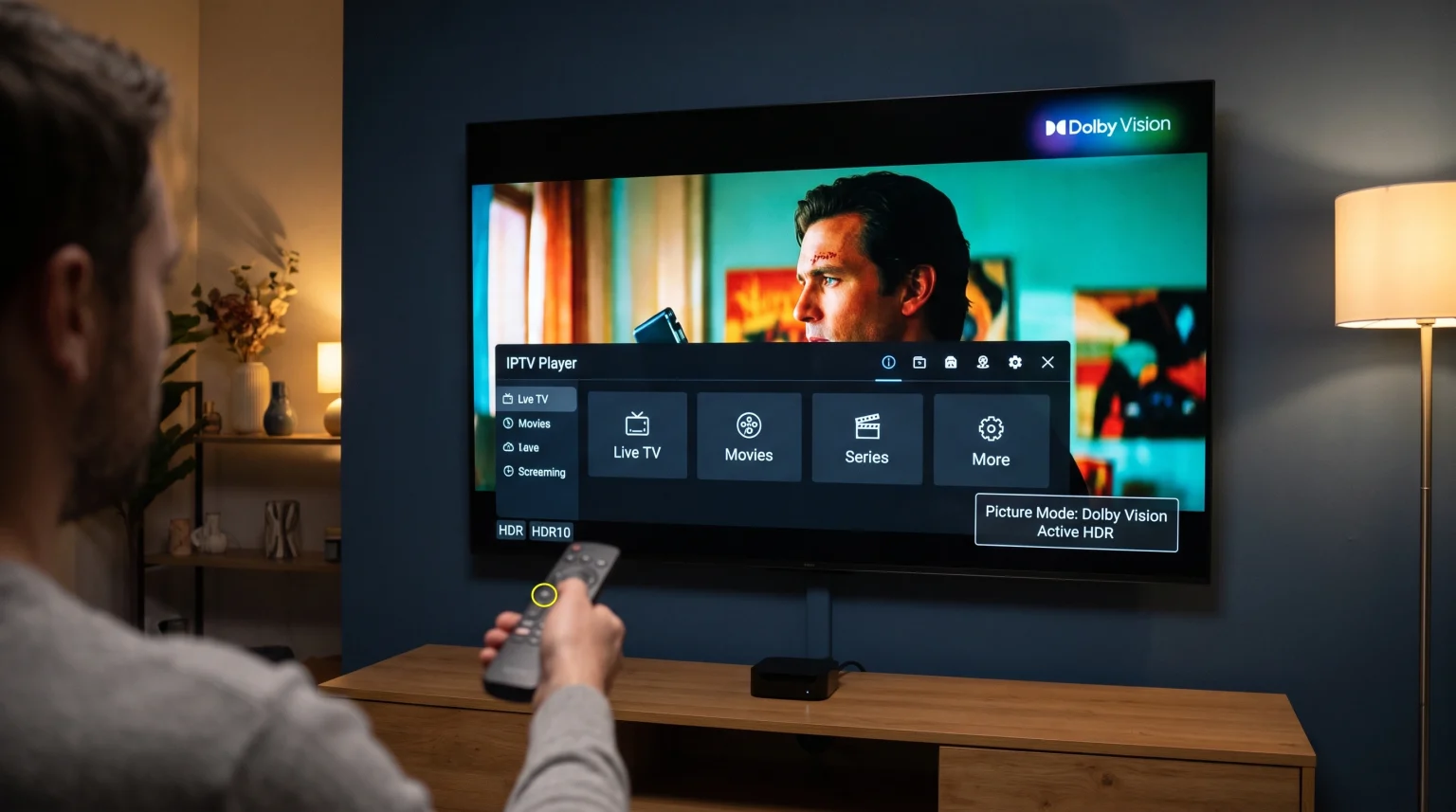
To check IPTV Dolby Vision HDR10 playback, play an HDR movie or channel in your IPTV application. Then, press the “Info” or “Display” button on your television remote control. If the playback is successful, an HDR10 or Dolby Vision logo will appear on the television screen. If you only see a standard picture mode, your IPTV application is probably converting the signal to SDR. To fix this, open your IPTV application settings and change the internal media engine from VLC to ExoPlayer. ExoPlayer provides better support for advanced HDR formats.
Understanding Dolby Vision and HDR10
Before you check your playback, you must understand the difference between the video formats.
HDR10 is an open-source video standard. Almost every modern 4K television supports HDR10. This format sends static instructions to the television. These instructions tell the television how to set the maximum brightness and contrast for the entire video.
Dolby Vision is a proprietary format created by Dolby Laboratories. Dolby Vision sends dynamic instructions to the television. These instructions adjust the brightness and contrast for every single frame or scene. This creates a more accurate and detailed picture. Not all televisions support Dolby Vision. For example, Samsung televisions support HDR10 and HDR10+, but they do not support Dolby Vision.
Format Comparison for IPTV
| Fonctionnalité | Standard Dynamic Range (SDR) | HDR10 | Dolby Vision |
| Color Depth | 8-bit | 10-bit | Up to 12-bit |
| Brightness Control | Statique | Statique | Dynamic (frame by frame) |
| TV Compatibility | All televisions | Almost all 4K televisions | Requires specific manufacturer support |
| Prise en charge des applications IPTV | Excellent | Bien | Limited (requires specific player engines) |
Hardware Requirements for HDR IPTV Playback
Your equipment must support the correct formats to display them. If one piece of hardware lacks support, the video will revert to SDR.
First, check your television specifications. If you own a Samsung television, you can watch HDR10 content, but Dolby Vision content will play in standard HDR10. If you own an LG or Sony television, you can usually watch both formats. If you are choosing a new television, you can read our guide to Meilleur système d'exploitation pour Smart TV dédié à l'IPTV en 2026 : Tizen, Google TV et webOS en comparaison.
Second, check your streaming device. If you use an external device such as an Amazon Fire TV Stick 4K Max, a Google Chromecast, or an NVIDIA Shield TV, the device must support Dolby Vision and HDR10.
Third, check your HDMI cables. To transmit 4K HDR video, you need an HDMI 2.0 cable or an HDMI 2.1 cable. Older cables do not have enough bandwidth to transmit the data.
How to Configure IPTV Players for HDR
An IPTV application does not process video directly. The application uses a media engine to decode the video file. The two most common media engines in IPTV applications are VLC and ExoPlayer.
The VLC engine is very stable for live television. However, the VLC engine often struggles with Dolby Vision files. When VLC tries to play a Dolby Vision file, the screen may turn black, green, or purple.
ExoPlayer is a media engine developed by Google. ExoPlayer handles HDR10 and Dolby Vision files much better than VLC.
To configure your IPTV player for HDR:
Ouvrez votre application IPTV.
Navigate to the “Settings” menu.
Select “Player Settings” or “Media Engine”.
Look for an option to change the video player.
Select “ExoPlayer” instead of “VLC” or “Auto”.
Save the settings and restart the application.
How to Verify Active Playback on Your Television
The most reliable way to check IPTV Dolby Vision HDR10 playback is through your television software. The television always knows exactly what signal it is receiving.
Checking on LG Smart TVs
Play an HDR or Dolby Vision movie in your IPTV application.
Look at the top right corner of the screen. LG televisions display a small “HDR” or “Dolby Vision” logo for three seconds when the video starts.
If you miss the logo, press the “Settings” button (gear icon) on the LG remote control.
Go to “Picture Settings”. If the format is active, the picture mode will say “HDR Picture Mode” or “Dolby Vision Picture Mode”.
Checking on Sony BRAVIA TVs
Start playing the video in the IPTV application.
Press the “Display” or “Info” button on the Sony remote control.
An information bar will appear at the top or bottom of the screen. Look for the “HDR” or “Dolby Vision” text in this bar.
Alternatively, press the “Action Menu” or “Quick Settings” button and select “Picture”. The menu will indicate if an HDR format is currently active.
Checking on Samsung TVs
Play the video in your application.
Press the home button to open the Samsung menu.
Navigate to “Settings” and select “Picture”.
Select “Expert Settings”. If the television is receiving an HDR10 signal, you will see a small HDR icon in the settings menu. Remember that Samsung televisions do not support Dolby Vision.
Common Reasons for HDR Playback Failure
If your television indicates it is receiving an SDR signal, several issues could cause this problem.
1. The Source File is SDR Many live television channels do not broadcast in HDR. If the original video file or live stream is SDR, the television cannot display HDR. The IPTV service provider controls the source file format.
2. Incorrect Application Permissions Some Android applications need specific permission to switch the television into HDR mode. Check the application settings on your device and ensure the application has full access to display settings.
3. Television HDMI Settings If you use an external streaming device, the television HDMI port must be configured correctly. You must enable the “Deep Color”, “Enhanced Format”, or “Input Signal Plus” setting for that specific HDMI port in your television menu. If you do not enable this setting, the television will restrict the signal to SDR.
4. Network Bandwidth High-quality HDR video requires a fast internet connection. If your connection is unstable, you might wonder Pourquoi l'IPTV est-elle floue sur un téléviseur 4K neuf ?. If the internet speed drops, some streaming devices automatically lower the video quality to prevent buffering, which may disable HDR.
Does HDR Improve Live Football?
Live sports broadcasts demand excellent video performance. You might wonder if HDR10 or Dolby Vision improves the experience of watching live football.
Currently, very few broadcasters produce live football in Dolby Vision. Some major broadcasters offer live football in HDR10 or HLG (Hybrid Log-Gamma, another HDR format). When a football match is broadcast in HDR, the picture improvements are significant. The stadium lights look brighter, the grass colors appear more natural, and the players’ shirts show deeper colors.
However, motion handling is often more important than HDR for live football. To enjoy smooth motion during sports, you should consider the refresh rate of your television. For detailed information about this, you can read our comparison of Téléviseurs 60 Hz ou 120 Hz pour le football en direct.
Compatibilité TV Shadow IPTV
TV Shadow IPTV allows users to connect their own M3U playlists and Xtream Codes. Our service is compatible with many third-party IPTV applications.
Because TV Shadow IPTV does not process the video signal locally on your television, your HDR playback depends entirely on the IPTV application you choose to install and the hardware you use. We recommend testing different IPTV applications on your device. Some applications optimize ExoPlayer better than others. Always ensure your television software is updated to the latest version for the best hardware compatibility.
Conclusion
Checking IPTV Dolby Vision HDR10 playback is a simple process once you understand your hardware. The most accurate way to verify the video format is to use your television’s native information menu. Always ensure your television HDMI ports are set to “Enhanced Format”, and select ExoPlayer as the media engine in your IPTV application settings. By configuring these settings correctly, you can experience the best possible contrast and color accuracy while watching movies and live channels.
Foire aux questions (FAQ)
What happens if I play a Dolby Vision file on a TV that only supports HDR10?
The video will usually fall back to standard HDR10 or display incorrect colors. Some televisions will show a picture with a strong green or purple tint because they cannot decode the Dolby Vision color data.
Why does my IPTV screen go black when I start a 4K movie?
This usually happens because the television is changing its refresh rate or activating HDR mode. The screen goes black for one or two seconds while the television processes the new video format. This is normal behavior.
Is HDR10+ the same as Dolby Vision?
No. HDR10+ is an open-source format developed primarily by Samsung. Like Dolby Vision, it uses dynamic instructions to adjust brightness frame by frame. However, Dolby Vision is a proprietary format and is currently more widely used by movie studios.