
The Amazon Fire TV Stick 4K hides specific apps and system settings by default. Users frequently cannot find apps that they recently installed. Other users want to find the hidden Developer Options menu. The Developer Options menu allows users to install apps from outside the official Amazon Appstore. Finding these hidden apps and settings requires a few simple steps. This guide explains how to locate missing apps on the Fire TV Stick 4K home screen. This guide also explains how to unlock the hidden Developer Options menu. By following these instructions, users can fully control their Amazon streaming device and install the software they need.
Réponse rapide
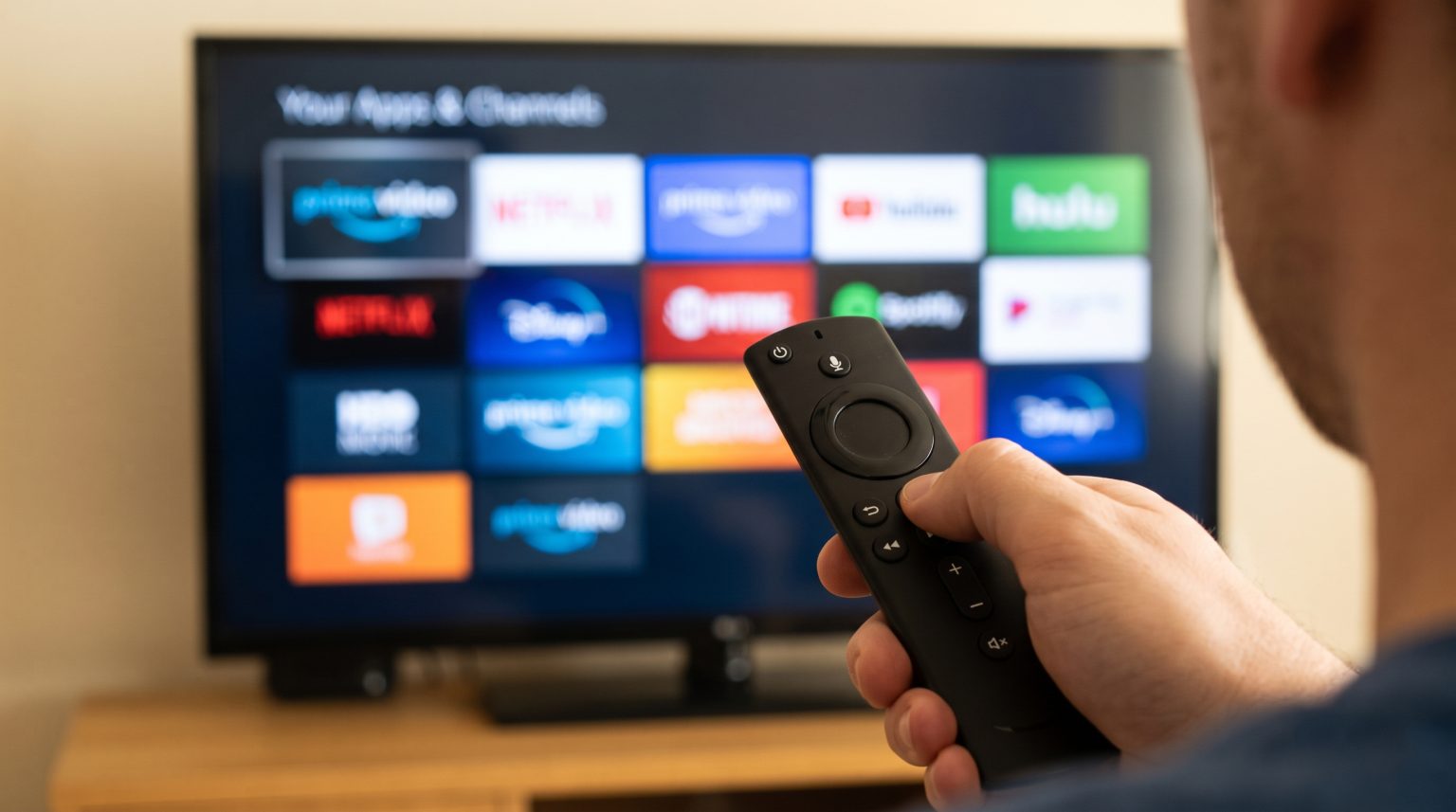
To find hidden apps on the new Fire TV Stick 4K, press and hold the Home button on the Amazon remote control. Select the “Apps” icon to see every installed app.
To find the hidden Developer Options menu for third-party apps, go to the Fire TV Stick settings. Select “My Fire TV”. Next, select “About”. Click on the name of your Fire TV Stick device seven times. This action unlocks the Developer Options menu so you can install apps from unknown sources.
Why Apps Disappear on the Fire TV Stick 4K
The Fire TV Stick 4K home screen only shows a limited number of apps. When a user installs a new app, the new app often goes to the end of the app list. The new app does not appear on the main screen.
In previous years, Amazon included a feature to hide apps manually. Amazon removed the manual hide feature in recent software updates. Now, missing apps are simply located further down the app list. Users must open the full app library to find them.
How to Find All Installed Apps
Users can view every app installed on the Fire TV Stick 4K by using the main app menu.
Turn on the Fire TV Stick 4K.
Press and hold the Home button on the remote control for three seconds.
A quick menu will appear on the screen.
Select the “Apps” icon.
The screen will display all installed apps.
Scroll down to find the missing app.
To move an app to the main home screen, highlight the app. Press the Menu button on the remote control. Select “Move”. Use the directional buttons to move the app to the top row. Press the center button to confirm the new position.
How to Find the Hidden Developer Options Menu
Many users buy a Fire TV Stick 4K to install third-party apps. Amazon blocks third-party apps by default. Users must unlock the hidden Developer Options menu to bypass this block.
Follow these exact steps to unlock the hidden menu:
Open the Fire TV Stick 4K Settings menu.
Scroll right and select “My Fire TV”.
Select “About”.
Highlight the name of your device (for example, “Fire TV Stick 4K”).
Press the center button on your remote control seven times quickly.
A message will appear at the bottom of the screen. The message will say, “No need, you are already a developer.”
Press the Back button on the remote control one time.
The “Developer Options” menu is now visible under “My Fire TV”.
Inside the Developer Options menu, users can turn on “Apps from Unknown Sources”. Turning on this setting allows the installation of third-party APK files.
Fire OS vs. Vega OS: App Compatibility
Amazon uses different operating systems for different devices. The Fire TV Stick 4K uses Fire OS. Fire OS is based on Android. Fire OS supports third-party app installations.
Some newer Amazon devices, such as the 2026 Fire TV Stick HD, use a new operating system called Vega OS. Vega OS does not support third-party Android apps. If you are reading about the Les meilleurs téléviseurs connectés pour l'IPTV en 2026 : comparaison entre Samsung, Sony, LG et TCL, you must understand these operating system differences.
| Fonctionnalité | Fire TV Stick 4K (Fire OS) | New Fire TV HD (Vega OS) |
| Système d'exploitation | Fire OS (basé sur Android) | Vega OS (Web-based) |
| Options pour les développeurs | Yes (Hidden by default) | Non |
| Installer des applications inconnues | Oui | Non |
| Third-party IPTV apps | Oui | Non |
| Amazon Appstore | Oui | Oui |
How to Use IPTV Apps on the Fire TV Stick 4K
The Fire TV Stick 4K is an excellent device for IPTV services. Because the Fire TV Stick 4K uses Fire OS, users can install a wide variety of IPTV player apps.
Users can install popular IPTV players directly from the Amazon Appstore. Users can also use the Developer Options menu to install custom IPTV players. These IPTV players allow users to add M3U playlists and Xtream Codes credentials. A good IPTV player will also support an Electronic Program Guide (EPG). The EPG shows the television schedule.
Our service, TV Shadow IPTV, provides digital television access. TV Shadow IPTV does not have an official relationship with Amazon, Google, Samsung, or Sony. However, users can configure their favorite IPTV player on the Fire TV Stick 4K to access TV Shadow IPTV. The Fire TV Stick 4K remote control works perfectly with most standard IPTV players.
If you want to compare television platforms, our guide to the Meilleur système d'exploitation pour Smart TV dédié à l'IPTV en 2026 : Tizen, Google TV et webOS en comparaison] explains how different software handles IPTV apps.
Watching Live Football on the Fire TV Stick 4K
Sports fans often use the Fire TV Stick 4K to watch live football. Live sports require a fast internet connection and good hardware.
The Fire TV Stick 4K supports 4K resolution and 60Hz refresh rates. This hardware provides smooth motion handling for fast football action. To get the best picture quality during a football match, users should connect the Fire TV Stick 4K to a 5GHz Wi-Fi network. A 5GHz Wi-Fi network provides faster speeds than a 2.4GHz Wi-Fi network. Users can also buy an Amazon Ethernet adapter to connect the device directly to a network router with a cable. An Ethernet cable prevents buffering during important football matches.
If your football stream does not look clear, you can read our guide explaining Pourquoi l'IPTV est-elle floue sur un téléviseur 4K neuf ?.
Conclusion
Finding hidden apps on the new Fire TV Stick 4K is a simple process. Users can find normal apps by opening the full app library from the Home button. Users can find the hidden Developer Options menu by clicking their device name seven times in the settings menu. Unlocking the Developer Options menu is necessary for users who want to install third-party software. The Fire TV Stick 4K remains a powerful device for streaming entertainment and accessing services like TV Shadow IPTV. By understanding how to navigate the Fire OS system, users get the maximum value from their television hardware.
Foire aux questions
Why is my Developer Options menu missing on the Fire TV Stick 4K?
Amazon hides the Developer Options menu on new devices by default. You must go to Settings, select My Fire TV, select About, and click your device name seven times to reveal the menu.
Can I hide apps on the new Fire TV Stick 4K?
No. Amazon removed the feature to manually hide apps from the user interface. All installed apps will appear in the main app library.
Does the Fire TV Stick 4K support live football streams?
Yes. The Fire TV Stick 4K hardware supports live football streams through various sports apps and IPTV players. A strong internet connection is required for smooth playback.