
Typing long M3U links, server URLs, and passwords with a television remote control is slow and often causes typing errors. IMD TV solves this problem with a mobile setup feature introduced in version 0.7.0. If you are searching for how to use the IMD TV add playlist phone feature, the process uses a local QR code connection. You scan a QR code on your television screen with your smartphone and paste your playlist details directly into your mobile browser. This guide explains the exact steps, supported playlist formats, network requirements, and troubleshooting tips for Android TV and Google TV devices.
Réponse rapide
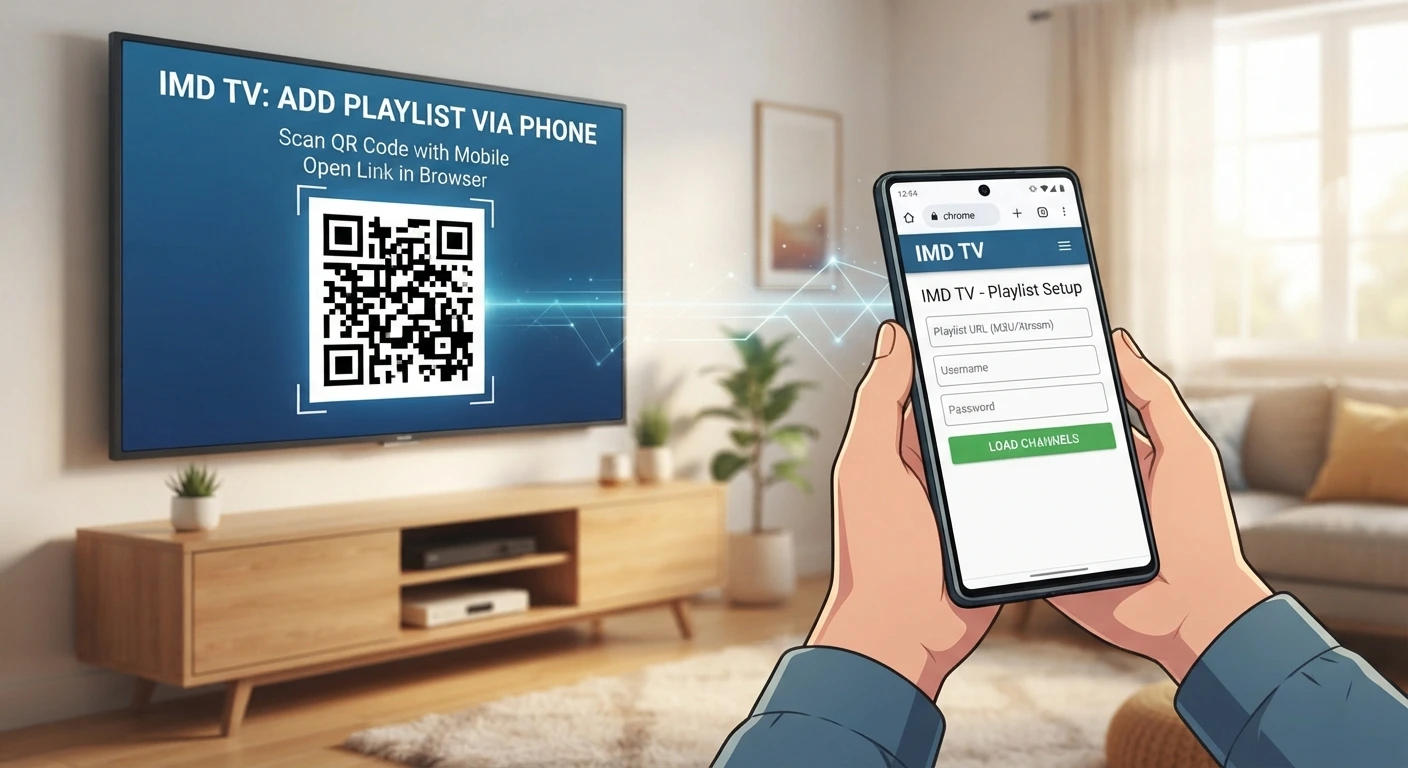
To add an IPTV playlist to IMD TV using your phone, connect both your television and your smartphone to the same home Wi-Fi network. Open the IMD TV application on your Android TV or Google TV device, navigate to the Listes de lecture menu, and select the option to add a new playlist. Scan the QR code displayed on the television screen using your smartphone camera. Enter your M3U URL, Xtream Codes login, or Stalker portal details in the mobile web page that opens, and submit the form to load your channels onto the television.
What Is IMD TV and Which Devices Support It?
IMD TV is a free, open-source IPTV media player designed for Android TV and Google TV devices running version 8.0 or newer. The application functions strictly as a media player and does not include, host, or sell television channels, movies, or subscriptions. Users must supply their own playlist credentials from an IPTV service provider.
Because IMD TV is built for the Android TV operating system, compatibility depends on your television platform:
Supported Platforms: Google TV televisions (such as Sony BRAVIA and TCL Google TV models), Android TV televisions, Nvidia Shield TV, Chromecast with Google TV, and Android TV streaming boxes.
Unsupported Platforms: Samsung Smart TVs running Tizen and LG Smart TVs running webOS do not support Android APK files natively.
If you are deciding which television platform fits your streaming setup best, you can read our comparison of Tizen vs Google TV pour les applications IPTV : quelle est la différence ?.
Requirements Before You Start
Before you use the IMD TV add playlist phone method, verify that your setup meets four technical requirements:
IMD TV Version 0.7.0 or Newer: The mobile QR code playlist entry feature was added in update 0.7.0. Older versions of IMD TV require manual typing with a remote control or a USB keyboard.
Same Local Network: Your television and your smartphone must be connected to the exact same local router. If your phone is using mobile cellular data or a guest Wi-Fi network, the QR code page will not connect to your television.
Active IPTV Credentials: Have your playlist link or login details saved on your phone so you can copy and paste them easily.
VPN Disabled During Setup: If you use a Virtual Private Network (VPN) on either your smartphone or your Android TV box, temporarily pause the VPN. A VPN can block local network communication between devices on the same router.
Supported Playlist Formats in IMD TV
IMD TV supports three standard IPTV playlist formats. You can enter any of these formats through the phone browser interface:
| Playlist Format | Required Information | Common Features |
| API Xtream Codes | Server URL, Username, Password | Separates Live TV, Movies, and Series automatically; loads Electronic Program Guide (EPG) data. |
| M3U / M3U8 URL | Direct playlist link (and optional EPG XML URL) | Loads live channels and on-demand links from a single web address; supports ClearKey and Widevine Digital Rights Management (DRM). |
| Stalker Portal (Beta) | Portal URL and Media Access Control (MAC) address | Connects to portal-based IPTV middleware systems. |
Step-by-Step: How to Add an IPTV Playlist to IMD TV Using Your Phone
Follow these steps to transfer your playlist from your smartphone to your television screen:
Step 1: Open IMD TV on Your Television
Turn on your Android TV or Google TV device and launch the IMD TV application. If this is your first time opening IMD TV, the application will prompt you to add a playlist immediately. If you already have a playlist configured, open Paramètres puis sélectionnez Listes de lecture.
Step 2: Display the QR Code on the TV Screen
Sélectionner Ajouter une liste de lecture. On the playlist setup screen, look for the option to add or edit a playlist from your phone. IMD TV will generate a local QR code on your television screen. Leave this screen open on your television while you pick up your smartphone.
Step 3: Scan the QR Code With Your Smartphone
Open the default camera application or a QR code scanner on your Android phone or iPhone. Point the camera at the QR code on your television screen. Tap the local network link that appears on your phone screen to open the IMD TV input form in your mobile web browser.
Step 4: Choose Your Playlist Type and Paste Your Details
On your smartphone browser, select the playlist format provided by your IPTV service:
For Xtream Codes: Enter a custom playlist name, then paste the Server URL, Username, and Password into the matching fields.
For M3U Links: Enter a custom playlist name and paste the full M3U URL. Check carefully for extra spaces before or after the web address.
For Stalker Portals: Enter the Portal URL and your assigned MAC address.
Step 5: Submit and Load Channels on Your TV
Tap the submit or save button on your phone screen. Your smartphone sends the details directly over your local home network to the IMD TV application on your television. IMD TV will then download your channel list, movies, series, and Electronic Program Guide (EPG) data. Depending on the size of your playlist, loading takes between a few seconds and one minute.
Security and Privacy of the Mobile Setup Method
Users often ask whether sending login details from a phone to a television is safe. IMD TV processes the QR code connection strictly over your local home network. Your playlist data does not pass through external cloud servers, and IMD TV does not require user accounts or analytics tracking. Furthermore, if you edit an existing playlist from your phone later, IMD TV does not send saved passwords back to the mobile browser. On the television box itself, your credentials remain stored locally.
IPTV Compatibility and Smart TV Considerations
When using an IPTV service such as TV Shadow IPTV with IMD TV, your overall viewing experience depends on both your playlist configuration and your television hardware. Note that TV Shadow IPTV is an independent service and has no official affiliation with IMD TV, Google, Sony, Samsung, or LG.
Keep the following technical factors in mind when configuring your player:
Electronic Program Guide (EPG) Settings: IMD TV includes an optional built-in open-source EPG and also supports your provider’s EPG data. Inside Paramètres, you can choose whether the player prioritizes your playlist guide or the built-in guide, and you can adjust time offsets per channel if a program schedule is off by one hour.
Multiple Playlists: IMD TV allows you to add more than one playlist and combine active categories into a single unified guide. You can also toggle Live TV, Movies, or Series switches individually for each playlist so you only load the sections you actually watch.
Remote-Control Navigation: Once your playlist is loaded via your phone, everyday navigation uses your television remote control. Pressing Channel Up or Channel Down jumps a full page in the guide, and holding the OK button on a channel opens options for recording, catch-up playback, or merging duplicate HD and 4K channels.
Smart TV Operating System Limits: App availability always depends on your television brand, model year, and country. While Android TV and Google TV allow installing IMD TV via Google Play Downloader tools or APK sideloading, closed platforms like Samsung Tizen and LG webOS require different IPTV players from their own official app stores. For a broader overview of compatible hardware, see our guide to the Meilleur système d'exploitation pour Smart TV dédié à l'IPTV en 2026 : Tizen, Google TV et webOS en comparaison.
Optimizing Your Connection for Live Sports and 4K Streams
After adding your playlist to IMD TV, network stability and television settings play a major role in playback quality, especially during live football matches and fast-moving sports broadcasts.
Ethernet vs. Wi-Fi: Live sports streams require a consistent data rate without packet loss. Whenever possible, connect your Android TV or Google TV device to your router using an Ethernet cable rather than Wi-Fi. If you must use Wi-Fi, connect to a 5 GHz band instead of 2.4 GHz.
Refresh Rate and Motion Handling: Live football broadcasts are typically transmitted at 50 frames per second (fps) in Europe or 60 fps in North America. Televisions with a native 120Hz panel handle motion more smoothly than 60Hz panels because 120 divides evenly by both 50/25 and 60/30 frame rates. You can learn more in our comparison of Téléviseurs 60 Hz ou 120 Hz pour le football en direct.
Image Upscaling: Many live IPTV channels broadcast in 720p or 1080i resolution. When watched on a modern 4K television, the TV’s internal processor upscales the image to fill the 4K screen. If streams appear soft, check our explanation of Pourquoi l'IPTV est-elle floue sur un téléviseur 4K neuf ?.
Troubleshooting: QR Code Not Working on Phone
If your smartphone cannot open the page after scanning the QR code on IMD TV, check these common causes:
Wi-Fi Isolation Enabled: Many routers include a feature called AP Isolation or Client Isolation. This setting prevents devices on the same Wi-Fi network from communicating with each other. Log into your router settings and disable Client Isolation if necessary.
Phone Connected to Mobile Data: Smartphones sometimes switch automatically to 4G or 5G cellular data when a Wi-Fi signal is weak. Turn off mobile data temporarily while scanning the QR code so your phone uses Wi-Fi exclusively.
Outdated App Version: Confirm that your television is running IMD TV version 0.7.0 or higher. If you installed an older release, update the application using the Downloader code 7573990 or the latest release from the official IMD TV GitHub page.
Typo in Playlist URL: If the web form submits properly but IMD TV displays an error when loading channels, double-check your M3U link or Xtream Codes server address for missing characters or trailing spaces.
Conclusion
Using your smartphone to add a playlist to IMD TV eliminates the frustration of typing long URLs and passwords with a television remote control. By connecting your Android TV or Google TV device and your phone to the same home Wi-Fi network, you can scan the on-screen QR code and transfer your Xtream Codes, M3U, or Stalker credentials in seconds. Once your playlist from TV Shadow IPTV is loaded, you can customize your Electronic Program Guide, organize favorite categories, and enjoy smooth playback across your home television setup.
Foire aux questions (FAQ)
Can I add an IPTV playlist to IMD TV without typing on my TV remote?
Oui. Starting with IMD TV version 0.7.0, you can scan a QR code on your television screen with your smartphone and type or paste your playlist details in your mobile browser.
Why does the IMD TV QR code page fail to load on my phone?
The QR code page usually fails to load when your phone and television are not on the exact same local network. Make sure both devices are connected to the same home Wi-Fi router and turn off any active VPN or mobile cellular data on your phone.
Which playlist types can I add to IMD TV from my phone?
You can add Xtream Codes logins (server URL, username, and password), M3U or M3U8 links, and Stalker portal details (portal URL and MAC address).