
Different Amazon Fire TV Stick models support different applications. Before you install Internet Protocol Television (IPTV) applications, you must identify your specific device model. Amazon releases new Fire TV hardware regularly. Newer models use different operating systems than older models. For example, some devices from 2024 and 2025 use updated software versions that older models do not support.
This operating system change affects which IPTV applications you can download and install from the Amazon Appstore. If you do not know your correct device model, you might download incompatible software. The wrong software can cause poor streaming performance or application crashes. This guide explains how to identify your Fire TV Stick model quickly so you can choose the correct software.
Réponse rapide
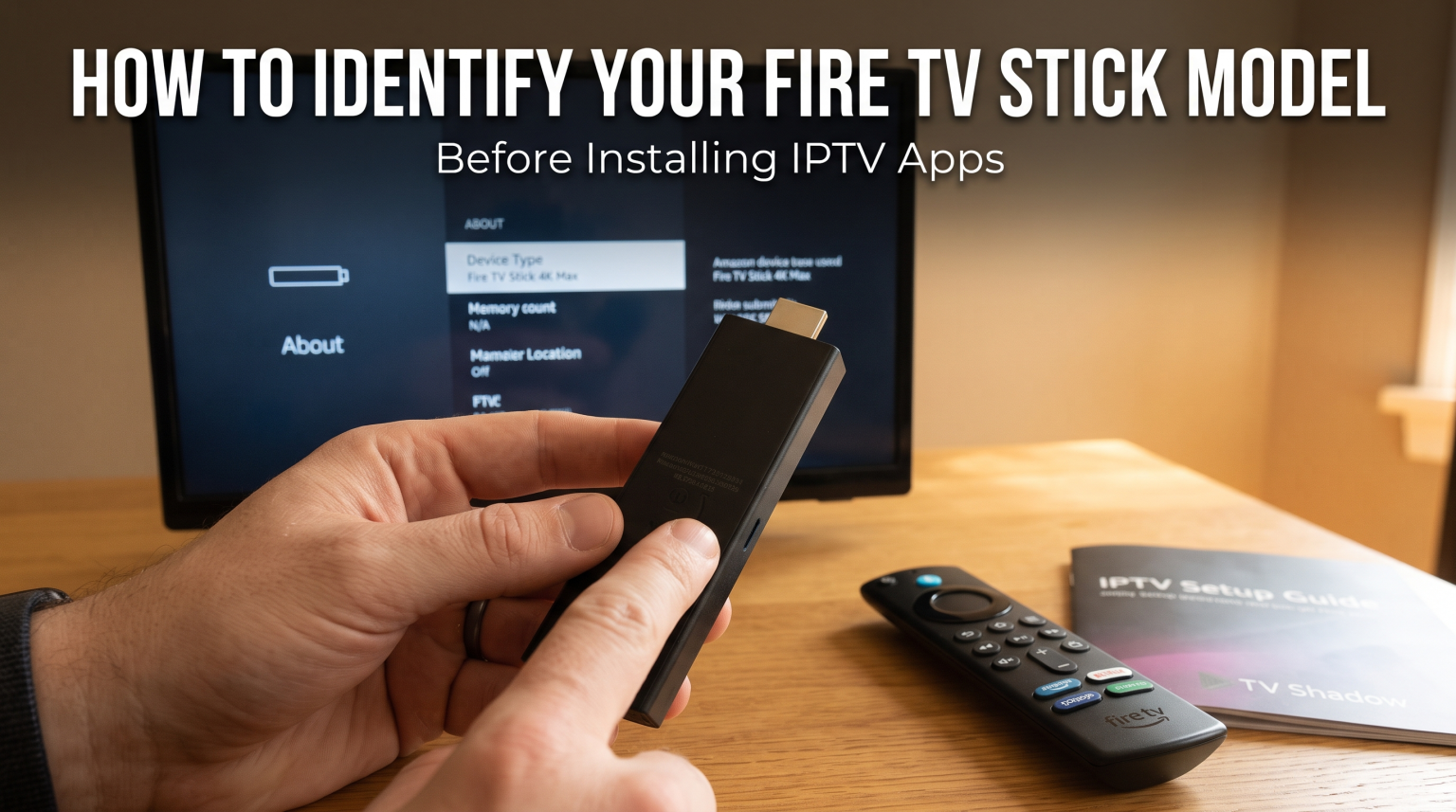
To identify your Fire TV Stick model using the television screen, navigate to the device home screen. Select the “Settings” icon. Select “My Fire TV”. Select “About”. The screen will display the “Device Type”. This text shows the exact name and generation of your device, such as “Fire TV Stick 4K Max (2nd Gen)”. This information helps you choose the correct version of an application.
Why Identifying Your Fire TV Stick Model Is Important
Amazon has released many different Fire TV Stick generations since 2014. These devices look physically similar. Most Fire TV Stick devices are small black rectangles that connect to the High-Definition Multimedia Interface (HDMI) port on your television.
However, the internal hardware changes with every new generation. A Fire TV Stick 4K from 2018 contains different processors and less memory than a Fire TV Stick 4K Max from 2023. These hardware differences determine how fast an application opens.
Furthermore, different models run different versions of Fire OS. Fire OS is the operating system that powers Amazon streaming devices. Developers create IPTV applications for specific Fire OS versions. If your Fire TV Stick is too old, the device will not support modern IPTV applications. When you identify your Fire TV Stick model, you can read the application requirements and confirm that your device is compatible.
How to Identify Your Fire TV Stick Model Using the Menu
The easiest method to identify your Fire TV Stick model is to use the settings menu on your television screen. Follow these steps carefully:
Turn on your television and your Fire TV Stick.
Press the “Home” button on your Amazon remote control.
Navigate to the right side of the screen and select the “Settings” gear icon.
Scroll down and select the menu option named “My Fire TV”.
Select the “About” option.
Look at the first item in the list. The menu will display the exact name of your device.
The television screen will show a specific name, such as “Fire TV Stick Lite” or “Fire TV Stick 4K (2nd Gen)”. Write this name down. You will use this name to check application compatibility later.
How to Identify Your Fire TV Stick Model Using the Model Number
If your Fire TV Stick does not turn on, you cannot use the settings menu. You must identify the device using the physical model number printed on the hardware.
Amazon prints a specific model number on the side or the back of every Fire TV Stick. The text is very small. You might need a magnifying glass or a smartphone camera to read the text clearly.
Look for a code that contains four or five letters. Here are common Fire TV Stick model numbers:
AFTKRT: Fire TV Stick 4K Max (2nd Generation, 2023)
AFTKM: Fire TV Stick 4K (2nd Generation, 2023)
AFTKA: Fire TV Stick 4K Max (1st Generation, 2021)
AFTSSS: Fire TV Stick (3rd Generation, 2020)
AFTMM: Fire TV Stick 4K (1st Generation, 2018)
When you find the printed code, search for the code on the internet. The internet search will confirm the exact name and release year of your Fire TV Stick.
Fire TV Stick Models Compared
This table compares three popular modern Fire TV Stick models. You can use this table to understand the differences between devices.
| Fonctionnalité | Fire TV Stick HD (2024) | Fire TV Stick 4K (2023) | Fire TV Stick 4K Max (2023) |
| Maximum resolution | 1080p High Definition | 4K Ultra High Definition | 4K Ultra High Definition |
| Wireless technology | Wi-Fi 5 | Wi-Fi 6 | Wi-Fi 6E |
| Internal storage memory | 8 Gigabytes | 8 Gigabytes | 16 Gigabytes |
| Operating system version | Fire OS 7 | Fire OS 8 | Fire OS 8 |
The Fire TV Stick HD (2024) is suitable for older televisions that do not support 4K resolution. The Fire TV Stick 4K Max (2023) is better for users who want faster navigation and more storage memory for applications.
IPTV App Compatibility on Fire TV Stick
After you identify your Fire TV Stick model, you can begin installing IPTV applications. The Amazon Appstore contains many popular IPTV players. You can download these applications directly to your device.
An IPTV player is an empty application. The IPTV player does not contain video content. You must provide your own video content. Most IPTV players require you to input an M3U playlist link or Xtream Codes login details.
TV Shadow IPTV provides compatible connection details for all major IPTV players.
When you configure your IPTV application, consider the Electronic Program Guide (EPG). The EPG provides a visual television schedule. Processing a large EPG requires memory. If you use an older device, such as the Fire TV Stick (3rd Generation), the EPG might load slowly. If you use a newer device, such as the Fire TV Stick 4K Max, the EPG will load much faster because the newer device has a superior processor.
If you are comparing different streaming devices before purchasing one, our guide to Meilleur système d'exploitation pour Smart TV dédié à l'IPTV en 2026 : Tizen, Google TV et webOS en comparaison explains the differences between Amazon devices, Samsung devices, and Google devices.
Storage Limitations for IPTV Applications
You must monitor the internal storage memory of your Fire TV Stick. Most standard Fire TV Stick models contain 8 Gigabytes of total storage. The operating system uses approximately half of this storage. You only have about 4 Gigabytes available for downloading applications.
If you install many large streaming applications, the Fire TV Stick will become full. A full device runs very slowly. Video streams may buffer or stop completely. You should delete applications that you do not use. This maintenance keeps your IPTV application running smoothly.
How to Optimize Your Fire TV Stick for Live Football
Watching live football requires a stable streaming environment. Sports broadcasts feature fast movement. If your internet connection drops, the video will freeze during important moments.
To improve your live sports experience, connect your Fire TV Stick directly to your internet router. You can purchase an Amazon Ethernet Adapter. This adapter allows you to connect a network cable to the Fire TV Stick. A wired connection is always more stable than a wireless connection.
If you must use a wireless connection, connect the Fire TV Stick to the 5 GHz wireless network. The 5 GHz network is much faster than the older 2.4 GHz network. Ensure your wireless router is in the same room as the television.
Television Settings for Live Sports
Your television hardware also affects how football looks. A Fire TV Stick only sends the video signal to the television. The television screen must display the movement clearly.
Modern televisions have different refresh rates. The refresh rate determines how many times the screen updates the image every second. For live football, a higher refresh rate reduces blur when the camera moves quickly. You can read our detailed explanation about the Téléviseurs 60 Hz ou 120 Hz pour le football en direct].
Additionally, you should disable artificial picture processing on your television. Many televisions have a feature called “Motion Smoothing”. This feature often makes live football look unnatural. Use your television remote control to enter the television picture settings. Turn off “Motion Smoothing” or select a dedicated “Sports Mode” for the best visual results.
If you are playing older video streams on a new 4K television, the television must resize the image. You can learn how this technology works in our guide covering Qu'est-ce que la conversion ascendante TV et est-ce utile pour l'IPTV ?.
Conclusion
You must identify your Fire TV Stick model before you install complex applications. Identifying the model prevents software compatibility problems. You can find the device model easily in the settings menu under the “My Fire TV” section.
Newer devices offer faster navigation, better wireless connections, and more internal storage. These improvements provide a much better experience when you watch high-quality video content. By understanding your hardware capabilities, you can configure TV Shadow IPTV perfectly and enjoy stable entertainment without interruption.
Foire aux questions
Can I install Google Play Store applications on a Fire TV Stick?
No. Fire TV Stick devices do not support the Google Play Store natively. Amazon uses the Amazon Appstore. However, Fire OS is based on Android. You can manually install some Android application files if you change your device security settings.
Does my Fire TV Stick model affect my internet speed?
Yes. Newer Fire TV Stick models support newer wireless technologies. For example, the Fire TV Stick 4K Max supports Wi-Fi 6E. Wi-Fi 6E can handle faster internet speeds than older wireless technologies.
Will all IPTV applications work on my Fire TV Stick?
No. Some new applications require Fire OS 7 or Fire OS 8. If you use a very old device that runs Fire OS 5, the modern application will not install. You must identify your Fire TV Stick model to check operating system compatibility.