
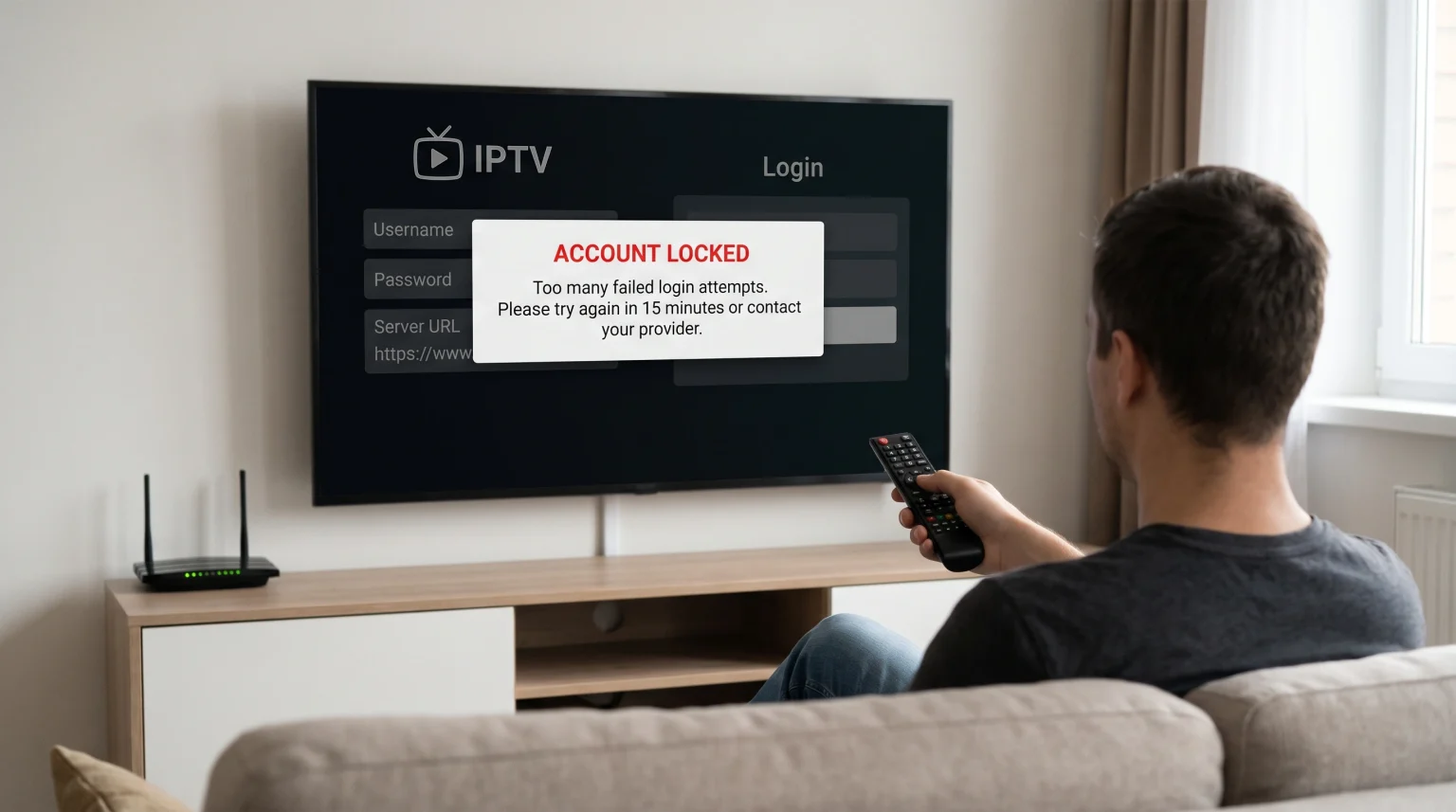
You turn on your television to watch a movie. You open your IPTV player application. Instead of your channel list, you see an error message. The application says your account is locked. This problem usually happens after multiple failed login attempts. The server system blocks your access to protect your account from unauthorized users.
Most login errors come from small typing mistakes. Other common causes include expired subscriptions, wrong server addresses, or internet connection problems. You do not need to reinstall your application immediately. This article explains how to identify the exact problem. You will learn exactly how to unlock your account, fix the login details, and restore your television service safely.
Réponse rapide
If you experience an IPTV account locked failed logins error, stop trying to log in immediately. The server will temporarily block your IP address if you continue. Wait 15 minutes because the system may reset the lock automatically. Check your original subscription email. Verify your username, password, and server URL. Type the details manually instead of copying and pasting the text. If you still cannot log in, check if your subscription is active. You should also turn off your Virtual Private Network (VPN). If the error continues, contact your IPTV provider to remove the security block.
Common Reasons for an IPTV Account Lock
A server lock happens when the system detects suspicious activity. The system assumes a hacker is trying to guess your password. Here are the main reasons why your account is locked.
Incorrect Username or Password
This is the most common cause of failed logins. Passwords and usernames are case-sensitive. This means a capital letter “A” is different from a lowercase letter “a”. Many users also confuse the capital letter “I” with the lowercase letter “l”. If you type the wrong password three or four times, the server will lock your account automatically.
Hidden Spaces in the Login Details
Many users copy their login details from an email and paste the details into the IPTV application. When you copy text on a mobile phone or computer, the operating system often adds an invisible space at the end of the word. The IPTV application reads this invisible space as an extra character. The server rejects the login because the password is incorrect.
Wrong Server URL or Port Number
IPTV applications require a specific server address to connect to the provider. This address is called a URL. A server URL usually looks like a website address. Sometimes the URL includes a port number at the end, such as “:8080”. If you type one wrong letter in the URL, the application cannot find the server. The application will show a login error.
Too Many Active Devices
Most IPTV subscriptions limit how many devices can stream television at the same time. If your subscription allows only one device, you cannot watch television on your Smart TV and your mobile phone simultaneously. If a family member is already watching a channel, your new login attempt will fail. The system may lock the account temporarily to enforce the connection limit.
Expired Subscription
If your subscription period ends, the server will instantly reject your login credentials. Your username and password are correct, but the account is inactive. An inactive account produces the same failed login error as a wrong password.
IP Address Block and VPN Interference
Server systems use security software to block malicious network traffic. If the security software detects too many failed logins from your home internet network, the software will block your IP address. If you use a VPN, the server might block the VPN IP address. Many people share the same VPN IP address. If another person abused the server using that VPN address, the server will block you as well.
How to Unlock and Restore Access
Follow these clear steps to unlock your account. Do not skip any steps. Change only one setting at a time so you know what fixed the problem.
Step 1: Wait and Restart Your Devices
Do not try to log in again immediately. Wait 15 to 30 minutes. Many temporary server locks expire automatically after 15 minutes. While you wait, unplug your internet router from the electrical wall socket. Wait one minute. Plug the router back into the wall socket. Next, restart your television or streaming device. This process resets your network connection and clears temporary device memory.
Step 2: Type Your Details Manually
Open your IPTV application. Delete the saved username, password, and server URL completely. Open the original email or message from your IPTV provider. Type every letter and number manually using your remote control. Check the screen carefully after every letter. Ensure you do not add any spaces. Ensure you use the correct capital letters and lowercase letters.
Step 3: Verify the Login Method
Applications often offer different ways to log in. Ensure you select the correct method for your details. If you have a username, a password, and a short server URL, you must select the Xtream Codes API login method. If you have one very long internet link, you must select the M3U Playlist method.
Step 4: Turn Off Your VPN
If you use a VPN on your television or router, disable the VPN completely. Open your IPTV application and try to log in using your normal home internet connection. If the login works, the server previously blocked your VPN IP address. You can try connecting to a different VPN city or server later.
Step 5: Contact Your IPTV Provider
If you follow all steps and the account remains locked, you must contact your provider. Tell the provider that you have an IPTV account locked failed logins error. Send the provider a photograph of the error message on your television screen. Ask the provider to check your subscription status. Ask the provider to unblock your home IP address.
IPTV Login Methods Compared
Different applications require different login formats. Understanding your login format prevents account locks.
| Fonctionnalité | API Xtream Codes | M3U Playlist Link |
| Information required | Username, password, and server URL | One single long web address |
| Typing difficulty | Easy (three short fields) | Difficult (one very long text string) |
| Data loading speed | Rapide | Slow |
| Security risk | Faible | High (contains password inside the link) |
| Idéal pour | Modern IPTV player applications | Older applications and basic video players |
Smart TV Operating Systems and IPTV Applications
The television operating system determines which IPTV applications you can install. Installing an incompatible or outdated application can cause connection errors and server locks.
Samsung Smart TVs use the Tizen operating system. LG Smart TVs use the webOS operating system. Sony BRAVIA televisions use the Google TV or Android TV operating system.
The Google Play Store on Google TV offers the largest selection of modern IPTV players. Samsung Tizen and LG webOS have closed application stores. You can only install applications approved by Samsung or LG. If you are choosing a new television, our guide to Meilleur système d'exploitation pour Smart TV dédié à l'IPTV en 2026 explique en détail les différences entre Tizen, Google TV et webOS.
Always update your IPTV application to the newest version. Old application versions may use outdated security protocols. The server may reject outdated security protocols and lock your account. Check your television application store weekly for software updates.
Live Football: Optimizing Your Connection
Live sports streaming requires a stable connection. If your Wi-Fi connection drops frequently during a live football match, your IPTV application will disconnect. When the Wi-Fi connects again, the application will automatically try to log in to the server. If the connection drops and reconnects 20 times in one hour, the server will see 20 rapid login attempts. The server security software will classify this as an attack. The server will lock your account.
You should always use an Ethernet cable for live football. An Ethernet cable connects your television directly to your internet router. A cable provides a constant data stream. The connection will not drop. This stability prevents automatic login loops and protects your account from being locked.
Live football also requires a television with good motion handling. Fast camera movements can look blurry on cheap televisions. A higher refresh rate creates a smoother picture. If you want to learn more about television hardware, you can read our comparison of a Téléviseurs 60 Hz ou 120 Hz pour le football en direct. You can also read our guide explaining Pourquoi l'IPTV est-elle floue sur un téléviseur 4K neuf ? to optimize your picture settings.
Conclusion
Un IPTV account locked failed logins error is frustrating, but the solution is usually simple. The server locks the account to protect the system from incorrect passwords and unstable connections.
To fix the problem, you must wait 15 minutes for the temporary security block to expire. You should restart your internet router and your television. Always type your username, password, and server URL manually. Do not copy and paste the text. Ensure your subscription is currently active and you are not exceeding your device limit. By following these clear steps, you can quickly unlock your account and return to watching your favorite television channels on TV Shadow IPTV.
Foire aux questions (FAQ)
Why is my IPTV account locked?
Your account is locked because the server detected too many failed login attempts, an expired subscription, or multiple devices using a single connection. The server locks the account to prevent unauthorized access and protect network stability.
How long does an IPTV server lock last?
A temporary server lock usually lasts between 15 minutes and 24 hours. The duration depends on the security settings of your IPTV provider. If the lock does not expire automatically, your provider must remove the block manually.
Can a VPN cause a failed login error?
Yes, a VPN can cause a failed login error. Many IPTV servers block known VPN IP addresses to prevent abuse. If your VPN connection is unstable, the server may also reject the login request. Turn off the VPN to test your connection.