
When you stream live television or movies through an IPTV service, your device must process a video signal. This video signal arrives in a compressed format. Your television or streaming device must decompress this signal to display the picture on your screen. This decompression process is called decoding.
IPTV applications generally offer two main ways to decode video: a hardware decoder and a software decoder. Choosing the correct decoder setting is very important for video quality. The wrong setting can cause buffering, audio synchronization problems, or a black screen.
This guide explains the differences between hardware and software decoders. It will help you choose the best setting for your television or streaming device.
Réponse rapide
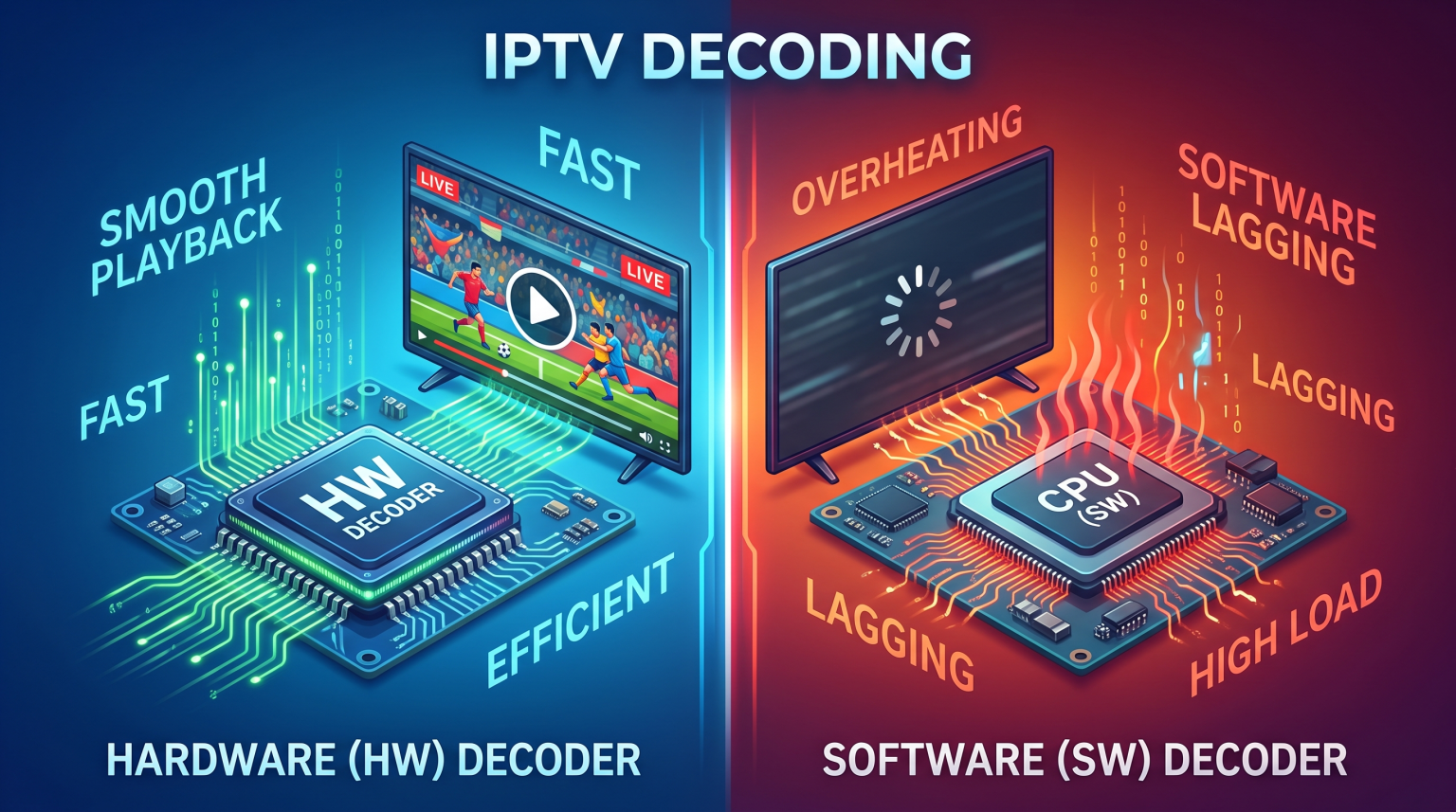
A hardware decoder uses a dedicated video chip inside your device to process the video stream. A software decoder uses the main processor (CPU) of your device to process the video using an application.
You should use the hardware decoder for most IPTV streaming. Hardware decoding is faster, prevents overheating, and provides smooth playback for 4K resolution and live sports. You should only use the software decoder as a backup setting if a specific video channel does not produce audio or video with the hardware decoder.
What Is an IPTV Hardware Decoder?
A hardware decoder uses a specific physical chip inside your device. This chip is built exclusively to process video files and streams.
When you select hardware decoding (often labeled as “HW” in IPTV applications), the application sends the video data directly to this dedicated chip.
Benefits of Hardware Decoding
Smooth playback: The dedicated chip processes video data very quickly. This prevents stuttering and dropped frames.
Support for high resolutions: Hardware decoding is usually required to play 4K video smoothly.
Lower power consumption: Because the video chip is very efficient, the device uses less electricity.
Less heat generation: The device stays cool during long streaming sessions.
Better multitasking: The main processor remains free to run the operating system and background applications.
Disadvantages of Hardware Decoding
Strict format limits: The hardware chip only supports specific video formats. If your IPTV stream uses an old or rare video format, the hardware decoder might fail to play it.
What Is an IPTV Software Decoder?
A software decoder does not use a dedicated video chip. Instead, it sends the video data to the main processor (CPU) of your device.
When you select software decoding (often labeled as “SW” in IPTV applications), the application software performs all the mathematical calculations to decompress the video.
Benefits of Software Decoding
High flexibility: A software decoder can play almost any video format. The software can be updated easily to support new or rare video codecs.
Reliable backup: If a stream shows a black screen or has no audio on the hardware decoder, the software decoder will usually fix the problem.
Disadvantages of Software Decoding
High processor usage: Video decoding requires massive amounts of data processing. This pushes the main CPU to its maximum limit.
Heating issues: High CPU usage creates extra heat. This can cause the device to overheat and slow down.
Poor 4K performance: Most main processors cannot decode 4K video fast enough. This causes heavy buffering, freezing, or skipped frames. If you want to know more about television resolution issues, read our guide on Pourquoi l'IPTV est-elle floue sur un téléviseur 4K neuf ?.
Comparison: Hardware Decoder vs Software Decoder
This table explains the main differences between the two decoding methods.
| Fonctionnalité | Décodeur matériel (HW) | Décodeur logiciel (SW) |
| Processing unit | Dedicated video chip | Main processor (CPU) |
| Performance speed | Très rapide | Plus lent |
| 4K video support | Excellent | Poor (often freezes) |
| Live sports motion | Smooth | Often stutters |
| Format flexibility | Limited to chip specifications | Excellent (plays almost anything) |
| Température de l'appareil | Remains cool | Gets warm or hot |
| Best use case | Default setting for all streaming | Backup setting for broken streams |
Which Decoder Is Better for Live Football?
Live football and other fast sports require smooth motion handling. Sports broadcasts often use high frame rates, such as 50 frames per second (fps) or 60 fps.
For live sports, you must use a hardware decoder.
The hardware decoder processes 50 fps and 60 fps streams perfectly. It sends the images to the screen exactly when they are needed. This prevents the football from looking blurry or duplicated when it moves quickly across the screen. You can learn more about how frame rates affect sports in our comparison of Téléviseurs 60 Hz ou 120 Hz pour le football en direct.
If you use a software decoder for live football, the main processor will struggle to process 60 frames every second. The CPU will skip frames to keep up with the live stream. This makes the camera movement look jerky and uncomfortable to watch.
Decoder Settings in IPTV Applications
When you use an IPTV service like TV Shadow IPTV, you usually connect via an M3U playlist or Xtream Codes login. You enter these details into an IPTV player application.
Most popular IPTV applications allow you to change the decoder settings.
How Decoders Work in Popular Apps
TiviMate : TiviMate uses hardware decoding by default. You can change this in the playback settings. TiviMate also offers an “Audio Decoder” setting. If you have video but no sound, you can set the video to hardware decoding and the audio to software decoding.
Smarters Pro: This application often has a setting called “Hardware Decoder.” You can turn this setting on or off in the player settings.
Other Android apps: Many Android applications use an option called “HW+”. This setting uses the hardware video chip, but it uses software code to manage the audio and streaming container. HW+ is a very stable setting for Android TV devices.
Hardware and Software Decoding on Smart TVs
Your choice of television can affect how well IPTV decoding works. Different TV brands use different operating systems and different processors.
Modern televisions from Samsung, Sony, and LG have excellent internal hardware decoders. They are designed to process 4K HDR streams efficiently.
However, the operating system limits which IPTV applications you can install. For example, Samsung Tizen limits certain applications, while Google TV allows many different media players. If you are shopping for a new television, you can check our guide to the Les meilleurs téléviseurs connectés pour l'IPTV en 2026 : comparaison entre Samsung, Sony, LG et TCL.
Smart TV applications usually select the hardware decoder automatically. The television operating system does not always allow the user to switch to a software decoder. If you use a dedicated Android TV box or an Amazon Fire TV Stick, you will have more control over the decoder settings.
Conclusion
Understanding the difference between an IPTV hardware decoder and a software decoder will help you get the best streaming experience.
For the vast majority of users, the hardware decoder (HW) is the correct choice. It utilizes the dedicated video chip in your television or streaming device to provide smooth 4K playback, perfect motion for live football, and efficient power usage.
The software decoder (SW) is an important backup tool. If you encounter an old video format that shows a black screen, switching to the software decoder will usually fix the problem. By keeping your application set to hardware decoding most of the time, your TV Shadow IPTV service will run smoothly and reliably.
Foire aux questions (FAQ)
What do HW and SW mean in my IPTV app?
HW means Hardware Decoder. SW means Software Decoder. These settings control which microchip in your device processes the video stream.
Should I use the HW or SW decoder for IPTV?
You should always use the HW (Hardware) decoder as your main setting. It provides the best picture quality, handles 4K video easily, and prevents your device from overheating.
Why does my IPTV stream buffer on software decoding?
Software decoding uses the main processor (CPU) of your device. Televisions and streaming sticks usually have weak main processors. The processor cannot decode the video data fast enough, which causes the video to pause and buffer.
Does hardware decoding improve picture quality?
Yes, hardware decoding improves the viewing experience. It does not change the colors, but it stops the video from dropping frames. This makes the motion look smooth and natural, especially during live sports.
What is the HW+ decoder setting?
The HW+ setting is available in some Android applications. It uses the hardware chip for the video image, but it uses the software for the audio and the stream connection. HW+ is an excellent choice if the standard HW setting causes audio problems.
How do I change the decoder in my IPTV app?
Open your IPTV application and look for the “Settings” menu. Find the “Playback” or “Player” section. Look for an option called “Decoder,” “Hardware Decoding,” or “Video Engine.” Select your preferred setting and restart the application.