
Are you settling in for movie night only to realize your IPTV has picture but no sound? It is incredibly frustrating to see a perfect high-definition stream but sit in total silence. Don’t worry this common audio glitch is usually a quick settings fix.
Whether you are streaming local sports in the US or enjoying international cinema, missing audio is a known quirk with modern streaming apps. A simple codec mismatch or hidden device setting is almost always the culprit. In this guide, we will walk you through exact troubleshooting steps to restore your sound in minutes.
Why Are You Getting IPTV No Sound?
Before diving into the fixes, it helps to know why your stream went silent. Live television platforms use various encoding formats to deliver content over the internet.
If your device cannot read the specific audio format being broadcasted, it will display the video while dropping the sound entirely. Common reasons include incorrect output settings on your streaming stick, outdated application versions, or an IPTV audio codec error. Sometimes, users accidentally hit a hidden mute function mapped to their remote’s directional pad without realizing it.
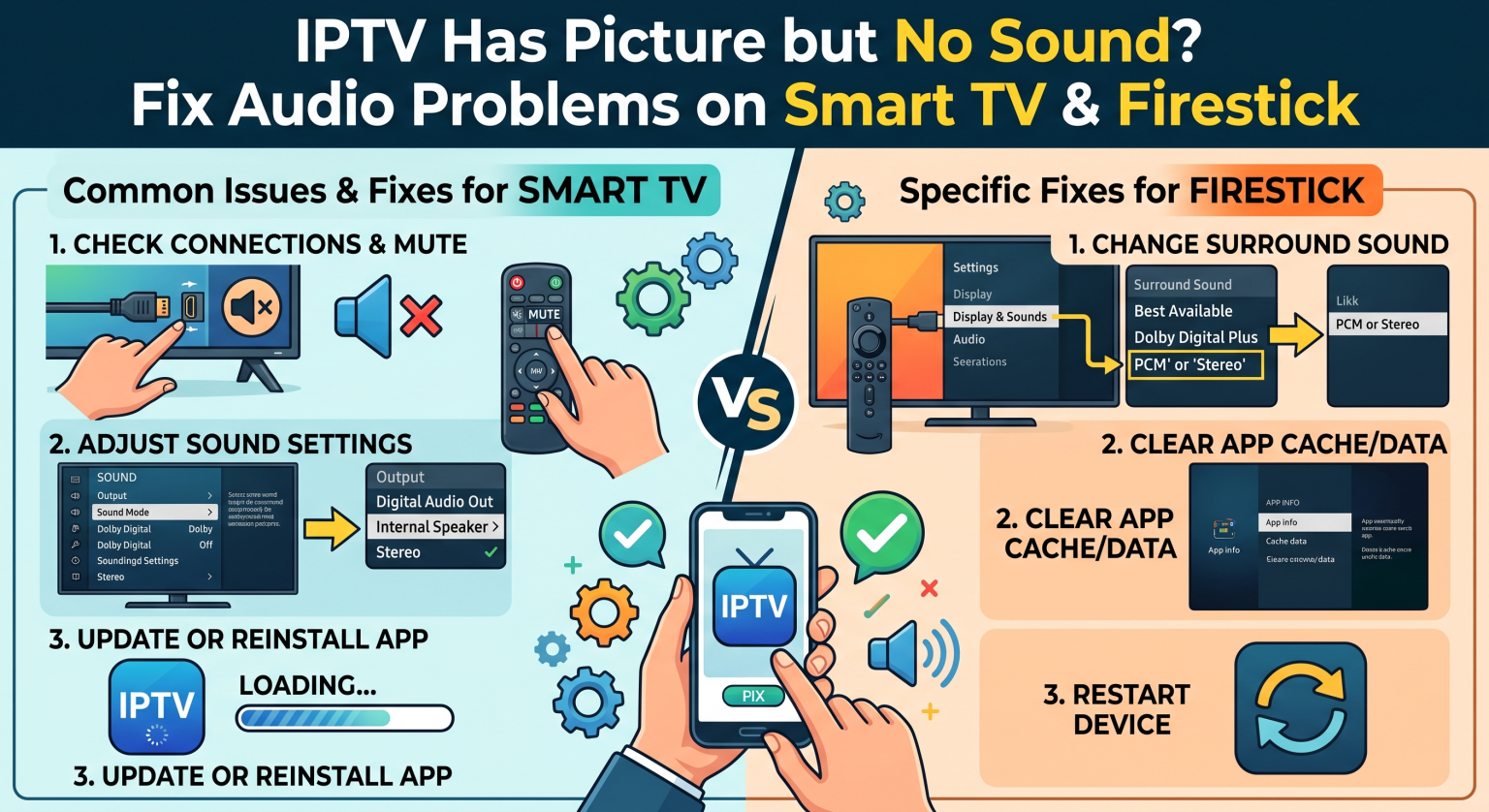
Step-by-Step Firestick IPTV Audio Fix (US & Global Settings)
Amazon Fire TV devices are wildly popular across the US, but they are notorious for audio dropouts on third-party apps. Si vous êtes confronté à IPTV : pas de son on a Firestick, adjusting your primary display and sound settings is your best starting point.
Follow these steps to restore audio on your Amazon device:
Accédez à votre Firestick Paramètres from the home screen.
Sélectionner Affichage et sons, then scroll down to Audio.
Cliquez sur Surround Sound and change the output to PCM (Pulse-Code Modulation).
Restart your device by unplugging it from the wall for 60 seconds.
Switching to PCM forces your Firestick to output a standard two-channel stereo signal. This simple tweak immediately resolves most codec compatibility issues on modern streams.
How to Solve Smart TV IPTV No Audio Issues
Built-in smart television apps are convenient, but their internal processors sometimes struggle with complex live broadcast signals. If you have a Samsung, LG, or Android TV facing Smart TV IPTV no audio, the fix usually lies within the app itself.
Many popular applications, such as Smart STB or IPTV Smarters, feature built-in audio decoders. You need to jump into the advanced settings of your specific application and enable the Alternative audio decoder. This forces the software to handle the audio track instead of relying on your television’s native hardware, which often lacks the necessary licenses for premium sound codecs.
Decoding Audio Formats Comparison
Not sure which audio setting to choose? Use this quick comparison table to understand the best configuration for your setup:
| Audio Setting | Comment ça marche ? | Idéal pour |
| Hardware Decoder | Uses your TV/Firestick’s built-in processing chip. | Standard streams without complex surround sound formats. |
| Software Decoder | Uses the app itself to process the audio stream. | Réparer un IPTV audio codec error when hardware fails. |
| Audio Passthrough | Sends untouched audio directly to a receiver. | Home theater setups (Dolby Digital, DTS, Soundbars). |
| PCM (Stereo) | Downmixes complex surround audio into 2-channel sound. | Older setups struggling with Smart TV IPTV no audio. |
Fixing Specific App Issues: TiviMate & Smart IPTV
Sometimes, the overarching device settings are perfectly fine, but the specific application is causing the headache. For example, if you are experiencing TiviMate no sound, navigate to the specific channel’s options and switch the audio decoder from Hardware to Software. You can also enable Audio Passthrough in TiviMate’s playback settings if you use an external soundbar.
On the popular Smart IPTV app, users often unknowingly mute the internal application volume. Pressing and holding the “Up” arrow on your remote’s directional pad for a few seconds will raise the app’s internal volume back to an audible level. Furthermore, if you are playing custom streams on a computer, choosing the correct VLC IPTV audio track from the top menu bar will instantly sync up the correct language and sound.
Conclusion: Get Your Sound Back Today
Faire face à un IPTV : pas de son error doesn’t have to ruin your weekend viewing plans. By tweaking your Firestick’s surround sound settings to PCM, toggling your app’s software decoders, and double-checking internal volume levels, you can solve this frustrating issue in minutes. Whether you are streaming from a major US city or a rural town, these universal fixes apply to almost all modern setups.
Are you tired of constantly troubleshooting your streaming setup? Upgrade your streaming experience today by investing in a premium, top-tier IPTV player. Check out our latest reviews of the best Android TV boxes and streaming applications to guarantee a flawless, high-definition viewing experience every time!
Questions fréquentes (FAQ)
How do I fix IPTV audio out of sync?
If your sound is lagging behind the picture, try clearing the cache of your streaming app in your device settings. You can also use the “Audio Delay” or “Audio Offset” features found in premium apps like TiviMate to manually synchronize the track.
Why does my IPTV have picture but no sound on certain channels?
This happens when specific channels are broadcast using an audio format your device doesn’t natively support. Switching your app’s playback settings to use a “Software Decoder” will usually bypass this limitation and restore the sound.
Will a VPN fix my IPTV no sound problems?
No, a VPN is primarily used to prevent ISP throttling and buffering issues. While it improves video playback stability, audio dropouts are purely related to hardware settings, volume configurations, and codec mismatches.