
When a live stream stops unexpectedly, viewers often blame their internet connection. However, the problem frequently involves either the IPTV service server or the device playing the video. Understanding the difference between IPTV provider vs decoder freezing helps you fix the issue faster and prevents unnecessary equipment purchases.
This guide explains how to identify the exact cause of video buffering, stuttering, or freezing. You will learn how to test your equipment, understand hardware limitations, and ensure smooth playback for live television.
Réponse rapide
To identify the cause of IPTV freezing, test the same live channel on a different device, such as a smartphone or computer. If the channel freezes on the Smart TV but plays perfectly on the smartphone, the Smart TV video decoder is the problem. If the channel freezes on both devices, the IPTV provider or the internet connection is the problem. Video decoders usually struggle with high-resolution video formats. Providers usually struggle with server capacity during major events.
What Is a Video Decoder?
Before diagnosing the problem, you must understand how digital video works. A video decoder is a specific component inside your television, streaming stick, or set-top box.
When an IPTV provider sends a video stream over the internet, the video data is compressed. The video decoder receives this compressed data and translates it into the visible pictures on your screen.
Decoders can be hardware or software:
Hardware decoders: Physical computer chips inside the television built specifically to process video formats like H.264 or HEVC (H.265). These are fast and efficient.
Software decoders: Application programs that use the main device processor to translate video. These are slower and often cause freezing on weak devices.
Signs the Video Decoder Is Causing the Freezing
If your device hardware is too weak to process the video stream, the playback will fail. This is very common on older Smart TVs or cheap streaming sticks.
Look for these specific signs that the video decoder is failing:
1. Audio Plays but Video Stops
If you hear the audio perfectly, but the picture freezes on a single frame, the video decoder is failing. Audio data requires very little processing power. Video data requires massive processing power. When a device reaches its performance limit, the video stops first.
2. High-Resolution Channels Fail Exclusively
If standard definition (SD) and high definition (HD) channels play smoothly, but 4K channels freeze immediately, your decoder cannot handle the 4K data size. 4K streams require modern HEVC (H.265) hardware decoding.
3. Device Menus Become Very Slow
When a software decoder uses 100% of the device processor, the entire television will operate slowly. If your remote control button presses take several seconds to register while watching a stream, the device is overloaded.
4. Overheating Equipment
Video decoding creates heat. If your streaming stick or Android box feels extremely hot to the touch, the device may reduce its processing speed automatically to prevent permanent damage. This speed reduction causes immediate video stuttering. If you notice strange picture quality alongside the freezing, our guide on Pourquoi l'IPTV est-elle floue sur un téléviseur 4K neuf ? explains related television processing issues.
Signs the IPTV Provider Is Causing the Freezing
Sometimes the hardware works perfectly, but the source of the video is failing. IPTV providers operate computer servers that distribute the video streams to thousands of users.
Look for these signs that the IPTV provider is responsible:
1. Freezing Happens Only During Major Events
If your service works perfectly all week but freezes during a highly popular sports final, the provider servers are likely overloaded. Too many users are connecting to the same server simultaneously, and the provider lacks the bandwidth to supply data to everyone.
2. The Problem Happens Across All Devices
If you install your IPTV application on a modern smartphone, a powerful computer, and a Smart TV, and the exact same channel freezes at the exact same time on all three devices, the provider is failing. You can confidently exclude hardware decoders as the cause.
3. Specific Channels Fail Completely
If 95% of your channel list plays flawlessly, but one specific news channel freezes constantly, the provider has a bad source feed for that specific channel. This is not a decoder problem.
4. Video on Demand (VOD) Works Perfectly
Live television requires continuous, real-time data delivery. Movies and television series in a VOD library are stored files. If VOD content plays without buffering, but live television freezes, the provider may be struggling with real-time live routing.
Comparison: Provider Issues vs. Decoder Issues
Use this simple comparison table to evaluate your specific IPTV provider vs decoder freezing symptoms.
| Symptôme | Most Likely Cause | Explanation |
| Audio continues, video stops | Video Decoder | The processor cannot translate the video data fast enough. |
| Freezing during big sports matches | Fournisseur IPTV | The server cannot handle the high number of connected users. |
| Freezing only on 4K channels | Video Decoder | The hardware does not support high-efficiency 4K decoding. |
| Freezing on all channels, all devices | Fournisseur IPTV | The main server network is experiencing technical problems. |
| TV remote control responds slowly | Video Decoder | The IPTV application is using all available device memory. |
How to Test and Fix the Freezing Problem
Follow these logical steps to test your system and fix the buffering.
Step 1: Perform the Secondary Device Test
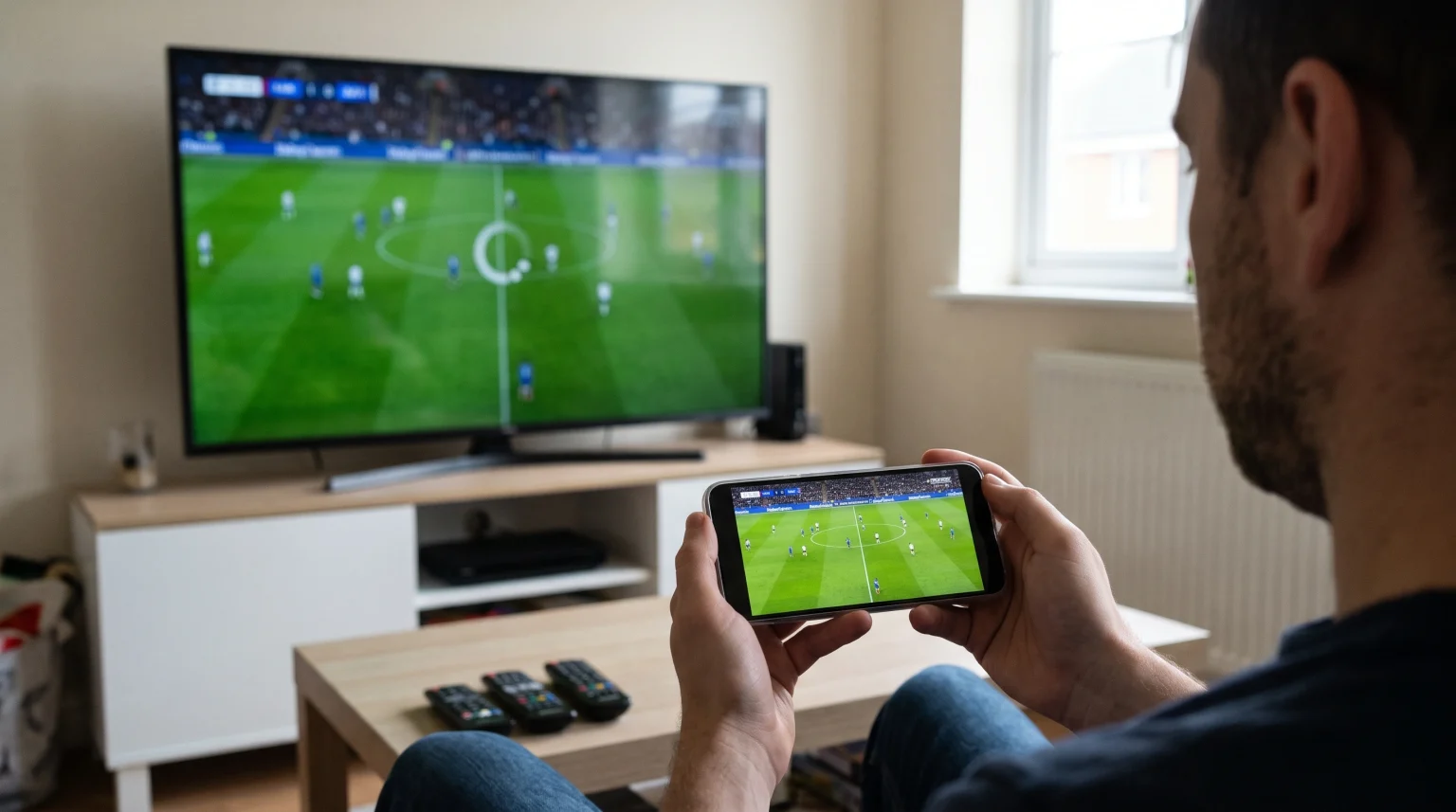
This is the most important test. Download an IPTV player application on your smartphone. Connect the smartphone to the same Wi-Fi network as your television. Play the channel that is freezing.
Result A: If the phone plays the stream perfectly, your television video decoder is weak. You need to buy a dedicated external streaming device.
Result B: If the phone also freezes, proceed to Step 2.
Step 2: Test the Network Connection
Your internet service provider (ISP) might be the problem. Connect your television directly to your internet router using an Ethernet cable.
Result A: If the freezing stops, your Wi-Fi signal was unstable. Keep using the Ethernet cable.
Result B: If the freezing continues, your home network is fine. Proceed to Step 3.
Step 3: Change the Player Application
Some Smart TV applications contain poorly written software decoders. Try switching to a different application. For example, if you are using a basic free player, try a premium player that offers hardware decoding options in the settings menu. If you are shopping for a new television, our guide to the Les meilleurs téléviseurs connectés pour l'IPTV en 2026 : comparaison entre Samsung, Sony, LG et TCL details which operating systems offer the best application choices.
Step 4: Contact the Provider
If you have tested multiple devices, used an Ethernet cable, and tried different applications, the IPTV provider is responsible. Contact their technical support team and provide your test results.
Why Live Football Streams Freeze More Often
Live football and other fast-moving sports place maximum stress on both the IPTV provider and the video decoder.
For the provider, football matches generate sudden spikes in server traffic. Thousands of users log in at the exact same minute.
For the video decoder, live sports require high bitrate processing. A static news broadcast contains very little changing data on the screen. A football match features a camera moving rapidly across a green field with multiple players running. The video decoder must process massive amounts of new data every millisecond to keep the image sharp.
If your television processor is weak, the device will drop video frames to survive the data load, resulting in a stuttering image. To understand how television hardware handles fast motion, read our comparison of Téléviseurs 60 Hz ou 120 Hz pour le football en direct.
Choosing the Right Setup for TV Shadow IPTV
To get the best experience with TV Shadow IPTV, we recommend using a balanced setup. TV Shadow IPTV utilizes modern servers to deliver stable feeds, but you must ensure your local equipment can process the signal.
Use External Devices: Televisions usually have weak internal processors. An external streaming stick from a major brand provides a much stronger hardware video decoder.
Use Ethernet: Always connect your main streaming device to your router with a physical cable. This eliminates Wi-Fi interference.
Select Hardware Decoding: Inside your chosen IPTV player application settings, always select “Hardware Decoding” or “HW+” instead of “Software Decoding”. This forces the device to use its dedicated video computer chip.
Conclusion
Determining the difference between IPTV provider vs decoder freezing saves time and frustration. When a stream stops, always remember to test the channel on a powerful secondary device like a modern smartphone. If the smartphone plays the video smoothly, your television video decoder is the problem. If all devices freeze simultaneously, the IPTV provider or your internet connection is responsible. By understanding how video data is processed, you can make the right adjustments to enjoy uninterrupted live entertainment with TV Shadow IPTV.
Foire aux questions (FAQ)
Can my internet speed cause IPTV freezing?
Yes. If your internet download speed is below 15 Mbps, high-definition streams will buffer because the data arrives too slowly. However, if your speed is above 50 Mbps and you still experience freezing, the problem is usually the provider or the decoder.
Why does my screen go completely black and return to the main menu?
This usually indicates an application crash caused by the video decoder. The television runs out of working memory (RAM) while processing the stream, forcing the operating system to close the application completely to protect the television.
Will changing my DNS settings fix decoder freezing?
No. DNS settings only change how your device finds website addresses. Changing the DNS can sometimes help connect to a provider server faster, but it will not improve a weak video decoder processor.