
When you watch a stream, you expect smooth video. Sometimes, an IPTV video plays in slow motion while the audio continues at normal speed. This problem ruins the viewing experience, especially during live sports or action movies. The slow motion effect happens when the device cannot process the video frames fast enough, or when the video player settings conflict with the video stream format.
Understanding why your IPTV video plays in slow motion is the first step to fixing the problem. The issue usually originates from incorrect video decoder settings in your IPTV app, mismatched frame rates, aggressive Smart TV motion processing, or poor network stability. By adjusting a few specific playback settings on your Smart TV or streaming device, you can usually restore smooth video playback and prevent audio synchronization issues.
Réponse rapide
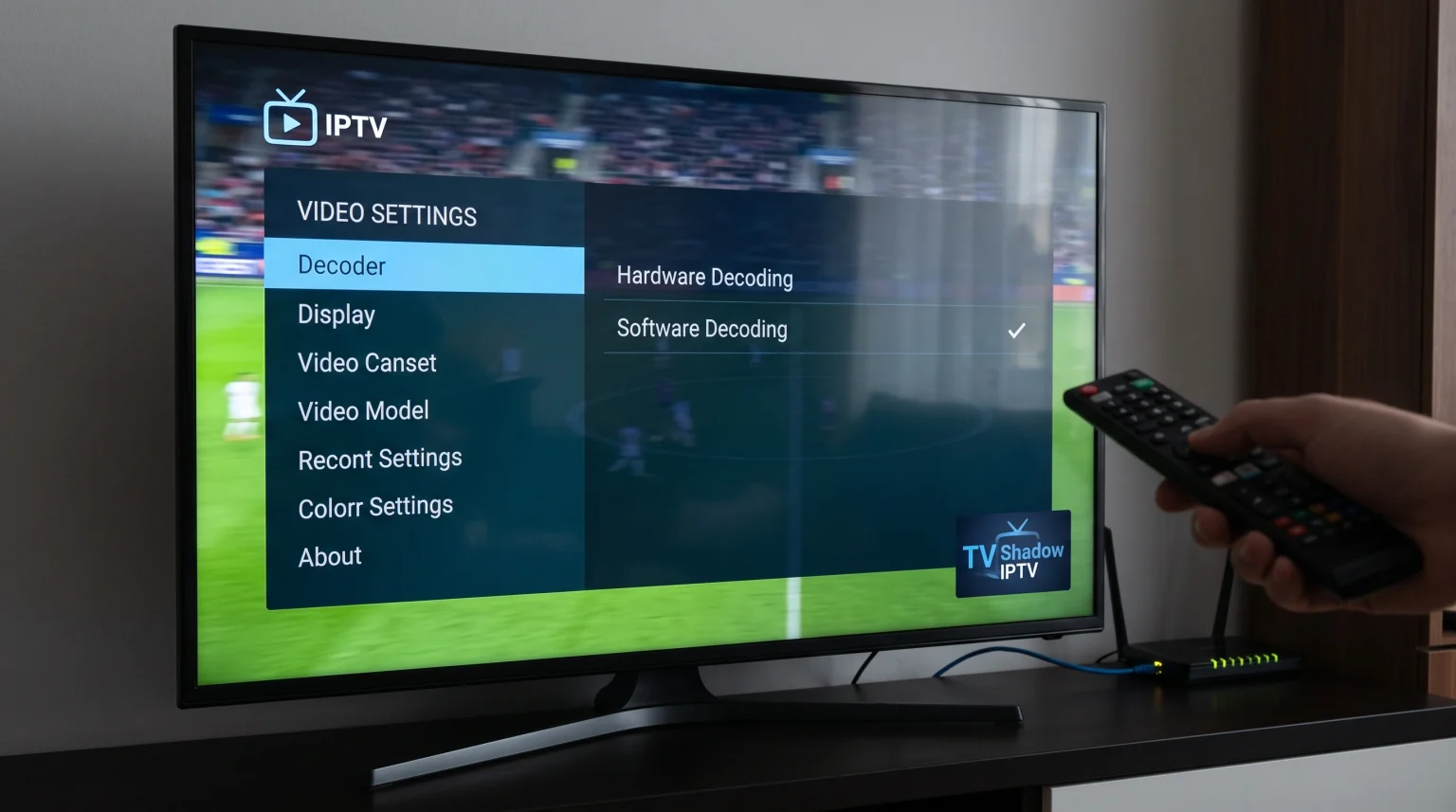
If your IPTV video plays in slow motion, the most common cause is a video decoding error. To fix this immediately, open your IPTV app settings and change the video decoder from “Hardware Decoding” to “Software Decoding” (or vice versa).
Other causes include a frame rate mismatch between the broadcast and your television screen, or your Smart TV using aggressive motion smoothing features. You should also restart your television and check your internet connection, because network latency can force the video player to drop frames and create a slow-motion effect.
Décodage matériel vs décodage logiciel
IPTV applications use decoders to translate the video data into images on your screen. Most IPTV video slow motion problems relate to how your device handles this decoding process.
| Fonctionnalité | Décodage matériel | Décodage logiciel |
| Lieu de traitement | Television or device microchip | Logiciel d'application IPTV |
| Power efficiency | High efficiency | Lower efficiency |
| Compatibilité | Fails on some complex video formats | Works on almost all video formats |
| Vitesse | Très rapide | Slower on older devices |
| Recommended use | Default setting for modern Smart TVs | Fallback setting if video plays in slow motion |
If your device hardware does not support the specific video codec used by the IPTV stream, the hardware decoder will struggle. This struggle often results in the IPTV video playing in slow motion. Switching to software decoding forces the IPTV application to process the video, which usually resolves the compatibility problem.
Common Causes of IPTV Video Slow Motion
Several distinct factors can cause your IPTV video to play in slow motion. Identifying the exact cause helps you apply the correct solution.
Frame Rate Mismatch
Video streams transmit at specific frame rates, such as 25, 30, 50, or 60 frames per second (fps). Your television also refreshes its screen at a specific rate, usually 60Hz or 120Hz. If the IPTV stream provides 50 frames per second, but your television tries to display 60 frames per second without proper synchronization, the video can stutter or appear to play in slow motion. Some IPTV apps feature Auto Frame Rate (AFR) settings to synchronize the video and the screen.
Smart TV Motion Processing
Modern televisions from brands like Samsung, Sony, and LG include motion smoothing technologies. Manufacturers design these features to make movies look smoother. However, motion smoothing can interfere with live television broadcasts. If the television processor cannot calculate the artificial frames fast enough, the video may slow down. Disabling motion smoothing in your Smart TV picture settings often fixes this issue.
Device Memory Overload
Smart TVs and streaming sticks have limited Random Access Memory (RAM). If you open many applications, the device memory fills up. When the IPTV application does not have enough memory to process high-quality video streams, the video playback slows down. Restarting your television or streaming device clears the memory.
Network Latency and Packet Loss
A slow internet connection usually causes buffering. However, an unstable internet connection with high packet loss can cause the IPTV app to play video in slow motion. The IPTV application tries to keep playing the video even when pieces of the video data are missing. This struggle to maintain playback with missing data creates a slow-motion visual effect.
How to Adjust Playback Settings in IPTV Apps
You can solve most slow-motion problems by changing settings directly inside your IPTV player. Different IPTV applications have different menus, but you should look for these common settings:
1. Change the Media Player Engine
Many advanced IPTV applications allow you to choose the internal media player. Common options include ExoPlayer, VLC, or System Player. If ExoPlayer shows the IPTV video in slow motion, switch the setting to VLC. The VLC engine handles complex video codecs better on many devices.
2. Switch the Video Decoder
Navigate to your IPTV application settings and locate the decoding options. If the app uses hardware decoding (often labeled as HW), change this setting to software decoding (often labeled as SW). Save the settings and restart the video stream.
3. Enable Auto Frame Rate (AFR)
If your IPTV application includes an Auto Frame Rate option, turn this feature on. AFR forces your television to match the exact frame rate of the video stream. This synchronization prevents the television from duplicating frames and causing slow motion.
If you want to know more about television operating systems and how they handle IPTV applications, read our guide to Meilleur système d'exploitation pour Smart TV dédié à l'IPTV en 2026 : Tizen, Google TV et webOS en comparaison].
Diffusion en direct de matchs de football et d'autres événements sportifs
Live sports broadcasts push television hardware to the maximum limit. Football matches contain fast camera movements, complex graphics, and bright colors. If an IPTV video plays in slow motion during a football match, the viewing experience is completely ruined.
To get the best results for live football, you must understand your television hardware. A television with a 120Hz refresh rate handles fast motion much better than a television with a 60Hz refresh rate. The faster refresh rate reduces motion blur and prevents slow-motion artifacts during fast camera panning. To understand this difference completely, you can read our detailed comparison of Téléviseurs 60 Hz ou 120 Hz pour le football en direct.
Additionally, you should always connect your Smart TV or streaming device directly to your internet router using an Ethernet cable when watching live football. A wired connection prevents the network latency that can trigger slow-motion video problems over Wi-Fi.
Smart TV Processing and Upscaling
When you watch a standard definition (SD) or high definition (HD) IPTV stream on a new 4K television, the television must upscale the video. Upscaling is a process where the television processor invents millions of new pixels to fill the 4K screen.
If the television processor is slow, or if you apply too many picture enhancement features at the same time, the processor cannot upscale the video fast enough. This delay causes the audio to play ahead of the video, making the video appear to play in slow motion. Turning off noise reduction and sharpness enhancements can reduce the workload on your television processor. If you notice image quality issues alongside the slow motion, read our explanation of Pourquoi l'IPTV est-elle floue sur un téléviseur 4K neuf ?
Compatibilité TV Shadow IPTV
TV Shadow IPTV provides high-quality M3U and Xtream Codes connections. These formats are compatible with all major IPTV player applications on Android, Google TV, Samsung Tizen, LG webOS, and Amazon Fire TV.
TV Shadow IPTV streams deliver standard broadcast frame rates. If you experience slow-motion video while using a TV Shadow IPTV playlist, the issue is almost certainly related to your local device settings. Applying the decoding changes and network improvements listed in this article will resolve the problem in most cases.
Conclusion
An IPTV video playing in slow motion is a frustrating problem, but it is rarely permanent. The issue almost always relates to how your Smart TV or streaming device translates the video data. By switching from hardware decoding to software decoding, adjusting your television motion settings, and ensuring a stable wired internet connection, you can eliminate the slow-motion effect. Understanding your device playback settings ensures that your TV Shadow IPTV streams always deliver a smooth and enjoyable viewing experience.
Foire aux questions
Why does my IPTV video play in slow motion but the audio is normal?
Lorem ipsum dolor sit amet, consectetur adipiscing elit. Ut elit tellus, luctus nec ullamcorper mattis, pulvinar dapibus leo.
Will buying a new Smart TV stop the slow-motion problem?
Lorem ipsum dolor sit amet, consectetur adipiscing elit. Ut elit tellus, luctus nec ullamcorper mattis, pulvinar dapibus leo.
Does my internet speed cause the slow-motion effect?
Lorem ipsum dolor sit amet, consectetur adipiscing elit. Ut elit tellus, luctus nec ullamcorper mattis, pulvinar dapibus leo.
Should I use hardware decoding or software decoding for IPTV?
Lorem ipsum dolor sit amet, consectetur adipiscing elit. Ut elit tellus, luctus nec ullamcorper mattis, pulvinar dapibus leo.
Why does live football play in slow motion on my IPTV app?
Live football streams often use 50 or 60 frames per second. If your IPTV app settings or television motion smoothing features cannot process these fast frames correctly, the broadcast will appear in slow motion.